One Cool Tip Newsletter

October 14, 2026

Your daily dose of tech-savvy brilliance!

😀 Greetings! Happy Windows Wednesday, Cool Tipper!


Get ready to streamline your digital life with simple, actionable tips delivered straight to your inbox.


Cool Tip Theme: Windows 11: Open Apps Maximized


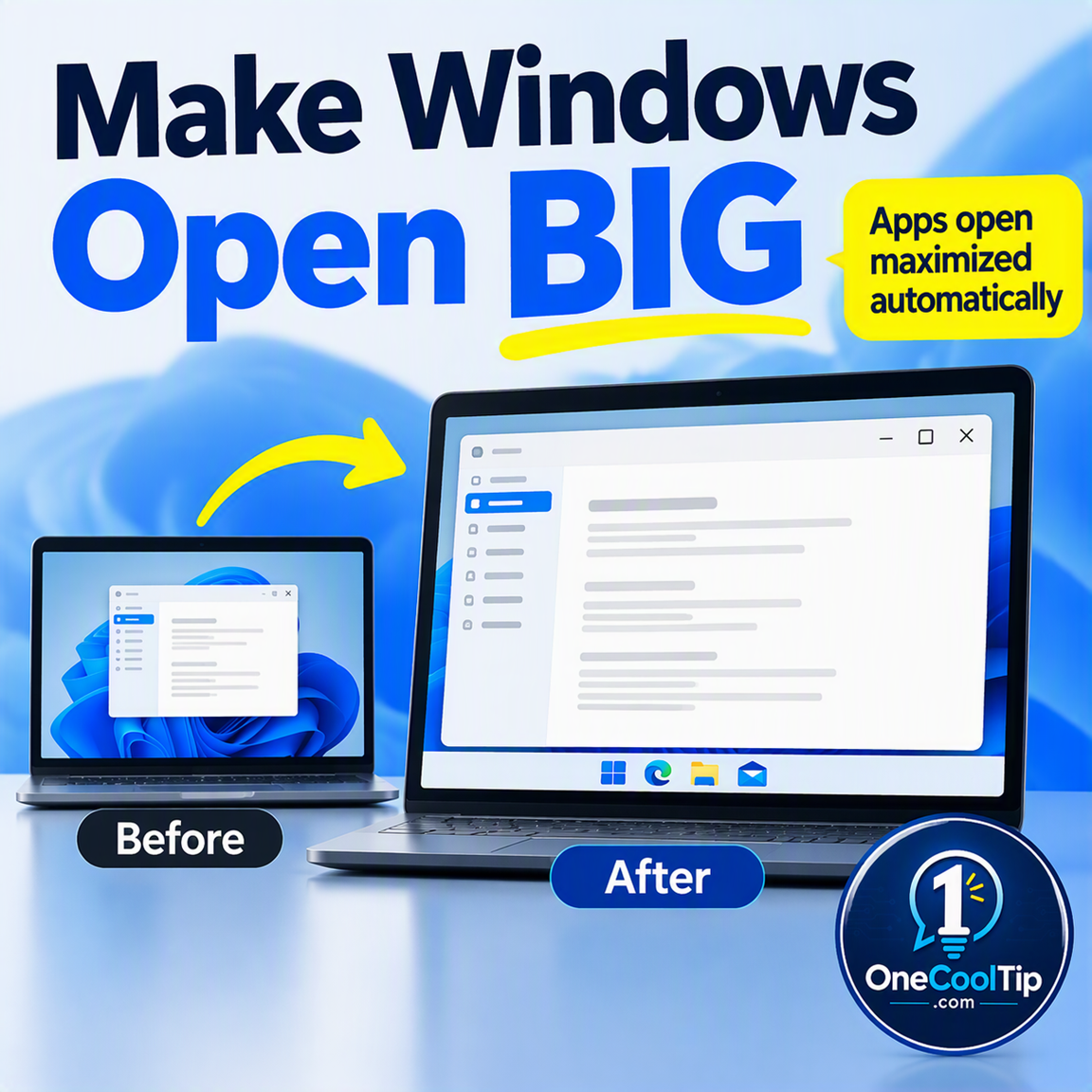
Windows 11 can now open apps maximized automatically. Learn how to turn on Open apps maximized and eliminate an annoying extra click.


New here? Subscribe to the One Cool Tip Newsletter for daily updates. It's FREE!

3️⃣

If you enjoy the One Cool Tip Newsletter, please forward this newsletter to THREE friends or colleagues or share it on social media using the links below.


Leave a $$$ Tip!


Share this One Cool Tip Newsletter!

X Share This Email
LinkedIn Share This Email
Pinterest Share This Email

🚨 That Easy Remote Job Could Be a Trap🚨


The FBI is warning Americans about fake job opportunities connected to North Korean remote IT worker schemes.


Criminals may advertise freelance work that seems simple, such as appearing in a job interview for someone else, receiving or hosting a laptop, or providing access to a personal social media or professional networking account.


Some operations even create fake companies and official-looking documents to make the offers appear legitimate.


The FBI warns that people may be recruited knowingly or unknowingly, with financially stressed individuals specifically targeted for paid assistance.


Never provide personal information, financial details, account logins, or your identity in exchange for payment from someone you do not trust.


The Cool Tip:


If a remote job asks you to impersonate someone, provide access to your accounts, or keep someone else's work computer connected at your home, walk away and report the approach to the FBI.


And in Other News...


  • Your PC Could Lose Windows Updates in 2027. Check This Now


Some certificates that Windows Update uses to establish trusted connections are scheduled to expire on May 17 and June 19, 2027.


PCs without the replacement certificates could lose access to Windows Update after the applicable expiration date.


Microsoft is distributing replacement certificates through Windows security updates, and supported versions of Windows 11 are receiving them automatically through normal updating.


For most home users, the easiest protection is simply to keep Windows up to date and avoid postponing security updates indefinitely.


PCs running older, unsupported versions of Windows may need to upgrade to a supported version to continue receiving updates.


The Cool Tip:


Open Windows Update regularly and install available security updates so your PC is ready well before the 2027 certificate deadline.

Cool Tip Poll

🤔 How do you normally open your Windows apps?

Cool Deals of the Day

  • Have you tried the Upside app? Everyday cash back on gas, groceries and dining.


Help support One Cool Tip. Use this Amazon link when you shop online.


Check out these Cool Deals:

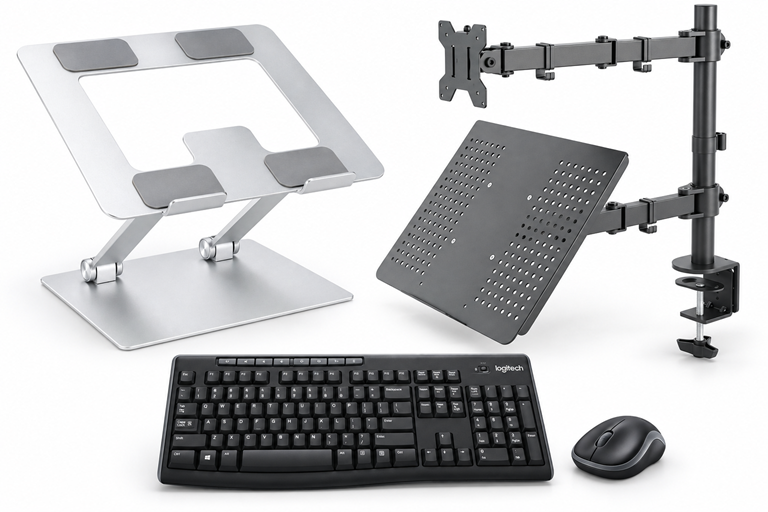
⌨️ Logitech MK270 Wireless Keyboard and Mouse Combo: A simple wireless desktop setup for Windows users.

 Save 10%. Now $26.95. 4.5 Stars. Check it out on Amazon!


💻 Amazon Basics Portable Adjustable Ergonomic Laptop Stand: A practical companion for laptop users who want to raise their display while working with maximized applications.

Overall Pick! Now $29.99. 4.6 Stars. Check it out on Amazon!


🖥️ VIVO Adjustable Laptop and Single Monitor Desk Mount: It can help create a more flexible laptop-and-monitor Windows workspace.

Overall Pick! Now $49.99. 4.5 Stars. Check it out on Amazon!


*Prices accurate when originally published.

One Cool Tip may earn a commission from qualifying purchases.

Fuel Your Adventure

Try Big Mike's Jerky!


bigmikesjerky.com


Today's Cool Tip

Stop Resizing Windows: Make Apps Open Maximized

Tired of opening an app only to immediately click the Maximize button?


A new Windows 11 accessibility setting can automatically maximize app windows as they open, eliminating one small but repetitive step.

By Rodger Mansfield, Technology Editor

October 14, 2026

Subscribe


Open an app. 


Click Maximize. 


Open another app. 


Click Maximize again.


If that's part of your daily Windows routine, Microsoft has added a simple setting that can eliminate those extra clicks.


Called "Open apps maximized," the new Windows 11 accessibility option automatically maximizes app windows when they open. 


Microsoft introduced it in the September 22, 2026 optional preview update, KB5124010, for Windows 11 versions 24H2, 25H2, and 26H2.


The feature is also part of the improvements carried forward into Microsoft's October 13, 2026 security update, KB5127648.


There's one catch. 


Microsoft is delivering Open apps maximized through a gradual rollout, which means it may reach different PCs at different times. 


Feature availability depends on the device and market.


For people who prefer working with a large app window, particularly on laptops or smaller displays, this is the kind of tiny Windows improvement that could quietly make everyday computing easier.


Here’s a Cool Tip: Let Windows maximize your apps automatically.


What Is Open Apps Maximized?


Open apps maximized is an accessibility setting that tells Windows 11 to automatically maximize application windows as they open.


Think about how often you open your browser, File Explorer, Word, Outlook, or another application and immediately click the Maximize button. 


If you almost always want your apps using the available workspace, Windows can now take care of that step.


Microsoft positions the feature as an accessibility improvement. 


It can reduce everyday friction for people who use a screen reader or magnification, work in tablet mode, or simply prefer a consistent larger workspace.


But you don't need to use accessibility tools to benefit. 


Anyone who routinely maximizes apps may find it useful.


That could include laptop owners working on smaller screens, older adults who prefer larger app windows, students concentrating on one application at a time, or business users who spend much of their day inside one primary program.


It isn't a dramatic Windows makeover. 


It's simply Windows remembering how you'd prefer your applications to open.


And sometimes that's exactly what makes a good Cool Tip.


What You’ll Gain


  • Save clicks: Stop repeatedly pressing the Maximize button.
  • See more: Start applications using more of the available workspace.
  • Reduce window fuss: Spend less time resizing applications.
  • Improve accessibility: Automatically use larger application windows.


Step-by-Step Instructions


Here's how to do it.


Windows 11


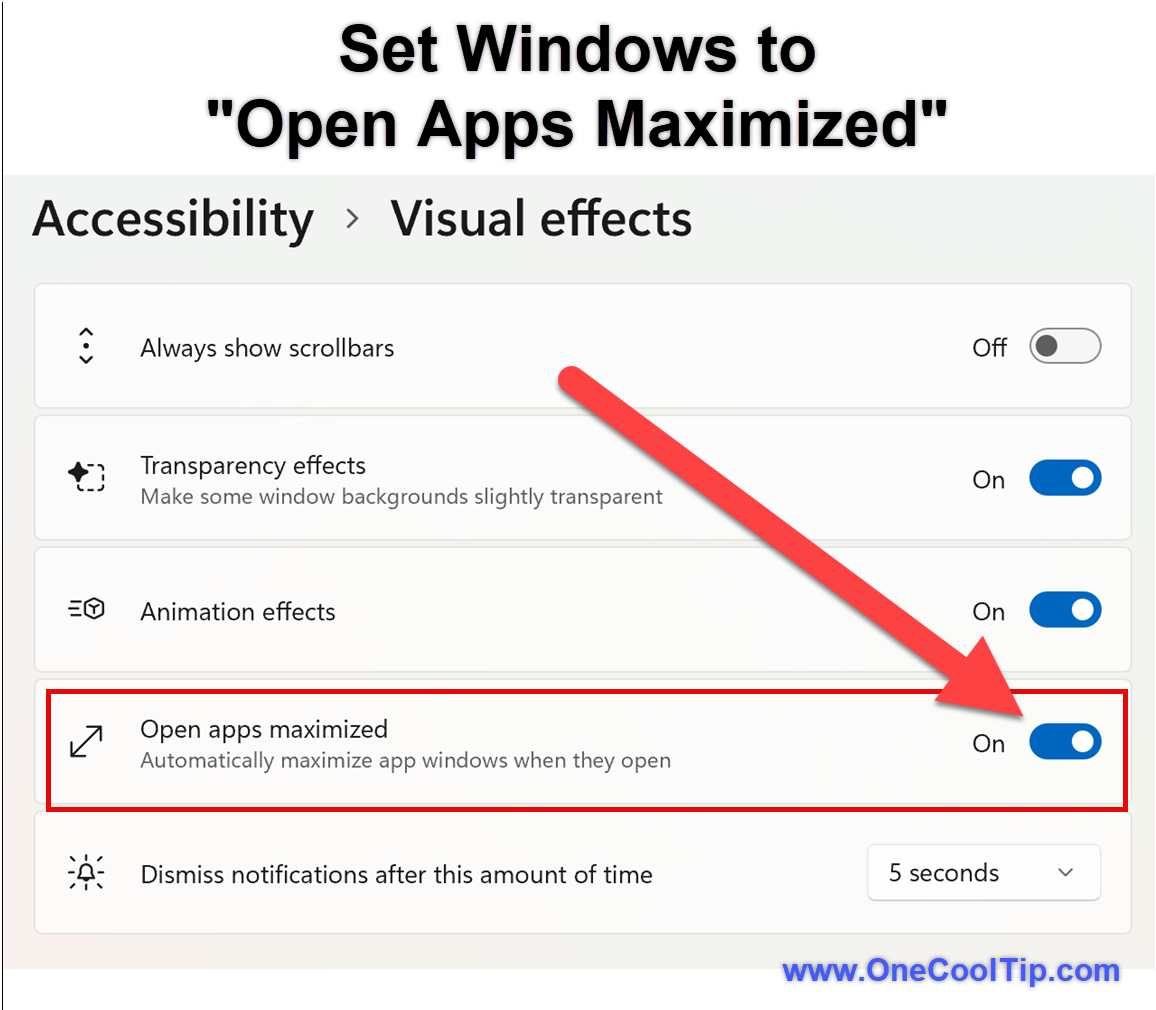
  1. Open Settings.
  2. Select Accessibility.
  3. Select Visual effects.
  4. Find Open apps maximized.
  5. Turn Open apps maximized On.
  6. Open an application to try the new behavior.

fig. 1 - Set Windows to "Open Apps Maximized"

Try This


Suppose you open your browser every morning and immediately maximize it.


Turn on Open apps maximized and see whether Windows eliminates that extra step from your routine.


If the setting isn't listed under Visual effects, don't panic.


These features are rolling out gradually, so availability can vary by device and market.


Pros and Cons


Pros:


  • Fewer repetitive clicks: Especially useful if maximizing windows is already part of your routine.
  • Easy to configure: Just one toggle under Accessibility.
  • Accessibility benefit: Larger app windows may make applications easier for some people to use.
  • Handy for laptops: Especially useful if you normally devote your screen to one application.
  • Easy to reverse: Turn the setting off whenever you prefer traditional window behavior.


Cons:


  • Less useful for multitaskers: If you intentionally arrange several smaller windows on the desktop, automatic maximization may not suit your workflow.
  • Gradual rollout: You may not see the setting immediately, even on an updated PC.
  • It's a convenience feature: Experienced users who rely heavily on Snap or carefully arranged windows may gain less from it.


Who Should Skip This?


You may want to leave the feature off if you regularly work with several application windows arranged across your screen.


For example, someone who keeps a browser on one side of the display and Word on the other may prefer Windows Snap and manual window controls.


Likewise, users with elaborate multi-monitor layouts may prefer picking the size and location of each application themselves.


This setting makes the most sense for people who find themselves reaching for Maximize almost every time they launch an app.


Troubleshooting and Limitations


Problem: Open apps maximized doesn't appear


  • Why it happens: Microsoft is delivering the feature through a gradual rollout, and availability varies by device and market.
  • Fix or workaround: Install current Windows updates, restart your PC, and check again later.


Problem: Your PC isn't current


  • Why it happens: The feature is associated with Microsoft's recent Windows 11 servicing updates. KB5124010 applies to Windows 11 versions 24H2, 25H2, and 26H2.
  • Fix or workaround: Open Settings > Windows Update and check for available updates.


Problem: You don't like apps opening maximized


  • Why it happens: Automatic maximization simply may not suit the way you organize your desktop.
  • Fix or workaround: Go back to Settings > Accessibility > Visual effects and turn Open apps maximized Off.


Feature Access


  • Microsoft introduced Open apps maximized in the September 22, 2026 KB5124010 preview update for Windows 11 versions 24H2, 25H2, and 26H2. 
  • The feature appears in Microsoft's Gradual rollout section, and availability depends on device and market.
  • The October 13, 2026 KB5127648 security update applies to those same three Windows 11 versions and incorporates improvements from the September 22 KB5124010 update.
  • One important warning for Windows 11 24H2 users: 24H2 Home and Pro reached the end of updates on October 13, 2026, and the October monthly security update is the last update available for those editions.
  • Status: Currently rolling out. Availability varies by device and market.


Score

Criterion |  Score (0–10) |  Justification
Value |  8
It eliminates a small but genuine annoyance for people who repeatedly maximize their apps.
Usability |  9
Once available, it's controlled by a simple toggle in Windows Settings.
Wow Factor |  5
Useful and overdue, but it's a convenience improvement rather than a major Windows change.
Total: 22/30 | 👍 Good
Open apps maximized is a classic Cool Tip: small, practical, easy to understand, and potentially useful every day.
It also complements Windows Snap nicely. 
Snap helps you arrange several windows, while Open apps maximized is aimed at people who prefer starting with a larger app window.


Key Takeaways


Windows 11's new Open apps maximized option eliminates a repetitive step for people who routinely enlarge applications immediately after opening them. 


Microsoft introduced it as an accessibility feature, but its simple convenience could appeal to almost anyone who prefers working with maximized windows.


Just remember that Microsoft is rolling out the setting gradually, so you may not see it immediately.


Cool Tip Snapshot


  • Feature Name: Open apps maximized
  • Platform(s): Windows 11
  • Quick Benefit: Automatically maximize app windows as they open
  • Best For: Laptop users, accessibility users, and people who prefer larger app windows
  • Access Type: Rolling Out
  • Difficulty: Easy


Learn More


Microsoft's Windows 11 October 13, 2026 release notes explain KB5127648 and confirm that the security update incorporates improvements from the September 22 preview update.


October 13, 2026 Release Notes


September 22, 2026 Release Notes


Try It Yourself


If Open apps maximized has reached your PC, turn it on and see whether you miss clicking that Maximize button. 


Tell us what you think in the comments, subscribe to the One Cool Tip newsletter, and share this Cool Tip with family, friends, and coworkers who are always resizing their windows.


READ MORE


Read the Full Cool Tip!

Check Out These Cool Tips & Tricks


  • Instant Maximize: Enlarge the active window without reaching for the mouse. Press Windows + Up Arrow.


  • Quick Settings: Open Settings to adjust your Windows preferences. Press Windows + I.


  • App Switching: Move between open apps while keeping your working windows large. Hold Alt and press Tab to choose an app.


  • Snap Choices: Arrange windows when a single maximized app is not the right fit. Press Windows + Z to open Snap layouts.


  • Left Placement: Put the active window on the left for comparison work. Press Windows + Left Arrow.


  • Right Placement: Put the active window on the right beside another task. Press Windows + Right Arrow.


  • Desktop Peek: Temporarily view the desktop without closing your apps. Hold Windows + comma.


  • Window Focus: Reduce clutter around your active desktop window. Press Windows + Home to minimize other windows, and press it again to restore them.


  • Monitor Move: Move a working window to another monitor. Press Windows + Shift + Left arrow or Right arrow.


  • Task Overview: Inspect open windows and virtual desktops before choosing your next task. Press Windows + Tab to open Task view.

ICYMI - In Case You Missed It ...

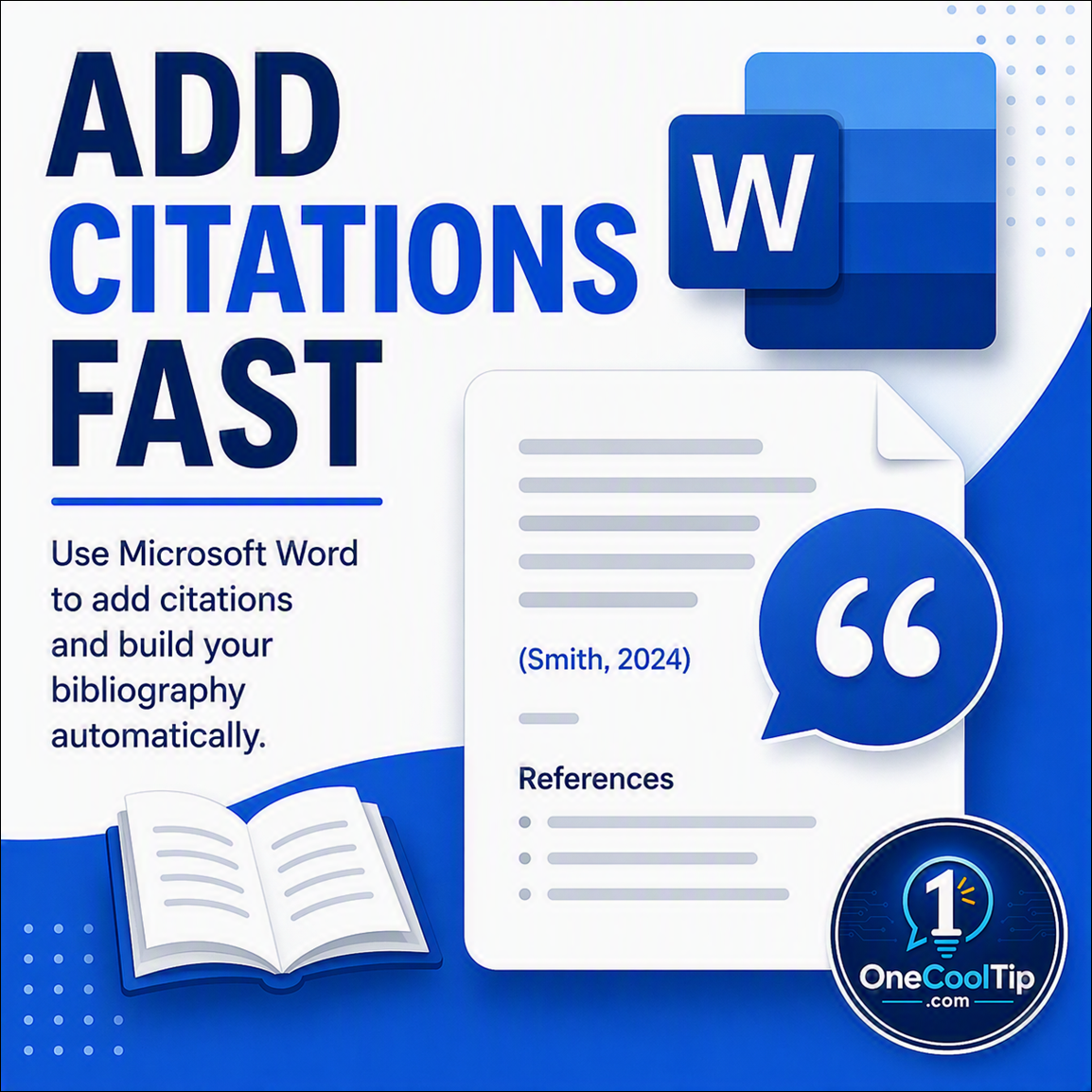
Add Citations in Microsoft Word Without the Headaches


Microsoft Word can format citations, save source details, and create a bibliography while you write. This guide shows you how to use those tools so you can spend less time managing references and more time improving your document.


Read the Full Version.


Read the Newsletter Version.

Looking for your next adventure?


Call Denise at Travel For You.

314.660.3039


Sign Up for the Monthly Newsletter


http://www.travelforyouvacations.com/


https://www.facebook.com/TRAVEL.FOR.U/


See You Tomorrow

Tomorrow's Cool Tip is waiting to amaze you.


Until then, go forth and conquer the tech world with your newfound knowledge!


Be sure to visit www.OneCoolTip.com for Cool Tech Tips for a Cooler Life!


And if you Like One Cool Tip, please support with TipJar!


Enjoy!


Rodger

Chief Cool Tipper

onecooltip.com@gmail.com


What Do You Think?

What do you think of today's One Cool Tip Newsletter?
Positive        Neutral        Negative
X Share This Email
LinkedIn Share This Email

Connect with One Cool Tip!

Facebook  X  Instagram  Web  Pinterest  YouTube  LinkedIn
 

As an Amazon Associate, One Cool Tip may earn a small commission from qualifying purchases.


Our media content is intended solely for informational purposes. Please do not construe anything here as legal, tax, investment, financial, marital or other advice.


Copyright © 2026 | www.OneCoolTip.com | All Rights Reserved