Chime
Lead Routing and Lead Pond
Lead Routing is done by County in Chime. This hasn't changed. To claim the lead, you must contact them in less than 7* minutes using the phone app. Call, email, or text them from the app.
*You may have less than 7 minutes since notifications can be delayed depending on your phone carrier, WiFi, or internet connection.
If no one claims the lead through Lead Routing, or if it's a phone lead, it will go into the LEAD POND. To claim the lead, you must use your DESKTOP to access the Lead Pond.
Note: All unclaimed leads will be in the Lead Pond regardless of county or state. Click into the Lead Profile to see if they are in your service area. Claim as many leads as you want from the Lead Pond. 😊
Tip # 1) Enable notifications for the Lead Pond.
Notifications can be adjusted under Settings > Preferences > Notifications. When a new lead is added to the lead pond, you will be notified via the notifications you set up.
Tip # 2) From your desktop, go to the People Page, find the Lead Pond & check there often to claim Leads. Click on a lead Profile to see if you want it, then claim it.
Tip #3) Claim the lead BEFORE you contact them or edit their profile.
Tip # 4) If you claim a lead by mistake, you can put it back into the Lead Pond by clicking the arrow next to your name in the "Assign To" area in the lower-left section. Then assign it to the Lead Pond & it will go back in.
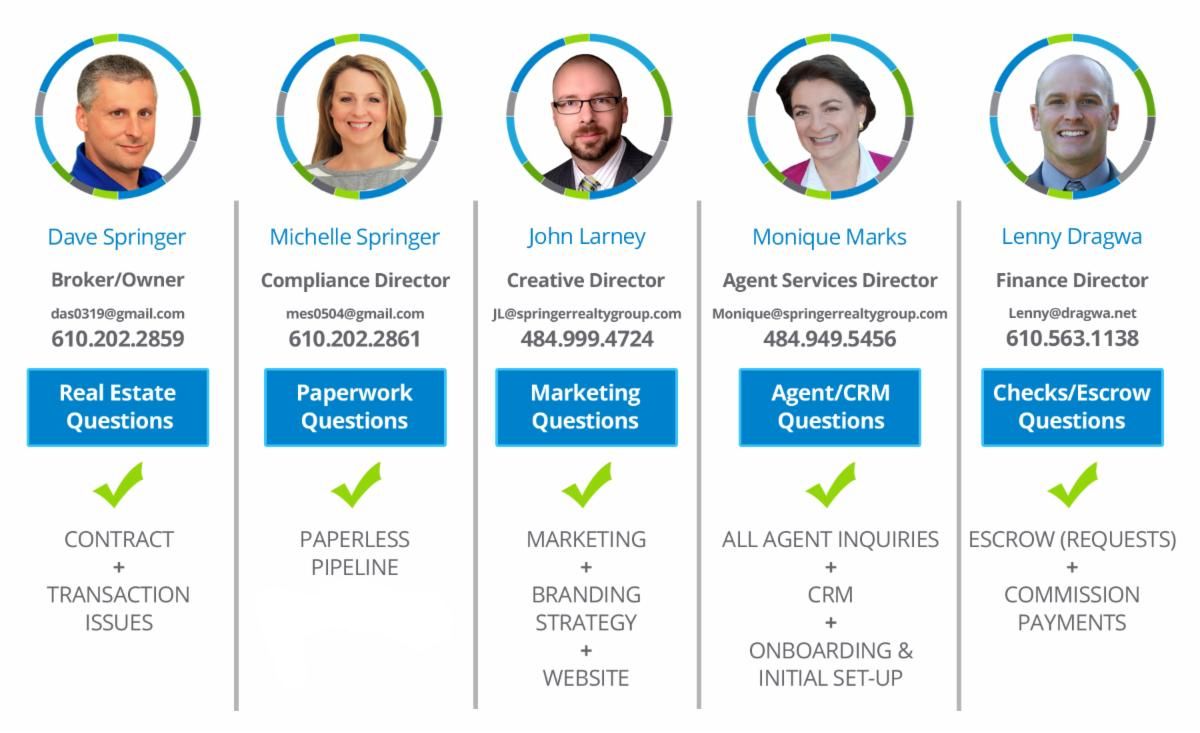
If you need help with this or any other feature of the Chime CRM,
take advantage of a One-on-One Zoom training with Monique.