Learn21's Weekly EdTech Update

September 19, 2024

Accessibility in EdTech: More Than Just a Label

Accessibility is often promoted as an essential goal, particularly in education and technology. However, as with many movements, there is a gap between posturing and real action. We see accessibility being used as a feel-good label for companies, but are they genuinely committed to the cause, or is it all just window dressing? Let’s dig deeper into what accessibility really means and why it must be more than just a checkbox in education technology.


Take Nike as an example. Earlier this year, British Paralympian Sophia Warner publicly criticized the sports giant for posturing as champions of accessibility while failing to deliver on that promise. In their store displays, Nike featured single shoes on mannequins with a running blade for the other leg. Thus, promoting the idea that athletes could buy a single trainer if needed—an important accommodation for people with disabilities. However, these single shoes were not available for sale at all. It was an empty gesture, designed more for good PR than for genuinely helping those who would benefit from such a product. This reveals a harsh truth: just talking about accessibility isn’t enough. It's the actions that matter. [Read more about this story in The Guardian].


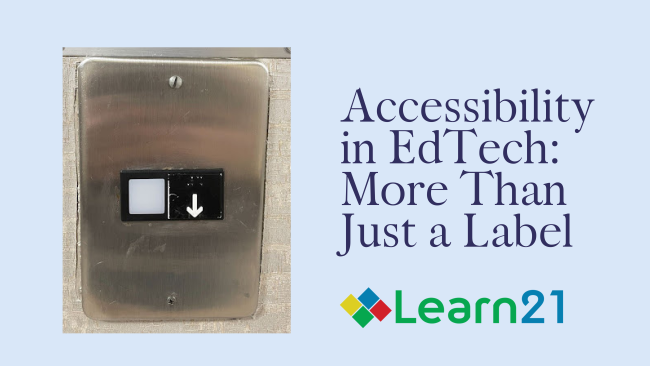
A similar superficial approach to accessibility struck me during a recent stay at the DoubleTree Hotel near the University of Texas in Austin. As I waited for the elevator on the sixth floor, I noticed the elevator control panel (pictured above). At first glance, it seemed compliant with accessibility standards: it featured Braille text. However, upon closer inspection, I realized something was off. The button, which I initially assumed was for going down, had an arrow pointing down but was incorrectly placed. The arrow was actually upside down, meaning it was supposed to represent going up. The Braille text was an upside down ‘up.’ Yet, this is the sixth and highest floor—there's no “up” from here! What gave this away was the Braille was inaccurately placed above the symbol rather than below. The hotel might have checked the box on adding Braille for accessibility, but their effort lacked any real value.


Inaccessibility of Accessible Features: More Common Than You Think

This might seem like an isolated incident, but it highlights a bigger issue: accessibility is often treated as an afterthought. It’s a detail that some organizations implement without truly considering its functionality. Instead of ensuring these features work and actually assist those with disabilities, they are included just for appearances.


The newly released Blaschke Report, AI & Accessibility in Education, discusses this problem in the edtech landscape. This report, a collaborative effort from the teams at CoSN and CAST, points out that technology has a tremendous upside to supporting learners with diverse learning needs, but we simply can’t just slap a label on AI and say it’s accessible. There are a variety of issues, both complex and nuanced, that technology providers and the education community must address to meet this promise. 


Action, Not Window Dressing

This is where local organizations like Learn21 and ETLA are able to support the work of larger advocacy organizations like CoSN and CAST. We firmly believe that accessibility must be built into the very fabric of edtech solutions. It can’t just be a label that we slap on to appease stakeholders or satisfy compliance checklists. Accessibility is about action—it’s about listening to those who need these accommodations, ensuring that the tools we build and advocate for actually work for them, and testing our solutions repeatedly until we get it right.


At Learn21 and ETLA, we don’t just talk about accessibility. We advocate for it at every level of education, from working with developers to ensure technology is inclusive, to helping schools implement accessible solutions effectively. We partner with leading voices in the field, constantly striving to ensure that the tools in K-12 education serve all students, not just the majority. For us, accessibility isn’t window dressing; it’s a commitment to action and an integral part of everything we do.


Final Thoughts

Real accessibility is not about merely appearing to do the right thing. It's about consistently taking meaningful steps toward making technology and spaces usable for all people. Whether it's in the design of elevators, the features in an online learning platform, or the shoes on a store shelf, true accessibility requires careful thought, proper implementation, and a commitment to action. When we neglect these principles, we end up doing more harm than good, excluding the very people we claim to serve.


By advocating for thoughtful, functional, and truly inclusive solutions, Learn21 and ETLA are working to build a future where accessibility is more than just a checkbox—it’s a cornerstone of every educational technology initiative. Let’s commit to doing more, not just talking about doing more.


Join the Conversation

Learn21 Chief Academic Officer and ETLA Executive Director, Dr. Stacy Hawthorne will be joining the amazing CAST (Center for Applied Special Technology) team of friendly Technical Assistance Specialists at the AEM Café to talk about AI and accessibility. The conversation is taking place on Thursday, October 3rd at 4:00–5:00 pm ET/1:00–2:00 pm PT. Connect with Stacy, ask questions, and delve into this crucial topic together. Register here.

Free Ways to Capture Student Thinking and Check for Understanding

With Microsoft requiring the use of Teams to use Flip (formerly Flipgrid), non-Microsoft school teachers have been looking for alternatives. Here are a few suggestions that could help.


These tools do not have all of the features of Flip, like the ability to give feedback directly on the video submissions, but they offer other unique features that make them worth considering.


Padlet: This is an online virtual bulletin board where students can express their thoughts on a common topic. It's a great tool for brainstorming and sharing ideas. As a Flipgrid replacement it allows students to post text, images, or links to YouTube videos where they've recorded their thoughts. Teachers can also add comments and react to student's posts.


Kami: This is a digital classroom app best known for its PDF and document annotation features. Students can use KAMI to highlight, underline, and leave voice notes, video notes, or text comments directly on digital documents.


Seesaw: A digital portfolio tool that can capture students' understanding through photos, videos, drawings, text notes, and audio recordings. Teachers can provide feedback directly within the platform and share with parents as well.


ChromeOS Screencasts: This is a screencasting tool available on Chromebooks which allows students to record their screen along with voice-over. Screencasts are automatically transcribed and users can add sections to their screencast to better organize what was recorded.


Loom: A video recording tool that allows students to capture their screens and narrate their thought process simultaneously. Recordings can be easily shared with teachers through a link. Loom also allows for direct feedback through comments on the videos.


Canva: A graphic design tool that students can use to visually represent their understanding of a topic. They can record screencasts, themselves, or both while working on a project. Canva integrates with Google Classroom and allows teachers to provide feedback on designs.


Adobe Express: A simplified version of Adobe's popular creative tools, which allows students to create different multimedia projects to express their understanding.


Providing alternative assessments is a great way to AI proof your assignments while also mixing it up a bit for your students. No one wants to do the same thing every day, and these tools offer students a variety of ways to express what they've learned. Plus, they give teachers insight into student comprehension and learning processes in a more vivid and interactive way.


Note: Learn21 recommends that all schools have a data privacy agreement (DPA) in place before using any of these apps or vendors. Want to learn more about DPAs and protecting data? Connect with privacyservices@learn21.org today.

Tips and Tricks

Organizing Your Browser with Google Chrome Tab Groups

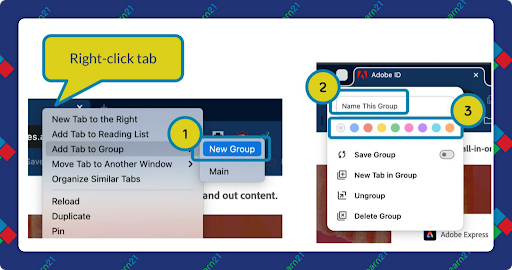
Google Chrome’s Tab Groups feature is a fantastic way to organize your browser when juggling multiple tasks. By right-clicking a tab and selecting "Add to New Group," you can color-code and label related tabs, keeping them visually distinct.

You can right-click on any tab and add it to an existing tab group, or create a new tab group. To add multiple tabs, click on the first tab, hold down the shift key, and click on the last tab. This will select the first tab you clicked on, the last tab you clicked on, and all of the tabs in-between. With a right-click you can create a new tab group or add those tabs to an existing tab group.

Save Group


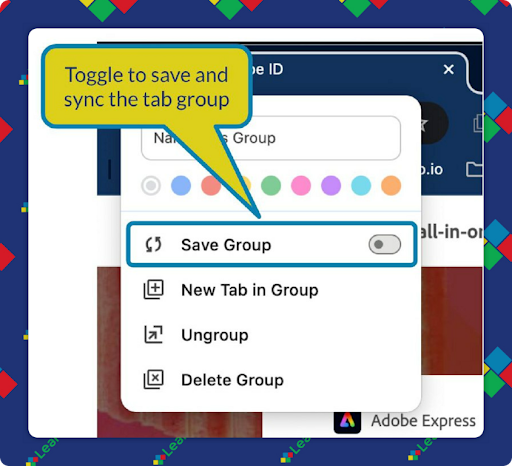
For tab groups that are going to be used a lot and from different devices, toggle Save Group on the tab group menu.

This will add the group to your bookmarks bar and sync it (as long as you're signed in to Chrome and turned on syncing that is) with Chrome on other devices. If the group has already been created, you can right click on the group icon in the tab bar to turn on Save Group.


If you are currently on a tab in a group and create a new tab, the tab is not

created in the group but is thrown to the end of the list of tabs. I don't like this behavior so I looked for a solution and found one in the Child Tab Next extension. Once installed, new tabs are made to the right of the current tab, keeping the new tabs in the group. One caveat is that if you are on the right-most tab in a group and create a new tab, this tab will not be in the group.

Extra Credit

In a recent study involving nearly a thousand high school students in Turkey, researchers found that those who used ChatGPT for practice math problems performed worse on subsequent tests compared to those who didn’t use the AI. Students using a version of ChatGPT that gave hints rather than answers weren't much better off, scoring similarly on tests as those who practiced without any tech aids. The research suggests that reliance on ChatGPT as a study aide can impede learning because students often use it as a shortcut instead of actively solving problems themselves. Moreover, ChatGPT's occasional errors and the artificial confidence it instills can lead to less effective learning. This highlights the need for further exploration on the balance between using technology as a learning tool and maintaining essential problem-solving skills.


Counter that study with the results that Michael Brenner is having at Harvard. He was able to get students deeply engaged with mathematical concepts by creating prompts and rubrics to teach chatbots, resulting in a more profound understanding of the material than traditional methods. His process required students to break down complex problems into bit-sized steps and identify key elements for chatbot instruction. This served as a challenging intellectual exercise for students. We'd love to hear from any K-12 schools who are using AI to support higher order thinking like Michael is.


As schools go back into session, the chaos of chatbots gets a little louder with educators still wrestling to catch students sneaking in AI-written essays. Despite leaps in AI text detection tech after ChatGPT's appearance, these tools remain unreliable, often faltering in spotting AI-generated content while mistakenly tagging human work. The challenge is likened to an "arms race" between detection and evasion.


Feeling overwhelmed by the concept of integrating AI into your classroom?. Fear not! John Spencer suggests starting with seven thoughtful questions before diving headlong into AI tools. Key considerations include determining the specific learning tasks appropriate for AI, ensuring that AI supports rather than replaces students' critical thinking processes, and aligning AI tools with the way our brains work. The ethical implications of AI use and how it fits within existing educational policies are crucial touchpoints, and Spencer emphasizes providing flexibility and clear guidelines for when and how AI should be used in school assignments.

🙋‍♂️ Bytes and Insights is co-authored by Eduk8me’s Ryan Collins who writes about education and educational technology. He is also the Director of Technology for Kenton City Schools in Ohio. Sign up for his Of Bits and Bytes newsletter at https://eduk8.me!


If you'd like to take a hiatus from Bytes & Insights, please use the Update Profile link below. This will allow you control over which emails you receive from Learn21.

X Share on X
LinkedIn Share on LinkedIn

www.learn21.org

LinkedIn        X        YouTube        Instagram