One Cool Tip Newsletter

October 7, 2026

Your daily dose of tech-savvy brilliance!

😀 Greetings! Happy Windows Wednesday, Cool Tipper!


Get ready to streamline your digital life with simple, actionable tips delivered straight to your inbox.


Cool Tip Theme: Windows Settings Support in Microsoft Copilot


Save time in Windows 11 by asking Microsoft Copilot to help find settings, troubleshoot problems, and guide you to the right controls faster.


New here? Subscribe to the One Cool Tip Newsletter for daily updates. It's FREE!

3️⃣

If you enjoy the One Cool Tip newsletter, please forward this newsletter to THREE friends or colleagues or share it on social media using the links below.


Leave a $$$ Tip!


Share this One Cool Tip Newsletter!

X Share This Email
LinkedIn Share This Email
Pinterest Share This Email

🚨 Prime Day Deal or Prime Day Scam? Here's How to Tell 🚨


Amazon Prime Day (October 6 & 7, 2026) is a favorite target for scammers because millions of shoppers are actively looking for deals.


Criminals often send fake order confirmations, delivery alerts, and account warnings designed to steal your Amazon login credentials and credit card information.


These messages may look convincing and can even appear to come from legitimate phone numbers or email addresses.


If you receive a message claiming there's a problem with an order or your account, don't click the links or call the phone number provided.


Instead, open the Amazon app or visit Amazon directly and check your account yourself.


Be especially cautious of messages that create urgency or pressure you to act immediately.


The safest way to shop Prime Day is simple: verify first, click second.


A few extra seconds of caution can help protect your money, personal information, and Amazon account.


And in Other News...


  • Microsoft Copilot Just Got Smarter


Microsoft continues to add powerful new capabilities to Microsoft Copilot, making it more useful for everyday work and productivity.


Recent updates include improved Copilot experiences in apps such as PowerPoint, OneDrive, Teams, and SharePoint, along with new ways to connect information, automate tasks, and work with AI across Microsoft 365.


Microsoft is also expanding model choices and introducing tools that help users discover, manage, and govern AI-powered plugins and skills.


The biggest takeaway is that Copilot is evolving from a simple chatbot into a more capable digital assistant that can help create content, organize information, and complete tasks across multiple apps.


If you already have access to Copilot, it is worth exploring some of the newer features because capabilities are expanding rapidly.


The more familiar you become with AI tools today, the more productive you'll be as these features become part of everyday computing.

Cool Tip Poll

🤔 Which Windows setting do you have the hardest time finding?

Cool Deals of the Day

Help support One Cool Tip. Use this Amazon link when you shop online.


Check out these Cool Deals:

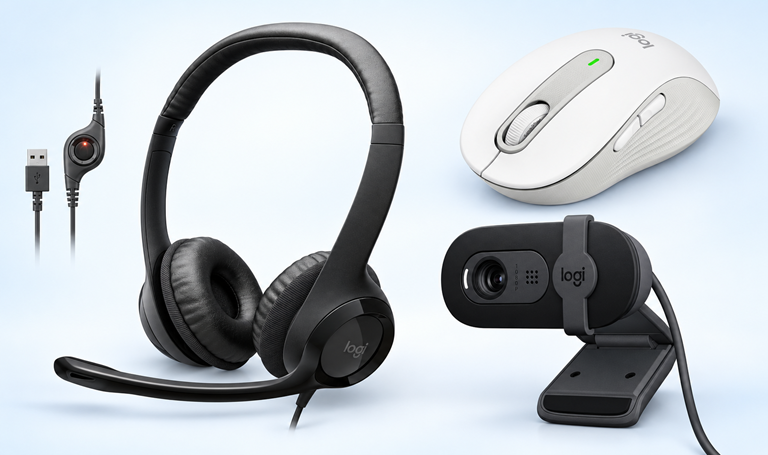
🎧 Logitech H390 USB-A Headset, Black: A headset with a microphone is useful if you prefer speaking your questions rather than typing them.

Save 24%. Now $18.94. 4.4 Stars. Check it out on Amazon!


🖱️ Logitech Signature M650 Wireless Mouse, Small/Medium, Off White: A quiet-click mouse is a practical companion for making the actual Settings adjustments after Copilot points you toward them.

Save 15%. Now $33.99. 4.6 Stars. Check it out on Amazon!


📹 Logitech Brio 101 Webcam: This webcam includes a microphone for calls and spoken questions, although a camera is not required for Copilot’s settings-link workflow.

Save 38%. Now $24.99. 4.4 Stars. Check it out on Amazon!


*Prices accurate when originally published.

One Cool Tip may earn a commission from qualifying purchases.

Fuel Your Adventure

Try Big Mike's Jerky!


bigmikesjerky.com


Today's Cool Tip

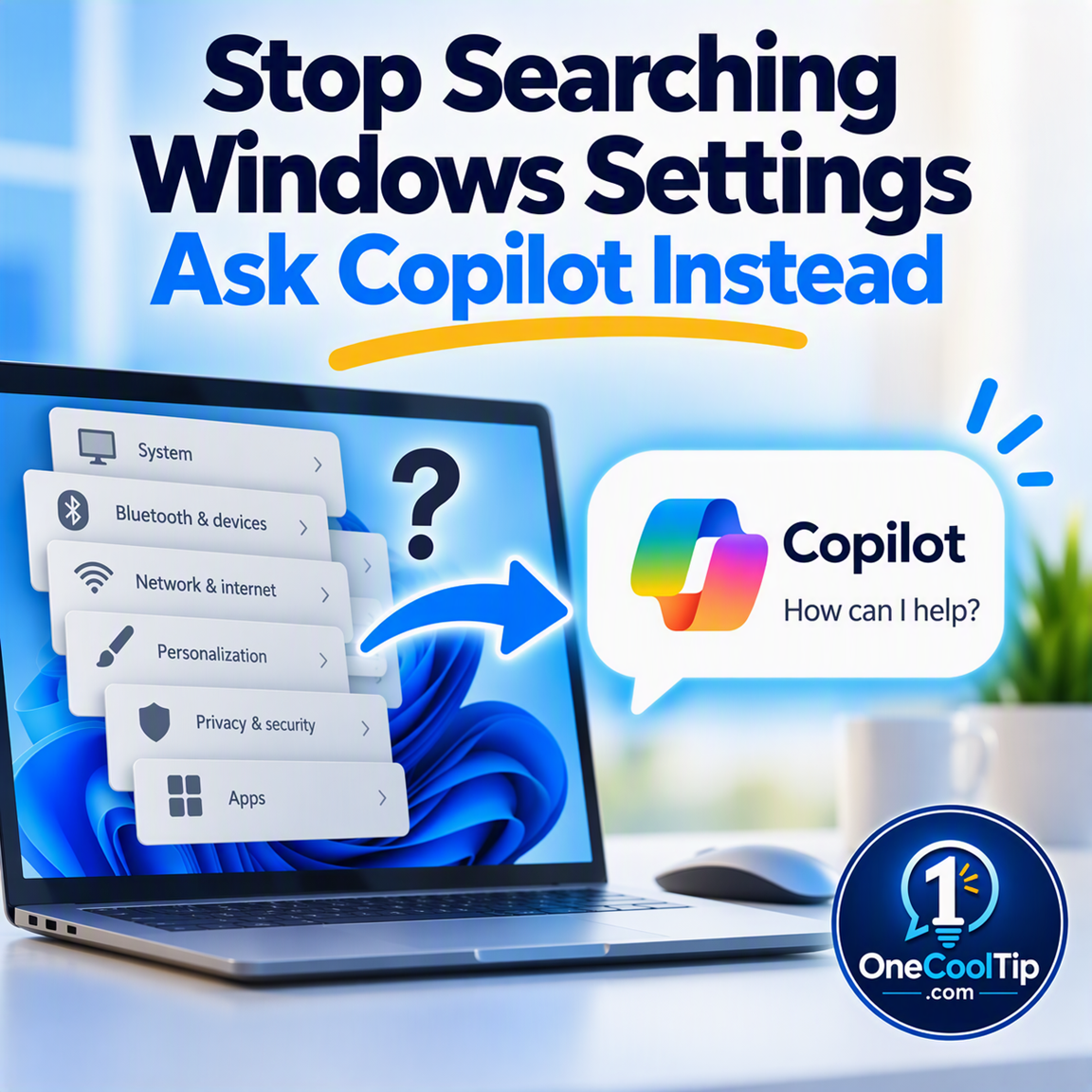
Stop Searching Windows Settings. Let Copilot Find Them for You

Windows 11 has hundreds of settings, and finding the right one isn't always easy.


Microsoft Copilot can help you locate, open, and understand settings using plain English, reducing frustration and saving time.

By Rodger Mansfield, Technology Editor

October 7, 2026

Subscribe


Windows 11 gives users an incredible amount of control over their PCs, but that flexibility comes with a challenge. 


Here's a Cool Tip: Use Copilot as your personal Windows 11 settings guide.


Important settings can be buried several menus deep, making even simple tasks frustrating when you cannot remember where Microsoft placed a particular option.


Need to change your microphone? 


Connect Bluetooth headphones? 


Adjust battery settings? 


Make text larger?


Instead of clicking through Settings and hunting for the right menu, try asking Microsoft Copilot.


Microsoft includes Windows Settings support as part of the Copilot experience on Windows. 


The feature allows users to ask questions in natural language and receive guidance for locating settings, troubleshooting issues, and managing their PC.


The biggest benefit is simple: you no longer need to remember where Microsoft hid a setting.


Feature Explanation


Microsoft Copilot is Microsoft's AI assistant available across Windows, the web, mobile devices, and other Microsoft platforms. 


On Windows 11, Copilot can help users locate settings, answer questions, explain Windows features, and provide step-by-step guidance.


Many users know what they want to accomplish but do not know where the setting lives.


For example:


  • You want Bluetooth turned on.
  • You need to change your default microphone.
  • Your screen is too dim.
  • Your battery is draining too quickly.
  • Your browser opens the wrong links.


Traditionally, finding these settings means navigating through several Settings categories and hoping you're looking in the right place.


Copilot changes that process.


Instead of remembering menu names, simply describe the problem or task in everyday language.


This makes Copilot especially useful for:


  • Home users.
  • Business users.
  • Seniors.
  • Students.
  • Families.
  • New Windows 11 users.


What You'll Gain


  • Save time locating Windows settings.
  • Reduce frustration when troubleshooting.
  • Learn Windows 11 faster.
  • Discover settings you may not know exist.
  • Spend less time searching menus.
  • Use plain English instead of technical jargon.


Step-by-Step Instructions


Here's how to do it.


Windows


  1. Open the Microsoft Copilot app from the taskbar, Start menu, or by pressing the Copilot key on supported PCs. Microsoft also supports the Windows + C shortcut on supported systems.
  2. Sign in with your Microsoft account if prompted. Signing in enables additional Copilot functionality and chat history.


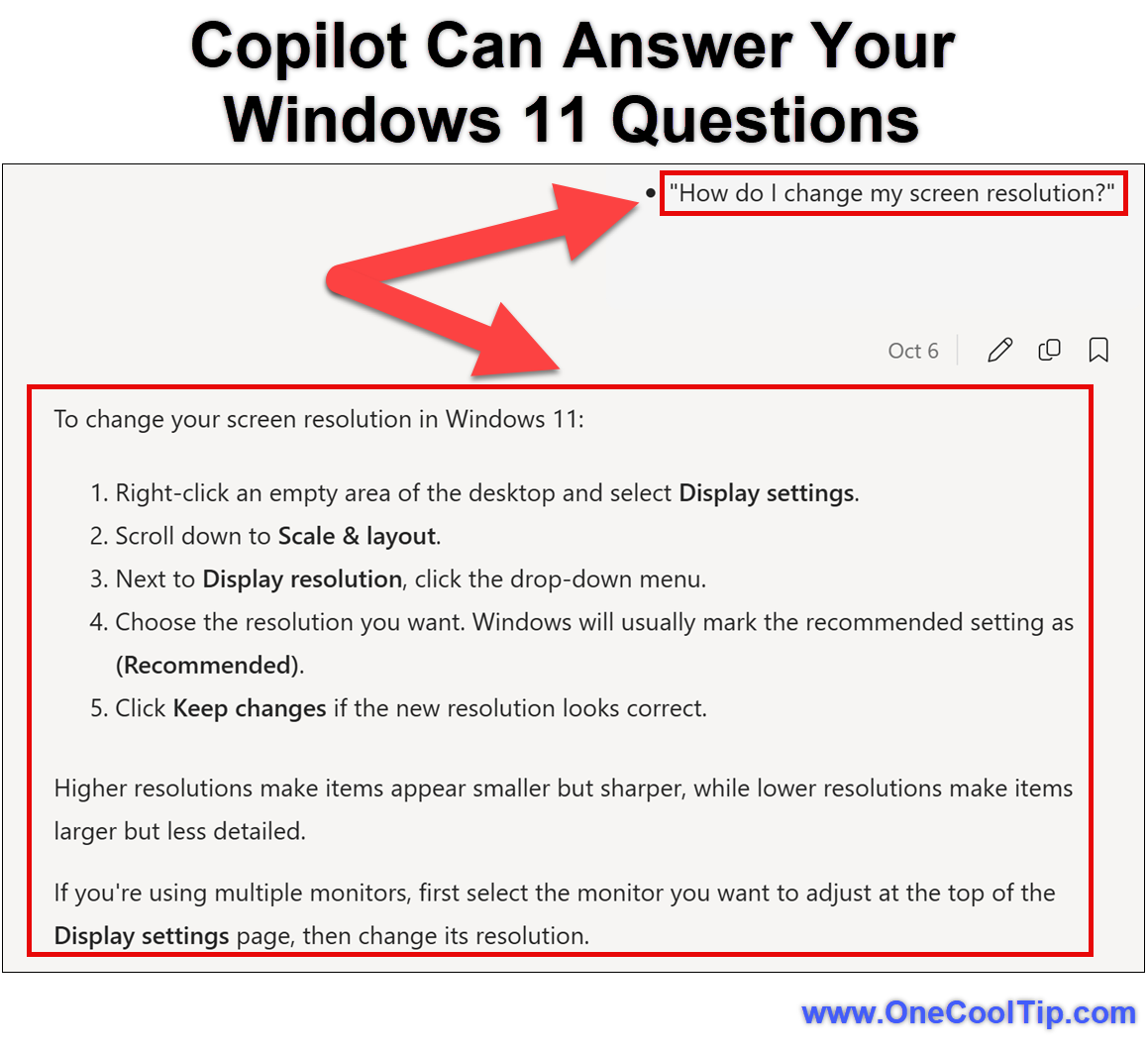
fig. 1 - Copilot Can Answer Your Windows 11 Questions

Popular Windows 11 Tasks You Can Ask Copilot About


One of the easiest ways to understand this feature is to see the kinds of questions you can ask.


Display and Personalization


Try asking:


  • "Turn on Dark Mode."
  • "How do I change my screen resolution?"
  • "Make text larger."
  • "Change my wallpaper."
  • "Adjust screen brightness."
  • "Turn on Night Light."
  • "How do I use multiple monitors?"


Sound and Microphone Settings


Try asking:


  • "Change my default microphone."
  • "My microphone isn't working."
  • "How do I test my speakers?"
  • "Show sound settings."
  • "How do I switch audio devices?"


Bluetooth and Devices


Try asking:


  • "Turn on Bluetooth."
  • "Connect Bluetooth headphones."
  • "Add a printer."
  • "Configure my webcam."
  • "Where are mouse settings?"


Network and Internet


Try asking:


  • "How do I connect to Wi-Fi?"
  • "Forget a Wi-Fi network."
  • "Show network settings."
  • "Turn on airplane mode."
  • "Why can't I connect to the internet?"


Privacy and Security


Try asking:


  • "Where do I manage camera permissions?"
  • "Which apps can access my microphone?"
  • "Open Windows Security."
  • "How do I check for viruses?"
  • "Where are location settings?"


Storage and Performance


Try asking:


  • "Free up disk space."
  • "Manage startup apps."
  • "Remove temporary files."
  • "Open storage settings."
  • "Why is my PC running slowly?"


Accessibility


Try asking:


  • "Turn on Narrator."
  • "Make my mouse pointer bigger."
  • "Turn on voice typing."
  • "Enable live captions."
  • "Open Magnifier settings."


Power and Battery


Try asking:


  • "Turn on Battery Saver."
  • "Check battery usage."
  • "Change sleep settings."
  • "Make my battery last longer."
  • "Open power settings."


Review Copilot's recommendations and follow the provided guidance.


Open the recommended Settings page and make your change.


Pros and Cons


Pros:


  • Saves time finding settings.
  • Easier than manually browsing menus.
  • Helpful for Windows troubleshooting.
  • Great for beginners.
  • Useful for seniors and accessibility users.
  • Helps users learn Windows faster.


Cons:


  • Requires Copilot access.
  • Some experiences vary by account type and region.
  • Enterprise administrators may limit availability.
  • Not every request results in a direct action.


Who Should Skip This


This feature may not be necessary for:


  • Power users who already know Windows Settings well.
  • Users whose organizations block Copilot.
  • People who rarely change settings.
  • Users who prefer navigating Windows manually.


Feature Access


Copilot is available on Windows, web browsers, Android, iOS, iPadOS, and macOS, although available features can vary by platform and account type.


Windows Settings support is part of the Windows Copilot experience.


Availability may vary by account, region, app version, device type, or administrative policies.


Score

Criterion |  Score (0–10) |  Justification
Value |  9
Helps users find and manage common Windows settings more quickly.
Usability |  9
Uses natural language and requires very little learning.
Wow Factor |  8
Surprisingly useful for everyday troubleshooting and PC management.
Total: 26/30 | 🌟 Excellent
One of the most practical everyday uses of Microsoft Copilot on Windows 11.
Similar to Windows Search, but more conversational and often better at understanding what users want to do.


Key Takeaways


Copilot can dramatically reduce the amount of time spent searching through Windows Settings. 


Instead of remembering Microsoft's menu structure, users can simply describe what they want and let Copilot guide them to the right place.


Cool Tip Snapshot


  • Feature Name: Windows Settings Support in Microsoft Copilot.
  • Platform(s): Windows 11.
  • Quick Benefit: Find settings using natural language.
  • Best For: Home users, students, seniors, families, and business users
  • Access Type: Free.
  • Difficulty: Easy.


Try It Yourself


The next time you need to adjust a Windows setting, ask Copilot before opening Settings yourself. 


If this tip helped you discover a faster way to manage Windows, leave a comment, subscribe to the One Cool Tip newsletter, and share this article with family, friends, and coworkers.


Need more help than Copilot can answer?


Try the One Cool Tip AI Companion, powered by ChatGPT.

READ MORE


Read the Full Cool Tip.

Check Out These Cool Tips & Tricks


  • Ask Naturally: Use everyday language instead of technical jargon. Simply type what you're trying to accomplish.


  • Be Specific: Detailed questions usually produce more accurate guidance. Include the setting or device involved.


  • Bluetooth Help: Ask Copilot where Bluetooth controls are located. Type "How do I connect Bluetooth headphones?"


  • Fix Audio: Quickly find speaker and microphone controls. Ask "How do I change my default microphone?"


  • Display Tweaks: Locate screen settings fast. Ask "How do I make text larger?"


  • Battery Saver: Improve battery life with a simple question. Ask "How do I turn on Battery Saver?"


  • Startup Apps: Find programs that launch with Windows. Ask "Where are startup app settings?"


  • Privacy Controls: Locate camera and microphone permissions. Ask "Which apps can access my camera?"


  • Storage Cleanup: Find disk cleanup tools faster. Ask "How do I free up storage space?"


  • Learn While Doing: Use Copilot to understand what a setting does before you change it. Ask follow-up questions if something isn't clear.

ICYMI - In Case You Missed It ...

Stop Paying for Forgotten Streaming Subscriptions


Summer may be ending, but streaming services added for vacation or binge-watching can keep billing well into fall. A quick subscription audit can expose forgotten trials, duplicate services, and premium add-ons before the next renewal.


Read the Full Version.


Read the Newsletter Version.

Looking for your next adventure?


Call Denise at Travel For You.

314.660.3039


Sign Up for the Monthly Newsletter


http://www.travelforyouvacations.com/


https://www.facebook.com/TRAVEL.FOR.U/


See You Tomorrow

Tomorrow's Cool Tip is waiting to amaze you.


Until then, go forth and conquer the tech world with your newfound knowledge!


Be sure to visit www.OneCoolTip.com for Cool Tech Tips for a Cooler Life!


And if you Like One Cool Tip, please support with TipJar!


Enjoy!


Rodger

Chief Cool Tipper

onecooltip.com@gmail.com


What Do You Think?

What do you think of today's OneCoolTip newsletter?
Positive        Neutral        Negative
X Share This Email
LinkedIn Share This Email

Connect with One Cool Tip!

Facebook  X  Instagram  Web  Pinterest  YouTube  LinkedIn
 

As an Amazon Associate, One Cool Tip may earn a small commission from qualifying purchases.


Our media content is intended solely for informational purposes. Please do not construe anything here as legal, tax, investment, financial, marital or other advice.


Copyright © 2026 | www.OneCoolTip.com | All Rights Reserved