October 1, 2025 | Fall Newsletter | | | |
American Archives Month
Using Temporary Custody
| |
PastPerfect 5.0
Adding Additional Donors
Pledges & Receipts Pledge Report
| |
PastPerfect Web Edition
New Training Classes
Adding Additional Donors
Contact Lists: Output Options
On-Demand and Live Webinars
| |
Online Collections
Collections Spotlight
Staff Pick
| |  |
|
This Day in History - 1890
Yosemite National Park Established
| | | |
October is American Archives Month. This month the Society of American Archivists is sharing resources for archives to better engage with the public and advocate for their value to their communities and for our understanding of history. Please visit the Society of American Archivists American Archives Month website for more details.
Here are links to some events in different communities around the United States. We suggest checking with your local archives centers for additional events.
The U.S. National Archives is giving the public a rare opportunity to see the full U.S. Constitution including all 27 amendments through October 9, 2025. Visit https://visit.archives.gov/ for more information and to see this founding document online.
The U.S. National Archives is set to open a new, interactive museum on October 23, 2025, with the exhibition "The American Story" featuring original artifacts, documents, and films as well as a Discovery Center for elementary age children. For more information, visit https://www.archives.gov/news/articles/new-museum-opens-october-23-2025.
| | | |
When items are brought to your organization for donation, they may not be items that should be immediately accessioned into the collection. Your organization may need time to examine the items to determine if they meet the standards found in your Collections Policy, if the items can be taken care of long term, or if the organization wishes to borrow the items as a loan rather than a permanent transfer of ownership.
The Temporary Custody section of PastPerfect provides you with a place to document information about the potential gift. You can document the donor of the items, provenance details, what items are being considered for acquisition, and the decision made on the item(s) considered. Temporary Custody forms, including incoming receipts, Deeds of Gifts, and Return Receipts can be printed from each Temporary Custody record.
The Temporary Custody program area can be found in both PastPerfect 5.0 and PastPerfect Web Edition. You can find more information on utilizing this program area in our PastPerfect 5.0 User Guide and our PastPerfect Web Edition User Guide.
| | | |
If more than one person or organization has contributed to a donation of items, you have the ability to add these additional donors to the Accession or Temporary Custody record. In PastPerfect 5.0 you can have three additional donors associated with an Accession or Temporary Custody record.
To add an additional donor, click the "Add/View Additional Donors" button on the left sidebar of the Accession or Temporary Custody record. This will open the Other Donors screen.
| |
To add an existing Contact as an additional donor, click the "Add from Contact File" button. Once you select a Contact, the fields on the Other Donors screen will populate with the data from the Contact record. If the additional donor has not been added to Contacts, you can click "Edit", type the contact information into the fields, and then click "Save".
Once you have added additional donors, the other buttons on the left will become active. If the donor was selected from Contacts, you can click the "View Contact File" button to open the Contact record. Clicking the "Deed of Gift" button will allow you to preview and print a Deed of Gift for the donor.
On an Accession record, clicking the "Thank You Letter" button will allow you to preview and print an Accession Thank You Letter for the donor.
On a Temporary Custody record, clicking the "Print Receipt & Thank You Letter" button will allow you to choose from a list of documents, which you can preview and print for the donor.
| |
When you close the Other Donors screen, and return to the Accession or Temporary Custody record, you'll see a green data light on the Add/View Additional Donors button. As you navigate between records, this helps you quickly identify which records have additional donors.
You can find more information on additional donors under "Multiple Donors" in the accessioning and temporary custody sections of our PastPerfect 5.0 User Guide.
| | | Report Highlight: Pledges by Campaign or Date Report from Pledges & Receipts | |
The Pledges & Receipts screen in PastPerfect's Development section allows you to view, post, and report on monetary donations, dues payments, and pledges. In our Spring 2025 Newsletter we reviewed the Donations reports available from this screen. Our Summer 2025 Newsletter covered the Dues reports. In this article, we will explore the Pledges by Campaign or Date report.
From Pledges & Receipts, you can print the Pledges by Campaign or Date report to get a list of pledges received from all Campaigns or from a single Campaign. You also have the option to narrow your results to a specific date range. To print this report, click the "Print Pledge" button under Pledges in the left side bar. By default, all Campaigns will be included. If you would like to report on a specific Campaign, select it from the "Select Campaign" drop-down.
The Date Range "from" and "thru" dates are populated from the active tab on the Pledges & Receipts screen. For example, if the year setting is 2025, and the selected tab at the top is "Entire 2025", when you click Print Pledge, the Date Range will be 01/01/2025 thru 12/31/2025. You can expand or narrow your results by changing the Date Range. When you include all campaigns, you can check the Subtotal by Campaign box to include the subtotal of pledges received towards each Campaign within your selected date range.
| |
This report can be sorted by Date, Contact ID#, Name, or Amount. By default, the following fields are included on the report: Date, Contact ID#, From, Campaign, Payment Interval, Amount, Paid, Last Paid, Balance. You can preview the report or print the report to several output options. You also have the option to export this data to Excel.
For more information on how to use Pledges in PastPerfect, check out the Campaigns and Pledges chapter in our PastPerfect 5.0 User Guide.
| | | New Web Edition Training Classes | We now have on-demand training classes available on Contacts Management and Contact Settings. The Contact Settings class reviews the options on the Setup Contacts screen and how they are used in the software. The Contacts Management class reviews the fields available in Contacts and how to create and update Contact records. Training classes can be found on our GoToStage channel. | | | |
Your organization may receive a donation or loan of items from multiple people who each need to receive recognition of their contribution. Additional donors can be added to Temporary Custody, Accession, and Incoming Loan records in Web Edition. Please note, each person will need to have a record in Contacts before adding them as an additional donor.
To add an additional donor, navigate to the Temporary Custody, Accession, or Incoming Loan record. Click the "Edit" button at the top of the record. Then click the "Add Additional Donor" button above the Donors grid.
| |
To select the donor(s), you can browse through the grid containing all of your Contacts by using the page buttons at the bottom of the Add Contact Records window. You can also click "Add Filter" to create a filter to narrow your results. To select a donor, place a check in the box in the left-hand column next to any Contact and then click the "Add All Checked Records" button. Your additional donor(s) will now appear in the Donors grid. Click the "Save" button to save your changes.
You can then click the "Documents" button for each donor to preview and print the appropriate documents.
| |
For Accession and Temporary Custody records you can print a Deed of Gift, Thank You Letter, Temporary Custody Receipt, and Temporary Custody Thank You Letter. For Incoming Loans, you can print the Incoming Loan Agreement, Incoming Loan Return Receipt, Temporary Custody Receipt, and Temporary Custody Thank You Letter.
For more information on each of these documents, see the Accessions & Loans Documents topic in our PastPerfect Web Edition User Guide.You can also find more information on Temporary Custody, Accessions, and Incoming Loans.
| | | Contact Lists: Output Options | |
Contact Lists helps you organize and communicate with groups of contacts, such as donors, members, and volunteers. Once records are on a list, you can generate letters or emails, produce mailing labels, export the list to CSV, and print the list in different layouts. For information on how-to create and populate Contacts Lists, please see the article "Contacts Lists: Create a List" in our Summer 2025 Newsletter. This article provides information on the various output options.
When viewing a Contact List, you have the following options:
Letters & Labels
Letters & Labels can help you produce bulk mailings using your established Letter & Email Templates. You have the option to print letters to PDF and/or send the letter as an email to each Contact. When you select "Print Letters to PDF", a single PDF document is created containing the letters for all included Contacts. By default, Contacts who are marked Stop Mail or Deceased will be excluded. You can also exclude Contacts with email addresses from being included in the PDF if you wish to save on postage and send the letter only via email to those Contacts.
You also have the option to print mailing labels for each Contact on the list. Mailing labels are formatted as Avery 5160 labels with the complete address of each Contact listed on the label.
Export to CSV
Export to CSV gives you the ability to export data from the Contact records on the list. You can choose to include standard fields, which are pre-set, or extended fields, which are user-selected. Once you make your field selection, you will have the option to add an entry to the Mail & Contact Log for all Contacts on the list.
Print
Print a report with basic contact information for all Contacts on the list. You can print your list in the following formats: Grid, Grid with Images, List, List with Images. The fields included in these reports are Contact ID Number, First Name, Last Name, Company, Address, City, State, Zip Code, Primary Phone Number, and Primary Email Address. The reports can be saved to PDF or sent to your local or network printer.
For more information, view the Web Edition User Guide section on Contact Lists. You can also find more information on Letter & Email Templates and Email Settings.
| | | Informational Webinar Available Live or On-Demand | |
Curious about upgrading to PastPerfect Web Edition? We invite you to register for our one hour informational webinar that walks through the collections and contacts capabilities of our cloud-based software. You can attend a scheduled live session or watch our on-demand recording at your convenience. Register for either webinar here: https://museumsoftware.com/demo.html.
After the webinar, if you think Web Edition is the right choice for your organization, contact the team at webedition@museumsoftware.com to get started on the next steps.
| | |
Staff Pick
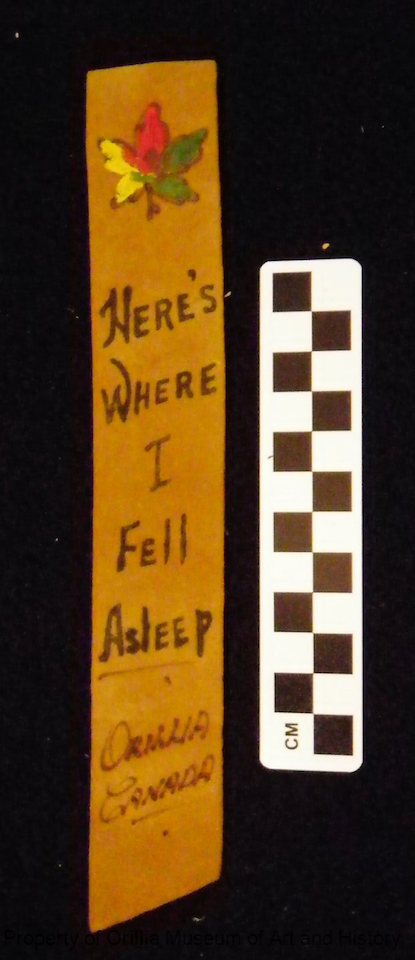
We've asked each of our staff to choose a favorite item from one of the many online collections. This artifact was selected from the online collection of the Orillia Museum of Art & History by Kate because:
"Bookmarks have been around for a very long time because all readers need a way to find the spot they left off reading. Precious books had bookmarks built in as ribbons or string or small strips of paper. Now you can get bookmarks in many different shapes and styles and are decorative as the books they can be found in. But if you ask a librarian today, they will tell you that just about anything can be (and has been) used as a bookmark.
I have used receipts, photos, paper scraps, newspaper clippings, and sticky notes as markers when necessary, but I greatly prefer a proper bookmark. My collection of bookmarks (that were actually designed as bookmarks) often have pictures of places I've been, favorite characters from books or movies, or witty sayings. This bookmark from Orillia, Canada is a great example of a bookmark that I would buy as a souvenir when traveling, and its message tells you the real reason I had to stop reading. "
| | | | | | |