Welcome to ITS Powertivity Tips! | July 2023 | Issue 10
We're here to help you SOAR!
Featured in This Edition

Level Up Your Meetings & Chats
with Teams Tips!
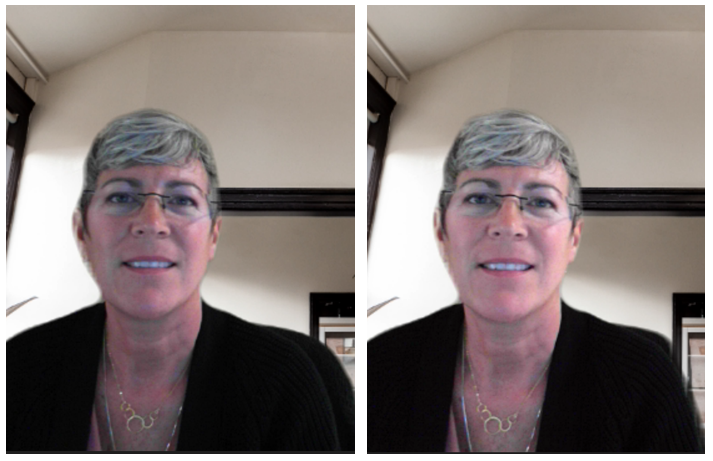
Ready for your close up, but lighting too dark?
There's a setting for that!

1) In a Teams meeting, select More...
2) Select Settings > Device Settings.
3) Scroll down to Video Settings.
4) Turn ON the Adjust brightness option.

MS Teams adjusts brightness to enhance the video quality when lighting is poor. Brilliant!

Note: Brightness quality may vary across Windows and OS systems.


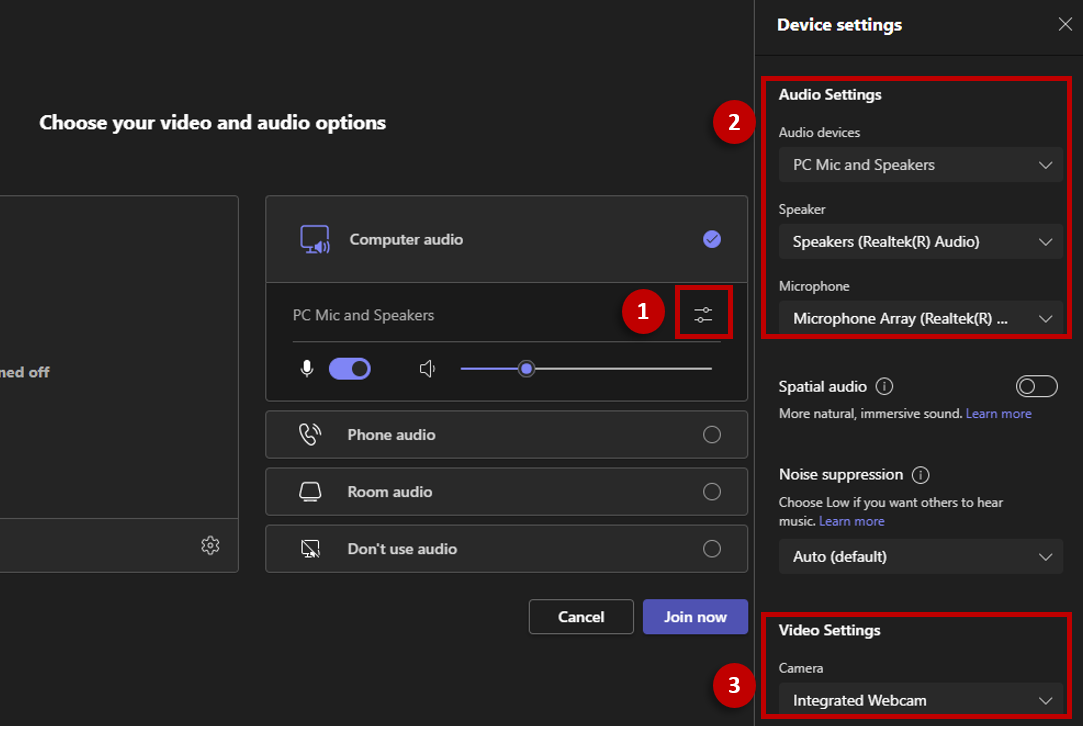
Did you know? You can check your audio/video settings BEFORE joining a Teams meeting. Yea, that screen you ignore when clicking 'Join now'.

Perform a quick 'pre-join' check EVERY TIME:
1) Correct audio device
2) Camera On or OFF
3) Not sure which device is activated? Access the Device Settings toggle to dive deeper into video/audio options, for the correct device (shown below).
Already in a meeting and experiencing audio/visual issues? See below...
Valuable Functionality Reminders in 5 Mins or Less
"Phew!" ~ Just in Time Tips!
The problem: Being interrupted by random notifications from meetings previously attended or unimportant chats.

The solution: Determine how, when, and where your notifications appear, turn off specific messages, customize settings for channels and chat, and so on within Teams Settings.

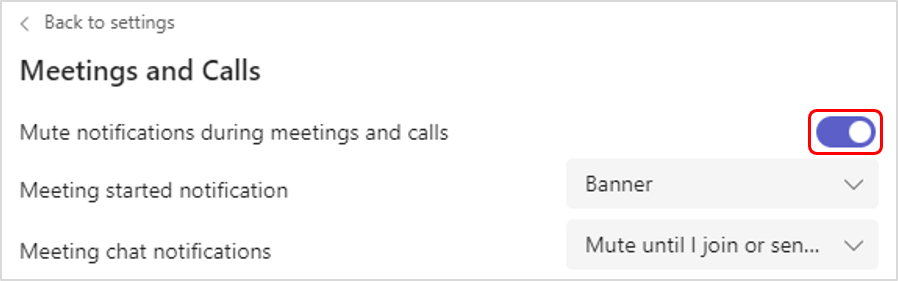
Specifically, you can "mute" notifications during meetings and calls so you're not interrupted. Within Teams, select Settings > Notifications > Select Edit for Meetings and Calls > Mute notifications during meetings and calls

Image of Teams Meetings & Calls Notifications Dialog Box
Like to see a specific powertivity topic covered?
Send your suggestion to: itschange@fgcu.edu
Need to Report an Issue or Have a Question?
Contact the University Help Desk:

helpdesk@fgcu.edu or 239.590.1188