Welcome to ITS Cybersecurity eNews | August 2025

Cybersecurity at FGCU header

Using MyVPN and Working Remotely Recap

Today's newsletter is 633 words... a 2.5-minute read.

Using MyVPN - The Guide to Your Work "Stuff"


What Is MyVPN

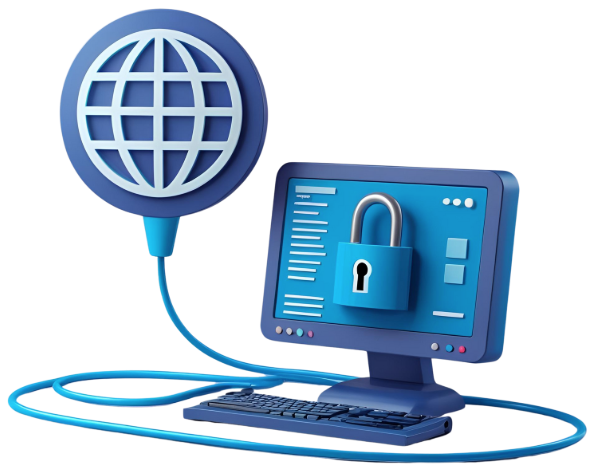
A blue and white world icon indicating the internet connected to a blue computer showing a blue lock to indicate security with a blue cord.

MyVPN (Virtual Private Network), powered by Ivanti Secure Access Client, is like a secure tunnel between your home computer and the university's computer system. It lets you safely access work files and programs from anywhere, as long as you have internet and a web browser.


To start: Go to myvpn.fgcu.edu and log in with your university credentials.

Why Use MyVPN

Yellow circle with a 3D gray laptop with a blue green gray and yellow square displayed on the screen.


Work from home as if you're at your desk at the university.


Yellow circle with a blue 3D monitor on it displaying miscellaneous information on the monitor.

Access special university tools like Banner, Workday, network folders and your office desktop.

 
Yellow circle with a blue shield with a checkmark in it.


Keep your connection safe and private.


How to Use MyVPN

Before you connect and when not using an FGCU-managed device, make sure your home device is safe:

 
Blue circle with a white number one over it and a blue lock shield with a white checkmark over it.


Update your computer and turn on antivirus and firewall

 
Blue circle with a screen over it.


Open your internet browser and go to the MyVPN website

 
Blue circle with a gray and white person profile and a blue and white checkmark on it


Log in and follow instructions to connect or access files.


Note that when connecting to MyVPN with a personal or FGCU-managed device, it will check if the device is safe. If it's not up to date or protected, you might not get full access. That's one of the reasons it's important to keep your computer secure.


Need help setting it up? Access MyVPN for Remote Terminal Session knowledge base article.

When to Use MyVPN

Use MyVPN when you need to:

 
Blue 3D monitor.

>> Access your office desktop from home (via Terminal Session)

3D screens with data and a line chart pictured and a green magnifier over the screen.


>> Use Banner or Workday (with restricted data)

Blue and yellow 3D laptop with file folders.

>> Open university network shared files/folders on the university network (this includes the P:\, R:\, and W:\ share drives)

3D images of a DOS prompt screen hashtag arrow and white coffee mug with coffee.

>> Use licensed software (which is a larger drain to work with) through the Virtual Lab system to offer better performance and features than through the browser VPN.

When NOT to use MyVPN: Chatting or video calls using Microsoft Teams or when working on campus, because you're already connected to the university's network.

Working Remotely Recap in 5 Steps

 
Blue person figure sitting at blue laptop with a yellow wifi symbol above him with a mug of coffee about to spill next to the laptop

1) Enable DUO Two-Factor Authentication

This adds a layer of security to your FGCU login. Use the DUO Mobile app for the easiest experience.


2) Store Files in OneDrive or Departmental Shares

Save your work in OneDrive or your department’s shared folder to ensure secure and remote access. Avoid saving FGCU files directly to your personal device and hard drive.


3) Choose the Right Access Method: VPN vs. Virtual Lab

  • Use VPN (MyVPN) if you need to:
  • Access your office desktop remotely
  • Use Banner, Workday with restricted data, or network drives
  • Work with restricted or sensitive data
  • Note: VPN access may be limited on personal devices due to security checks.
  • Use Virtual Lab if you need:
  • Access to licensed FGCU software (like SPSS or ArcGIS)
  • A simpler setup from a personal laptop or device
  • No need to connect to your office desktop


4) Use Microsoft Teams for Communication & Collaboration

Teams works without VPN and supports chat, video meetings, file sharing, and collaboration.


5) Follow Security Best Practices

Keep your device updated, use antivirus software, enable a firewall, and avoid public Wi-Fi unless connected through VPN (or immediately connect to FGCU's VPN after connecting to an open Wi-Fi network).


Go Deeper > Connecting Remotely resources site and Remote Access Guidelines

Thank you for helping us protect the nest!

How beneficial are the Cybersecurity tips to you? (1 sec. click)
1-star        2-stars        3-stars        4-stars        5-stars
Like to see a specific cybersecurity topic covered?
Send your suggestion to: itschange@fgcu.edu
Need to Report an Issue or Have a Question?

Contact the University Help Desk:


helpdesk@fgcu.edu or 239.590.1188


Be your own help desk, click to visit the Knowledge Base


Empowering the University Community to achieve new digital possibilities