|
One Cool Tip Newsletter
August 3, 2026
| Your daily dose of tech-savvy brilliance! | | |
😀Greetings!, Happy Back-to-Work Monday, Cool Tipper!
Get ready to streamline your digital life with simple, actionable tips delivered straight to your inbox.
Today's Cool Tip Theme: Generate and Edit Visuals with Gemini in Google Docs.
IN THIS ISSUE
- ⚠️ Crypto Scam Warning.
- 💻 Microsoft Office Reduced Functionality Mode.
- 🤖 Cool AI Prompt for Document Visuals.
- 🎨 Generate Visuals in Google Docs.
- 📑 Google Docs Enhanced Templates.
- ✍️ Enable Markdown in Google Docs.
- ⏳ Google Docs Version History.
New here? Subscribe to the One Cool Tip Newsletter for daily updates. It's FREE!
-
😂 Laugh with Us! Enjoy our Tech Joke of the Day, Haiku and Cool Tip Comics.
-
🌐 Stay Informed! Check out ICYMI, and our One Cool Tip Video.
| | |
3️⃣
If you enjoy the One Cool Tip newsletter, please forward this newsletter to THREE friends or colleagues or share it on social media using the links below.
Leave a $$$ Tip!
Share this One Cool Tip Newsletter!
| | |
Today's Tech Trivia
Which year saw Douglas Engelbart publicly demonstrate the computer mouse during the famous "Mother of All Demos"?
A) 1962
B) 1965
C) 1968
D) 1975
Answer at the end of this newsletter.
| | |
⚠️ Think That IRS Letter Is Real? Think Again.⚠️
The IRS is warning consumers about a scam targeting cryptocurrency owners through fake letters sent by mail.
The letters direct recipients to a fraudulent website that imitates IRS.gov and asks them to enroll in a nonexistent "Digital Asset Compliance Portal."
The goal is to steal sensitive information, including cryptocurrency wallet details and account credentials.
If you receive an unexpected IRS letter with a QR code or urgent deadline, take a moment to verify it before responding.
The IRS advises people not to scan QR codes from unsolicited messages and to contact government agencies using official website information.
When it comes to protecting your money and personal information, slowing down and double-checking can make all the difference.
And in Other News...
Don't Let Office Go Read-Only on Your Mac or iPhone
If you use Microsoft 365 or Office on a Mac, iPhone, or iPad, it's a good time to check for updates.
Microsoft warns that some users on older operating systems may find that Office apps can still open and print files but can no longer edit, save, or create new documents.
This reduced functionality mode affects certain older versions of macOS and iOS devices.
The good news is that most people can resolve the issue by updating their operating system and then updating their Microsoft Office apps.
If your device is too old to support the required updates, web versions of Word, Excel, and PowerPoint may still be available.
Taking a few minutes to update now can help ensure your documents remain fully accessible and editable.
| | |
Try this Cool AI prompt. Copy and paste to ChatGPT, Gemini, Claude or Copilot.
“Review the following document content and recommend three useful visuals that would make it easier to understand.
For each recommendation, identify the best format, such as a diagram, timeline, infographic, illustration, or flowchart.
Explain where it should appear and write a detailed image-generation prompt that specifies the content, layout, colors, aspect ratio, labels, and visual style.
Keep all text inside the proposed visuals short and easy to read.
Do not invent facts that are not present in the document.”
| | |
Turn Words into Visuals Instantly in Google Docs with Gemini
Creating custom graphics, diagrams, and infographics no longer requires switching between separate design tools and text editors. Google Docs now lets you generate and edit high-quality visuals right inside your document using Gemini.
Writing a comprehensive document often hits a wall when it comes to visual presentation.
You finish drafting a project proposal or research report, only to realize that readers need charts, process diagrams, or engaging infographics to digest the information quickly.
Up until now, that meant opening graphic design software, building a graphic from scratch, exporting it as an image file, and pasting it into your document.
Here’s a Cool Tip: Use Gemini in Google Docs to build custom diagrams and edit graphics without leaving your document.
Google is changing the normal workflow by integrating visual creation and editing tools directly into Google Docs powered by Gemini.
Instead of leaving your document, you can ask Gemini to analyze your text and create a matching diagram or infographic on the spot.
If the graphic is not quite right, you can tweak its style or aspect ratio using simple chat commands.
Feature Explanation
Google Docs now includes native image, diagram, and infographic generation powered by Gemini.
Unlike standalone AI image tools that work in isolation, this feature reads the surrounding context of your document.
When you request a visual summary, Gemini evaluates your text to build graphics tailored to your subject matter.
The functionality goes beyond simple text-to-image creation.
You can use natural language prompts to perform conversational edits on visuals.
For example, if you generate a chart or diagram, you can instruct Gemini to change the aspect ratio to 16:9, update the color palette to match your company brand, or apply a specific artistic style.
You can even request updates across multiple images throughout your document simultaneously.
Access to these capabilities is provided via the floating bottom bar or the dedicated Gemini side panel inside Google Docs.
This feature targets users who want to create visually rich documents quickly without requiring advanced graphic design skills.
What You’ll Gain
Save time by generating custom diagrams and infographics directly inside your document workflow.
Improve document clarity by converting complex text sections into visual summaries.
Maintain visual consistency by updating image styles and aspect ratios with natural language commands.
Reduce software switching by eliminating the need for external graphic design applications.
Step-by-Step Instructions
Here's how to do it.
Web/Desktop (Google Workspace)
-
Open a document in Google Docs on your web browser.
-
Click the Ask Gemini button located in the top right corner of the screen, or click the prompt box in the bottom floating bar.
-
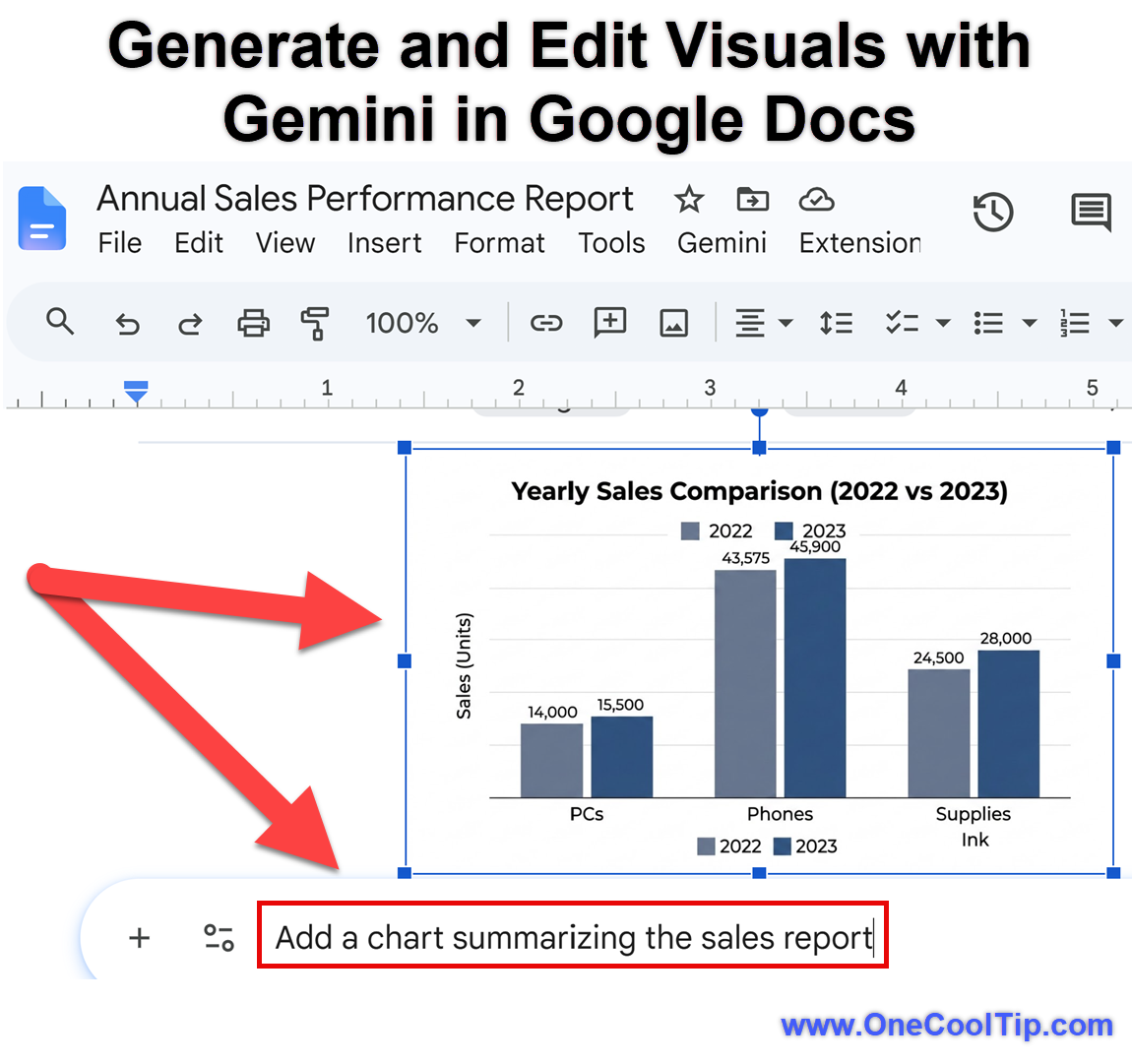
Enter a descriptive prompt asking for a graphic, diagram, or infographic. For example: "Add a chart summarizing the sales report."
-
Review the visual generated by Gemini in the side panel or document body.
-
Click Insert to place the generated visual directly into your document.
-
To edit an existing graphic, select the image and enter a refinement prompt in the Gemini panel, such as "Change the aspect ratio to 16:9" or "Update the style to a modern flat illustration."
| | fig. 1 - Generate and Edit Visuals with Gemini in Google Docs | |
Mobile (Android / iOS / iPadOS)
- Not currently available on mobile apps (Android or iOS). This feature is supported on the web only.
Pros and Cons
Pros:
- Contextual visual creation reads document text to produce accurate diagrams.
- Natural language editing allows instant style adjustments and aspect ratio changes.
- Batch editing capabilities let you adjust multiple visuals across a document at once.
- Eliminates context switching between Google Docs and external graphic design programs.
- Accessible through both the side panel and the bottom floating prompt bar.
Cons:
- Web-only availability limits users on mobile devices or tablets running native apps.
- Requires specific paid Google Workspace or Google AI subscription tiers.
- Complex diagrams may occasionally require manual prompt iteration to get precise detail.
- Requires smart features to be enabled by workspace administrators and end users.
Feature Access
-
Rollout Status: Gradual rollout (up to 15 days) began on July 28, 2026, for both Rapid Release and Scheduled Release domains.
-
Supported Platforms: Web browsers on desktop platforms (Windows, macOS, ChromeOS, Linux).
-
Business & Enterprise Tiers: Google Workspace Business Standard, Business Plus, Enterprise Standard, Enterprise Plus.
-
Education Tiers: Google Workspace Education Plus, Google AI Pro for Education, Teaching and Learning add-ons.
-
Consumer Tiers: Google AI Pro and Ultra subscribers.
-
Account Limitations: Free personal Google accounts without paid AI tier subscriptions cannot access this feature.
Score
Criterion | Score (0–10) | Justification
Value | 9
Saves significant time by creating context-aware diagrams and infographics directly inside documents without external software.
Usability | 8
Simple natural language commands make editing image aspect ratios and visual styles accessible to all skill levels.
Wow Factor | 8
The ability to analyze whole document context and update multiple visuals at once feels like having an automated graphic designer.
Total: 25 / 30 | 🌟 Excellent
An exceptional productivity upgrade for anyone who routinely creates reports, proposals, or educational materials in Google Docs.
Comparison: Outperforms standard AI image generators by reading document context directly rather than relying solely on isolated text prompts.
Key Takeaways
Google Docs now eliminates the friction of creating and editing document graphics by embedding Gemini directly into your workspace.
By reading your text contextually, Gemini generates diagrams, infographics, and custom images that match your document's purpose.
Natural language prompts allow effortless edits to aspect ratios and visual styles, saving time for every document creator.
Cool Tip Snapshot
-
Feature Name: Generate and edit visuals with Gemini in Google Docs.
-
Platform(s): Web (Google Docs).
-
Quick Benefit: Build and edit context-aware graphics directly in your document.
-
Best For: Business professionals, educators, students, and content creators.
-
Access Type: Subscription (Eligible Workspace & Google AI plans) / Rolling Out.
-
Difficulty: Easy.
Try It Yourself
Ready to make your documents stand out? Open your next draft in Google Docs on the web, click the Ask Gemini panel, and ask it to summarize your key points into a custom diagram.
If you found this guide helpful, leave a comment below, share this tip with friends and colleagues, and subscribe to the One Cool Tip newsletter for daily Cool Tips!
READ MORE
Read the Cool Tip on One Cool Tip.com.
| | Help support One Cool Tip. Use this Amazon link when you shop online. | |
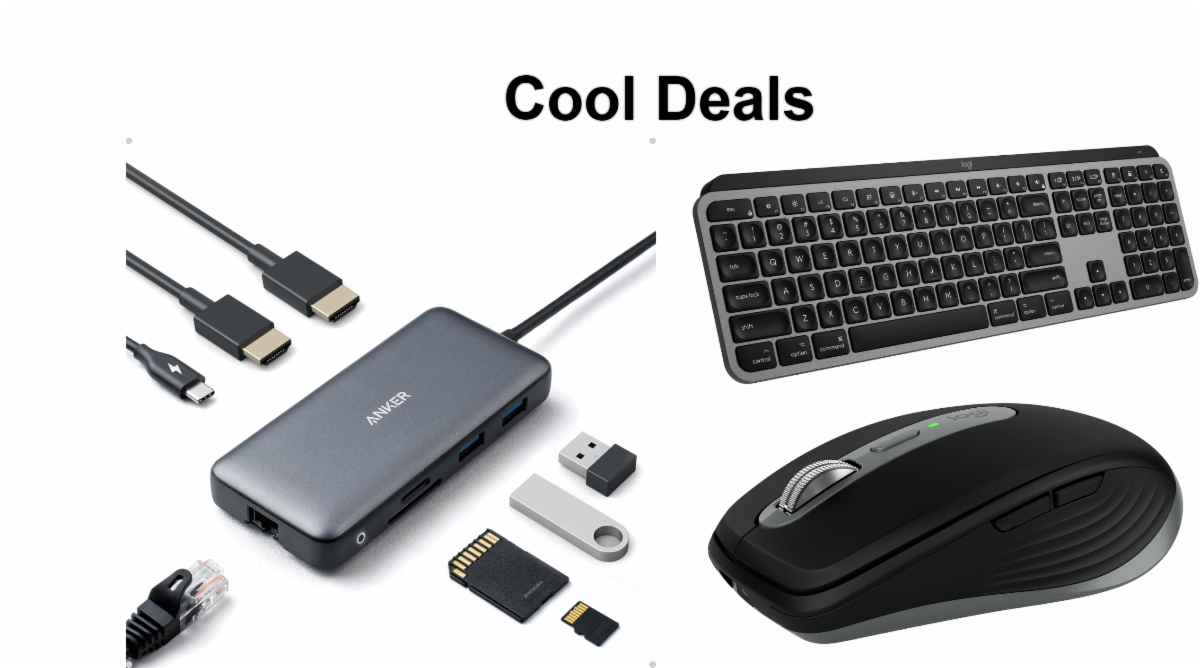
🖥️ Anker Laptop Docking Station: Expand your multi-monitor desktop setup for side-by-side document editing and design reviews.
Save 26%. $39.99. 4.3 Stars. Check it out on Amazon!
⌨️ Logitech MX Keys S Wireless Keyboard: Enjoy comfortable, quiet typing with smart illumination for long writing sessions.
Save 8%. $119.99. 4.5 Stars. Check it out on Amazon!
🖱️ Logitech MX Master 3S Wireless Mouse: Navigate long Google Docs pages and side panels with smooth thumb-wheel scrolling.
Check it out on Amazon!
Amazon's Choice. $89.99. 4.6 Stars. Check it out on Amazon!
Prices accurate at time of publication
One Cool Tip may earn a commission from qualifying purchases.
| | |
🆒Tell Me More
-
Contextual Analysis: Unlike standalone AI image generators, Gemini evaluates the surrounding document text to ensure generated charts and flowcharts reflect your topic accurately.
-
Natural Language Editing: You can refine generated images by typing plain requests such as "Change aspect ratio to 16:9" or "Use a modern flat illustration style".
-
Batch Adjustments: If you have multiple generated graphics in a long report, you can select them together and instruct Gemini to update their color schemes or visual styles simultaneously.
-
Flexible Interfaces: Access these tools through the dedicated Ask Gemini side panel or the floating prompt bar at the bottom of the Google Docs browser window.
⏩Quick Tips
- 💬 Quick Comment Summaries: Select a lengthy comment thread in Google Docs and ask Gemini to summarize key feedback points.
- 📑 Instant Pageless Layout: Switch to a continuous document view by opening File > Page setup and choosing the Pageless tab.
- 🎤 Hands-Free Dictation: Turn speech into text directly on your document page by selecting Tools > Voice typing and clicking the microphone icon.
- 🏷️ Smart Chip Insertion: Type @ anywhere on a blank line in Google Docs to quickly link files, contacts, calendar events, or drop-down trackers.
- 📊 Quick Multi-Axis Charts: Map independent data sets in Google Sheets by selecting chart properties and adding custom horizontal x-series axes.
| | ✅ More Must-Read Tech Tips | | |
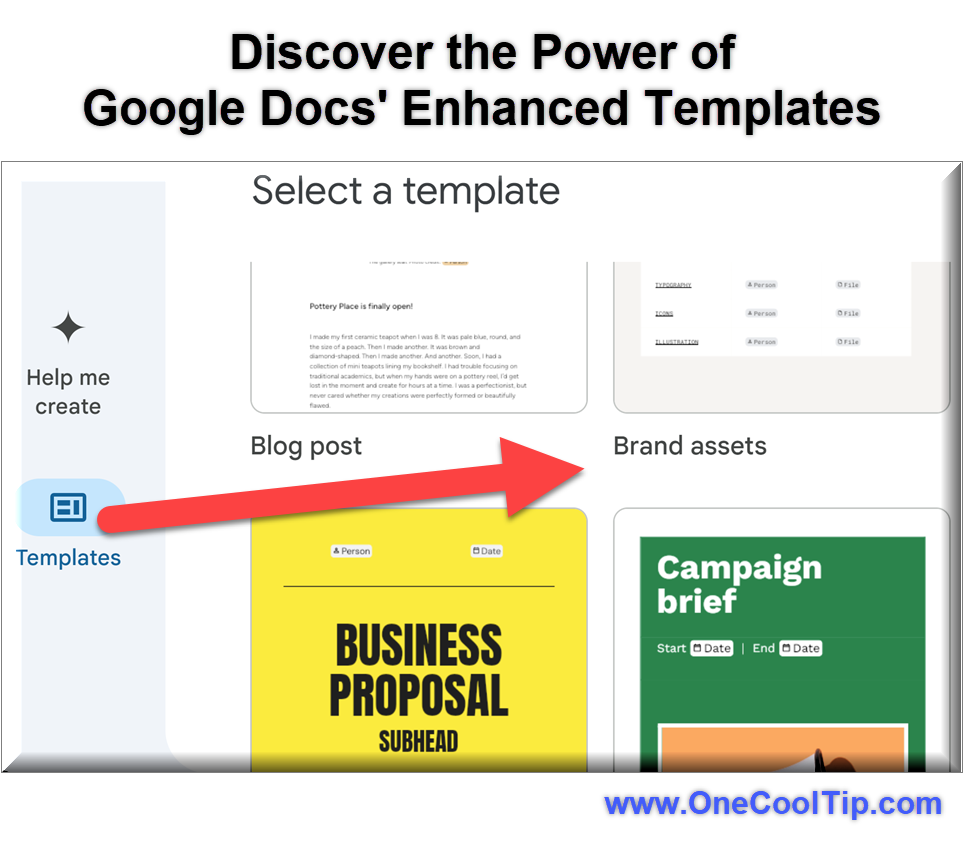
👀 How Do I Use Google Docs' Enhanced Templates?
How much time do you spend staring at a blank document, wrestling with formatting and structure before you even begin writing?
Google Docs templates are pre-formatted document layouts designed for various purposes, ranging from resumes and cover letters to project proposals and meeting notes.
These templates provide a ready-made structure, complete with suggested headings, formatting styles, and even placeholder text, allowing users to focus on content creation rather than the often tedious task of setting up a document from scratch.
For Web Users:
-
Open Google Docs, docs.google.com.
- Select "Blank Document"
-
Go to File, New Document, From a Template.
-
Browse and select the desired template.
For iOS and Android Users:
-
Open the Google Docs app. iOS / Android
-
Choose “Choose Template.”
-
Browse and select the desired template.
Head over to Google Docs right now and explore the "Template gallery."
Experiment with a few different templates relevant to your needs.
Discover more HERE.
| | |
🤔 Have You Ever Wondered How to Enable Markdown in Google Docs?
Are you tired of the cumbersome formatting options in Google Docs?
Google Docs has a hidden gem that allows you to enable Markdown for a smoother, more streamlined writing experience.
With Markdown, you can effortlessly add headers, lists, links, and other formatting elements using simple symbols and shortcuts.
-
Start by opening any Google Doc.
-
Go to "Tools" in the menu bar and select "Preferences."
-
In the Preferences window, check the box next to "Automatically detect Markdown."
-
You can now use Markdown syntax to format your text!
Here are a few examples of how to use Markdown in Google Docs:
- Headers: Add one or more # symbols before a line of text to create headings (e.g., # Heading 1, ## Heading 2).
- Bold: Surround text with ** or __ (e.g., **bold text** or __bold text__).
-
Italics: Surround text with * or _ (e.g., *italic text* or _italic text_).
- Links: Use [link text](URL) to create hyperlinks (e.g., [One Cool Tip](http://www.onecooltip.com)).
- Lists: Use *, -, or + followed by a space to create unordered lists. For ordered lists, use numbers followed by a period and a space.
By embracing this simple yet powerful markup language, you can enhance your productivity, focus on your content, and streamline your writing process.
Find out more HERE.
| | |
🙋♂️ Here's How to Unlock the Google Docs Time Machine.
Have you ever accidentally deleted a crucial paragraph in a Google Doc?
Google Docs has a built-in "time machine" known as Version History, and it's here to save the day.
This powerful feature allows you to track every change made to your document, offering a safety net for mistakes and a valuable tool for collaboration.
-
Navigate to the document you want to explore at docs.google.com.
-
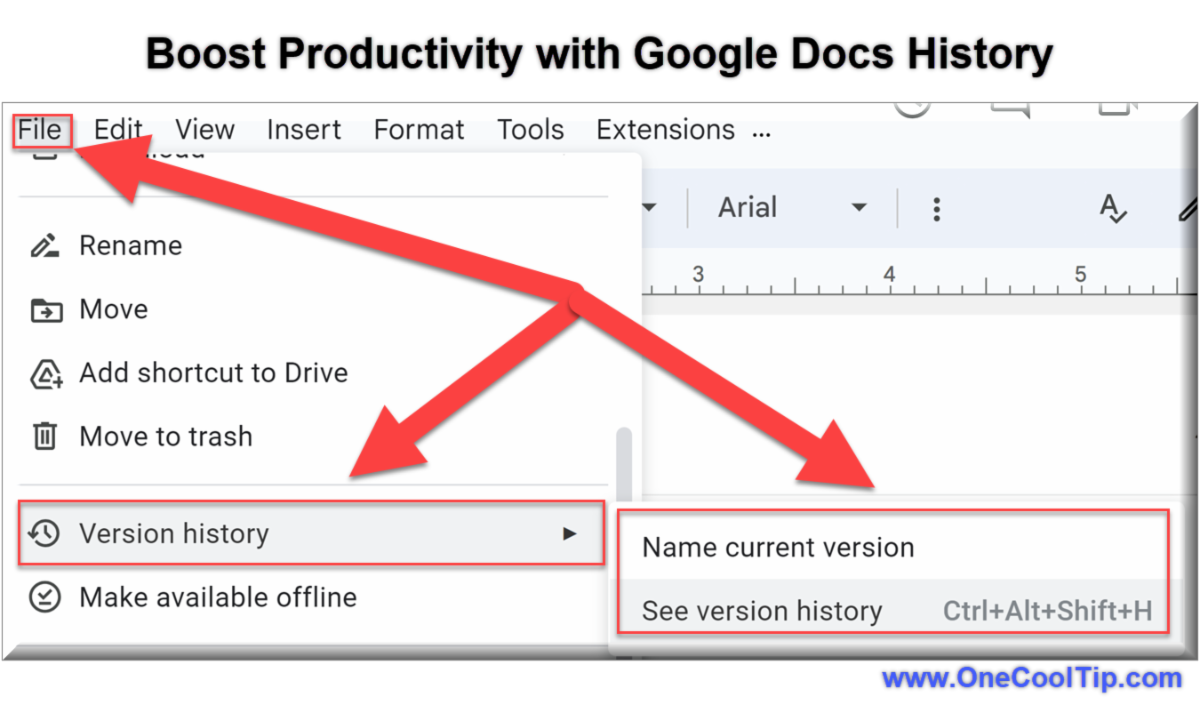
Click on "File" in the menu bar, then hover over "Version history" and select "See version history."
-
A panel appears on the right side, displaying a chronological list of revisions.
-
Each version is marked with a timestamp and the name of the user who made the changes.
-
Click on any version in the timeline to view the document as it appeared at that point in time. You can also toggle the "Show changes" option to highlight the differences between versions.
-
If you find a version you want to revert to, simply click "Restore this version" at the top of the document.
Google Docs History is an indispensable tool for anyone who uses Google Docs.
Learn more HERE.
| | |
❓Did you share this newsletter with three friends yet?
😎 Cool Facts
15 Days: The rollout period for new Google Workspace web capabilities across Rapid Release and Scheduled Release domains. Source.
16:9 Ratio: The standard wide presentation format that Gemini can apply to document visuals on demand. Source.
13 Milliseconds: Neuroscientists at MIT discovered that the human brain can identify and process entire visual images seen by the eye in as little as 13 milliseconds, highlighting why visual summaries in documents are understood so rapidly. Source.
⌨️Today's Cool Shortcuts
-
Google Docs: Ctrl + Alt + Shift + H (Windows) / Cmd + Option + Shift + H (Mac) - Open document version history.
-
Google Docs: Ctrl + Shift + S (Windows) / Cmd + Shift + S (Mac) - Toggle voice typing dictation on or off.
-
Google Docs: Alt + / (Windows) / Option + / (Mac) - Search Google Docs menus and settings quickly.
😜 Tech Joke of the Day 😅
Why did the graphic designer refuse to leave the room?
Because the exit door lacked proper padding and alignment!
🔎 Do you have a Cool Tip or tech question? Email us at onecooltip.com@gmail.com.
| | |
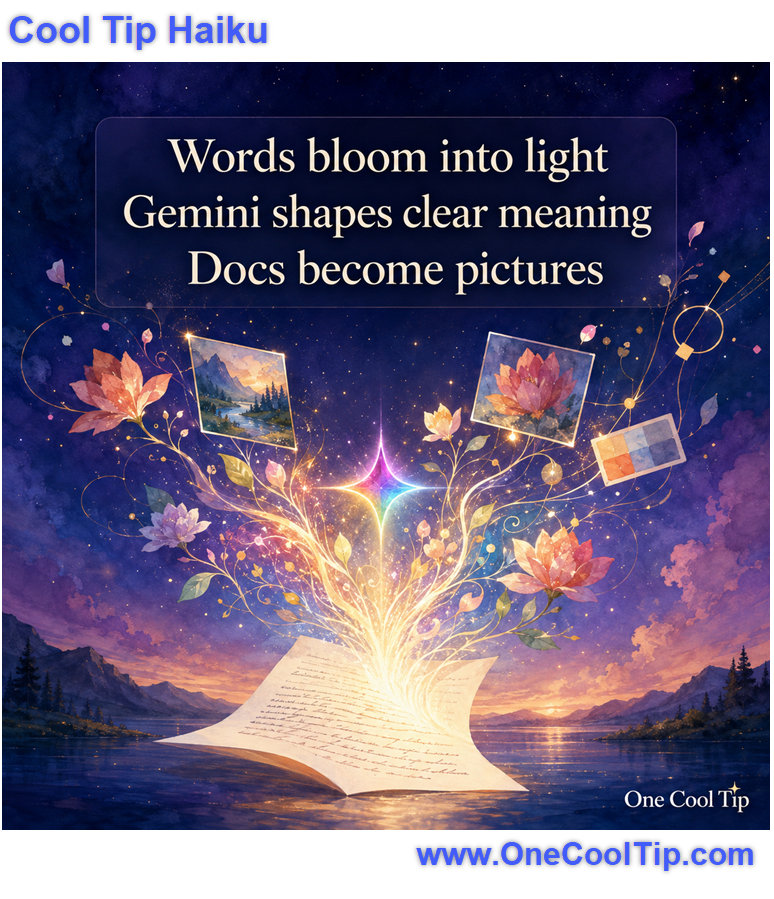
Words bloom into light
Gemini shapes clear meaning
Docs become pictures
| |
| 🤔 How do you usually add charts or diagrams to your documents? | | | | Did You See These Cool Tips This Week? | | | | Transform Everyday Clips with Google Photos Video Remix | |
Google Photos now lets you restyle short video clips instantly using generative artificial intelligence. You can adjust lighting, swap out plain backgrounds, and apply artistic effects without needing complex editing software.
Read the Newsletter Version.
| | | | Make WhatsApp Calls From Any Web Browser | |
WhatsApp is adding voice and video calls directly to WhatsApp Web, eliminating the need to install the desktop app. The browser experience also includes group calls, screen sharing, reactions, call history, and favorite contacts.
Read the Newsletter Version.
| |
ICYMI - In Case You Missed It ...
| | | | Master Classical Music With Google Blob Beats | |
Google Arts & Culture offers a browser-based arcade game that combines classical music with rhythm mechanics. You can test your reflexes while learning fun facts about historical composers.
Read the Newsletter Version.
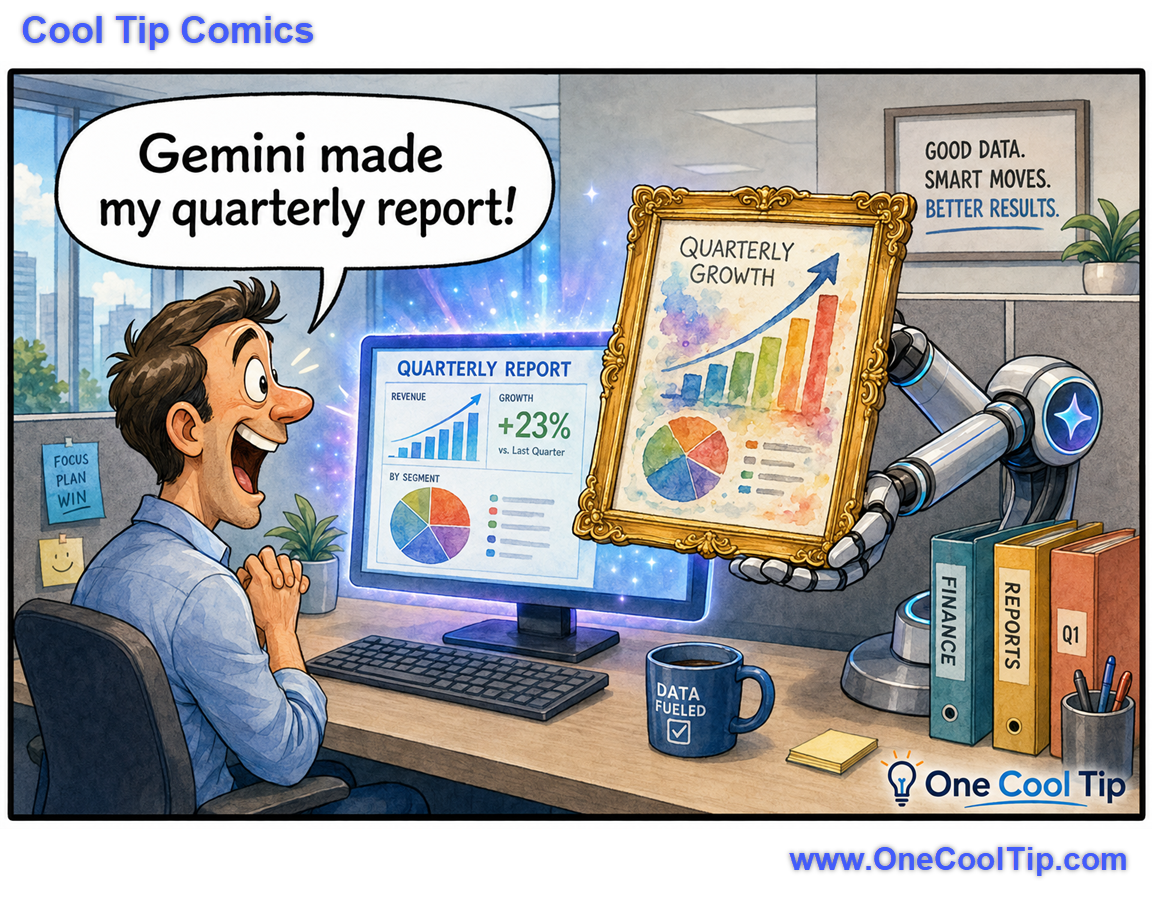
| | Who knew quarterly reports had an art department? | | |
Trivia Answer: C) 1968
The computer mouse may feel ordinary today, but it was a revolutionary idea in the 1960s.
Douglas Engelbart demonstrated the device in 1968 during a groundbreaking presentation that also showcased hypertext, collaborative editing, and video conferencing concepts decades before they became mainstream.
The mouse started as a wooden device with wheels and a single button.
Its influence eventually helped make graphical user interfaces practical for everyday users.
----------
Tomorrow's Cool Tip is waiting to amaze you.
Until then, go forth and conquer the tech world with your newfound knowledge!
Be sure to visit www.OneCoolTip.com for Cool Tech Tips for a Cooler Life!
And if you like One Cool Tip, please support with TipJar!
Enjoy!
Rodger
Chief Cool Tipper
onecooltip.com@gmail.com
| |
| What do you think of today's OneCoolTip newsletter? | | | |
Please Share the One Cool Tip Newsletter!
You asked for it. You got it. There is now a One Cool Tip Newsletter archive. Did you delete a newsletter and want to read it again? Check it out HERE.
Want to help One Cool Tip grow? Please forward this email using the link above. And if you see an OCT social media post, please LIKE, COMMENT and SHARE!
Have you subscribed to the One Cool Tip YouTube channel? Subscribe HERE.
| | Connect with One Cool Tip!! | | |
|
As an Amazon Associate, One Cool Tip may earn a small commission from qualifying purchases.
Our media content is intended solely for informational purposes only. Please do not construe anything here as legal, tax, investment, financial, marital or other advice.
Copyright © 2026 | www.OneCoolTip.com | All Rights Reserved
|
| | | |