|
Make Your iPhone Read the Screen Aloud
Apple’s VoiceOver screen reader can describe buttons, messages, webpages, notifications, and other content displayed on your iPhone. It is an essential accessibility tool for people who are blind or have low vision, but it is also useful for developers, caregivers, and anyone interested in accessible technology.
Imagine needing to check a message, open an app, or read a webpage without relying on the iPhone’s display.
Here’s a Cool Tip: Use VoiceOver. on Your iPhone
VoiceOver speaks the name and status of items as you move around the screen.
VoiceOver is not simply a read-aloud command.
It changes how the touchscreen responds so you can find, select, and activate controls using audio feedback and specialized gestures.
A single tap identifies an item, while a double-tap activates the selected item.
The feature is built into the iPhone and does not require a separate app or subscription.
Apple also provides a practice area where you can learn VoiceOver gestures without accidentally opening apps or changing settings.
Feature Explanation
VoiceOver is Apple’s built-in screen reader.
When it is active, the iPhone speaks the name and status of the currently selected item, including buttons, links, headings, text fields, notifications, and app controls.
VoiceOver changes the normal touchscreen experience:
- Tap once to select an item and hear its description.
- Double-tap to activate the selected item.
- Swipe right or left with one finger to move through items.
- Swipe up or down with one finger to perform an action associated with the selected item.
- Drag one finger around the screen to hear the items beneath it.
The VoiceOver rotor is one of the feature’s most useful tools.
Place two fingers on the screen and rotate them as though turning a dial.
Depending on the app and available content, the rotor can let you move by headings, links, words, characters, form controls, or other categories.
VoiceOver can also work with compatible external keyboards and braille displays.
Apple lets users adjust the speaking voice, rate, pitch, verbosity, punctuation, typing feedback, audio behavior, and gesture assignments.
VoiceOver is not a new iOS feature.
It is a mature accessibility tool that Apple continues to maintain as part of the iPhone operating system.
What You'll Gain
- Operate an iPhone without depending entirely on the display.
- Hear buttons, messages, webpages, settings, and app controls.
- Protect displayed information with Screen Curtain.
- Customize speech, gestures, typing feedback, and navigation.
Step-by-Step Instructions
Here's how to do it.
iPhone
-
Open Settings.
-
Select Accessibility.
-
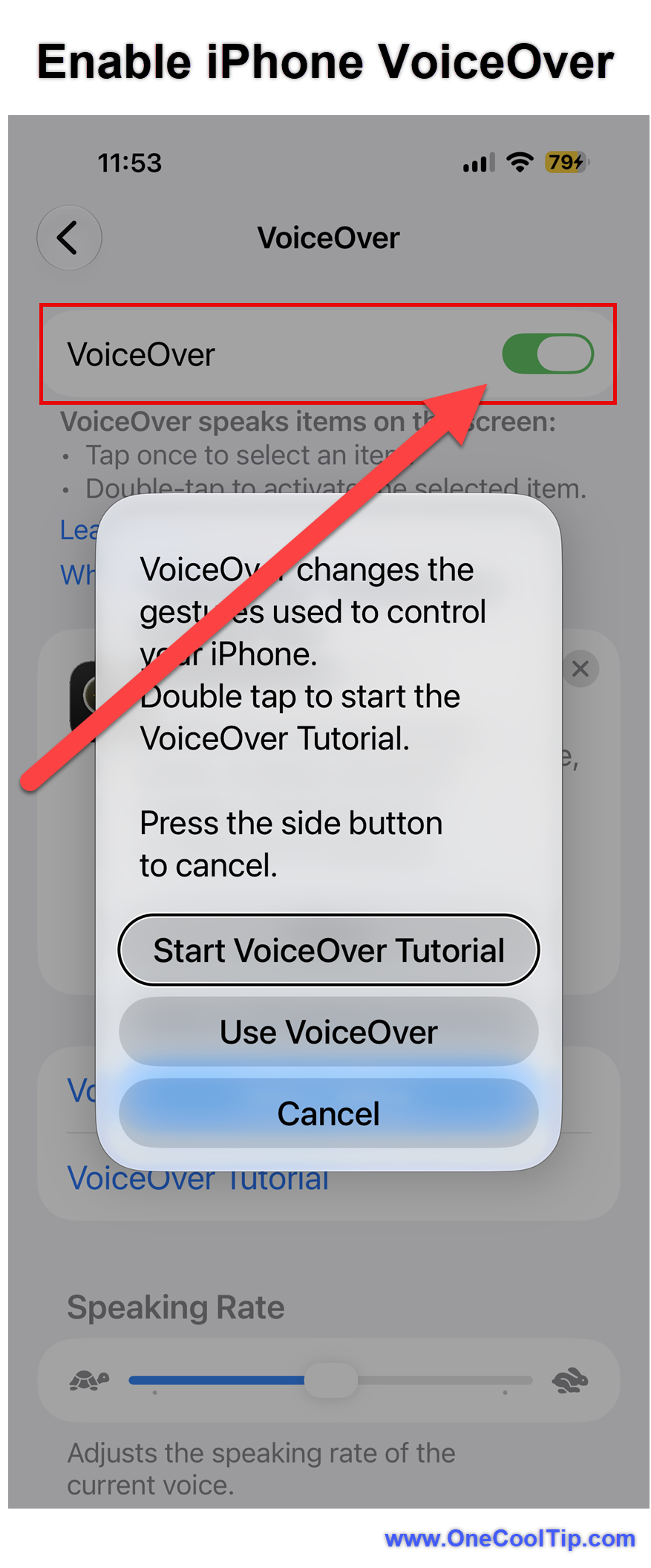
Select VoiceOver.
- Turn on VoiceOver. The iPhone will immediately begin speaking the selected item.
-
Tap an item once to hear its name. Double-tap anywhere on the screen to activate the selected item.
-
Swipe right or left with one finger to move to the next or previous item.
-
Return to Settings > Accessibility > VoiceOver and select VoiceOver Practice.
-
Practice one-finger, two-finger, three-finger, and four-finger gestures. VoiceOver explains what each gesture does without performing the associated action.
-
When finished, select Done, then double-tap to exit the practice area.
|