|
One Cool Tip Newsletter
July 29, 2026
| Your daily dose of tech-savvy brilliance! | | |
😀Greetings!, Happy Windows Wednesday, Cool Tipper!
Get ready to streamline your digital life with simple, actionable tips delivered straight to your inbox.
Today's Cool Tip Theme: Screen Tint
IN THIS ISSUE
- 🚨 Coca-Cola Fairlife Hit by Ransomware Attack.
- 🚀 Windows 11 Preview Update Delivers Speed Boosts.
- 🤖 Cool AI Prompts.
- 👁️ Windows 11 Screen Tint Makes Bright Screens Easier on the Eyes.
- 📦 Compress Files and Archives in Windows 11.
- 📡 Master Nearby Sharing in Windows.
- 🔣 Master Symbols in Windows 11.
New here? Subscribe to the One Cool Tip Newsletter for daily updates. It's FREE!
-
😂 Laugh with Us! Enjoy our Tech Joke of the Day, Haiku and Cool Tip Comics.
-
🌐 Stay Informed! Check out ICYMI, and our One Cool Tip Video.
| | |
3️⃣
If you enjoy the One Cool Tip newsletter, please forward this newsletter to THREE friends or colleagues or share it on social media using the links below.
Leave a $$$ Tip!
Share this One Cool Tip Newsletter!
| | |
Today's Tech Trivia
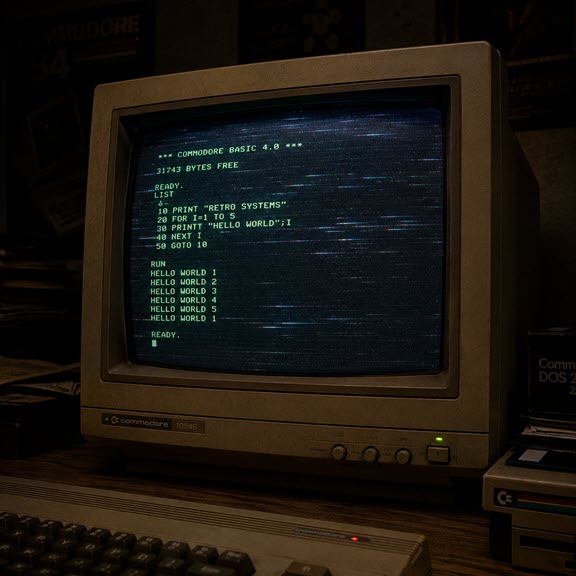
Which classic PC monitor technology was notorious for screen flicker and heavy glare before modern LCD and OLED flat panels took over?
A) OLED
B) CRT
C) IPS
D) E-Ink
Answer at the end of this newsletter.
| | |
⚠️ Coca-Cola Fairlife Hit by Ransomware Attack ⚠️
Coca-Cola recently disclosed that a ransomware attack affected systems at its Fairlife dairy subsidiary, leading to a temporary suspension of Fairlife production operations across the United States.
The company said unauthorized access was detected in some production-related systems, prompting an incident response and an ongoing investigation.
Product quality and safety were not impacted, and Canadian operations continued without disruption.
Coca-Cola has notified law enforcement and is working with cybersecurity experts to restore affected systems.
The incident serves as another reminder that cyberattacks can disrupt the production and delivery of everyday consumer products, even when no safety risks are involved.
And in Other News...
Windows 11 Preview Update Delivers Speed Boosts
Microsoft has released an optional Windows 11 preview update, KB5101684, that aims to make the Start menu and taskbar feel faster and more responsive.
The update also improves Windows Search, helping users find files more accurately, even when search terms contain typos.
File Explorer gets a usability upgrade as well, with file sizes now displayed in MBs and GBs instead of only KBs.
Microsoft also included updated Secure Boot certificates to improve compatibility across more devices.
Because this is a preview release, the update is optional for now and is expected to roll out more broadly as part of August's regular Windows updates.
If you want to try these new features early, you can install it through the Optional Updates section in Windows Update.
| | |
Try these Cool AI prompts. Copy and paste to ChatGPT, Gemini, Claude or Copilot.
Turn a Rambling Email into a Professional Message
Rewrite the following email so it is concise, professional, friendly, and action-oriented. Highlight key decisions and next steps.
Turn Meeting Notes into Action Items
Review these meeting notes and create a summary with key decisions, action items, owners, and due dates.
Explain an Excel Formula
Explain what this Excel formula does in plain English and suggest a simpler alternative if available: [formula]
Improve a Resume
Rewrite my resume bullets to emphasize measurable achievements, leadership, and business impact. Use strong action verbs.
Learn Something Quickly
Teach me the basics of [topic] in 10 minutes. Assume no prior knowledge and use simple examples.
Personal Budget Review
Analyze this monthly spending data and identify opportunities to reduce expenses without significantly impacting quality of life.
Find a Gift
Suggest gift ideas for a person who likes [hobbies/interests]. Budget: $50. Include unique options and practical choices.
Summarize a Long Document
Summarize this document in one page. Include key points, risks, recommendations, and any decisions that need to be made.
Turn Notes into a Study Guide
Convert these notes into a structured study guide with key concepts, flash cards, practice questions, and a summary.
| | |
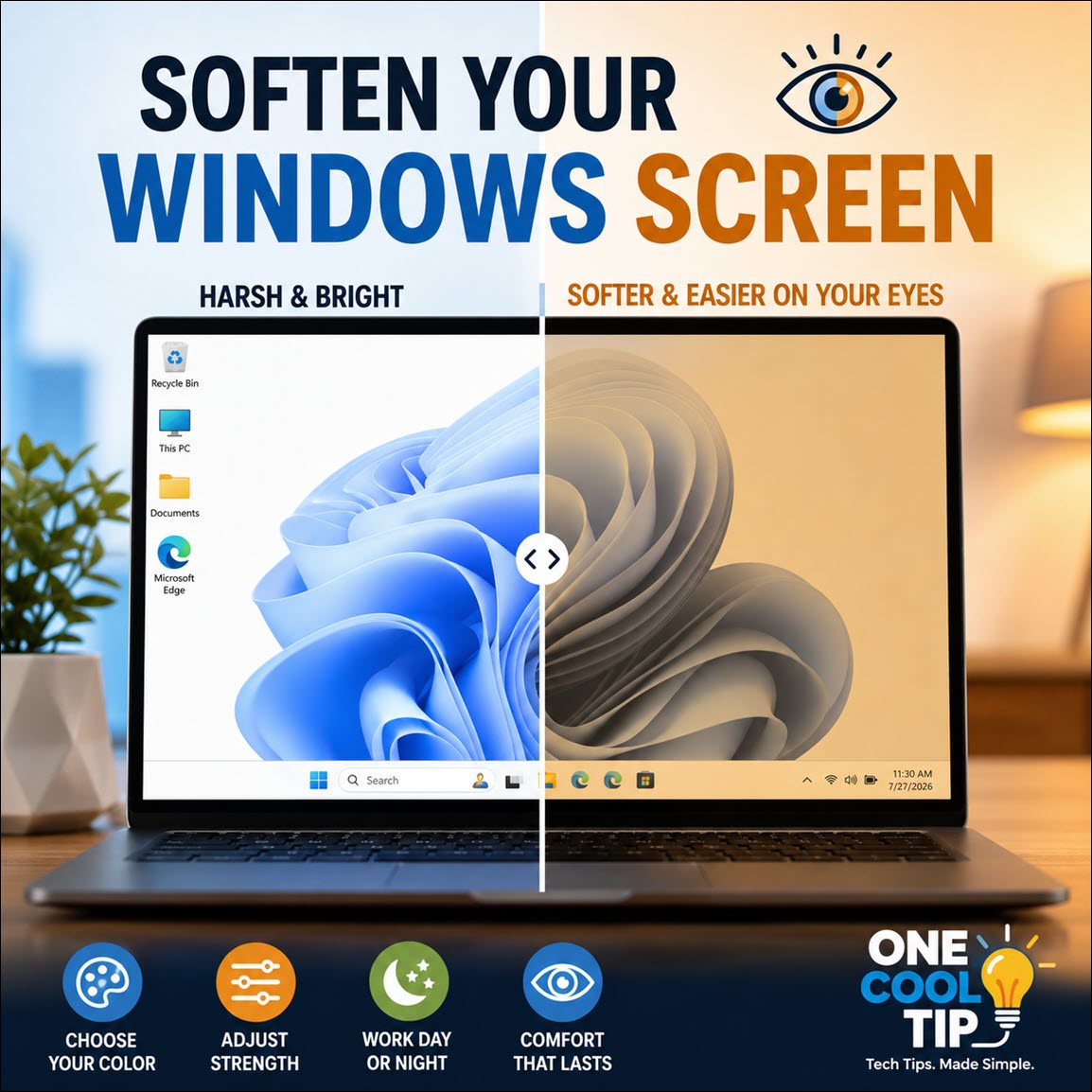
Windows 11 Screen Tint Makes Bright Screens Easier on the Eyes
Bright screens are not always a brightness problem. Sometimes the intensity of modern apps, websites, and documents is what leaves your eyes feeling tired after a long day.
Windows 11's new Screen Tint accessibility feature offers another way to improve screen comfort by applying a customizable color overlay across the entire display. Availability may vary depending on your Windows version and rollout status.
After eight hours of email, spreadsheets, Teams meetings, web browsing, and document editing, many people reach for the brightness controls.
The problem is that brightness is not always what's causing the discomfort.
Here's a Cool Tip: Customize your screen's comfort level with Screen Tint.
Microsoft's new Screen Tint feature for Windows 11 takes a different approach. Instead of simply dimming the display, it adds a customizable color overlay designed to make bright screens feel less visually intense during long work sessions.
The feature is intended to help users who experience eye fatigue, light sensitivity, or general visual discomfort from bright displays.
Screen Tint joins other Windows accessibility tools designed to make computing more comfortable, but it fills a unique gap between Night Light and Color Filters.
Feature Explanation
What Is Screen Tint?
Screen Tint is a Windows accessibility feature that places a customizable color overlay across the entire desktop, including apps, websites, documents, and system interfaces.
The goal is to reduce visual discomfort by softening the appearance of bright screens during extended use.
Microsoft positions Screen Tint differently from Night Light.
Night Light reduces blue light by warming the display, while Screen Tint applies a color overlay that makes the overall screen feel less visually intense.
The two features can be used together when supported.
Screen Tint cannot be used at the same time as Color Filters.
Turning on one automatically disables the other.
This feature is particularly useful for:
- Professionals who spend long hours in Outlook, Excel, Teams, or Word.
- Students reading digital textbooks and research materials.
- Users sensitive to bright white backgrounds.
- Anyone who experiences eye fatigue during extended screen use.
Availability currently varies depending on Windows version, Insider status, and rollout availability.
What You'll Gain
- Reduce eye fatigue during long screen sessions
- Soften harsh white backgrounds without changing monitor settings
- Fine-tune display comfort with preset or custom colors
- Create a more comfortable workspace using built-in Windows accessibility tools
Step-by-Step Instructions
Here's how to do it.
Screen Tint may not appear on every Windows 11 device yet.
If you do not see the setting, make sure Windows is fully updated.
Windows
-
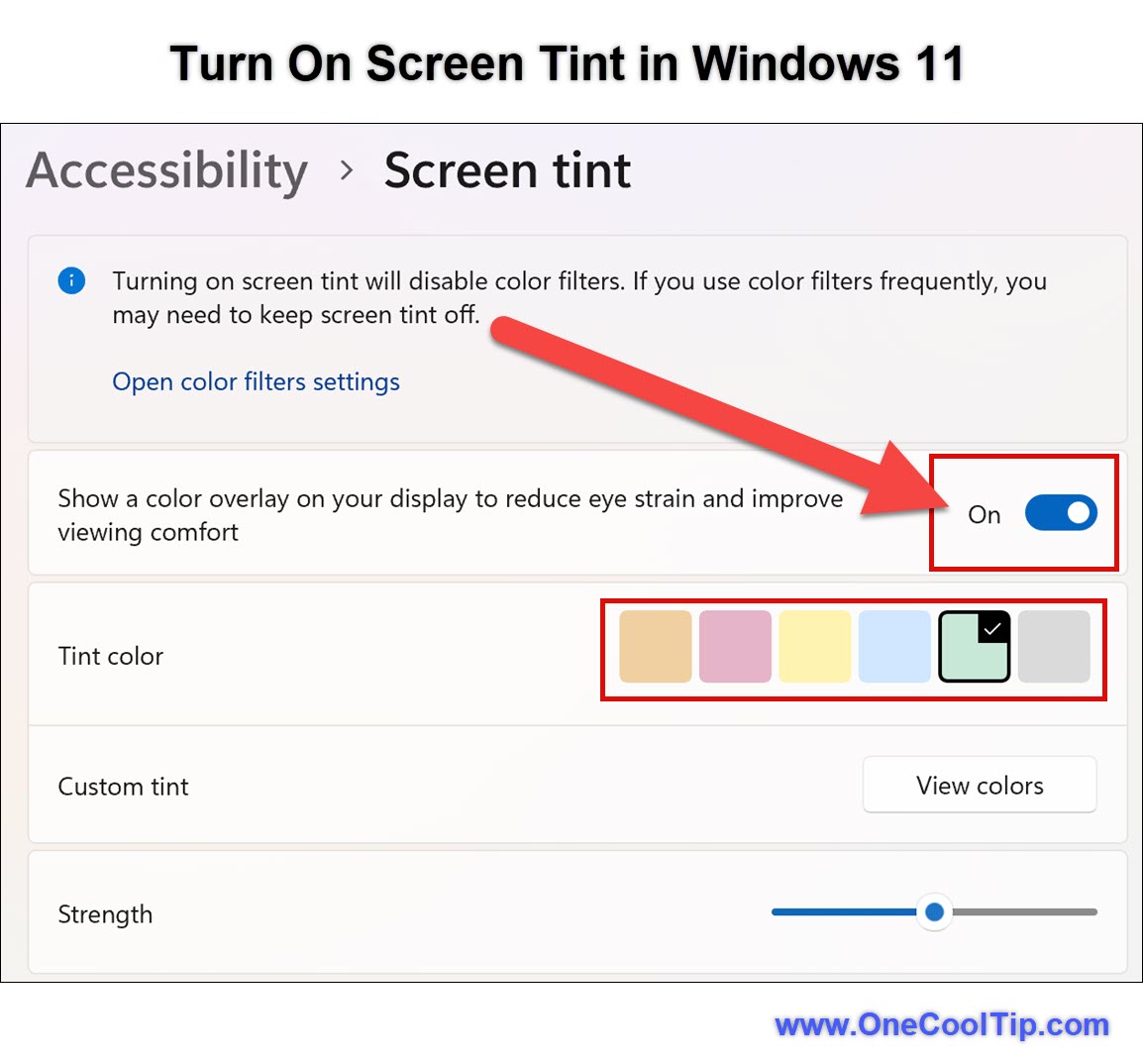
Open Settings.
-
Select Accessibility from the left navigation pane.
-
Under the Vision section, select Screen Tint.
-
Toggle Screen Tint to On.
-
Choose one of the preset tint colors or create a custom tint.
-
Use the Strength slider to increase or decrease the effect.
-
Continue working as normal and adjust the tint until the display feels comfortable.
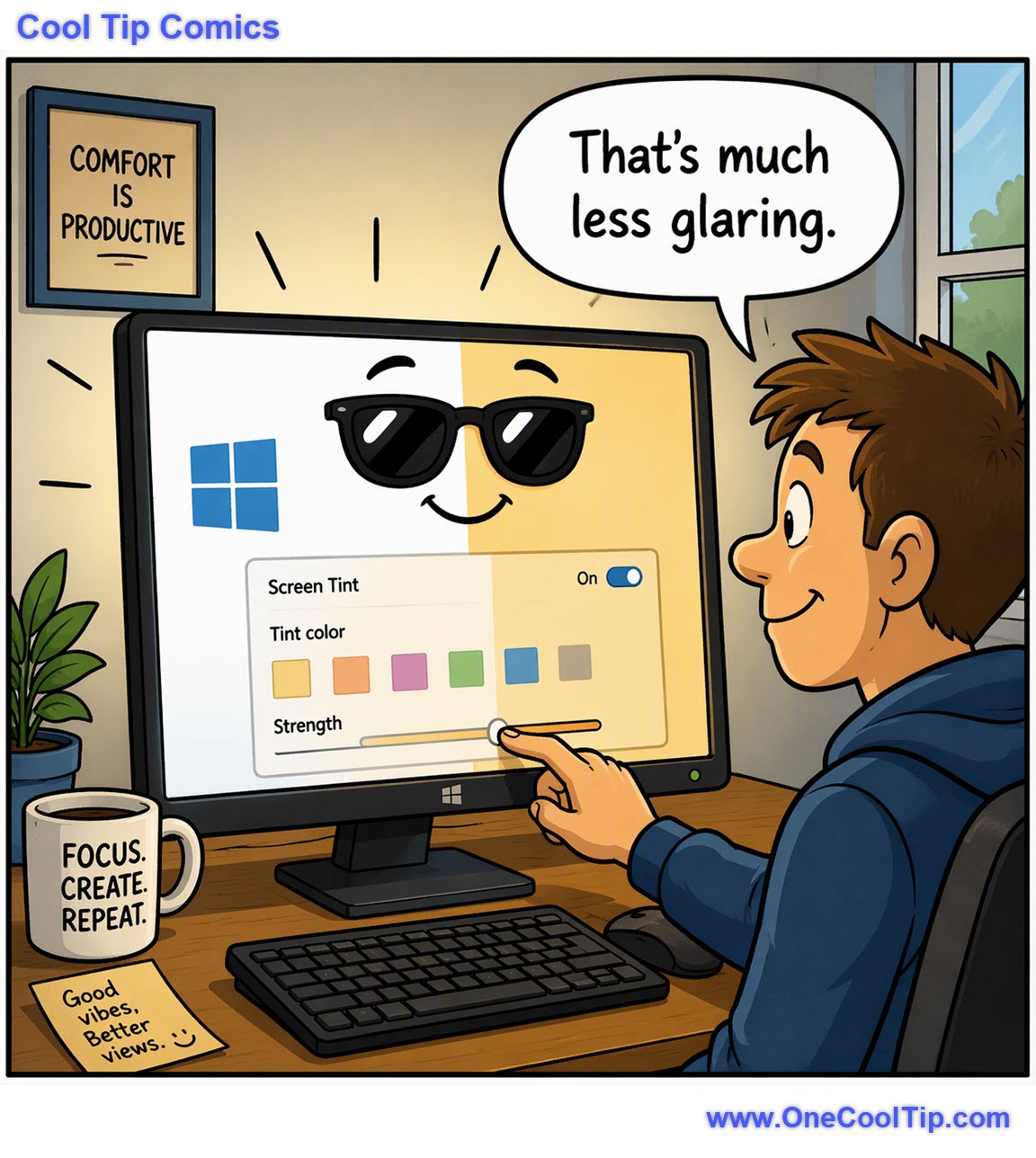
| | fig. 1 - Turn on Screen Tint in Windows 11 | |
Pros and Cons
Pros:
- Built directly into Windows.
- Easy to customize with preset and custom colors.
- Can work alongside Night Light.
- May help reduce visual discomfort during long screen sessions.
- Particularly useful for users sensitive to bright interfaces.
Cons:
- Not yet available on every Windows 11 system.
- Cannot be used simultaneously with Color Filters.
- Finding the ideal tint may require experimentation.
- Benefits will vary depending on individual preferences and display hardware.
Screen Tint is not worth enabling if:
- You are already comfortable using Night Light alone.
- You rely on Color Filters for accessibility needs.
- You spend very little time looking at a computer screen.
- Your organization's IT policies restrict changes to accessibility settings.
Feature Access
-
Feature: Screen Tint.
-
Platform: Windows 11.
-
Location: Accessibility → Vision → Screen Tint.
-
Subscription Required: None specified by Microsoft.
-
Region Restrictions: None currently documented by Microsoft.
-
Availability: Availability may vary by Windows build, device, channel, and rollout status.
-
Enterprise Controls: Organizational policies may limit access in managed environments.
Score
Criterion | Score (0–10) | Justification
Value | 8
Helps address a common comfort issue for people who spend long hours in front of a screen.
Usability | 9
Easy to enable and customize using built-in Accessibility settings.
Wow Factor | 5
Useful and practical, though not especially groundbreaking.
Total: 22/30 | 👍 Good
A simple but worthwhile Windows accessibility feature that can make long workdays more comfortable. Screen Tint complements Night Light rather than replacing it. Night Light focuses on color temperature, while Screen Tint focuses on overall screen comfort.
Key Takeaways
Screen Tint gives Windows users another way to make bright displays more comfortable during long work sessions.
It is easy to enable, highly customizable, and may help reduce visual discomfort without requiring third-party software.
For users who spend hours each day in front of a screen, this small accessibility feature could make a noticeable difference.
Cool Tip Snapshot
-
Feature Name: Screen Tint.
-
Platform(s): Windows 11.
-
Quick Benefit: Adds a customizable color overlay to make bright screens more comfortable.
-
Best For: Business users, students, older adults, creators, and anyone sensitive to bright displays.
-
Access Type: Rolling Out.
-
Difficulty: Easy.
Try It Yourself
Try Screen Tint the next time your screen feels too bright or visually harsh during a long work session.
Experiment with a preset tint and the Strength slider, then share your results in the comments.
Share this article with family, friends, and coworkers who spend too much time staring at screens.
READ MORE
Read the Cool Tip on One Cool Tip.com.
| | Help support One Cool Tip. Use this Amazon link when you shop online. | |
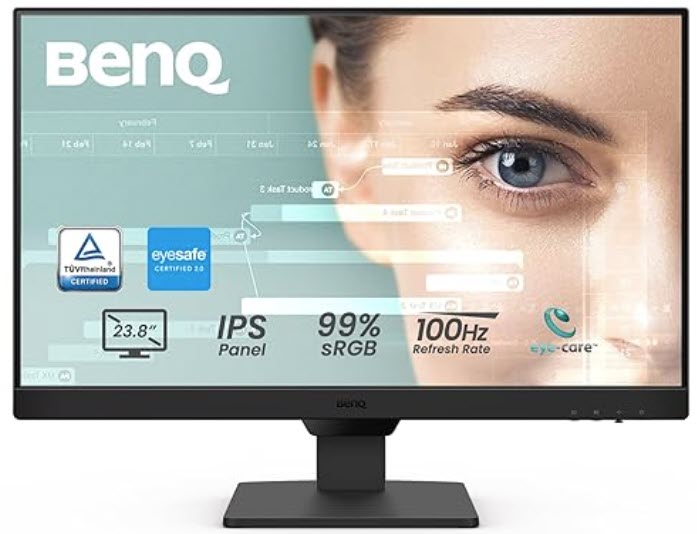
🖥️ BenQ GW2490 24" Monitor: A good match for readers who want hardware-level display comfort in addition to Windows Screen Tint.
Overall Pick. $99.99. 4.6 Stars. Check it out on Amazon!
💡 Quntis Computer Monitor Light Bar: Helps improve desk lighting without taking up space, which can reduce the contrast between a bright monitor and a dark workspace.
$39.95. 4.6 Stars. Check it out on Amazon!
🖱️ Logitech MX Master 3S Wireless Mouse: A comfortable productivity mouse pairs nicely with a more comfortable screen setup for long work sessions.
Save 11%. $79.99. 4.5 Stars. Check it out on Amazon!
👓 livho High Tech Blue Light Glasses: A low-cost comfort accessory for readers who want to experiment with screen-viewing comfort, although evidence on blue light glasses remains mixed.
Save 58%. $13.57. 4.3 Stars. Check it out on Amazon!
Prices accurate at time of publication
One Cool Tip may earn a commission from qualifying purchases.
| | |
🆒Tell Me More
- Screen Tint applies a single color overlay across the entire display rather than changing one app at a time.
- Microsoft says Screen Tint and Night Light serve different purposes: Night Light changes warmth, while Screen Tint reduces overall screen intensity.
- Screen Tint and Color Filters cannot be used at the same time. Turning on one disables the other.
- Screen Tint includes preset colors and a custom color option, plus a Strength slider for adjusting the overlay.
- Microsoft notes that tint intensity may vary depending on display hardware, so the same tint may look different on different monitors.
⏩Quick Tips
-
👀 Start Soft: Choose a gentle tint first. Open Settings > Accessibility > Screen Tint, turn it on, and start with a low Strength setting.
-
🌙 Pair Carefully: Use Screen Tint with Night Light if both daytime comfort and evening warmth help you. Microsoft says the two features can work together because they address different display issues.
-
🎨 Try Custom: If the presets feel too yellow, gray, or blue, make your own tint. Select View colors in the Custom tint section and choose a color that feels easier to view.
-
⚠️ Check Filters: If you rely on Color Filters, leave Screen Tint off. Microsoft notes that Screen Tint disables Color Filters, and Color Filters disable Screen Tint.
-
🔍 Use the Shortcut: Press Windows key + U to jump straight into Accessibility settings. From there, look under the Vision section for display comfort tools.
| | ✅ More Must-Read Tech Tips | | |
👀 How Do I Create Compressed Folders and Archives in Windows 11?
Ever tried emailing a folder only to be blocked by size limits or file types?
Or maybe you’ve downloaded a .TAR file and wondered why Windows just stared blankly at it.
Windows now understands a wide range of archive formats.
To create a ZIP, 7z or TAR file:
-
Open File Explorer and select your files/folders.
-
Right-click and choose “Compress to.”
-
Select the compression method: ZIP file, 7z File or TAR file.
-
Rename the archive if needed.
To extract a ZIP, RAR, TAR, or 7z file:
-
Double-click the archive.
-
Click “Extract All” or drag files out.
Right-click a folder and compress it today.
Discover more HERE.
| | |
🤔 Have You Ever Wondered How to Use Nearby Sharing?
Ever emailed yourself a file just to move it across the room?
If so, you're not alone.
Despite all our tech, file sharing between nearby devices still feels clunky.
USB drives, cloud uploads, email attachments, all work, but they’re slow, messy, and often overkill.
Windows Nearby Sharing is a built-in feature that quietly solves this problem with surprising elegance.
Here's how to do it.
Windows 10/11 Desktop
-
Go to Settings > System > Nearby sharing.
-
Choose: My devices only or Everyone nearby.
-
Right-click any file > Share > Share to More Apps (...) > Select a nearby device to share a file.
-
To receive a File: Accept the notification > File. The file saves to your Downloads folder.
Windows Nearby Sharing is a fast, wireless way to send files between nearby Windows devices.
It’s built-in, easy to use, and ideal for business, education, and personal productivity.
Find out more HERE.
| | |
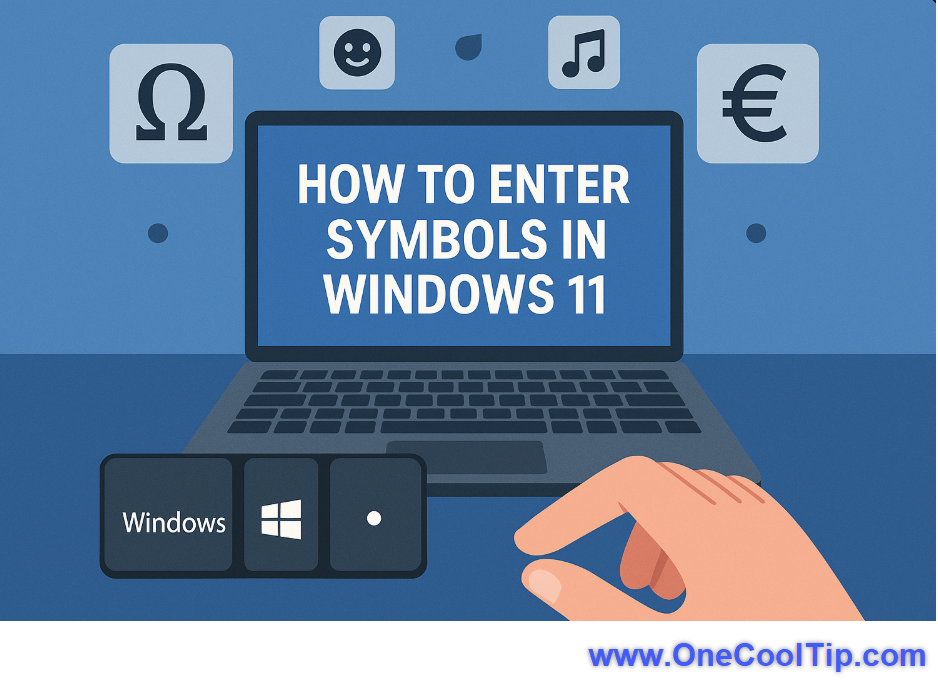
🙋♂️ Here's How to Master Symbols in Windows 11.
Ever struggled to find the copyright symbol or an em-dash while typing?
Windows 11 brings a wealth of tools to simplify entering special characters and symbols.
Windows 11 offers three key methods for inserting symbols: Alt codes, the Character Map, and the Emoji Panel.
Method 1: Using Alt Codes
-
Ensure your keyboard has a numeric keypad.
-
Turn on the Num Lock key.
-
Hold down the Alt key while typing the corresponding four-digit code on the numeric keypad.
-
Example: To type the degree symbol (º), press Alt + 0176.
Method 2: Accessing the Character Map
-
Press Windows + S and search for "Character Map."
-
Open the Character Map application.
-
Choose your desired font, select a symbol, and click "Copy."
-
Paste the symbol into your document.
Method 3: Using the Emoji Panel
-
Press Windows + . (period) or Windows + ; (semicolon).
-
Browse through the symbols, emojis, and kaomoji.
-
Click on the desired symbol to insert it directly into your text.
Windows 11 delivers robust and accessible methods for entering symbols, catering to diverse user needs.
Mastering these features will undoubtedly enhance productivity and efficiency.
Learn more HERE.
| | |
❓Did you share this newsletter with three friends yet?
😎 Cool Facts
🎨 6: Windows 11 Screen Tint includes six preset color options, plus a custom color picker that lets you create your own tint for a more personalized viewing experience. Source.
⌨️ 1 Shortcut: Press Windows key + U to instantly open Accessibility Settings, giving you quick access to Screen Tint and other accessibility tools. Source.
🌙 2: Microsoft says Night Light and Screen Tint can be used together because they serve different purposes. Night Light adjusts color warmth, while Screen Tint reduces overall display intensity. Source.
⚠️ 2: Screen Tint and Color Filters cannot be enabled at the same time. Turning on one automatically disables the other. Source.
🔄 2nd: Microsoft states that Windows 11 receives monthly security updates on the second Tuesday of each month, commonly known as Patch Tuesday. Source.
⌨️Today's Cool Shortcuts
-
Windows key + U: Open Accessibility Settings.
-
Windows key + Plus sign: Turn Magnifier on.
-
Windows key + Esc: Turn Magnifier off.
-
Windows key + Ctrl + C: Turn Color Filters on or off.
-
Windows key + H: Open voice typing.
😜 Tech Joke of the Day 😅
How do programmers fix dry eyes?
They take a control-alt-refresh break!
🔎 Do you have a Cool Tip or tech question? Email us at onecooltip.com@gmail.com.
| | |
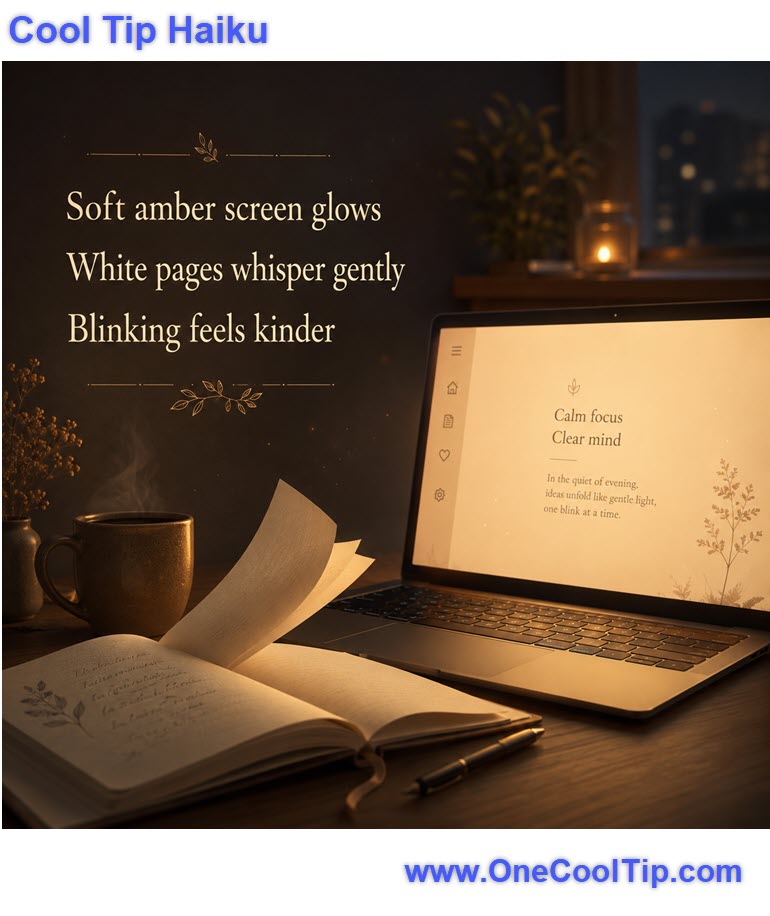
Soft amber screen glows
White pages whisper gently
Blinking feels kinder
| |
| 🤔 What bothers your eyes most during computer time? | | | | Did You See These Cool Tips This Week? | | | | Lockout Backup: Access Your Google Account With a Selfie Video | |
Google launched a selfie video verification method to help users regain access to locked accounts when standard recovery devices are unavailable. By recording guided head movements, account owners can store an encrypted facial verification baseline to verify their identity in emergency situations.
Read the Newsletter Version.
| | | | Put Google's Always-On AI Agent to Work | |
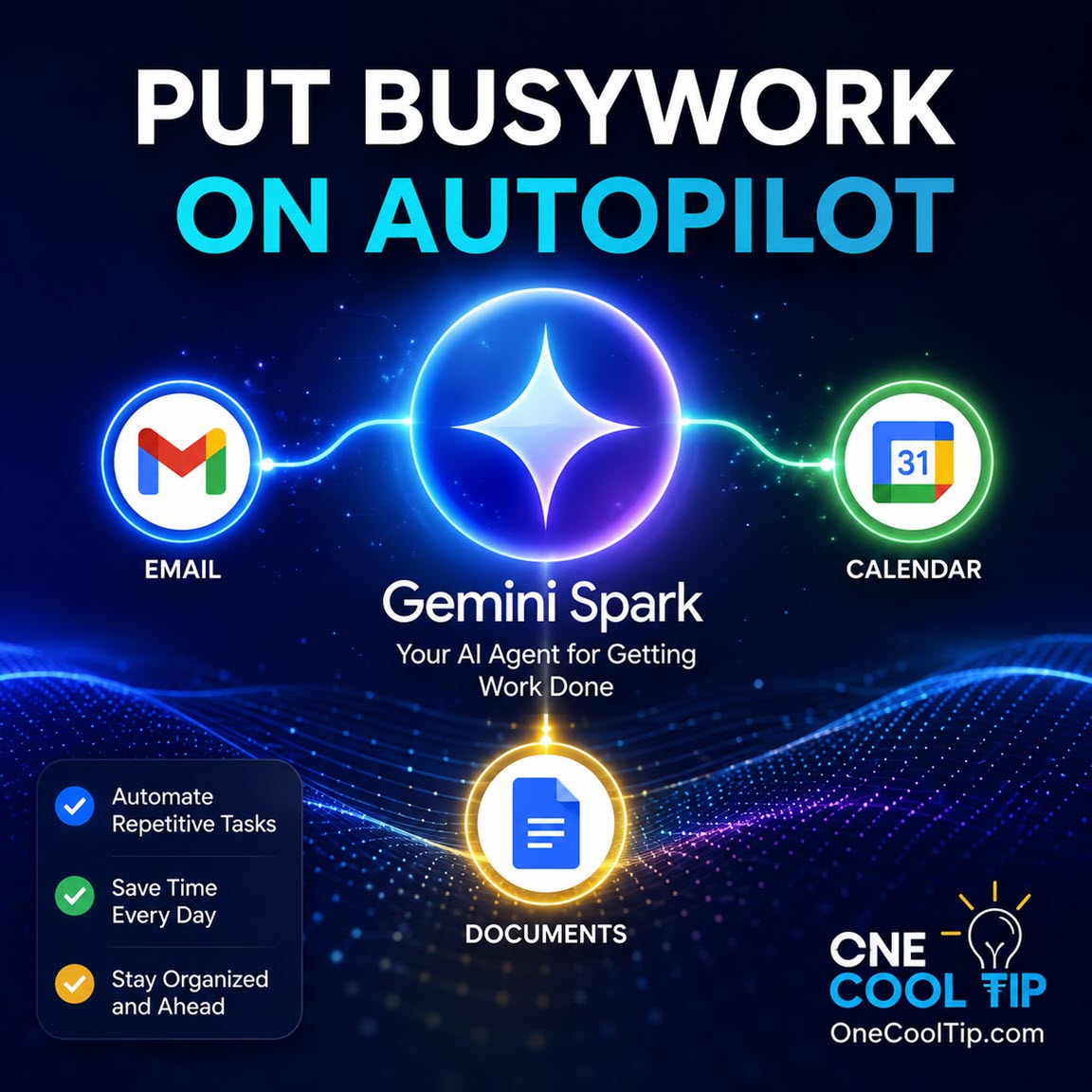
Google is expanding availability of Gemini Spark, its background AI agent that handles continuous tasks across apps. Users can now automate multi-step workflows without leaving browser tabs open or waiting for manual prompts.
Read the Newsletter Version.
| |
ICYMI - In Case You Missed It ...
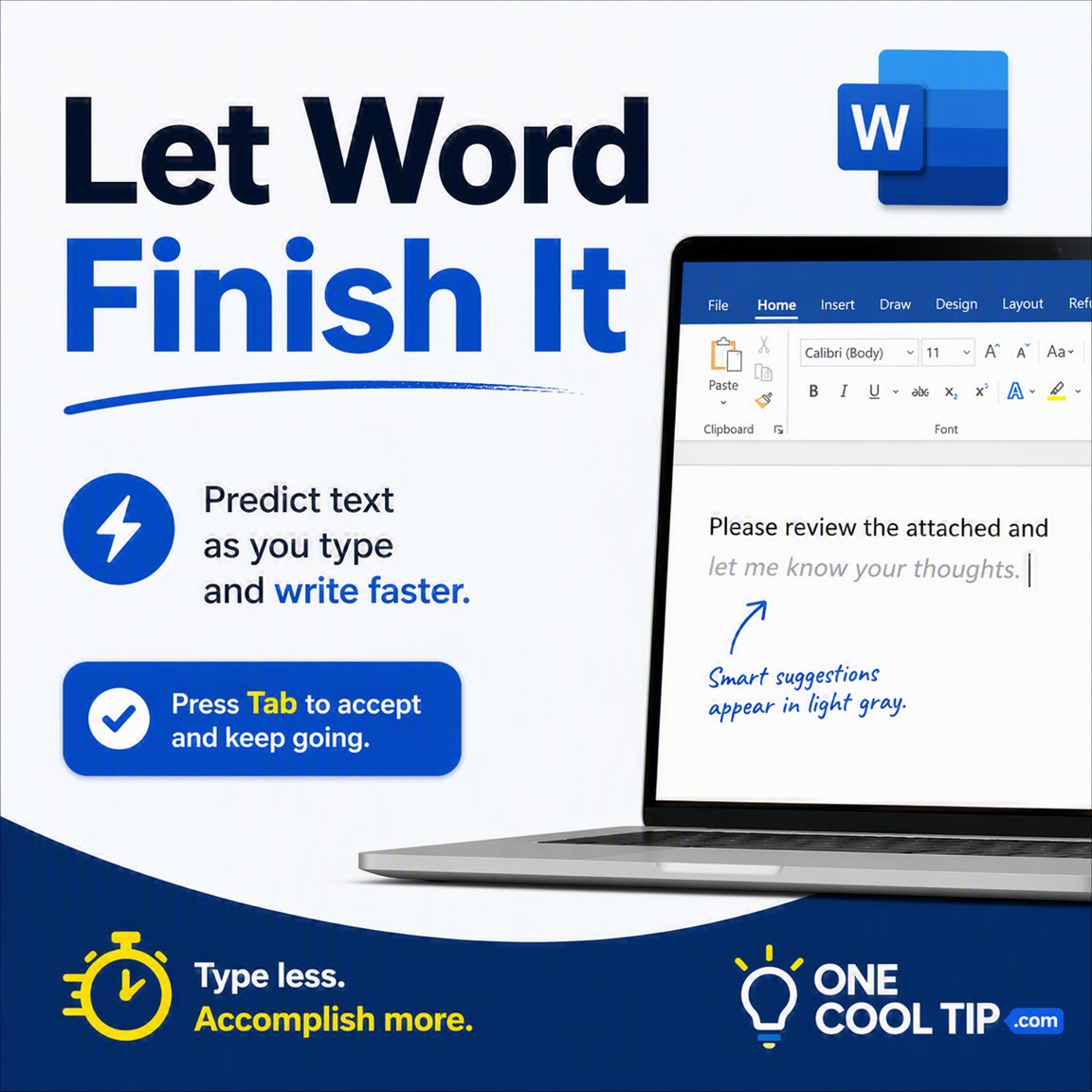
| | | | Make Word Finish Your Sentences Faster | |
Microsoft Word can anticipate what you’re about to type and suggest text in real time. Used well, it helps you write faster, cut repetition, and keep your momentum.
Read the Newsletter Version.
| | Even Windows knows the future’s so bright, it has to wear shades. | | |
Trivia Answer: B) CRT
Cathode Ray Tube (CRT) monitors produced images by firing electron beams at a phosphorescent screen.
Because the phosphors faded quickly, the display had to be refreshed dozens of times per second.
Low refresh rates caused noticeable flicker, which frequently led to headache issues and visual fatigue for early computer users.
----------
Tomorrow's Cool Tip is waiting to amaze you.
Until then, go forth and conquer the tech world with your newfound knowledge!
Be sure to visit www.OneCoolTip.com for Cool Tech Tips for a Cooler Life!
And if you like One Cool Tip, please support with TipJar!
Enjoy!
Rodger
Chief Cool Tipper
onecooltip.com@gmail.com
| |
| What do you think of today's OneCoolTip newsletter? | | | |
Please Share the One Cool Tip Newsletter!
You asked for it. You got it. There is now a One Cool Tip Newsletter archive. Did you delete a newsletter and want to read it again? Check it out HERE.
Want to help One Cool Tip grow? Please forward this email using the link above. And if you see an OCT social media post, please LIKE, COMMENT and SHARE!
Have you subscribed to the One Cool Tip YouTube channel? Subscribe HERE.
| | Connect with One Cool Tip!! | | |
|
As an Amazon Associate, One Cool Tip may earn a small commission from qualifying purchases.
Our media content is intended solely for informational purposes only. Please do not construe anything here as legal, tax, investment, financial, marital or other advice.
Copyright © 2026 | www.OneCoolTip.com | All Rights Reserved
|
| | | |