|
One Cool Tip Newsletter
December 17, 2025
| Your daily dose of tech-savvy brilliance! | |
😀Greetings!, Happy Windows Wednesday, Cool Tipper!
Get ready to streamline your digital life with simple, actionable tips delivered straight to your inbox.
Today's Cool Tip Theme: New Windows 11 Themes
IN THIS ISSUE
- 🚨 Illegal Online Gambling Warning.
- 📺 LG TV Update.
- 🤖 Wednesday AI Productivity Prompt.
- 📸 Photo Restoration Prompt.
- 🎨 New Windows 11 Themes.
- 🔄 App Updates.
- (^_^) Kaomoji Fun.
- 📋 Clipboard Privacy.
New here? Subscribe to the One Cool Tip Newsletter for daily updates. It's FREE!
-
😂 Laugh with Us! Enjoy our Tech Joke of the Day, Haiku and Cool Tip Comics.
-
🌐 Stay Informed! Check out ICYMI, and our One Cool Tip Video.
| | |
3️⃣
If you enjoy the One Cool Tip newsletter, please forward this newsletter to THREE friends or colleagues or share it on social media using the links below.
Leave a Tip!
Share this One Cool Tip Newsletter!
| | |
Today's Tech Trivia
Answer at the end of this newsletter.
| |
| Which version of Windows first introduced built-in visual themes for consumers? | | | | |
🚨Beware Illegal Online Gambling Sites🚨
The FBI’s Internet Crime Complaint Center (IC3) has issued a new warning: offshore and unregulated online gambling sites are putting U.S. bettors at serious risk.
What you need to know:
-
Unlicensed operators: Many sites look legitimate but aren’t regulated under U.S. law.
-
Organized crime links: Illegal betting often funds trafficking and other criminal activity.
-
Consumer dangers: Players risk fraud, extortion, and even tax evasion issues.
-
Big numbers: Americans wager an estimated $673.6 billion in illegal markets each year.
-
Safer play: Always check your state gaming agency and stick to licensed sportsbook operators.
And in Other News...
- LG Smart TVs Get Copilot, Without Asking
Microsoft Copilot has quietly appeared on LG smart TVs after a webOS update, and users can’t uninstall it.
-
Unremovable app: Copilot shows up pinned to the home screen and cannot be deleted.
-
Hidden option: You can hide the icon, but the app remains installed.
-
Web shortcut: Instead of a native TV app, it acts as a link to Copilot’s web interface.
-
CES 2025 rollout: LG announced Copilot integration earlier this year, but didn’t warn owners about forced installs.
-
Privacy trade‑off: Disconnecting your TV from the internet removes Copilot, but also disables updates and features.
| | |
🚀 Make It a Great Week!
Copy/Paste this AI-powered prompt. Try it in the One Cool Tip AI Companion (free ChatGPT account required) or Copilot, Gemini or ChatGPT:
I have work and home tasks today. Help me organize them. Here’s what I need to get done .
| | | |
Try this Cool ChatGPT prompt:
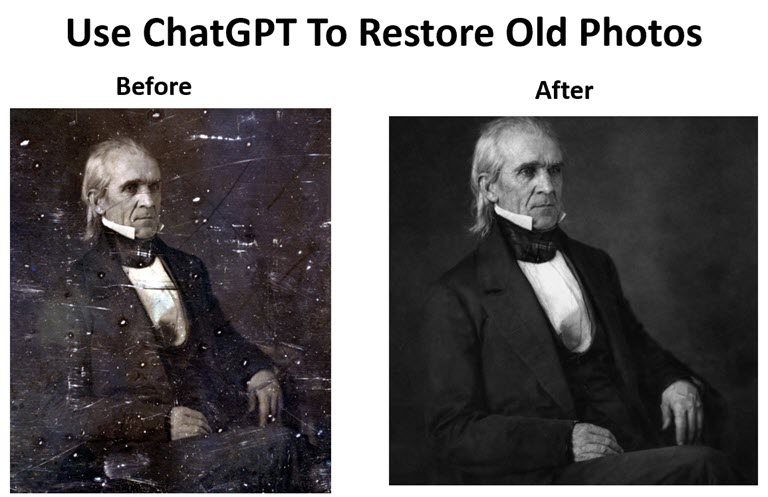
Attach an old photo and use this prompt:
- Restore and enhance this old photo while keeping it realistic and true to the original.
- Remove dust, scratches, and stains.
- Improve sharpness and clarity without over-smoothing faces.
- Correct faded colors or gently colorize if appropriate.
- Balance brightness and contrast so details are visible.
- Preserve natural skin tones and original textures.
- Do not add new people, objects, or background elements.
- If the photo is black-and-white, add this line at the end:
- Keep the image black and white unless I specifically ask for colorization.
| | |
New Windows 11 Themes Bring Personal Style to the Microsoft Store
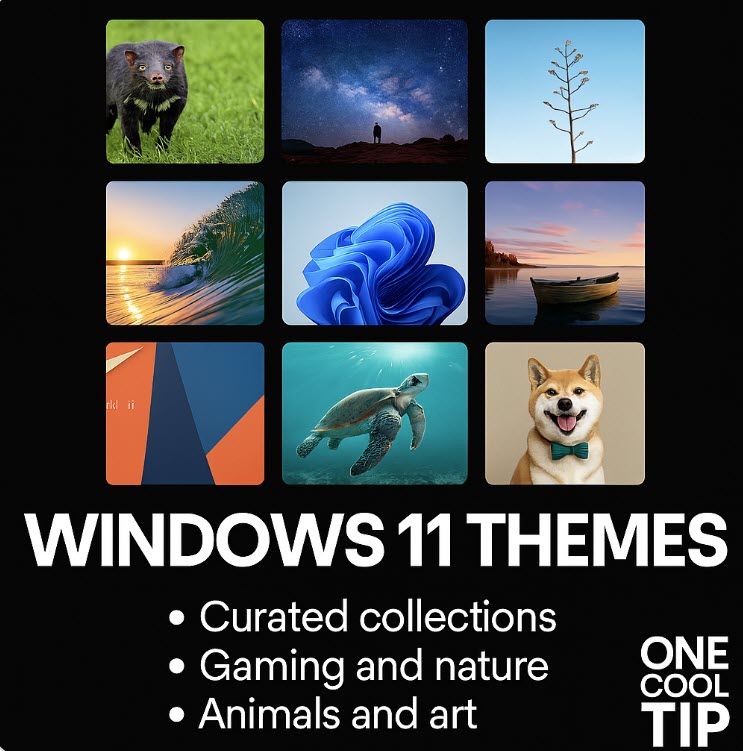
Windows 11 is getting more personal. Microsoft has introduced a new wave of curated themes in the Microsoft Store, making it easier to customize your PC with just a few clicks.
When you sit down at your PC every day, does it feel like yours or just another generic desktop?
Microsoft is betting that personalization matters more than ever, especially as work and home computing continue to blur.
Here's a Cool Tip: Use the Microsoft Store for New Windows 11 Themes.
With new Windows 11 themes now available directly in the Microsoft Store, Microsoft is reframing desktop customization as a first-class experience rather than a hidden settings tweak.
Feature Explanation
The new Windows 11 themes expand what users can discover and install directly from the Microsoft Store.
Instead of hunting through buried settings or third-party sites, themes now appear as curated, visual packages that bundle wallpapers, accent colors, sounds, and dark or light mode preferences.
Each theme applies system-wide changes across Windows 11.
This includes the desktop background, window accent colors, taskbar highlights, and system sounds where included.
The Store presentation emphasizes preview images and easy installation, lowering friction for casual users while still offering depth for those who care about aesthetics.
Why it matters is simple.
Personalization affects comfort, productivity, and even brand alignment for small businesses and educators.
A clean, cohesive desktop reduces visual noise and reinforces a sense of ownership over the device.
What You’ll Gain
- A faster way to personalize Windows 11 without manual tweaking.
- Curated visual styles designed for modern displays.
- Easy switching between work-focused and personal looks.
- A trusted source instead of random theme downloads.
Step-by-Step Instructions
Here's how to do it.
Microsoft Windows 11
-
Open the Microsoft Store from the Start menu.
-
Click the "Themes" icon in the left-hand corner or search for Windows 11 Themes or browse the personalization section.
-
Select a theme to view preview images and details.
-
Click Get or Install to download the theme.
-
Click Open after the download finishes to launch Settings, then click the theme thumbnail to apply it.
-
The theme applies automatically once installed.
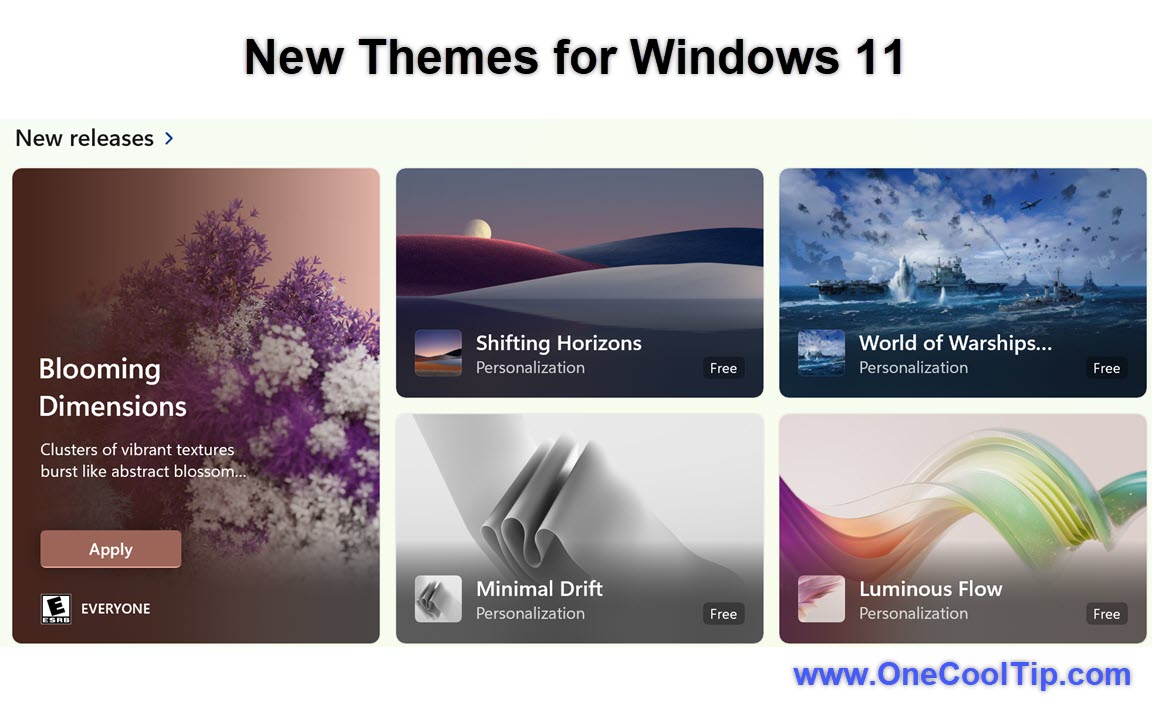
| | fig. 1 - New Themes in Windows 11 | |
Try these New Themes:
Pros and Cons
Pros
- Centralized discovery through the Microsoft Store.
- One-click installation with instant results.
- Safer than third-party theme sites.
- Consistent experience across Windows 11 devices.
Cons
- Limited customization within each theme.
- Availability may vary by region.
- Advanced users may want deeper control.
Configuration Guide
-
Open Settings.
-
Go to Personalization.
-
Select Themes.
- Choose an installed theme or browse the Microsoft Store.
- Adjust accent colors or sounds if supported by the theme.
- Defaults apply automatically, but individual elements like colors can be overridden without uninstalling the theme.
Feature Access
-
Who gets it: Windows 11 users.
-
Editions: Home, Pro, Enterprise.
-
Access: Microsoft Store.
-
Rollout status: Currently rolling out.
-
Cost: Free themes available; future paid options possible.
-
Availability and selection may vary by region.
Score
Criterion | Score (0–10) | Justifications
Value 8
Free, simple personalization that improves daily usability.
Usability 9
One-click install and clear previews make it approachable.
Wow Factor 7
Visually pleasing, though not deeply customizable yet.
Total: 24/30 👍 Good
A welcome refinement that makes Windows feel more personal, though power users may still prefer manual customization.
Key Takeaways
Windows 11 themes in the Microsoft Store make personalization faster and safer.
They strike a balance between simplicity and visual polish. For most users, this is the easiest way to refresh the Windows experience.
Cool Tip Snapshot
-
Feature Name: Windows 11 Themes in Microsoft Store
-
Platform(s): Windows 11
-
Quick Benefit: Instant desktop personalization
-
Access Type: Free
Try It Yourself
Open the Microsoft Store today and apply a new Windows 11 theme.
Share your favorite find with your team, family, or friends!
READ MORE
Read the Full Cool Tip.
| | |
Help support One Cool Tip. Use this Amazon link when you shop online.
Look at these Cool Products:
|
-
🖥️ Dell UltraSharp U2723QE Monitor: Crisp 4K resolution makes theme colors and wallpapers pop without eye strain. Check it out on Amazon!
-
⌨️ Logitech MX Keys Advanced Keyboard: Clean design and adaptive backlighting pair well with modern Windows themes. Check it out on Amazon!
-
🖱️ Logitech MX Master 3S Mouse: Quiet clicks and ergonomic comfort for long theme-inspired work sessions. Check it out on Amazon!
Prices accurate at time of publication
One Cool Tip may earn a commission from qualifying purchases.
| | |
🆒Tell Me More
- Over 400 themes now available in the Microsoft Store.
- 35+ new collections launched in December 2025.
- Themes include wallpapers, accent colors, and sounds.
- Curated by Microsoft Design and partners.
- Manage themes in Settings > Personalization > Themes.
⏩Quick Tips
- 🎨 Try "Luminous Flow" for a clean, modern look. Go to Microsoft Store > Themes.
- 🧘 Use "Ethereal Escapes" to reduce screen stress. Apply via Settings > Themes.
- 🐾 Want whimsy? "Geometric Tales" adds playful shapes.
- 🌄 Rotate wallpapers daily with Windows Spotlight. Enable in Settings > Background.
- 🧭 Organize your favorites. Use Settings > Personalization > Themes > Save.
| | ✅ More Must-Read Tech Tips | |
|
📄 Try these Cool Windows 11 Themes Tips:
-
Quick Swap: Change themes instantly to match your mood. Go to Settings > Personalization > Themes.
-
Accent Sync: Match accent colors to your wallpaper. Enable color sync in Personalization settings.
-
Dark Ready: Use dark themes for evening work. Select a dark theme from the Store.
-
High Contrast: Improve readability fast. Choose accessibility-focused themes.
-
Seasonal Look: Refresh your desktop each season. Browse new Store themes quarterly.
-
Minimal Mode: Reduce distractions. Pick clean, low-contrast themes.
-
Work Focus: Separate work and personal profiles. Assign different themes to each user account.
-
Preview First: Avoid surprises. Check Store previews before installing.
-
Easy Reset: Revert anytime. Reapply the default Windows theme.
-
Safe Source: Avoid sketchy downloads. Use Microsoft Store themes only.
| |
👀 How Do I Update My Apps in Windows 11?
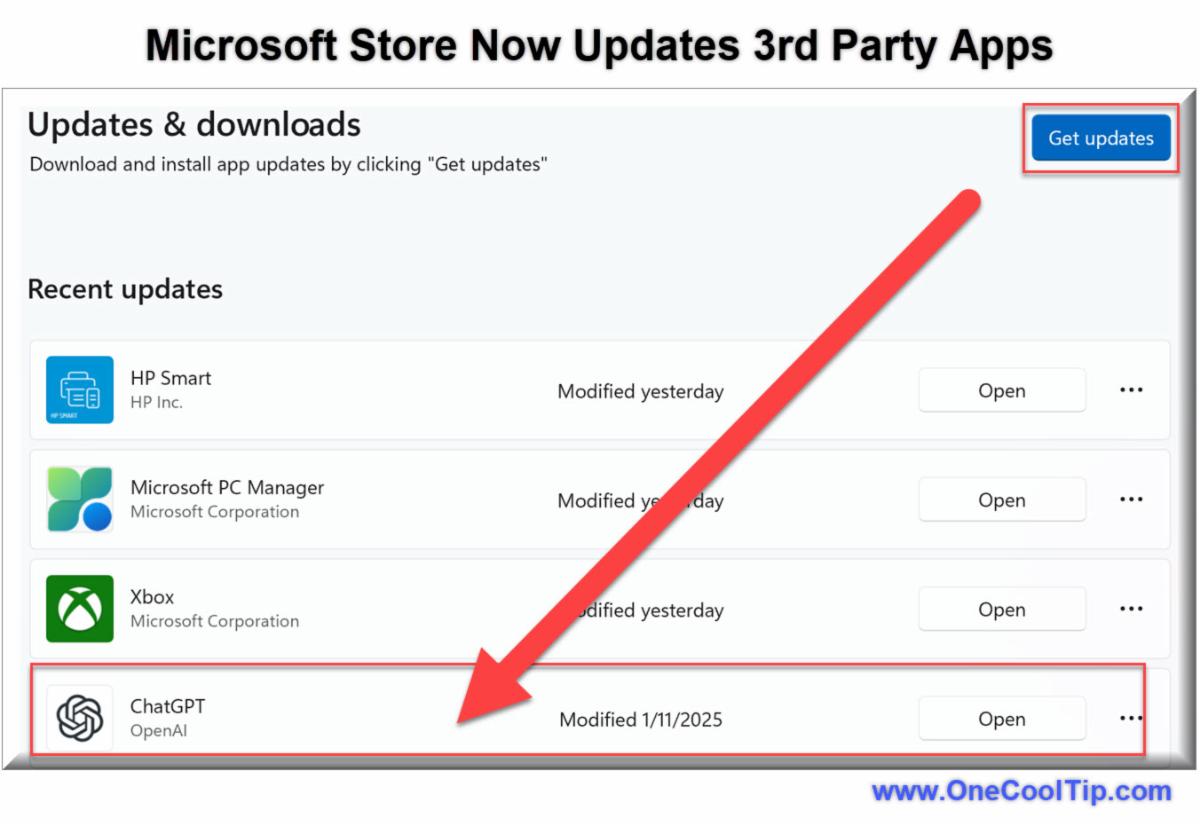
Have you ever wondered if there's an easier way to manage and update all your third-party applications on Windows 11?
You're not alone.
Here's a Cool Tip: Update Your Windows 11 Apps with the Microsoft Store.
The Microsoft Store now offers a seamless solution to keep both your Microsoft and non-Microsoft apps in check.
The Microsoft Store's new feature allows users to update third-party apps directly through the store, making it a central hub for software management.
This functionality ensures that all your applications, including those not originally downloaded from the Microsoft Store, receive the latest updates automatically.
This development is particularly important in maintaining your system's security and performance.
Here's how to do it.
-
Launch the Microsoft Store from the Start menu.
-
Navigate to the 'Library' section.
-
Click 'Check for updates' to see if there are any available updates for your third-party apps.
-
Select the apps you wish to update and click 'Update' to install the latest versions.
It simplifies the update process, ensuring your applications are always up-to-date without the need for manual checks.
This feature is available to all users of Windows 11, including consumers, enterprise users, and educational institutions.
Centralizing app updates in the Microsoft Store not only streamlines the process but also enhances security and system performance.
By keeping your applications current, you minimize vulnerabilities and enjoy the latest features and improvements.
Discover more HERE.
| | |
🤔 Have You Ever Wondered How to Add Kaomoji?
Ever wanted to spice up your messages with adorable and quirky text faces?
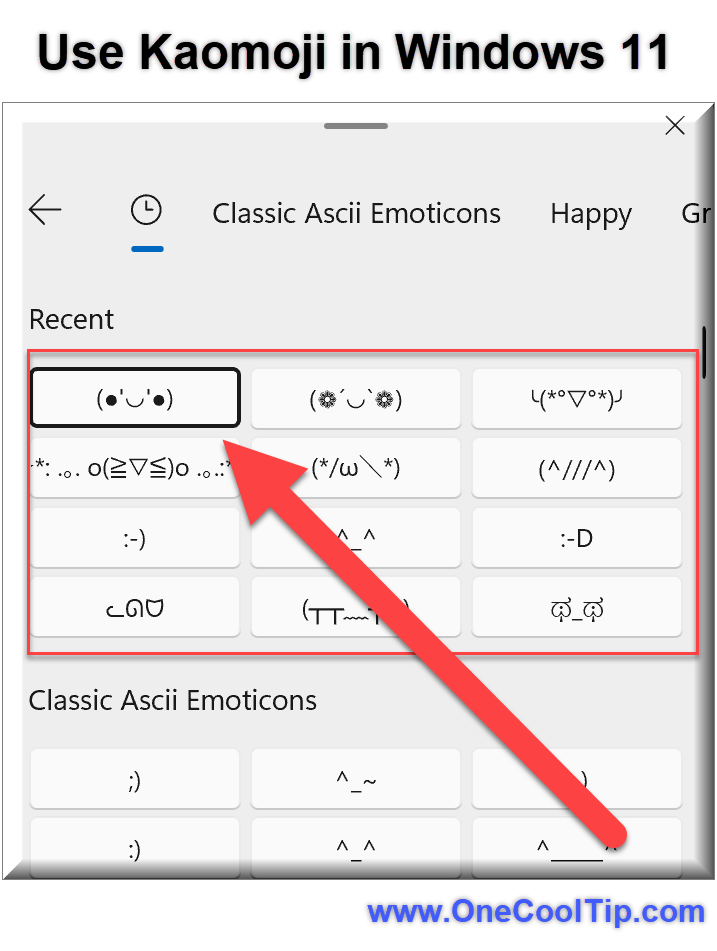
Kaomoji, a popular form of Japanese emoticons, can add personality and emotion to your texts, emails, and social media posts. Windows 11 makes it easier than ever to access and use Kaomoji.
They can make your messages more engaging and personalized, adding a touch of creativity to your digital conversations.
Here's how to do it.
-
Press Windows Key + . (period) or Windows Key + ; (semicolon) on your keyboard. This will open the Emoji Panel.
-
In the Emoji Panel, click on the Kaomoji tab located at the top of the panel.
-
Here, you'll find a variety of Kaomoji organized into categories such as happy, sad, angry, and more.
-
Browse through the categories and click on the Kaomoji you want to use. It will be inserted directly into your document or message.
Kaomoji allow you to convey a wide range of emotions and nuances that text alone might not capture.
Windows 11’s built-in Emoji Panel makes it easy to find and use Kaomoji without needing to remember complex character combinations.
Find out more HERE.
| | |
🙋♂️ Here's How to Delete Windows Clipboard Contents.
Ever copied sensitive information only to worry later about it sitting in your clipboard?
The clipboard is a handy tool for temporarily storing information you copy or cut, but leaving sensitive data in the clipboard can pose a security risk.
Regularly clearing the clipboard ensures your sensitive data remains protected and your system runs smoothly.
Here's how to do it.
Using Clipboard History:
-
Press Windows key + V to open the Clipboard history.
-
Click the three dots (ellipsis) next to the item you want to delete.
-
Select Delete from the menu.
Clear All Clipboard Data:
-
In the Clipboard history window, click the Clear All icon to delete all items from the Clipboard history.
Using Windows Settings:
-
Go to Settings > System > Clipboard.
-
Click on the Clear button under Clear Clipboard Data.
Deleting your clipboard memory improves your system's performance by freeing up resources and enhances security by ensuring sensitive data is not left lingering in the clipboard.
Learn more HERE.
| | |
❓Did you share this newsletter with three friends yet?
😎 Cool Facts
-
400: Over 400 themes now live in the Microsoft Store. Source.
-
35+: 35+ new themes added in December 2025. Source.
⌨️Today's Cool Keyboard Shortcuts
-
Win + I: Open Settings quickly.
-
Win + D: Show desktop instantly.
-
Win + Tab: View all desktops.
😜 Tech Joke of the Day 😅
My PC got a new theme and now thinks it’s stylish.
Still crashes in sweatpants.
🔎 Do you have a Cool Tip or tech question? Email us at onecooltip.com@gmail.com.
| | |
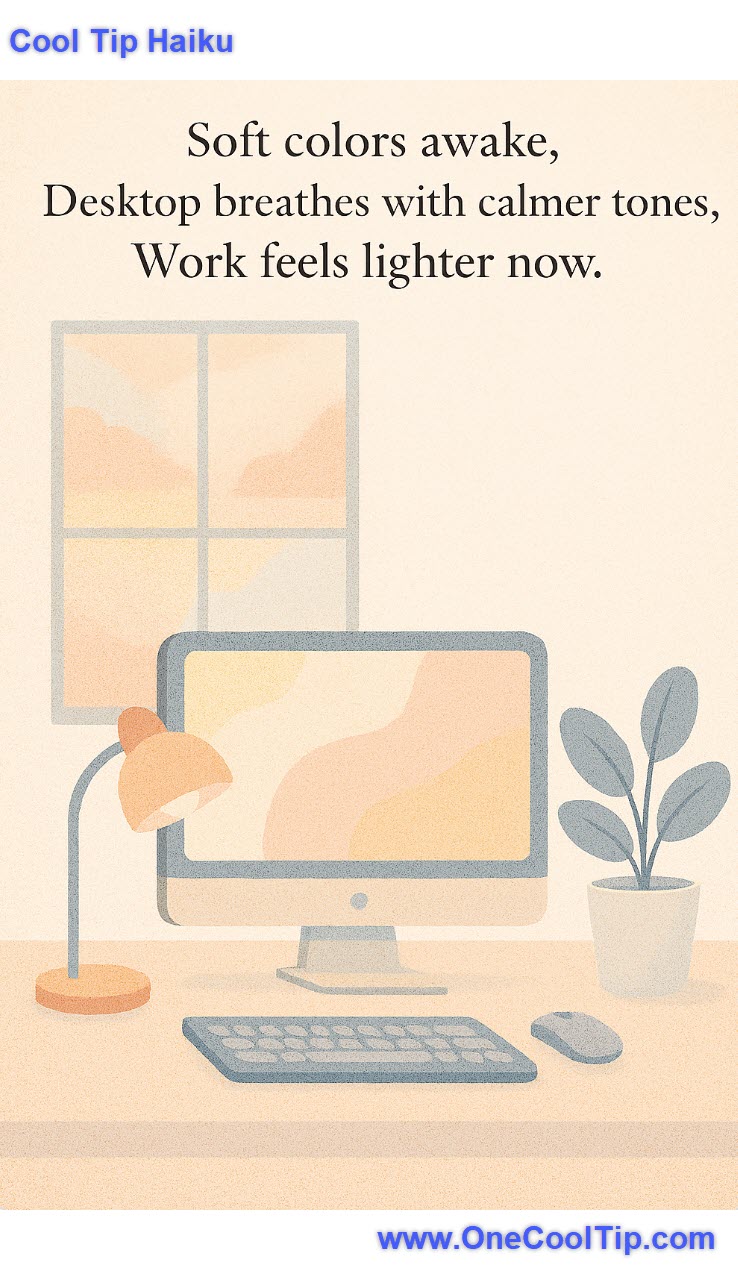
Soft colors awake,
Desktop breathes with calmer tones,
Work feels lighter now.
| |
| 🤔 How often do you change your Windows theme? | | | | Did You See These Cool Tips This Week? | | | | Talk to Mr. Darcy? How NotebookLM Brings Jane Austen to Life | |
Ever wished you could ask a question about Pride and Prejudice and get an instant, citation-backed answer? Google's NotebookLM makes it possible by turning classic literature into an interactive AI experience.
Read the Newsletter Version.
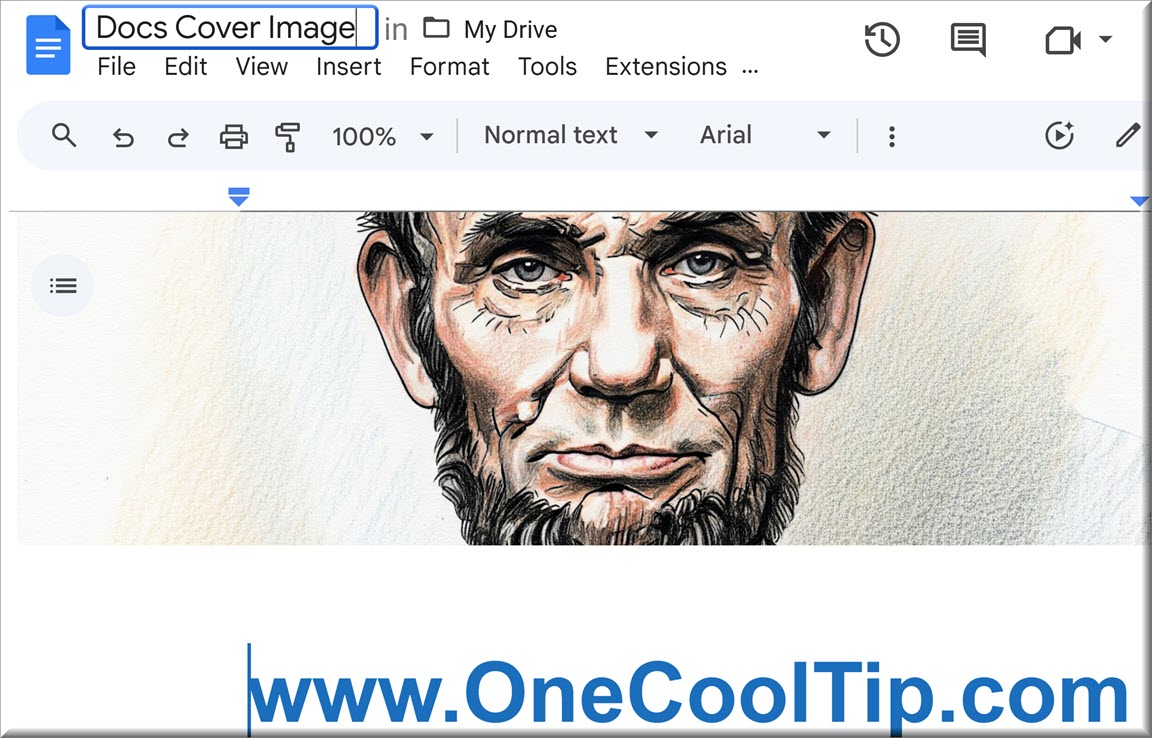
| | | | Give Your Google Docs a Visual Makeover with Cover Images | |
Learn how to instantly upgrade the look of your documents by adding full-width cover images. This Cool Tip walks you through the simple steps to turn boring text files into engaging, professional wikis and reports that elevate your corporate branding and impress clients.
Read the Newsletter Version
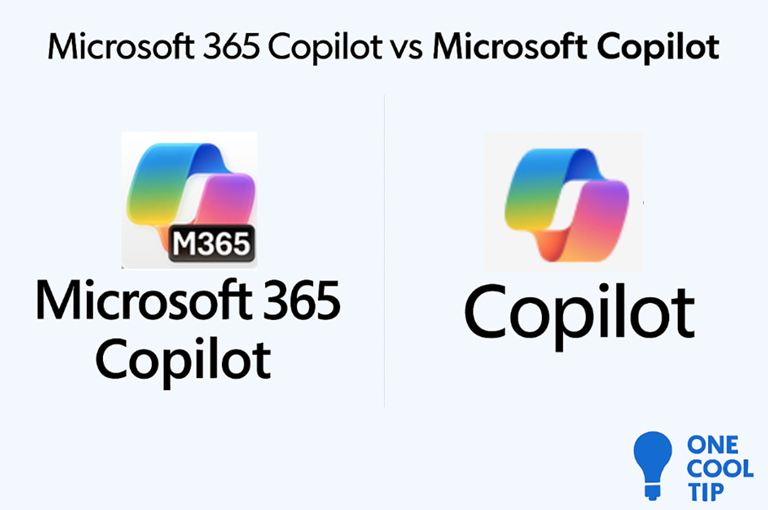
| | ICYMI - In Case You Missed It ... | | | | Microsoft 365 Copilot vs Microsoft Copilot: What’s the Difference? | |
Two Copilots, one name, and a lot of confusion. Here’s how to tell them apart and why it matters for your workflow.
Read the Newsletter Version.
| | The next update will require flip-flops and a desk umbrella. | | |
Trivia Answer: C) Windows XP
Windows XP launched in 2001 with the iconic "Luna" theme, marking the first time Microsoft bundled a cohesive visual experience, including sounds, icons, and color schemes, into a single theme package.
Prior versions allowed wallpaper and color tweaks, but XP made personalization mainstream.
----------
Tomorrow's Cool Tip is waiting to amaze you.
Until then, go forth and conquer the tech world with your newfound knowledge!
Be sure to visit www.OneCoolTip.com for Cool Tech Tips for a Cooler Life!
And if you Like One Cool Tip, please support with TipJar!
Enjoy!
Rodger
Chief Cool Tipper
onecooltip.com@gmail.com
| |
| What do you think of today's OneCoolTip newsletter? | | | |
Please Share the One Cool Tip Newsletter!
You asked for it. You got it. There is now a One Cool Tip Newsletter archive. Did you delete a newsletter and want to read it again? Check it out HERE.
Want to help One Cool Tip grow? Please forward this email using the link above. And if you see an OCT social media post, please LIKE, COMMENT and SHARE!
Have you subscribed to the One Cool Tip YouTube channel? Subscribe HERE.
| | Connect with One Cool Tip!! | | |
|
As an Amazon Associate, One Cool Tip may earn a small commission from qualifying purchases.
Our media content is intended solely for informational purposes only. Please do not construe anything here as legal, tax, investment, financial, marital or other advice.
Copyright © 2025 | www.OneCoolTip.com | All Rights Reserved
|
| | | |