|
One Cool Tip Newsletter
July 27, 2026
| Your daily dose of tech-savvy brilliance! | | |
😀Greetings!, Happy Back-to-Work Monday, Cool Tipper!
Get ready to streamline your digital life with simple, actionable tips delivered straight to your inbox.
Today's Cool Tip Theme: Gemini Spark
IN THIS ISSUE
- 🚨 Claude Shared Chats Search Leak.
- ⚡ New Gemini AI Models Unveiled.
- 📊 Cool AI Diagram Prompt.
- 🤖 Put Gemini Spark to Work.
- 🕵️ Gemini Temporary Chats.
- 🎧 Read Aloud Google Docs.
- 📖 Create Illustrated Storybooks.
New here? Subscribe to the One Cool Tip Newsletter for daily updates. It's FREE!
-
😂 Laugh with Us! Enjoy our Tech Joke of the Day, Haiku and Cool Tip Comics.
-
🌐 Stay Informed! Check out ICYMI, and our One Cool Tip Video.
| | |
3️⃣
If you enjoy the One Cool Tip newsletter, please forward this newsletter to THREE friends or colleagues or share it on social media using the links below.
Leave a $$$ Tip!
Share this One Cool Tip Newsletter!
| | |
Today's Tech Trivia
Which Google product launched first?
A) Gmail
B) Google Docs
C) Google Drive
D) Google Workspace
Answer at the end of this newsletter.
| | |
⚠️Claude AI Shared Chats Appeared in Google Search Results⚠️
Users of Anthropic's Claude AI should review any conversations they shared through public links after reports revealed that some shared chats and AI-generated artifacts were indexed by Google and could be found through search results.
Publicly shared content, including conversations and work products, was reportedly accessible to anyone who discovered the link through a search engine.
Anthropic's sharing feature was designed to let users create links for others to view content, but many users may not have realized that those links could become searchable online.
Google search results containing some of the shared content began disappearing after the issue gained public attention.
Consumers should review any Claude conversations or artifacts they have shared and delete links that are no longer needed.
As a best practice, avoid including sensitive personal, financial, medical, or business information in AI chats that may later be shared publicly.
And in Other News...
Google Unveils Faster and More Efficient Gemini AI Models
Google has introduced three new Gemini AI models aimed at making AI tools faster, cheaper, and more reliable.
The new Gemini 3.6 Flash model improves coding, knowledge work, and multimedia tasks while using fewer computing resources than its predecessor.
Google also launched Gemini 3.5 Flash-Lite, its fastest and most cost-effective model for high-volume tasks such as document processing and search.
In addition, the company announced Gemini 3.5 Flash Cyber, a specialized model designed to help identify and fix software security vulnerabilities.
Both Gemini 3.6 Flash and Gemini 3.5 Flash-Lite are rolling out through Google's AI platforms and consumer Gemini app.
For everyday users, these updates could lead to faster AI responses, improved accuracy, and more capable AI-powered tools in the months ahead.
| | |
Try this Cool AI prompt. Copy and paste to ChatGPT, Gemini, Claude or Copilot.
- Create a professional workflow diagram that explains the following process: [paste process]. Show each step in the correct order using clearly labeled boxes, simple icons, and connecting arrows. Use concise wording, a clean business design, and a horizontal layout suitable for a presentation slide.
| | |
Put Google's Always-On AI Agent to Work
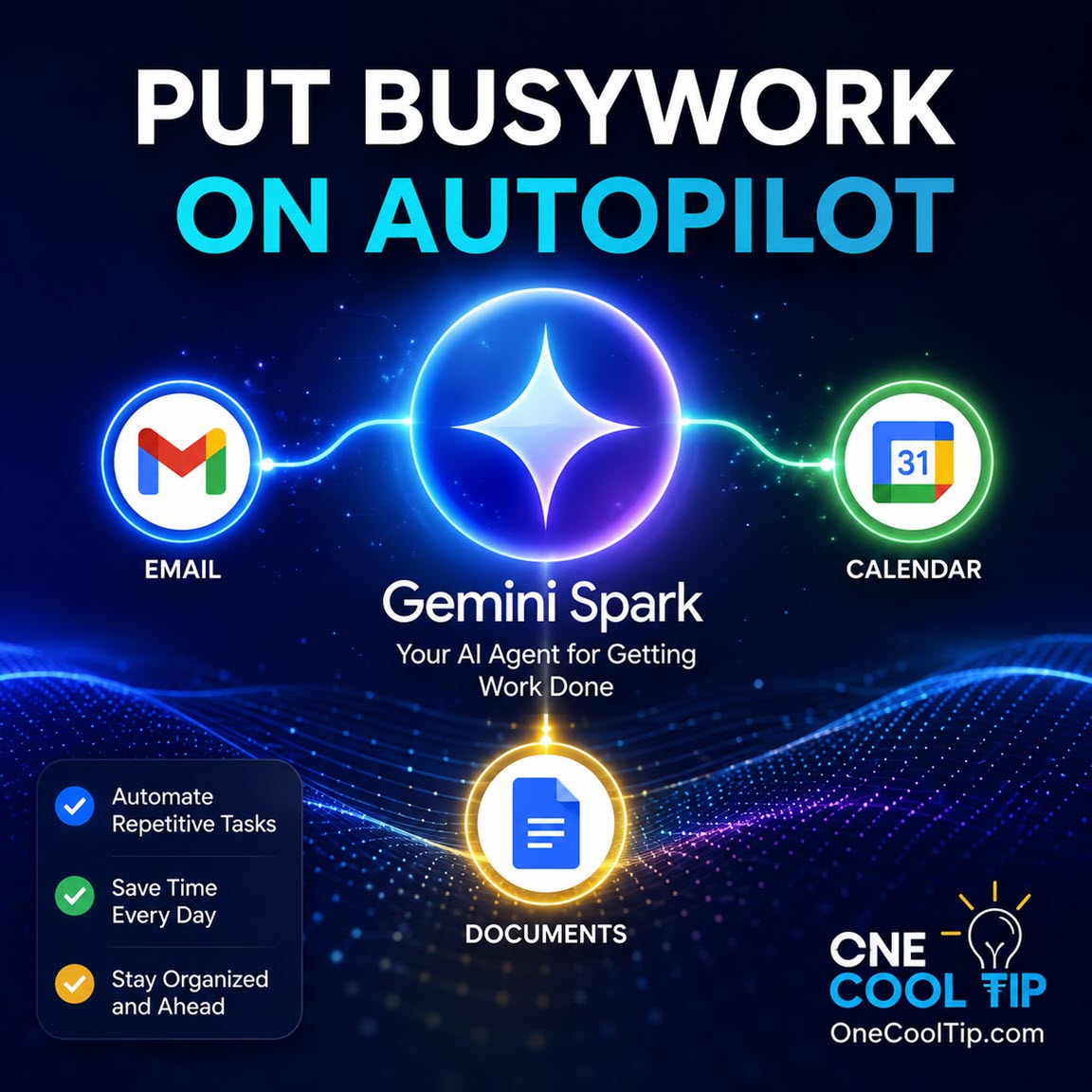
Google is expanding availability of Gemini Spark, its background AI agent that handles continuous tasks across apps. Users can now automate multi-step workflows without leaving browser tabs open or waiting for manual prompts.
Managing repetitive digital administrative tasks eats away at productive hours every week.
Tracking down action items from email threads, summarizing meeting notes, and updating spreadsheets manually drains focus from creative or strategic work.
Here’s a Cool Tip: Put Gemini Spark to work on recurring background tasks. Access is now expanding to AI Pro and Ultra users.
Google launched Gemini Spark to tackle this persistent friction.
Spark acts as a personal AI agent that runs continuously in the cloud, carrying out background workflows even when your computer is closed or your smartphone is locked.
As Google broadens access to this background assistant, automating daily work routines becomes far more practical for everyday users.
Feature Explanation
Gemini Spark is an autonomous, always-on AI agent built into the Google ecosystem.
Traditional AI assistants wait for a user to type a prompt and press enter, returning responses only while the browser or app remains active.
Spark operates differently by executing multi-step instructions on dedicated cloud virtual machines, staying active 24/7.
Powered by Google's fast Gemini 3.5 Flash architecture and deep integration with Workspace apps, Spark connects directly to Gmail, Docs, Sheets, Slides, and Calendar via structured APIs.
It can read incoming messages, schedule reminders, compile reports, and build structured spreadsheets on a schedule or when specific triggers occur.
Spark also introduces reusable skills.
Instead of re-typing lengthy instructions, you can train Spark to learn your specific tone, preferred document format, or workflow rules.
Once saved, Spark applies these skills to future assignments automatically.
Through Model Context Protocol (MCP) integrations, Spark extends beyond Google software to work with connected tools like Canva, OpenTable, and Instacart.
What You'll Gain
-
Save time by handing off multi-step administrative routines to an automated cloud agent.
-
Reduce confusion by consolidating scattered action items, calendar updates, and draft replies automatically.
-
Eliminate repetitive typing by building reusable skills that mimic your preferred communication style.
-
Improve focus by letting Spark process data in the background while your computer is powered off.
Step-by-Step Instructions
Here's how to do it.
Web / Desktop
-
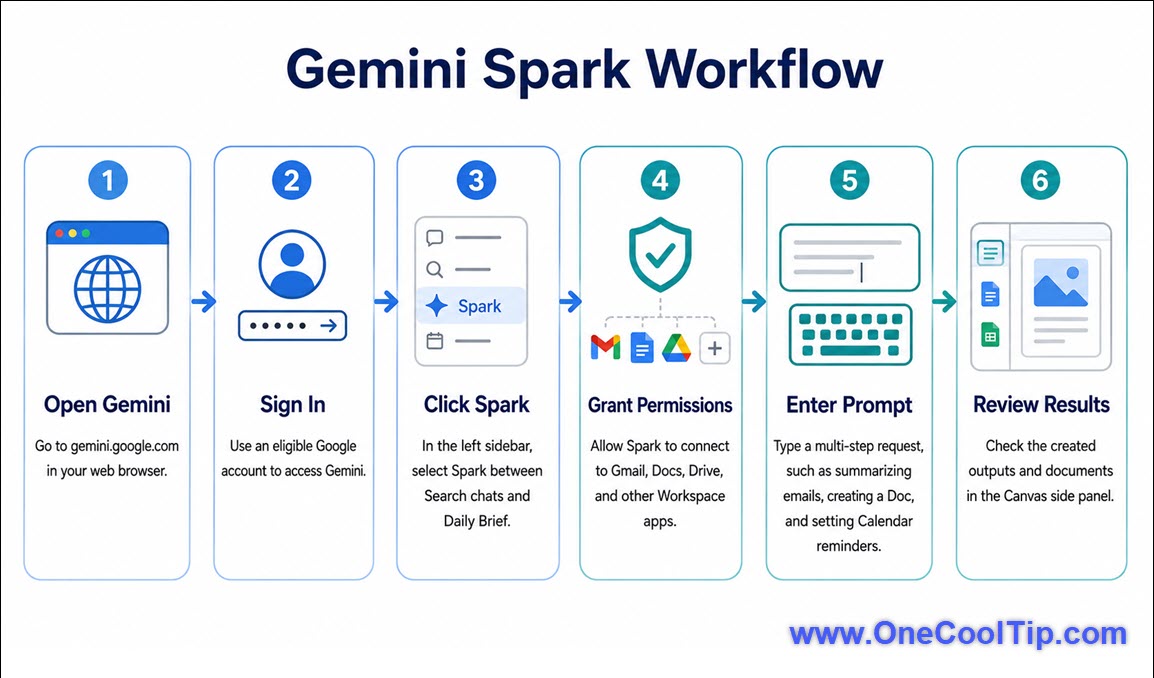
Open your web browser and navigate to the official Gemini interface at gemini.google.com.
-
Sign in with an eligible Google account.
-
Locate the left-hand sidebar menu and click Spark (positioned between Search chats and Daily Brief).
-
When prompted, grant permissions for Spark to connect to Google Workspace apps like Gmail, Docs, and Drive.
-
Type your multi-step prompt in the input box, such as: "Parse my project emails from this week, summarize action items into a new Google Doc, and set Calendar reminders for deadlines."
-
Review the created outputs or documents inside the Canvas side panel.
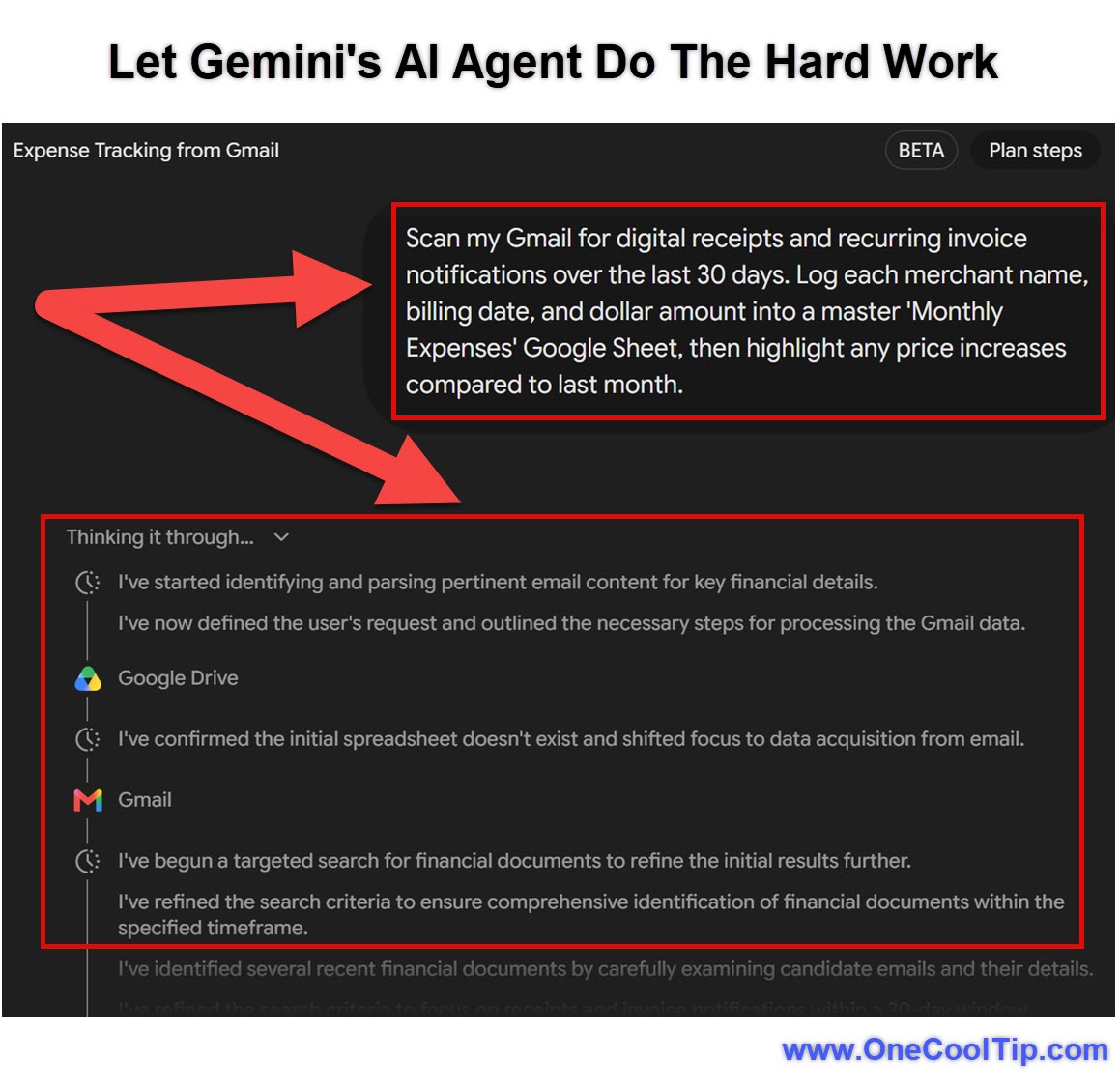
| | fig. 2 - Gemini Spark Example | |
macOS
-
Launch the Gemini app for Mac.
- Click the Spark tab in the main navigation bar.
-
Enable screen context or personal intelligence features in the app settings if prompted.
-
Enter a task or speak your request using built-in voice controls.
Android
-
Open the Gemini app on your Android device.
-
Tap your profile icon in the top corner and select Settings, then tap Connected Apps.
-
Ensure Workspace and relevant integrations are toggled on.
-
Return to the primary chat view and select Spark from the lower tab bar.
-
Type or speak your instructions, then close the app while Spark processes the task in the cloud.
iPhone / iPad
-
Launch the Google Gemini app on iOS.
-
Tap the Spark option near the top selector.
-
Grant required account permissions when prompted.
-
Enter a recurring or background workflow prompt.
Cool Note:
- Not currently available on Windows as a dedicated standalone app.
Real Life Examples
Consumer Prompts
1. The Weekly Household & Schedule Planner
"Every Monday at 8:00 AM, review my unread emails from the past week for upcoming events, appointment confirmations, and school notifications. Create Google Calendar entries for any new deadlines, add a summarized action list to a Google Keep note, and draft a short weekly agenda email to send to my family."
2. Travel & Vacation Organizer
"Parse my inbox for hotel bookings, flight confirmations, and rental car emails for my upcoming trip. Compile a clean, chronological itinerary in Google Docs, build a expense tracker in Google Sheets with categories for transport, housing, and food, and flag any missing flight detail updates."
3. Subscription & Receipt Auditor
"Scan my Gmail for digital receipts and recurring invoice notifications over the last 30 days. Log each merchant name, billing date, and dollar amount into a master 'Monthly Expenses' Google Sheet, then highlight any price increases compared to last month."
IT & Business Prompts
4. Enterprise License & Access Request Tracker
"Monitor incoming emails sent to the IT support alias regarding software license requests. Extract the user's name, requested app, and business justification, add a line item to our 'IT Access Requests' Google Sheet, and draft a standardized acknowledgment reply confirming the ticket was logged."
5. Automated Meeting Follow-Up & Task Dispatcher
"Review my recent Google Meet transcript files in Drive from today's system architecture meeting. Summarize key technical decisions into a new Google Doc, extract action items into a prioritized task list in Sheets with assigned team owners, and schedule a 15-minute sync on Calendar for next Friday to review progress."
Pros and Cons
Pros:
-
True background execution: Runs on cloud servers so tasks finish even after shutting down your laptop.
-
Personalized learning: Teachable skills allow Spark to adapt to your writing tone and formatting rules over time.
-
Cross-app automation: Integrates Google Workspace with third-party platforms via MCP support.
-
High-speed processing: Powered by Gemini 3.5 Flash for rapid response times.
Cons:
-
Subscription required: Full access requires an active Google AI subscription tier.
-
Regional limitations: Rollout remains restricted in regions such as the European Economic Area, UK, Switzerland, and Nigeria.
-
Privacy tradeoffs: Requires broad read and write access across personal emails, documents, and calendars.
Feature Access
-
Availability: Available to Google AI Pro subscribers in the US and Google AI Ultra subscribers globally.
-
Excluded Regions: European Economic Area (EEA), United Kingdom, Switzerland, and Nigeria.
-
Supported Platforms: Web browsers, macOS app, Android, and iOS.
-
Account Types: Personal Google accounts with eligible AI paid plans; Workspace business/enterprise accounts subject to administrator controls.
Score
Criterion | Score (0–10) | Justification
Value | 8
Solves real productivity bottlenecks by running complex workflows continuously in the background.
Usability | 8
Simple sidebar integration and plain language prompts make starting background jobs easy.
Wow Factor | 8
The ability to execute multi-step cloud tasks without keeping an active browser tab open is impressive.
Total: 24 / 30 | 👍 Good
Gemini Spark delivers practical utility for busy professionals needing automated background workflows, though subscription pricing limits its entry point.
Key Takeaways
Gemini Spark moves AI assistance from instant Q&A chat into reliable, background workflow execution.
By letting an agent process repetitive tasks across Google Workspace and connected apps, you can keep administrative overhead to a minimum.
Cool Tip Snapshot
-
Feature Name: Gemini Spark
-
Platform(s): Web, macOS, Android, iOS
-
Quick Benefit: Automates background workflows across Gmail, Docs, Sheets, and third-party tools.
-
Best For: Professionals, creators, and students managing recurring administrative tasks.
-
Access Type: Subscription (Google AI Pro / AI Ultra)
-
Difficulty: Easy to Moderate
Try It Yourself
Ready to streamline your weekly administrative tasks? Give Gemini Spark a try today by setting up your first continuous background workflow!
If you found this Cool Tip helpful, leave a comment below with your favorite AI workflows.
READ MORE
Read the Cool Tip on One Cool Tip.com.
| | Help support One Cool Tip. Use this Amazon link when you shop online. | |
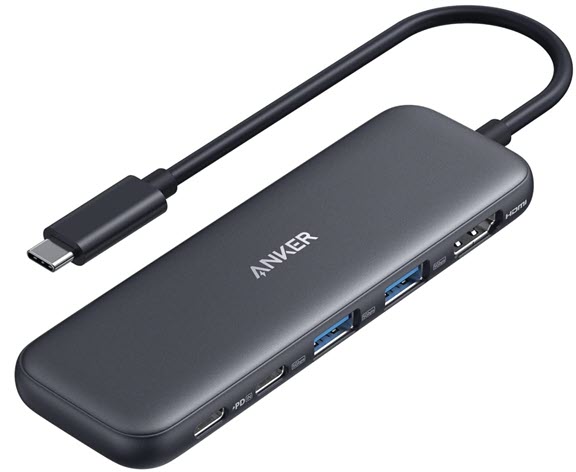
💻 Anker USB-C Hub Adapter: Expand your laptop connectivity to easily manage multi-monitor desktop setups while coordinating complex workflows.
Save 28% Now $17.99. 4.4 Stars. Check it out on Amazon!
🎧 Sony WH-1000XM5 Wireless Headphones: Block out ambient noise while reviewing automated voice transcripts and meeting summaries.
Save 11% Now $248. 4.2 Stars. Check it out on Amazon!
📱 Logitech MX Master 3S Wireless Mouse: An ergonomic precision mouse designed for seamless navigation across multiple browser tabs and apps.
Save 11% Now $79.99. 4.5 Stars. Check it out on Amazon!
Prices accurate at time of publication
One Cool Tip may earn a commission from qualifying purchases.
| | |
🆒Tell Me More
-
Continuous Cloud Execution: Unlike traditional conversational chatbots that respond only when you send a prompt, Gemini Spark runs on dedicated Google cloud instances. This means long-running workflows complete successfully even if you close your browser or turn off your device.
-
Deep Workspace API Hooks: Spark connects directly to Google Workspace APIs. It can read incoming emails, compile data into Google Docs, update row values in Google Sheets, and schedule events on Google Calendar autonomously.
-
Reusable Teachable Skills: You can save multi-step prompt structures as custom "skills". Once established, Spark applies specified writing styles, formatting rules, or routing guidelines to future automated assignments automatically.
-
Cross-Platform Integration via MCP: Through Model Context Protocol support, Spark extends beyond native Google applications to trigger actions in connected external tools like Canva, OpenTable, and Instacart.
⏩Quick Tips
- 📧 Automate Email Summaries: Set up a daily inbox sweep. Instruct Gemini Spark to review unread email threads every morning at 8:00 AM and output a bulleted briefing in Docs.
- 📊 Auto-Populate Spreadsheets: Log recurring receipts directly into Sheets. Configure Spark to parse incoming invoice emails and append vendor names and totals to a master tracking sheet.
- 📝 Build Custom Feedback Templates: Create a grading or review skill in Spark. Provide example critiques so Spark can draft personalized responses following your exact tone.
- 🗓️ Sync Meeting Action Items: Turn meeting notes into calendar invites. Tell Spark to scan recent Google Drive transcripts, pull deadlines, and add corresponding reminders to Calendar.
- 📱 Manage Tasks on Mobile: Launch mobile tasks on the go. Open the Gemini app on Android or iOS, tap Spark in the menu, and submit a background assignment while away from your desk.
| | ✅ More Must-Read Tech Tips | | |
👀 How Do I Use Gemini's Temporary Chats?
Have you ever had a brilliant, fleeting idea you wanted to brainstorm with an AI, but hesitated, knowing every word would be logged, analyzed, and saved to your activity history?
What if you need to tackle a sensitive client project or a personal finance question, but you're not comfortable with those details influencing your future digital interactions?
Use Gemini's Temporary Chats.
Think of it as an incognito mode for your AI conversations.
-
Open your web browser and navigate to gemini.google.com.
-
On the left-hand side menu, look for the "Temporary Chat" option.
- You’ll see a clear on-screen confirmation that you are in a temporary chat, and your conversation will not be saved.
- You can begin your prompt.
Gemini's new Temporary Chats offer a simple but powerful way to maintain your privacy and digital hygiene.
See how much cleaner your chat history can be and how much more freely you can brainstorm.
Discover more HERE.
| | |
🤔 Have You Ever Wondered How to Read Aloud Google Docs?
Have you ever caught a mistake in your writing only after hearing it out loud?
Google Docs' Gemini-powered “Audio” option reads your documents back to you with natural, fluid speech.
This feature is more than a novelty; it’s a productivity booster, accessibility aid, and even a new way to process information when your eyes are tired from staring at screens all day.
Here's how to do it.
-
Open any Google Docs document, docs.google.com.
-
Click on the Tools menu in the top navigation bar.
-
Select Audio.
-
Click on Listen to this tab.
-
A small playback player appears.
-
Use the controls to play, pause, adjust speed, and select a narrator voice.
Head to Google Docs today, look for the Audio button, and listen to your work.
Find out more HERE.
| | |
🙋♂️ Here's How to Turn Ideas into Illustrated Stories.
Picture this: your child is going off to kindergarten soon and she is feeling anxious.
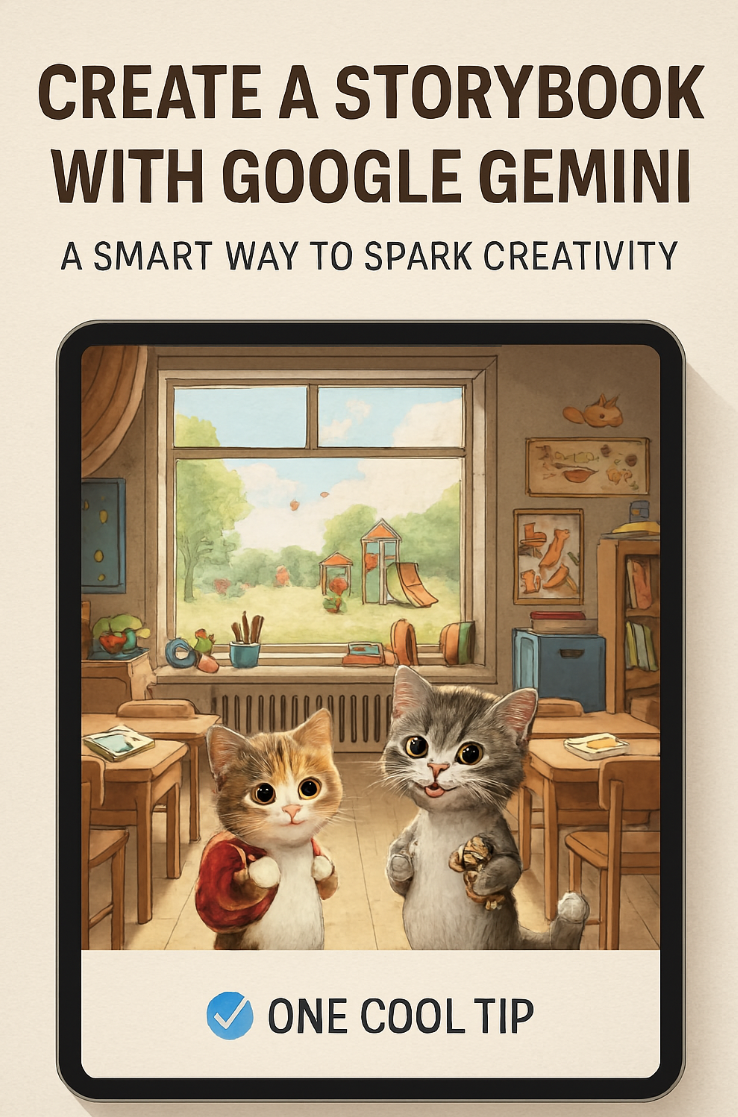
What if you could whip up a custom book where a friendly kitten goes to kindergarten on her first day, complete with pictures and a voice that reads it aloud?
Google’s Gemini Storybook feature lets anyone create personalized storybooks with AI-generated images, text, and narration.
Here's how to do it.
-
Go to: https://gemini.google.com.
-
Start a new chat with Gemini.
- Enter a prompt such as:
- "Create a storybook about a kitten named Holly who goes to kindergarten on her first day and meets Diego."
- Gemini generates a full visual story with images and narration.
-
Customize as needed by replying with edits like “make it longer” or “add a happy ending.”
-
Share your storybook via link or screen share.
Cool Example: Holly's First Day (YouTube link)
Google Gemini’s Storybook feature transforms a simple prompt into a narrated, illustrated tale.
It's free, fast, and easy to use.
Learn more HERE.
| | |
❓Did you share this newsletter with three friends yet?
😎 Cool Facts
-
$20: Google expanded Gemini Spark access in the US to all subscribers on the $20-per-month Google AI Pro tier. Source.
-
$100-$200: Gemini Spark was initially only available globally to Google AI Ultra subscribers paying between $100 and $200 monthly but is now expanding to the Google AI Pro tier. Source.
-
3.5: Spark is powered by Google's Gemini 3.5 architecture, built specifically for rapid background task execution and multi-step workflow handling. Source.
⌨️Today's Cool Shortcuts
Spark does not rely heavily on keyboard shortcuts, so these menu paths save more time.
- 🌐 Open Spark: Gemini web app > Left sidebar > Switch to Spark
- 📋 Review Tasks: Gemini > Spark > Tasks
- ⏰ Manage Schedules: Gemini > Spark > Schedules
- 🧠 Manage Skills: Gemini > Spark > Skills
- 🔗 Control Connections: Gemini > Settings & help > Connected Apps
- 🔒 Delete Browser Data: Gemini > Settings & help > Gemini Spark Settings > Delete remote browser data
😜 Tech Joke of the Day 😅
What is an AI agent's favorite exercise?
Circuit training in the cloud!
🔎 Do you have a Cool Tip or tech question? Email us at onecooltip.com@gmail.com.
| | |
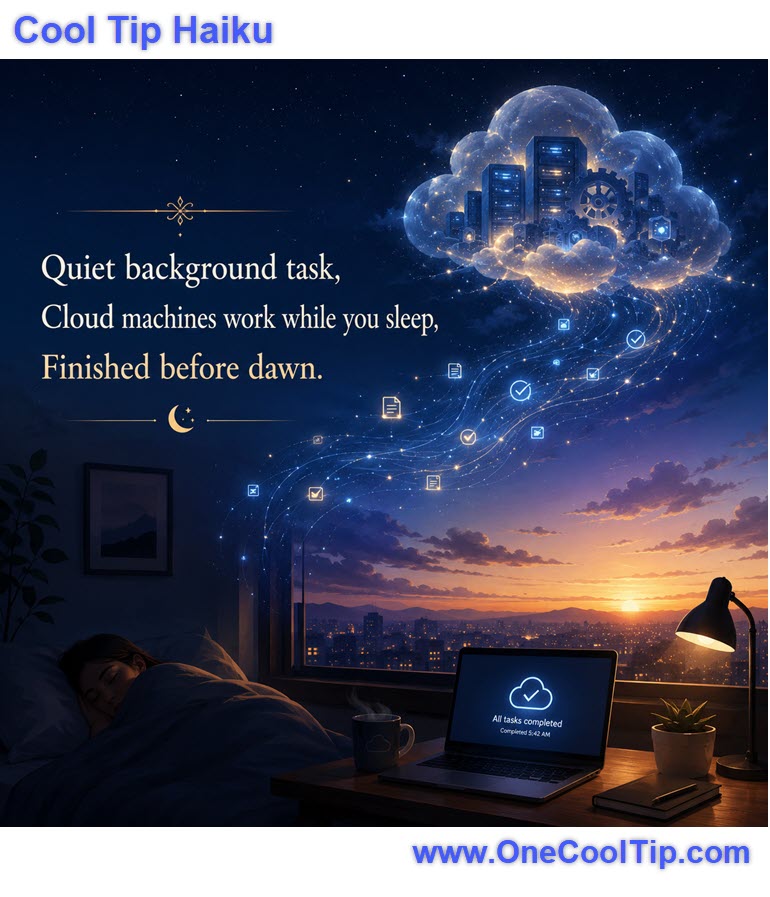
Quiet background task,
Cloud machines work while you sleep,
Finished before dawn.
| |
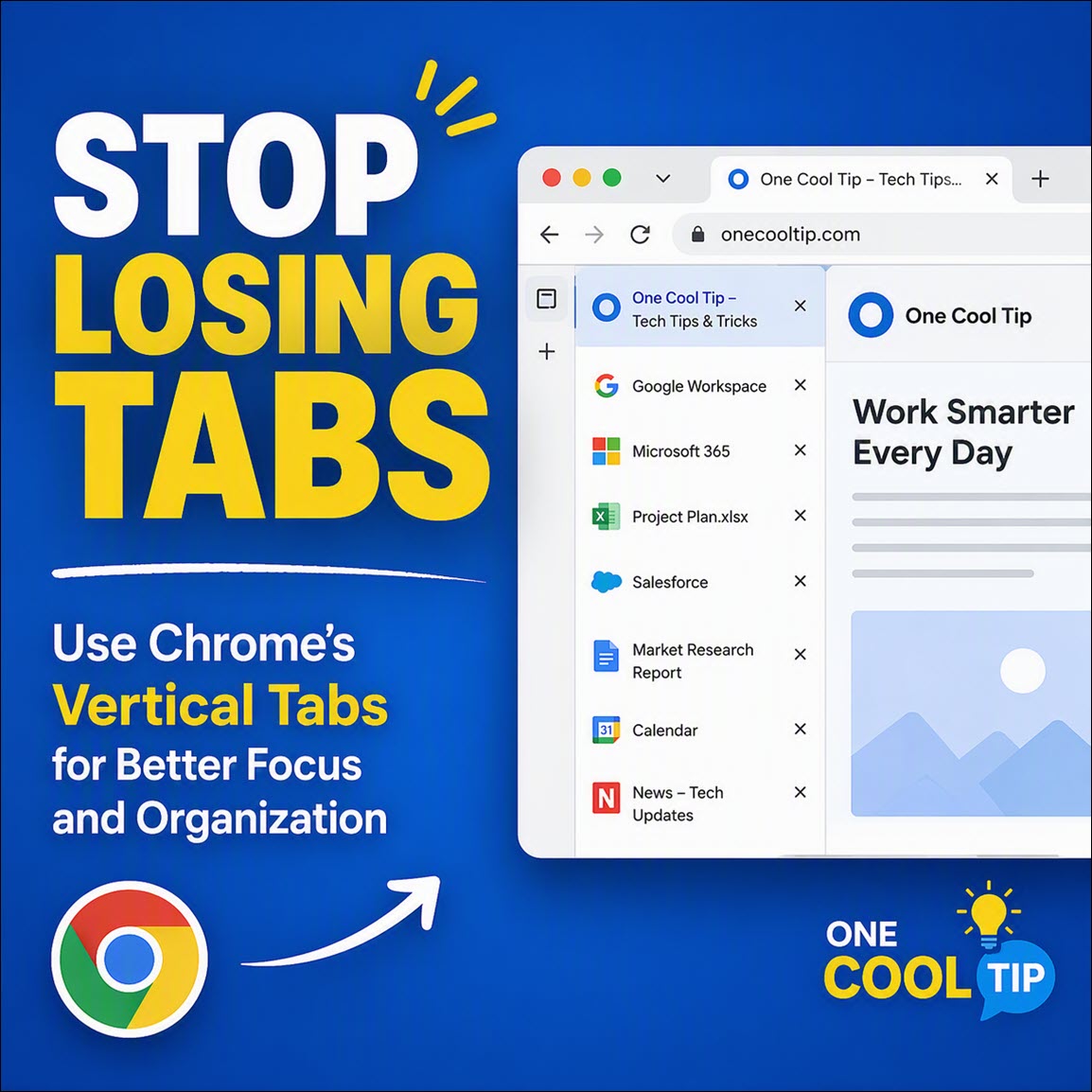
| 🤔 How comfortable are you with AI agents perform background tasks across your email and files? | | | | Did You See These Cool Tips This Week? | | | | How to Organize Your Web Browser with Chrome Vertical Tabs | |
Google Chrome now lets you arrange open tabs along the side of your screen instead of crowding them across the top. Moving your tabs vertically keeps full page titles visible and helps you manage large research projects without losing your place.
Read the Newsletter Version.
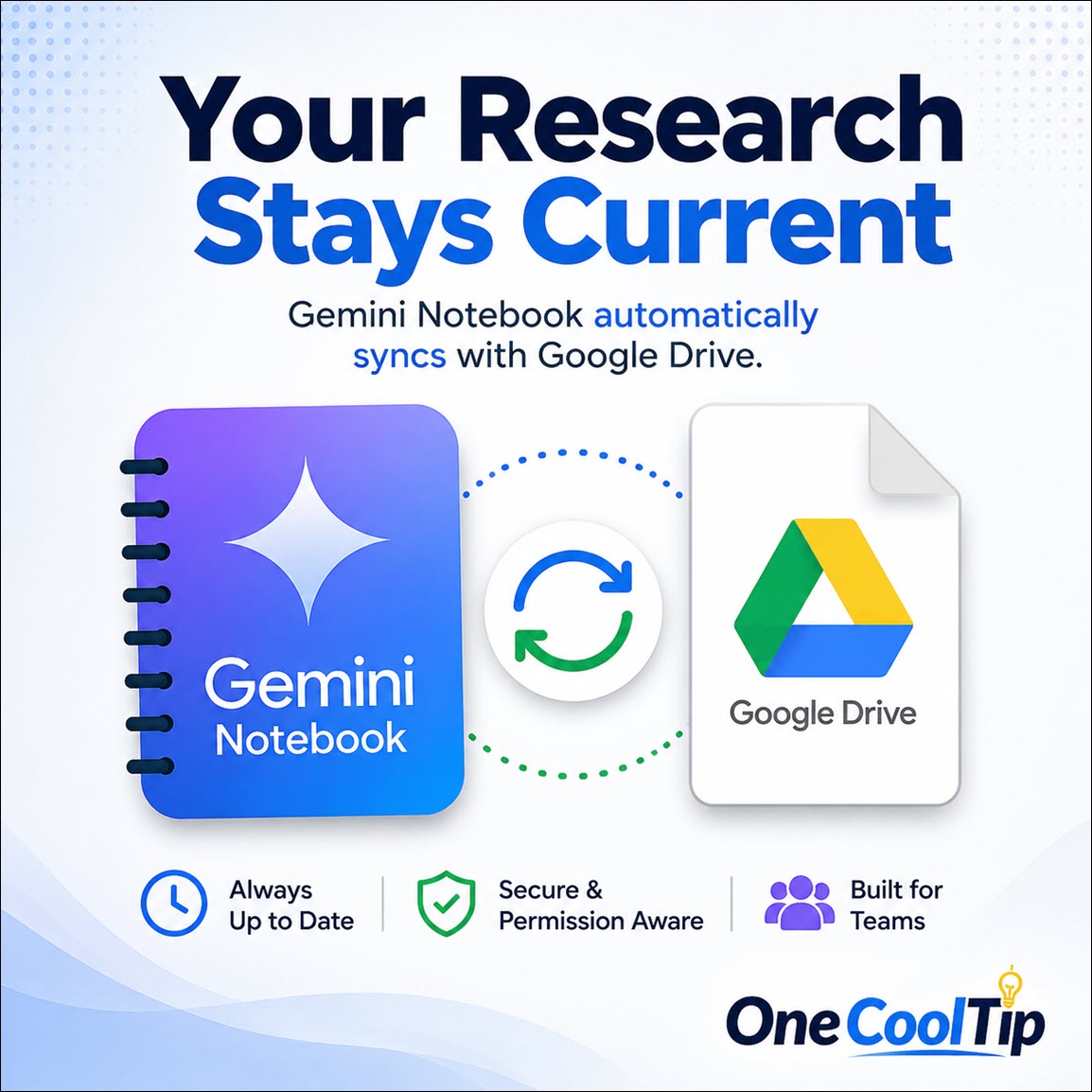
| | | | Stop Wasting Time Re-Uploading Sources With Gemini Notebook Auto-Sync | |
Google recently rebranded NotebookLM to Gemini Notebook and introduced automatic syncing for Google Drive documents. This update means your AI workspace always reflects the latest versions of your files without manual intervention.
Read the Newsletter Version.
| |
ICYMI - In Case You Missed It ...
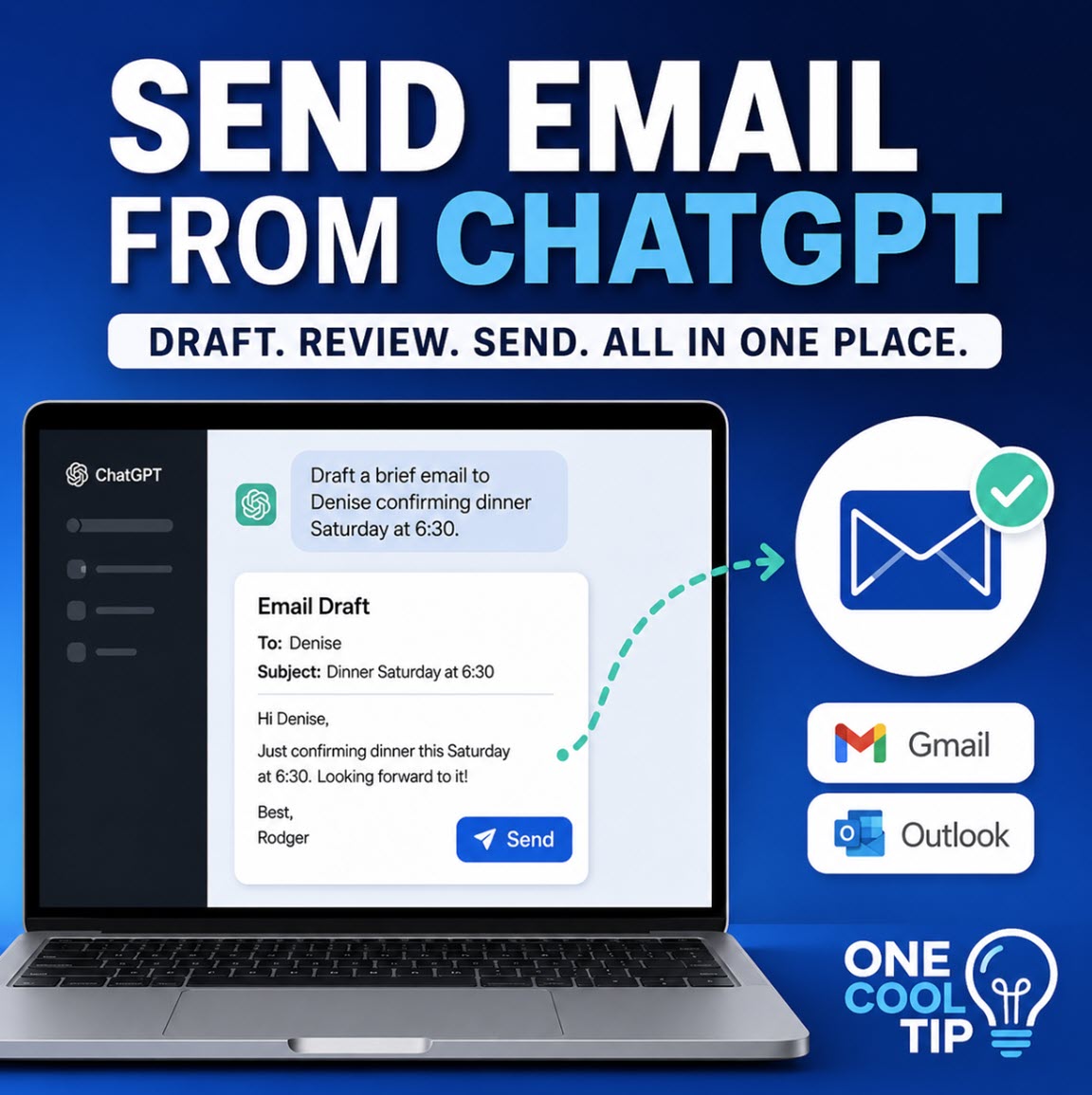
| | | | Send Emails From ChatGPT Without Copying and Pasting | |
ChatGPT can now help supported users move from drafting an email to sending it without the usual copy-and-paste routine. When Gmail or Outlook is connected, you can draft, revise, review, and send supported email messages from the same ChatGPT conversation.
Read the Newsletter Version.
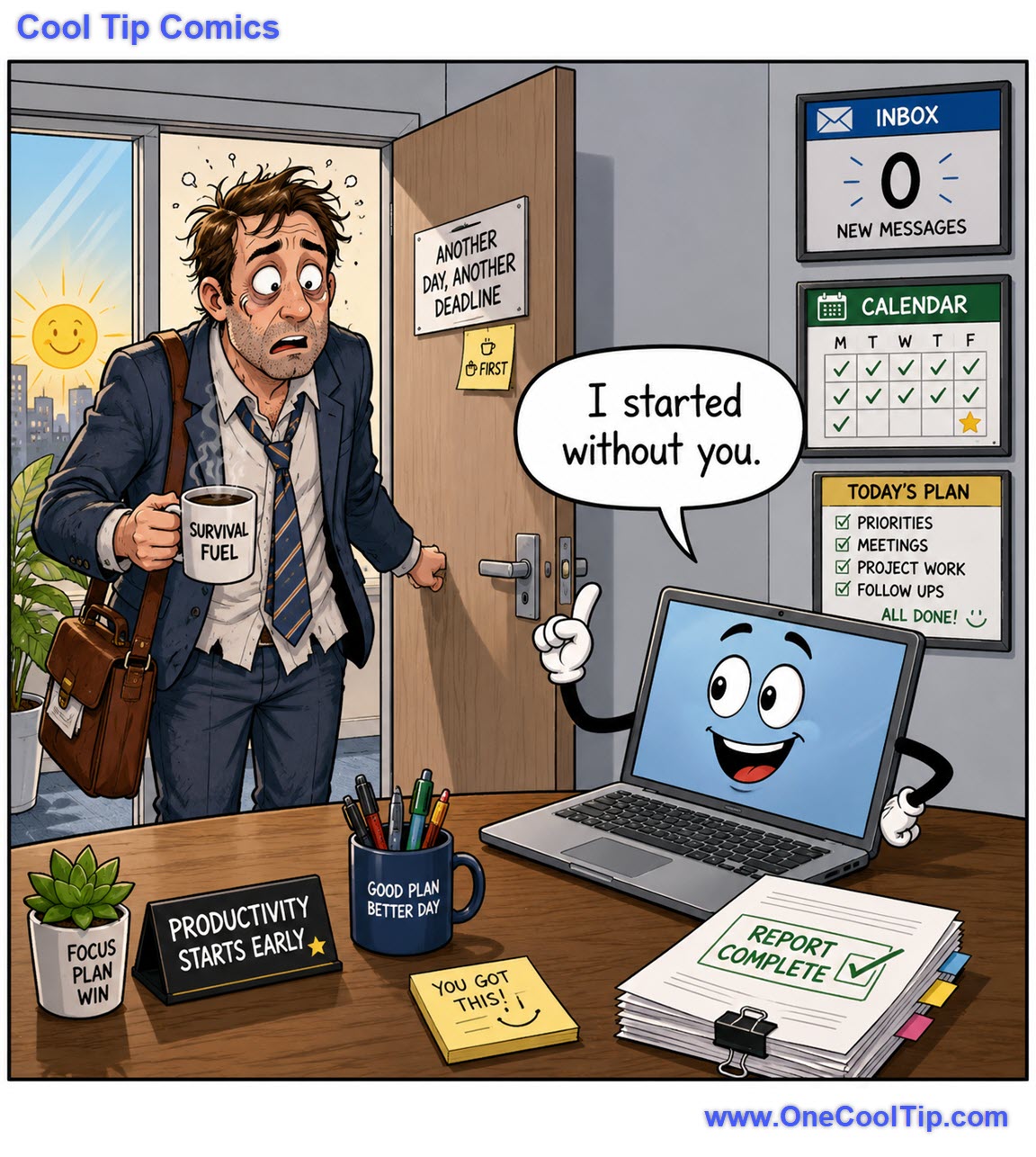
| | Nothing says ‘good morning’ like showing up to work and finding out your laptop has already had a more productive day than you. 😄 | | |
Trivia Answer: A) Gmail
Gmail officially launched on April 1, 2004. At the time, its 1 GB of storage seemed almost unbelievable compared with competing email services.
Gmail's introduction helped reshape expectations for cloud-based productivity and storage services.
Many of the tools people use today, including Drive, Docs, and Workspace, evolved from Google's broader effort to create web-first productivity software.
----------
Tomorrow's Cool Tip is waiting to amaze you.
Until then, go forth and conquer the tech world with your newfound knowledge!
Be sure to visit www.OneCoolTip.com for Cool Tech Tips for a Cooler Life!
And if you like One Cool Tip, please support with TipJar!
Enjoy!
Rodger
Chief Cool Tipper
onecooltip.com@gmail.com
| |
| What do you think of today's OneCoolTip newsletter? | | | |
Please Share the One Cool Tip Newsletter!
You asked for it. You got it. There is now a One Cool Tip Newsletter archive. Did you delete a newsletter and want to read it again? Check it out HERE.
Want to help One Cool Tip grow? Please forward this email using the link above. And if you see an OCT social media post, please LIKE, COMMENT and SHARE!
Have you subscribed to the One Cool Tip YouTube channel? Subscribe HERE.
| | Connect with One Cool Tip!! | | |
|
As an Amazon Associate, One Cool Tip may earn a small commission from qualifying purchases.
Our media content is intended solely for informational purposes only. Please do not construe anything here as legal, tax, investment, financial, marital or other advice.
Copyright © 2026 | www.OneCoolTip.com | All Rights Reserved
|
| | | |