When an update or clean install is completed on your machine by default Windows 10 is set to launch Edge to open & view PDFs. This can be cumbersome since Edge can limit what functionality you have. Follow these easy steps to change the default to Adobe Acrobat Reader or Acrobat.
Below is the Microsoft Edge PDF Icon.
If you see this Icon on your PDF files,
follow directions below to change the default to Adobe
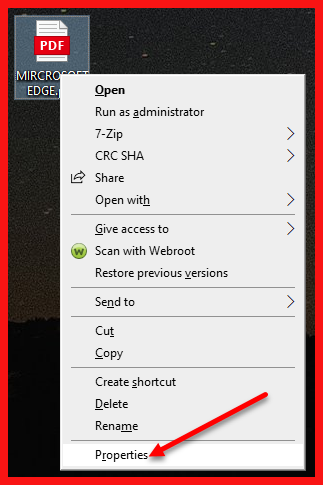
Right-click the thumbnail of a PDF file, and then choose Properties.
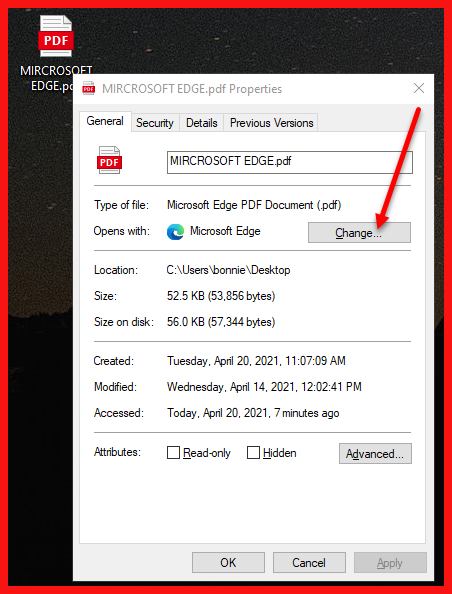
In the file's Properties dialog box, click Change.
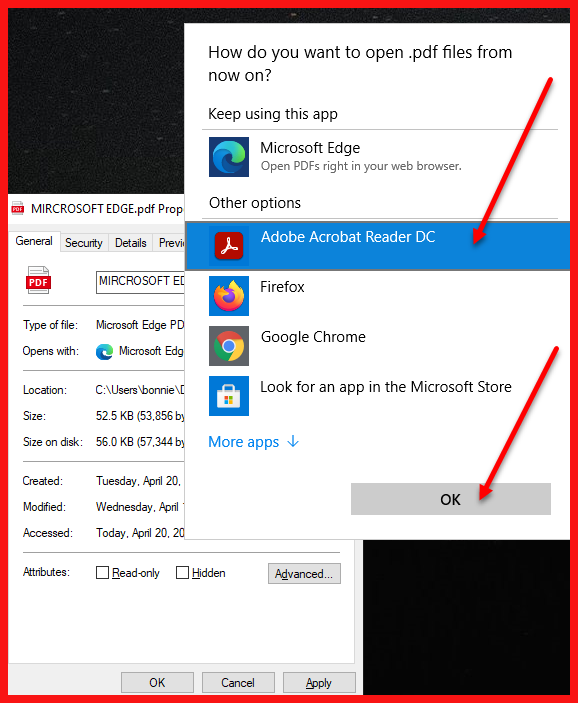
If you have Acrobat DC or both Acrobat DC and Acrobat Reader DC,
choose Adobe Acrobat DC and click OK.
or
If you have only Acrobat Reader DC, choose Adobe Acrobat Reader DC and click OK.
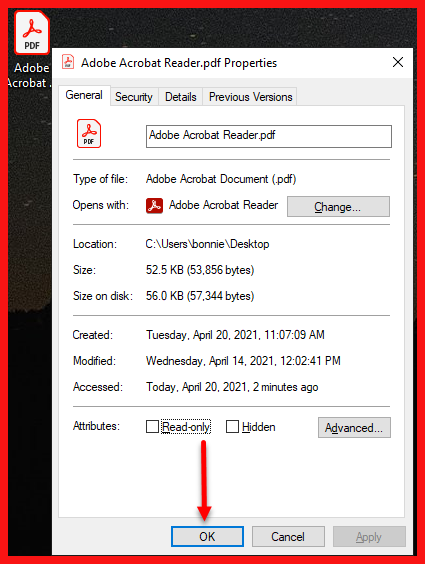
Click OK
Now, the PDF files open in
Acrobat Reader DC or Acrobat DC and
the Icon should now look like this:
For suggestions, questions, or to add your employees to this email list contact bonnie@abinnovations.com