Bytes and Insights Logo

Learn21's Weekly EdTech Update

November 14, 2024

Bridging the Invisible: Learn21's Data Integration Services

Behind Learn21’s celebrated tools and advocacy efforts lies a quieter yet essential piece of our work: Data Integration Services. This foundational work, core to our success since day one, forms the backbone of support for countless classrooms, educators, and students. While the work may seem purely technical, it carries a deeply human element—our approach is built on listening to schools, understanding their needs, and customizing data systems to fit each district’s culture seamlessly.


Our team’s Data Integration Services eliminate the need for technology departments to manage and maintain multiple integrations with third-party applications. Instead, Learn21 serves as a single support desk, relieving district IT teams of this burden while allowing for a high level of data customization. An example is our ability to adjust data feeds so course names include schedule periods, even if the destination system doesn’t store that information by default. This level of detail gives teachers and students a greater level of usability and intuitiveness with each resource used in their classroom.


Unlike other solutions that focus simply on the mechanics of data transfer, Learn21 provides a concierge-level integration service tailored specifically to each district’s culture and goals. By engaging directly with teachers who use these tools, we adapt our integrations to reflect the unique terminology and practices of each classroom—whether in team-teaching environments, high school periods, or elementary classes. With this focus on classroom relevance, we ensure integrations that feel natural and effortless to users, enhancing both functionality and impact.


Beyond customization, our integrations emphasize automation and data security, two critical components of efficient and safe data management. Automation streamlines routine data tasks, saving valuable time for both teachers and administrators, while also reducing the chance of manual errors. On the security side, we ensure that data handling follows strict privacy standards and security protocols, giving districts peace of mind that sensitive information is protected. Through automation and secure processes, Learn21 empowers school communities to operate smoothly and safely, letting educators focus on what truly matters—their students.


At Learn21, our mission is to empower schools, break down barriers, and give classroom time back to educators by handling the complexities of data integration. By automating essential data tasks, we allow teachers to focus on what truly matters—their students. This dedication to serving quietly but powerfully is the hallmark of Learn21’s support, making data work seamlessly behind the scenes, day in and day out.

Importing Data Into Google Sheets

When looking at data, it is sometimes advantageous to import that data into a spreadsheet such as Google Sheets. This allows for easier manipulation, analysis, and visualization of the data. Along the way, you may have come across road blocks on getting that data into Google Sheets as smoothly as possible.


My preferred method is to upload the data, usually in a comma delimited file with a name ending with .csv or a tab delimited file with a name ending with .tsv. However, after uploading the file, I found that sometimes Google Drive doesn’t recognize it as a file that can be opened  in Google Sheets.

Another problem arises when you have several files that you want to combine into one. The easiest way is to open each one up in Google Sheets and then copy/paste the data into the final spreadsheet. This works, but it takes a little bit of time and you also litter your Google Drive with a bunch of temporary files. Thankfully, Google Sheets can fix both of these issues for us.


Using File → Import

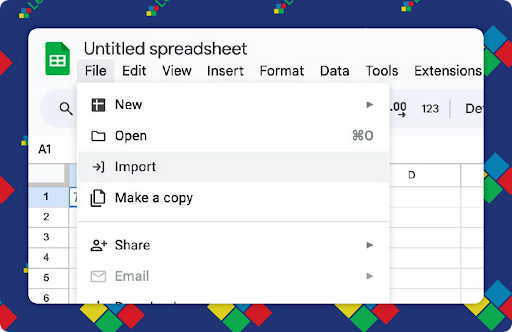
A couple of months ago I got tired of Drive not recognizing some files as Google Sheets, so I finally got around to digging into the issue and seeing what I can do about it. In the process, I learned about the wonders of the Import menu. This menu, located under the File option in Google Sheets, provides a streamlined method for bringing external data into your spreadsheet without the hassle of creating multiple unnecessary files:

Step-by-Step Guide to Using Import

  1. Open a New or Existing Spreadsheet: Begin by opening a blank Google Sheets document or an existing spreadsheet where you wish to import the data.
  2. Navigate to the Import Menu: Once your spreadsheet is open, click on File in the spreadsheet menu bar and then select Import.
  3. Choose Your File: A pop-up window will appear allowing you to choose the file you want to import. You can upload a file directly from your computer or select one from your Google Drive.
  4. Select the File Type and Import Location: After selecting the file choose where you want the data to be imported. You can import it as a new sheet, replace the current sheet, or append it to the existing data in the current sheet.
  5. Adjust Import Settings: The pop-up will offer additional settings such as detecting automatically to separate the text into columns or specifying a particular delimiter. Adjust these settings according to the structure of your source file.
  6. Import: Once you've set the import configurations, click on the Import Data button. This will initiate the import process.


What’s really nice is the question in step 4 above. You can import the data into a new sheet, which ensures that your current data remains untouched, or replace an existing (or current) sheet if you're looking to update information with the newly imported data. Alternatively, appending the data to an existing sheet can be particularly useful if you're working with ongoing data collections or consolidating reports.


No More Temporary Files

I have no idea why I didn’t look at this feature sooner, but it has saved me tons of time in the past two months. It bypasses the issue of Google Drive not recognizing the file and eliminates the need to create temporary files just for importing purposes.


Tips and Tricks

Transposing Your Paste into Google Sheets

A few months ago I had information in a Google Sheet in a row, but I needed to create columns for each item. I was going to do the copy/paste samba, but I thought that maybe there was a better way.


Paste transposed

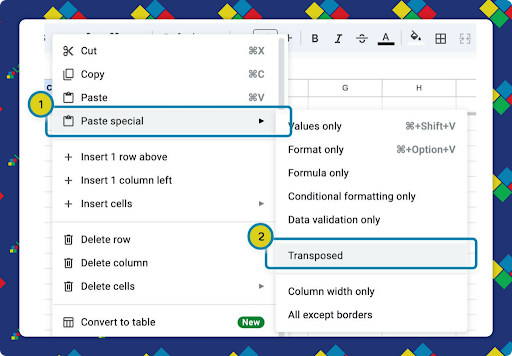
Hidden inside of the paste command (either from the menu or from a right-click) is the Paste Transposed command.

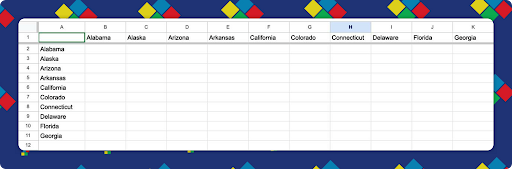
Instead of doing a normal paste, use this command to take your vertical data to horizontal or vice versa:

Extra Credit

Toddlers are surprisingly adept at distinguishing between improbable and impossible events, and they remember more when startled by something unexpected, according to a study conducted with a toy-filled gumball machine. Researchers Lisa Feigenson and Aimee Stahl found that children were more likely to recall the name of a toy (a "blick") if it came out of the machine in an "impossible" situation, such as appearing when none were visible in the machine. This heightened attention and memory retention occur because the unexpected event surprises them, enhancing their learning experience. The study emphasizes the importance of incorporating surprises in teaching, as it can significantly boost young children's learning and memory retention.


It turns out the biggest threat in cyber security isn't another country or a network of hackers, but rather restless teenagers known as "advanced persistent teenagers". These young hackers have caused massive data breaches and pushed companies to rethink their security strategies, focusing more on insider threats and identity verification. Experts note that intruders who have more time, creativity, and unorthodox methods can be more difficult to defend against.


OpenAI has just rolled out a new Search feature for ChatGPT, aiming to compete with giants like Google. The new tool, showcased through partnerships with well-known publications like The Associated Press and Reuters, can create custom-formatted info and visual designs into categories such as weather, sports, and news. However, AI hallucinations still occur, so be wary.

🙋‍♂️ Bytes and Insights is co-authored by Eduk8me’s Ryan Collins who writes about education and educational technology. He is also the Director of Technology for Kenton City Schools in Ohio. Sign up for his Of Bits and Bytes newsletter at https://eduk8.me!


If you'd like to take a hiatus from Bytes & Insights, please use the Update Profile link below. This will allow you control over which emails you receive from Learn21.

X Share on X
LinkedIn Share on LinkedIn

www.learn21.org

LinkedIn        X        YouTube        Instagram