|
One Cool Tip Newsletter
April 15, 2026
| Your daily dose of tech-savvy brilliance! | |
😀Greetings! Happy Windows Wednesday, Cool Tipper!
Get ready to streamline your digital life with simple, actionable tips delivered straight to your inbox.
Cool Tip Theme: Windows 11 Quality Commitment
New here? Subscribe to the One Cool Tip Newsletter for daily updates. It's FREE!
| |
3️⃣
If you enjoy the One Cool Tip newsletter, please forward this newsletter to THREE friends or colleagues or share it on social media using the links below.
Leave a $$$ Tip!
Share this One Cool Tip Newsletter!
| | |
🚨Copilot: For Entertainment Purposes Only🚨
Microsoft quietly updated its Copilot Terms of Use to state that the AI is “for entertainment purposes only.”
The clause warns that Copilot “can make mistakes” and “should not be relied on for important advice.”
Critics argue that the disclaimer clashes with Microsoft’s marketing, which promotes Copilot as a serious productivity tool for business and personal use.
It appears that the wording is legacy language from Copilot’s early Bing companion days and may be changed in the future.
The phrasing remains a reminder that AI-generated content may not always be accurate or reliable.
Always double-check.
| | |
Help support One Cool Tip. Use this Amazon link when you shop online.
Check out these Cool Deals:
🖱️ Logitech MX Master 3S Wireless Mouse: The best mouse for navigating Windows 11. Save 11% Now $79.99 Check it out on Amazon!
🖥️ SAMSUNG 27" QHD Monitor: Extra screen real estate makes using Windows 11 easier. Save 36% Now $159.99 Check it out on Amazon!
💡 Quntis Monitor Light: Reduce eye strain during those late-night Windows 11 work sessions. Save 7% Now $39.95 Check it out on Amazon!
*Prices accurate when originally published.
One Cool Tip may earn a commission from qualifying purchases.
| | |
Windows 11’s New Quality Pledge: What It Really Means For You
Windows is promising fewer frustrations, smarter updates, and features that feel finished before they reach your PC. Here is what that new quality push actually looks like in real life and how you can benefit from it today.
When was the last time a Windows update landed at the worst possible moment, right before a meeting or a class?
Here's a Cool Tip: Be Prepared for Improved Windows 11 Quality Updates.
Microsoft says it has heard that frustration loud and clear and is now reshaping how Windows is built, tested, and delivered, with a renewed focus on quality, stability, and user trust.
Microsoft leader Pavan Davuluri recently outlined a set of concrete changes: more control over updates, a faster and more dependable File Explorer, quieter widgets, fewer Copilot distractions, and a clearer Insider Program.
Feature Explanation
Microsoft’s new quality push is not a single toggle or app.
It is a collection of changes to how Windows behaves day to day, especially on Windows 11 and Insider preview builds.
At a high level, the company is focusing on performance, reliability, and predictability, instead of piling on flashy features that may not be ready.
Here are the headline areas from the official commitment:
-
Taskbar flexibility: You can reposition the taskbar to the top or sides of the screen, one of the most requested personalization features. This is currently rolling out in Windows Insider builds.
-
More intentional Copilot: Copilot entry points are being reduced in apps like Snipping Tool, Photos, Widgets, and Notepad so that AI shows up where it is genuinely useful instead of everywhere.
-
Smarter, less disruptive updates: You gain more control over when updates install, including the ability to skip updates during device setup, restart or shut down without being forced to install updates, and pause updates for longer.
-
Faster File Explorer: Improvements target quicker launch, less flicker, smoother navigation, and more reliable file operations.
-
Quieter widgets and feeds: Widgets and the Discover feed are being tuned to feel more relevant and less noisy, with quieter defaults and more control.
-
A clearer Windows Insider Program: Channel definitions, feature access, and feedback loops are being clarified so testers understand what they are getting and how their input shapes Windows.
For business users, this translates into fewer surprise restarts, more predictable patch windows, and a desktop that feels stable enough to standardize on.
For home users, it means Windows should feel lighter, less naggy, and more respectful of your time.
What You’ll Gain
What You’ll Gain From Microsoft’s Quality Push:
-
Fewer interruptions: Updates that respect your schedule and reduce surprise restarts.
-
Smoother daily work: Faster File Explorer and more reliable core experiences.
-
Less clutter: Copilot and widgets that appear where they help, not where they distract.
-
Clearer testing path: A more transparent Windows Insider Program if you like to live on the cutting edge.
Step-by-Step Instructions
Here's how to do it.
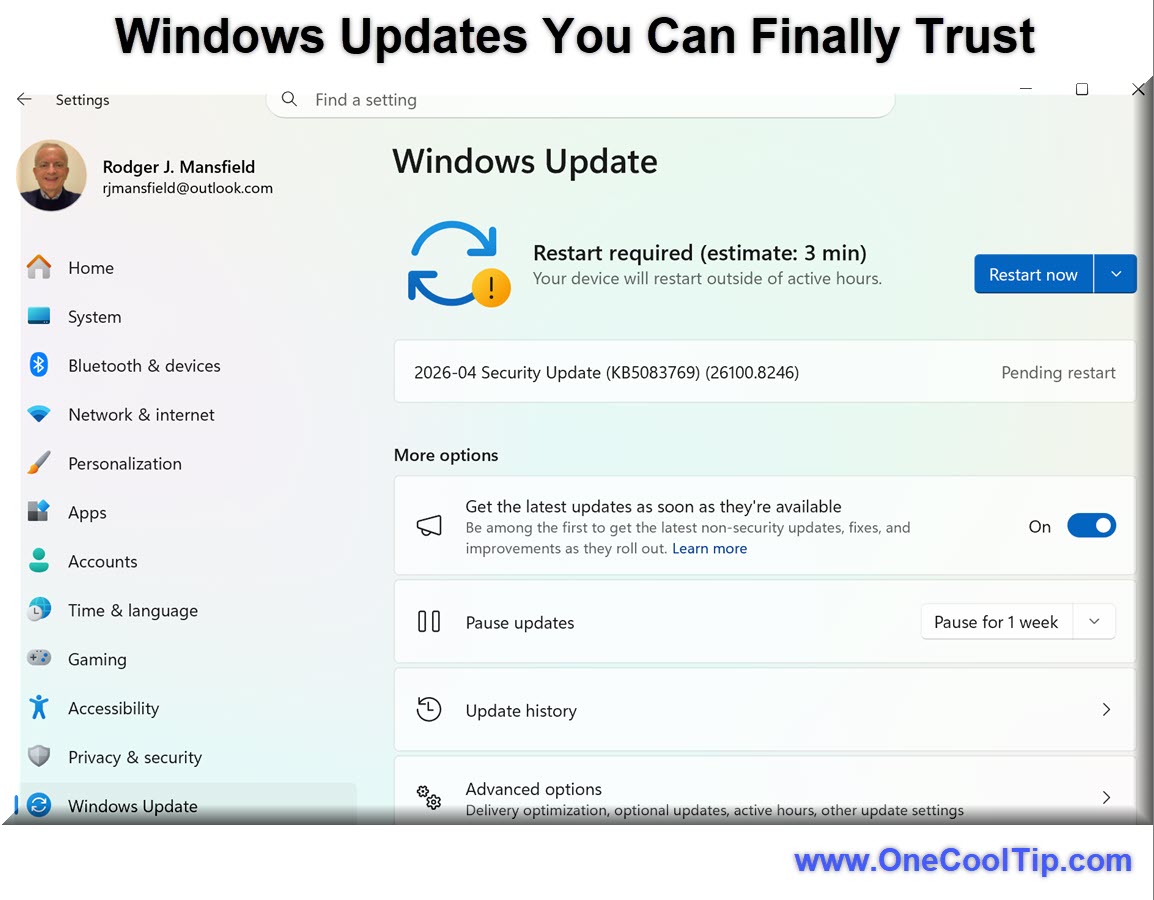
Microsoft Web/Desktop: Taming Windows Update Disruptions
Reduce Surprise Restarts / Open Windows Update settings.
-
Select Start, then Settings, then Windows Update.
| | fig. 1 - Windows Updates You Can Finally Trust | | |
Adjust Active Hours.
-
Choose Active hours and set the time range when you typically work so Windows avoids restarts during that window.
Extend Pause Options.
-
Use the Pause updates control to temporarily stop updates for a longer period if you are traveling or in a critical project phase. Newer builds are increasing how long you can pause, currently rolling out to Insiders.
Control Restarts During Shutdown.
-
When you select Power from the Start menu, choose Shut down or Restart. New behavior in preview builds allows you to shut down or restart without being forced to install pending updates, giving you more flexibility.
Skip Updates During Setup On New Devices.
- On a new PC, when you reach the setup stage that offers updates, look for an option to continue without installing them immediately. This feature is currently rolling out in Insider builds and can shorten the time to your first desktop.
Pros and Cons
Pros;
-
More control for users: Business IT and home users gain better control over when updates install, reducing downtime during critical work.
-
Focus on fundamentals: Performance and reliability improvements in File Explorer and core experiences directly benefit everyday workflows.
-
Cleaner experience: Reducing unnecessary Copilot entry points and noisy widgets helps Windows feel less cluttered and more professional.
Cons:
-
Insider-first rollout: Many of these changes arrive in Windows Insider builds first, so production users may wait months before seeing them.
-
Potential fragmentation: Different devices and channels may have different behaviors for a while, which can confuse support teams.
-
Quality is a journey: A public commitment does not instantly erase past frustrations, and users will judge Microsoft on execution over time.
Feature Access
-
Who gets it: The new quality-focused changes are being previewed first with Windows Insiders, with builds shipping in March and April 2026.
-
Versions and editions: Features like taskbar repositioning, File Explorer improvements, and update controls target Windows 11, including Pro and Enterprise editions, with final availability depending on channel and device eligibility.
-
Region and rollout: Microsoft has not specified regional limitations for these quality improvements. They are currently rolling out through Insider channels and will later reach general availability via standard Windows Update once validated.
Score
Criterion | Score (0–10) | Justification
Value | 9
Directly targets pain points like disruptive updates and sluggish core apps that affect everyone.
Usability | 8
Most controls live in familiar Settings areas, though staggered rollout can cause some confusion.
Wow Factor | 7
These are not flashy features, but the cumulative effect of a calmer, faster Windows feels impressive.
Total: 24/30 | 👍 Good
A thoughtful reset that prioritizes trust and day to day reliability over spectacle, similar in spirit to how Windows 10 once refocused on stability after the Windows 8 era.
Key Takeaways
Microsoft is shifting Windows toward a quality-first mindset, with concrete changes that reduce interruptions and improve everyday performance.
Many of these improvements are already visible in Windows Insider builds and will flow into mainstream Windows 11 over time.
If you care about a calmer, more predictable PC, this is a trend worth watching and testing.
Cool Tip Snapshot
-
Feature Name: Windows Quality Commitment and Smarter Updates
-
Platform(s): Windows 11, Windows Insider builds
-
Quick Benefit: Fewer surprise restarts, smoother File Explorer, and less clutter from AI and widgets.
-
Access Type (Free, Subscription, Beta): Free, currently rolling out via Windows Update and Insider preview channels.
Try It Yourself
Today, open Windows Update on your primary PC, tune your Active hours and pause settings, then move one secondary device into the Windows Insider Program to experience the new quality improvements early.
Share your feedback in the comments, and pass this article along to your team, family, and friends.
READ MORE
Read the Cool Tip on OneCoolTip.com.
| | |
Check out these Cool Tips & Tricks.
-
Update Cadence: Keep your core software updated on a predictable schedule to reduce surprise changes and security risks. How to do it: Set a recurring calendar reminder each month to check for updates in Windows, browsers, and key apps.
-
Startup Clean-Up: Too many startup apps slow your PC and increase boot time. How to do it: Open Task Manager, select the Startup tab, and disable apps you do not need at launch.
-
Keyboard Shortcuts: Learning a few shortcuts can save minutes every day. How to do it: Start with basics like Ctrl+C, Ctrl+V, Alt+Tab, and Win+E, then add more over time.
-
Cloud Sync: Store important documents in a cloud service so they are safe and accessible across devices. How to do it: Move key folders into OneDrive, Google Drive, or Dropbox and confirm sync is enabled.
-
App Focus: Too many apps open at once can tank performance and attention. How to do it: Close unused apps regularly and pin your top three tools to the taskbar for quick access.
-
Notification Hygiene: Constant alerts can derail your focus. How to do it: In Settings, open Notifications and turn off or limit nonessential app notifications.
-
Default Apps: Using your preferred browser, mail client, and PDF reader streamlines daily tasks. How to do it: Go to Settings > Apps > Default apps and set your favorites for web, email, and documents.
-
Backup Routine: Regular backups protect you from hardware failure and bad updates. How to do it: Use Windows Backup or a third-party tool to schedule automatic backups to an external drive or cloud.
-
Uninstall Bloat: Removing unused software frees space and reduces background processes. How to do it: Open Settings > Apps > Installed apps and uninstall tools you no longer use.
-
Security Checkup: A quick security review can prevent bigger problems later. How to do it: Open Windows Security, run a quick scan, and review firewall and app permissions monthly.
| | ICYMI - In Case You Missed It ... | | | | |
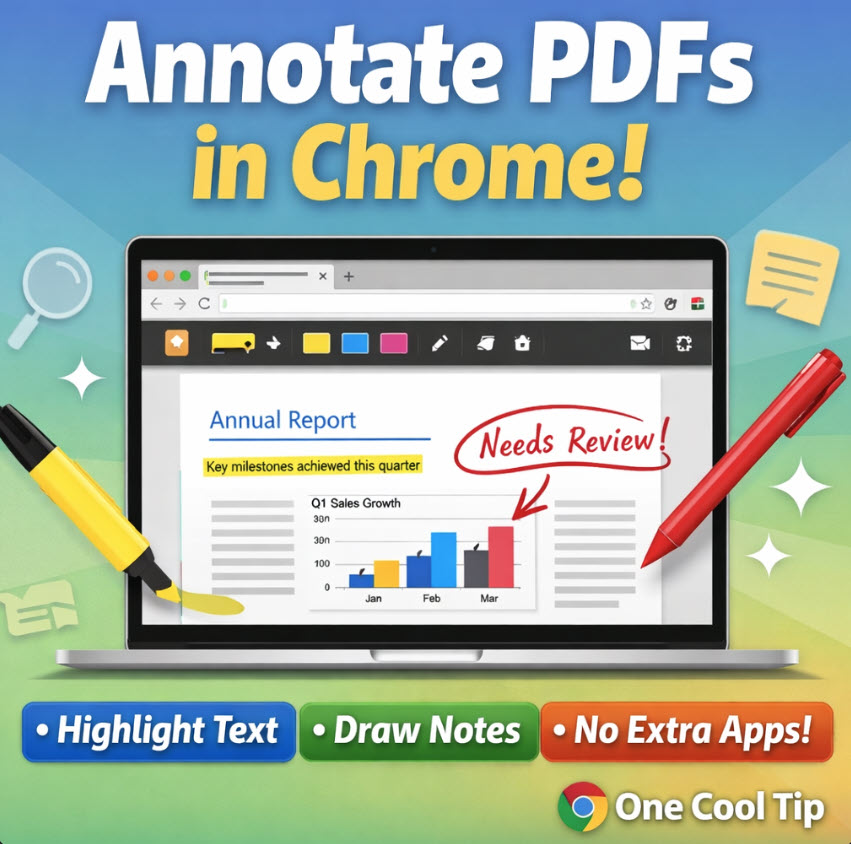
Master Your Documents with Chrome PDF Annotations
Stop searching for third party editors and start marking up your files directly in the browser you already use. Google Chrome now includes robust tools to draw, highlight, and save notes directly onto PDF documents. This update transforms the browser into a powerful productivity workstation for anyone handling digital paperwork.
Read the Full Cool Tip.
Read the Newsletter Version.
| | |
Tomorrow's Cool Tip is waiting to amaze you.
Until then, go forth and conquer the tech world with your newfound knowledge!
Be sure to visit www.OneCoolTip.com for Cool Tech Tips for a Cooler Life!
And if you Like One Cool Tip, please support with TipJar!
Enjoy!
Rodger
Chief Cool Tipper
onecooltip.com@gmail.com
| |
| What do you think of today's OneCoolTip newsletter?
| | | | Connect with One Cool Tip!! | | |
|
As an Amazon Associate, One Cool Tip may earn a small commission from qualifying purchases.
Our media content is intended solely for informational purposes only. Please do not construe anything here as legal, tax, investment, financial, marital or other advice.
Copyright © 2026 | www.OneCoolTip.com | All Rights Reserved
|
| | | |