|
One Cool Tip Newsletter
June 23, 2025
| Your daily dose of tech-savvy brilliance! | |
😀Hello Rodger, Happy Monday, Cool Tipper!
Get ready to streamline your digital life with simple, actionable tips delivered straight to your inbox.
Today's Cool Tip Theme: Searching for Templates
IN THIS ISSUE
- 🚨 Beware of Fake CAPTCHA Scams!
- 🚗 Tesla Robotaxis Hit the Streets of Austin!
- 💡 Make It a Great Week with an AI Prompt!
- 🖼️ Cool ChatGPT AI Prompt: Healthy Dining!
- 📱 Search for Templates in Word, Excel & PowerPoint for iOS!
- ↩️ Navigate Back in Word.
- 📊 Excel Insight: Paste as Picture.
- 🎨 PowerPoint Pro Tip: Fill a Shape with a Picture!
New here? Subscribe to the One Cool Tip Newsletter for daily updates. It's FREE!
-
😂 Laugh with Us! Enjoy our Tech Joke of the Day, Haiku and Cool Tip Comics.
-
🌐 Stay Informed! Check out ICYMI, and our One Cool Tip Video.
🔔 Is your email provider (Gmail, Yahoo, Outlook...) not delivering the newsletter?
Check the Junk folder - Move the newsletter to your Inbox. And reply to this email with a “Hey, Rodger” or “I got it.” That tells your mail service you want this newsletter!
Today's Tech Trivia
Which Microsoft Office app was the first to introduce templates as a core feature?
A) PowerPoint
B) Excel
C) Word
D) Access
Answer at the end of this newsletter.
| | |
3️⃣
If you enjoy the One Cool Tip newsletter, please forward this newsletter to THREE friends or colleagues or share it on social media using the links below.
Share this One Cool Tip Newsletter!
| |
🚨Beware of Fake CAPTCHA Scams!🚨
Cybercriminals are now using fake CAPTCHA pop-ups to trick users into installing malware.
These bogus verification screens often seen on sketchy websites or phishing emails may ask you to press certain keys or run commands.
Don’t do it. Real CAPTCHAs never require keyboard shortcuts or software downloads.
This scam, known as ClickFix, can silently install info-stealing malware or give hackers remote access to your device.
If a CAPTCHA asks for anything beyond clicking a checkbox or selecting images, close the page immediately.
🛡️ Stay safe: Stick to trusted websites, avoid suspicious links, and never follow CAPTCHA instructions that involve copying or running code.
And in Other News...
-
Tesla Robotaxis Hit the Streets of Austin
Tesla is gearing up to launch its first fleet of robotaxis in Austin, Texas.
This weekend select early beta testers were able to test the new service.
These fully autonomous vehicles designed without steering wheels or pedals are part of Elon Musk’s bold push into self-driving tech.
The move puts Tesla in direct competition with Waymo and Cruise, who already operate robotaxi services in other U.S. cities.
While details are still emerging, the rollout could reshape urban mobility and raise new questions about safety, regulation, and trust in AI-driven transport.
If you're in Austin, keep an eye out—your next ride might not have a driver.
Tip: Always verify the ride-hailing app and vehicle details before hopping in. Autonomous or not, safety first!
Start the week with motivation. Try this AI prompt!
Copy/Paste this AI-powered prompt. Use with your favorite AI assistant: Gemini, Copilot, Grok, DuckAI, Meta and ChatGPT.
"I want to plan my day. Here are the top things I need to work on: [insert 3–5 key tasks or goals]. Based on this, create a realistic to-do list with 3 priorities, 1 quick win to start with, and 1 short wellness break. Keep it focused and time-blocked."
| | |
🖼️ Cool ChatGPT AI Prompt of the Day:
Looking to eat healthy when dining out?
- Take a screenshot of the menu.
- Upload to ChatGPT.
- Enter this prompt:
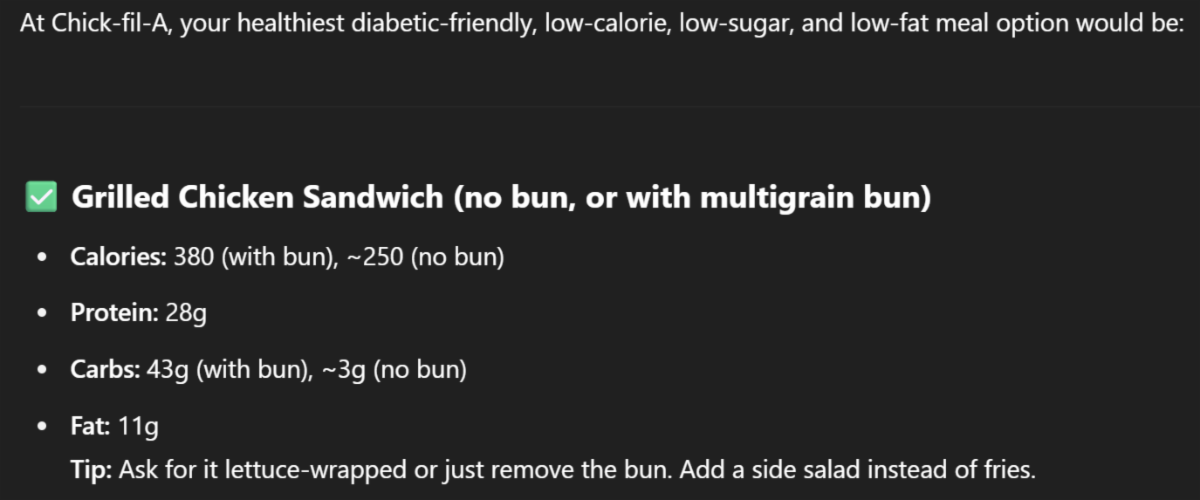
- "Review this menu and suggest a healthy meal option."
- ChatGPT responds with recommendations for a healthy meal.
| | | |
Search for Templates in Word, Excel & PowerPoint for iOS
Caught in a Coffee Shop, Deadline Looming?
There’s nothing quite like trying to build a presentation on your iPhone with one thumb and a ticking clock.
Whether you’re on the train, between meetings, or working from a park bench, starting from scratch isn’t just time-consuming.
It’s a creativity killer.
Here's a Cool Tip: Search for Templates in Word, Excel and PowerPoint for iPhone and iPad.
Microsoft has added a deceptively powerful feature to its Word, Excel, and PowerPoint mobile apps for iOS: searchable templates.
What You’ll Gain
- Find ready-made templates with one search
- Save time creating business documents on the go
- Instantly add polish to your mobile work
What’s New?
In the iOS versions of Word, Excel and PowerPoint, you can now search for templates directly from the app’s start screen.
This update removes the friction of endlessly swiping through featured templates or waiting to switch to a desktop.
Templates are organized by category and searchable by keyword, whether you need a resume, invoice, calendar or lesson plan.
Just type, filter and start editing.
Step-by-Step Instructions
Here's how to do it.
iOS (iPhone and iPad)
-
Open Word, Excel, or PowerPoint on your iOS device - iPhone or iPad.
-
Navigate to the Create (+) page.
-
To search for a template, type a keyword or phrase in the Search box at the top of the page.
-
Select a template to preview, then tap Create.
-
The file opens, preformatted and ready for use.
Android
- Currently unavailable. Android users can still browse featured templates from the home screen but don’t have access to the full template search experience—yet.
Pros and Cons
Pros:
- Perfect for mobile professionals who need to work on the fly
- Streamlined interface with intuitive keyword filtering
- Broad range of well-designed templates, including options for educators, freelancers, and team leads
Cons:
- Requires internet access to search and retrieve templates.
- Android version not available (at least for now).
- Previewing templates on small screens can be tight,
Configuration Guide
To access the new search feature, ensure the following:
- You’re signed in with an active Microsoft 365 account
- The apps are updated to the latest version via the App Store
- You’re online and templates are cloud-based
- No additional configuration needed.
Feature Access
This feature is currently available in Word, Excel and PowerPoint for iPhone and iPad with an active Microsoft 365 subscription.
Users on the free tier may see limited template access or functionality.
Score
Value: 9
It boosts on-the-go productivity with instant polish
Usability: 10
Familiar search interface, no setup required
Wow Factor: 7
It’s the kind of feature you wish had been there all along
Total: 26/30 🌟 Excellent – Highly recommend.
Key Takeaways
Microsoft 365’s new iOS template search isn’t flashy.
It’s just smart.
It cuts through the clutter of mobile document creation and gives you professionally designed starting points in seconds.
Fast, accessible, and worth using regularly.
Try It Yourself
Fire up Word, Excel, or PowerPoint on your iPhone or iPad and type “invoice,” “brochure” or “calendar” into the search bar.
Your next polished doc is waiting.
READ MORE
Read the Full Cool Tip
| | |
Help support One Cool Tip. Use this Amazon link when you shop online.
Look at these Cool Products:
| |
-
Apple AirPods 4 Wireless Earbuds - Bluetooth Headphones, Personalized Spatial Audio, Sweat and Water Resistant, USB-C Charging Case, H2 Chip, Up to 30 Hours of Battery Life, Effortless Setup for iPhone. $119. Save 8% Check it out on Amazon!
-
Beats Studio Pro - Wireless Bluetooth Noise Cancelling Headphones - Personalized Spatial Audio, USB-C Lossless Audio, Apple & Android Compatibility, Up to 40 Hours Battery Life - Sandstone $249.95 Save 29% Check it out on Amazon!
-
Amazon Echo Buds (newest model) - True Wireless Bluetooth 5.2 Earbuds with Alexa, audio personalization, multipoint, 20H battery with charging case, fast charging, sweat resistant, Black $49. Check it out on Amazon!
-
Beats Solo 4 - Wireless Bluetooth On-Ear Headphones, Apple & Android Compatible, Up to 50 Hours of Battery Life - Cloud Pink #129.95 Save 35% Check it out on Amazon!
| | |
🆒Tell Me More
- The new search feature works in Word, Excel, and PowerPoint apps for iPhone and iPad.
- Templates are cloud-based, so no need to download design assets.
- Search results update instantly as you type, making it easy to refine queries.
- Categories include business, education, lifestyle, and creative use cases.
- Microsoft is continuing to add more templates monthly.
⏩Quick Tips
-
📱 Use the search bar on the start screen. Just open the app and tap the search icon—no menus to dig through.
-
🎨 Search specific template types like “invoice” or “calendar.” Results narrow quickly with specific terms, saving time.
-
🔄 Your most recent templates appear first. The app remembers what you last opened for faster reuse.
-
☁️ Templates sync across devices. Start a doc on iOS and finish it on your desktop—no version mismatches.
- 📤 Save custom templates for repeated use. Once edited, save to OneDrive and reuse with a few taps.
| | |
✅ More Must-Read Tech Tips
| |
👀 How Do I Navigate Back in Word?
Have you ever found yourself lost in a sea of text while working on a document in Microsoft Word?
Do you wish there was an easy way to navigate back to where you were before?
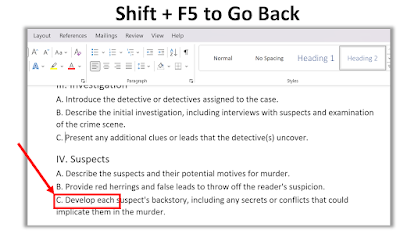
Here's a Cool Tip: Shift + F5.
This handy shortcut allows you to quickly jump back to your last edit point, saving you time and frustration.
No more scrolling through pages of text or using the Find function to locate where you left off.
With Shift + F5, you can easily pick up right where you left off.
But that’s not all!
This shortcut has even more functionality. Pressing Shift + F5 multiple times allows you to cycle through your last three edit points, giving you even more control over your workflow.
So why not give it a try?
Next time you’re working in Microsoft Word, use the Shift + F5 shortcut to revolutionize your workflow and increase your productivity.
Discover more HERE.
| |
🤔 Have You Ever Wondered How to Paste as Picture in Microsoft Excel?
Have you ever wondered how to make your Excel reports more visually appealing?
Or how to keep your data updated across multiple sheets without the hassle of manual updates?
Here's a Back-to-Work-Monday Cool Tip. Use Microsoft Excel's Paste as Picture.
Microsoft Excel, a powerful tool in the Microsoft Office suite, offers two unique features: Paste as Picture and Paste as Linked Picture.
While they may sound similar, they serve different purposes and can be used to achieve different outcomes.
Here's how to do it.
Paste as Picture
This feature allows you to take a snapshot of your selected cells and paste it as an image.
-
Select the cells you want to copy.
-
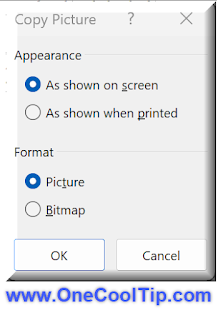
Go to the Home tab, click on the Copy dropdown, and select Copy as Picture.
-
In the dialog box, choose “As shown on screen” and “Picture”, then click OK.
-
Go to the location where you want to paste the picture and press Ctrl+V.
It’s a great way to preserve the look of your data, especially when sharing it with others.
The pasted picture won’t change even if the original data is modified.
Paste as Linked Picture
This feature creates a live snapshot of a range of cells.
-
Select the cells you want to copy.
-
Copy the cells (Ctrl+C).
-
Go to the Home tab, click on the Paste dropdown, and select Linked Picture.
The linked picture updates automatically when the original data changes.
It’s useful for creating dynamic dashboards and reports.
Here’s an example to illustrate the difference.
- Let’s say you have a cell A1 with the value 10.
- If you use Paste as Picture, you’ll get a picture of the cell displaying 10.
- If you change the value in A1 to 20, the picture remains the same.
- But if you use Paste as Linked Picture, the picture will update to display 20.
Be sure to check out this video that explains Paste as Picture and Paste as Linked Picture.
Enjoy!
Find more HERE.
| |
🙋♂️ Here's How to Fill a Shape with a Picture in Microsoft PowerPoint.
Have you ever wanted to add a creative touch to your PowerPoint presentations?
Do you want to learn how to make your slides more visually appealing?
Here's a Cool Tip: Fill a shape with a picture in Microsoft PowerPoint
Here's how to do it.
-
Add a shape to your document by going to the Insert tab and selecting Shapes. Choose the shape you want and click on the slide to add it.
- Select the shape by clicking on it.
-
Go to the Shape Format tab that displays, click on Shape Fill in the Shape Styles section of the ribbon, and choose Picture.
-
Select the type of picture you want (such as From a File or Online Pictures) and then navigate to the picture you want and insert it.
- The image that you picked will then fill the shape.
-
You can adjust how the image is formatted within the shape using two actions: Fill or Fit.
-
Click the image within the shape and go to the Picture Format tab that appears.
-
Click the arrow below Crop in the Size section of the ribbon and choose either Fill or Fit.
-
When you “Fill” a shape with an image, this adjusts the picture size to match the shape’s height or width, whichever is greatest.
-
When you “Fit” a shape with an image, this adjusts the picture size so that both the height and width match the shape.
That's it!
Learn more HERE.
| | |
❓Did you share this newsletter with three friends yet?
⌨️Today's Cool Keyboard Shortcuts
Cool Keyboard shortcuts:
-
Cmd + N: Create a new document
-
Cmd + F: Find text in Word or PowerPoint
-
Cmd + Z: Undo last action
-
Cmd + Shift + K: Insert hyperlink in Word
-
Cmd + Option + P: Start slideshow in PowerPoint
✍️Today's Haiku
Templates on the go,
Structure flows from your pocket
Polish starts with swipe.
🔎 Do you have a Cool Tip or tech question? Email us at onecooltip.com@gmail.com.
😜 Tech Joke of the Day 😅
What’s a PowerPoint’s favorite pickup line?
“Can I interest you in a few bullet points?”
| |
| 🤔 How do you usually start a new document or presentation on your phone? | | | |
Did You See These Cool Tips This Week?
| | | | Wake Up to AI That Works for You: Gemini Scheduled Actions Boost Productivity | With Gemini Scheduled Actions, Google turns its AI into an on‑demand assistant by handling daily summaries, reminders, and creative prompts on your schedule. | | | | Lost Tech Sounds You Can Hear Again | Forget dusty relics. This interactive site lets you relive iconic device sounds and rekindles productivity by reconnecting with the familiar. | |
ICYMI - In Case You Missed It ...
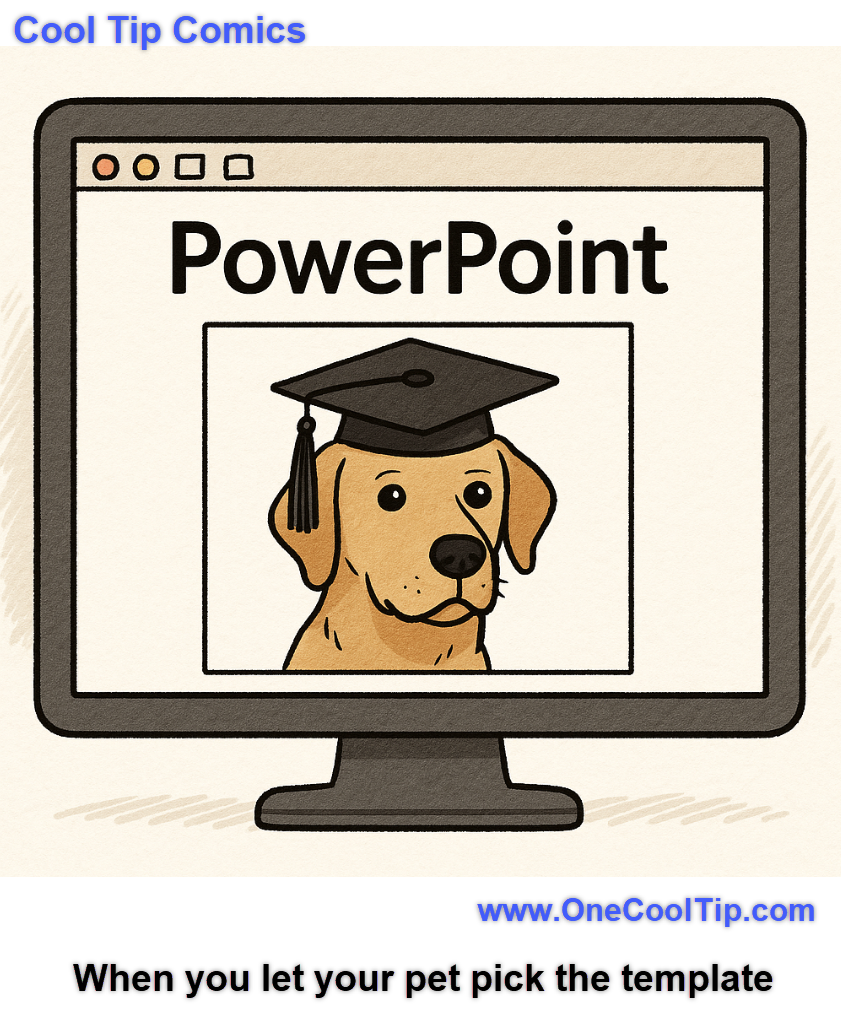
| | | | Internet Roadtrip: The Crowd-Powered Virtual Journey Taking Over Google Street View | A new web-based social experiment, Internet Roadtrip, lets thousands of users collectively steer a virtual car across America using Google Street View. It’s part nostalgia trip, part digital democracy - and it’s surprisingly addictive. | | When you let your dog pick the PowerPoint template... and he still has better design instincts than you. | | |
Trivia Answer: C) Word
Microsoft Word introduced templates in the early 1990s, allowing users to start with pre-formatted documents like resumes and letters.
This innovation helped democratize document design and set the stage for template integration across the Office suite.
----------
Tomorrow's Cool Tip is waiting to amaze you.
Until then, go forth and conquer the tech world with your newfound knowledge!
And be sure to visit www.OneCoolTip.com for Cool Tech Tips for a Cooler Life!
Enjoy!
Rodger
Chief Cool Tipper
onecooltip.com@gmail.com
| |
| What do you think of today's OneCoolTip newsletter? | | | |
Please Share the One Cool Tip Newsletter!
You asked for it. You got it. There is now a One Cool Tip Newsletter archive. Did you delete a newsletter and want to read it again? Check it out HERE.
Want to help One Cool Tip grow? Please forward this email using the link above. And if you see an OCT social media post, please LIKE, COMMENT and SHARE!
Have you subscribed to the One Cool Tip YouTube channel? Subscribe HERE.
| | Connect with One Cool Tip!! | | |
|
As an Amazon Associate, One Cool Tip may earn a small commission from qualifying purchases.
Our media content is intended solely for informational purposes only. Please do not construe anything here as legal, tax, investment, financial, marital or other advice.
Copyright © 2025 | www.OneCoolTip.com | All Rights Reserved
|
| | | |