ā€Š

One Cool Tip Newsletter

June 11, 2026

Your daily dose of tech-savvy brilliance!

šŸ˜€Greetings! Happy Thursday, Cool Tipper!


Get ready to streamline your digital life with simple, actionable tips delivered straight to your inbox.


Cool Tip Theme: Grok Voice Mode in Apple CarPlay.


New here? Subscribe to the One Cool Tip Newsletter for daily updates. It's FREE!

3ļøāƒ£

If you enjoy the One Cool Tip newsletter, please forward this newsletter to THREE friends or colleagues or share it on social media using the links below.


Leave a $$$ Tip!


Share this One Cool Tip Newsletter!

X Share This Email
LinkedIn Share This Email
Pinterest Share This Email


🚨 Amazon Impostor Scam Targeting Shoppers🚨


Scammers are increasingly posing as Amazon employees to steal money and personal information.


Criminals are contacting consumers through phone calls, texts, or emails and pretending to be from Amazon customer service.


How the Scam Works


These schemes often begin with an alarming message, such as:


  • A ā€œfraudulentā€ purchase on your account.
  • A delivery problem or refund issue.
  • A warning that your account has been compromised.


The goal is to create urgency and get you to act quickly. Scammers may then ask for login credentials, payment information, or even request unusual payments.


Why It’s Convincing


Amazon is one of the most commonly impersonated companies, and scammers mimic real emails, texts, and calls to make the messages seem legitimate.


Red Flags to Watch For


  • Unexpected messages about orders you didn’t place.
  • Requests for passwords, credit card numbers, or remote access to your device.
  • Pressure to act immediately or resolve an ā€œurgentā€ issue.
  • Requests to pay with gift cards or outside the official Amazon site .


How to Protect Yourself


  • Do not click links or call numbers in unsolicited messages.
  • Always check your account directly through the official Amazon app or website.
  • Never share personal or financial information in response to unexpected contact.
  • Report suspicious messages to Amazon or the FTC.


Bottom Line:


If you get a message claiming to be from Amazon, pause before you respond.


Scammers rely on panic and urgency, but taking a moment to verify can protect your money and your identity.


And in Other News...


  • Apple’s WWDC 2026 – What You Need to Know


At this week’s Worldwide Developers Conference (WWDC) on June 8, 2026, Apple unveiled a broad set of updates focused on artificial intelligence, with a major overhaul of Siri and expanded ā€œApple Intelligenceā€ features across its ecosystem.


Here’s a quick, consumer-focused breakdown of what matters:


Siri Gets a Major AI Upgrade


Apple introduced a rebuilt, AI-powered assistant, often referred to as ā€œSiri AI.ā€


It is designed to be more conversational, context-aware, and capable of handling complex, multi-step tasks.


  • Understands personal context such as messages, emails, and calendar events
  • Can analyze what’s on your screen and respond accordingly
  • Supports natural, back-and-forth conversations
  • Works across apps and syncs conversations across devices


Apple Intelligence Expands Across Apps


Apple is embedding AI features across core apps like Messages, Mail, Safari, and Photos.


Expect smarter suggestions, automation, AI-generated replies, and tools that pull information from multiple apps during tasks.


iOS 27 and Platform Updates


New software updates, including iOS 27 and macOS ā€œGolden Gate,ā€ focus on performance, stability, and deeper AI integration.


Highlights include faster app performance, improved multitasking, and enhanced customization.


Privacy Remains Central


Apple emphasized that its AI features are built with privacy in mind.


Data is used only to fulfill requests, with safeguards designed to limit storage and access.


Bottom line:


WWDC 2026 marks Apple’s biggest push yet into AI, with a more capable Siri and smarter apps designed to make everyday tasks faster and more seamless while maintaining a strong focus on privacy.


Apple expects iOS 27 to be released this fall.


Cool Deals of the Day

Help support One Cool Tip. Use this Amazon link when you shop online.


Check out these Cool Deals:


šŸ”Œ Wireless CarPlay Adapter (2026 Upgraded Model): Turns wired CarPlay cars into wireless for easier daily use. Save 40% Now $29.98 Check it out on Amazon!


šŸ“± iOttie MagSafe Car Mount: Secure, adjustable phone holder that keeps your iPhone ready for CarPlay while charging. Save 20% Now $19.99 Check it out on Amazon!


⚔ High-Speed USB-C Car Charger (multi-port): Fast-charges iPhone during long drives so CarPlay and voice mode stay powered. Save 25% Now $14.99 Check it out on Amazon!


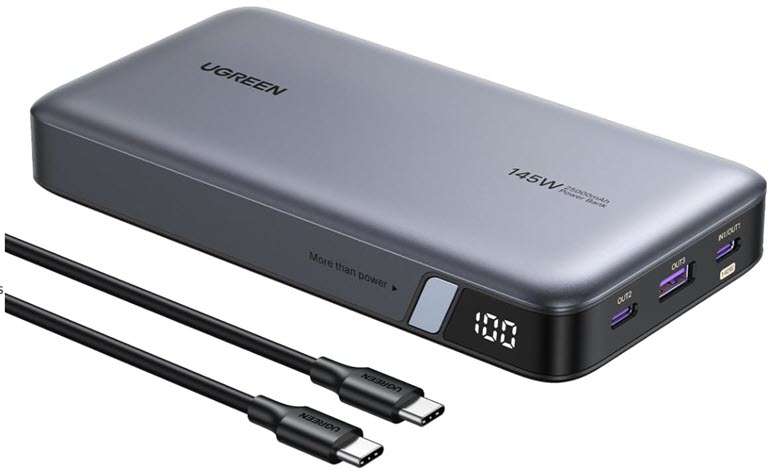
šŸ”‹ UGREEN Power Bank: Backup power for extended road trips when built-in charging isn’t enough. Save 36% Now $69.99 Check it out on Amazon!


*Prices accurate when originally published.

One Cool Tip may earn a commission from qualifying purchases.

Fuel Your Adventure

Try Big Mike's Jerky!


bigmikesjerky.com


Now on TikTok!


Today's Cool Tip

Grok Voice Mode Brings Hands-Free AI Chats to Apple CarPlay


Grok’s voice mode now works inside Apple CarPlay, letting iPhone users hold natural conversations with the AI directly from the car’s dashboard. It offers a practical way to get answers, ideas, or entertainment without touching your phone.


You’re driving and a question hits you: what's the best route around traffic? 


Maybe you need a quick fact for the kids in the back, or a fast research angle for work. 


Reaching for your phone is not an option.


Here’s a Cool Tip: Add Grok to your Apple CarPlay screen for Hands-Free Conversations.


Apple opened CarPlay to third-party voice AI apps starting with iOS 26.4, and xAI added Grok to the list in May 2026.


Feature Explanation


Grok Voice Mode in Apple CarPlay lets drivers and passengers talk to Grok hands-free through the car’s infotainment screen. 


The iPhone runs the app in the background; CarPlay displays a clean voice-focused interface with big tap targets and up to four action buttons. 


Responses come back as audio only; Apple’s rules for these chatbot apps prohibit showing text or images on the car screen to reduce distraction.


It works over your iPhone’s data connection (cellular or Wi-Fi). 


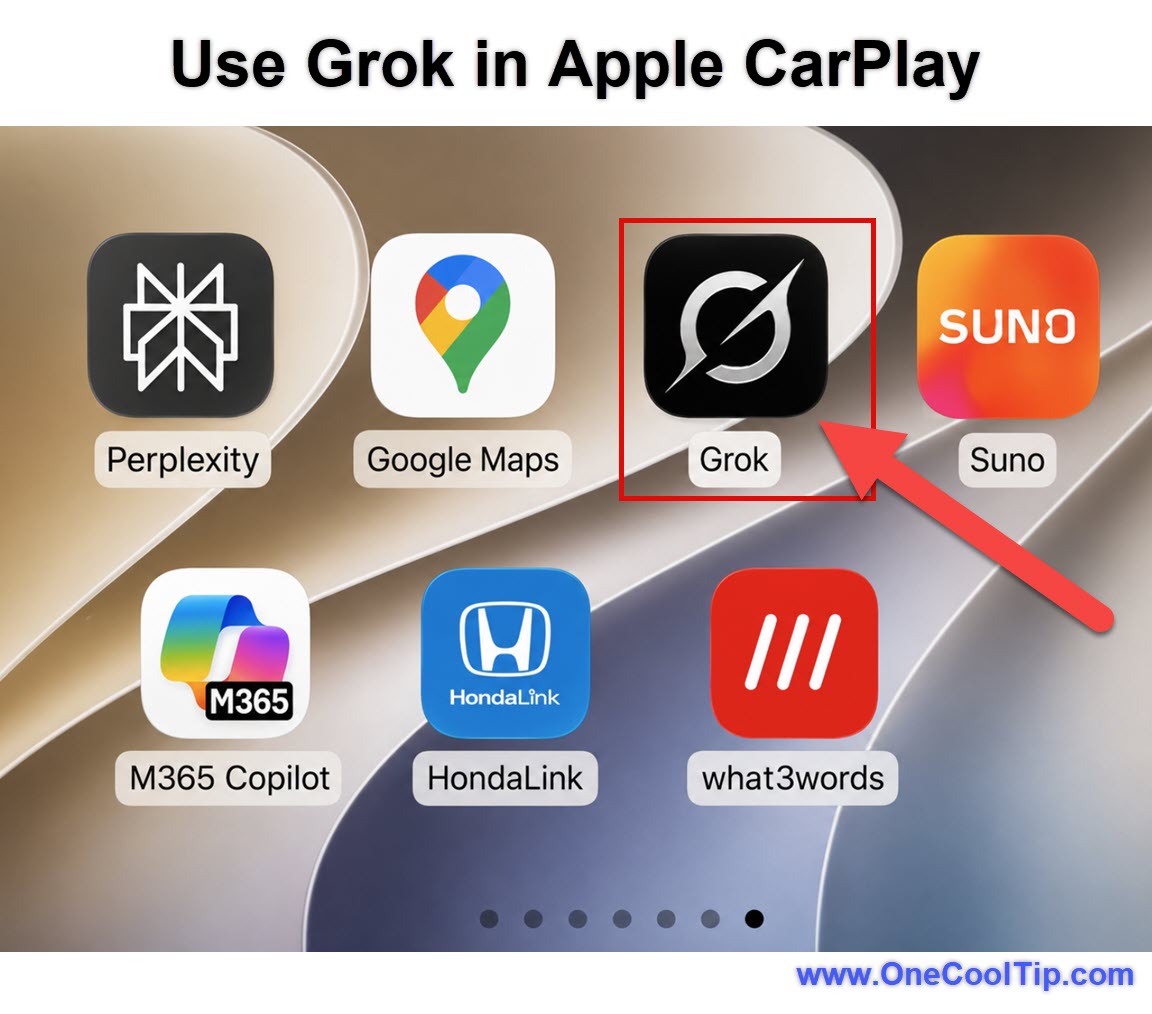
You start the session by tapping the Grok icon in CarPlay, then speak naturally. 


The experience sits alongside similar integrations from ChatGPT and Perplexity. 


It does not replace Siri and does not give Grok control over vehicle systems or your iPhone.


The feature solves the real problem of wanting useful AI help on the road without creating new distractions. 


It benefits iOS users who already enjoy Grok’s personality and need on-the-go answers during commutes, road trips, or client drives.


What You’ll Gain


  • Keep your eyes on the road and hands on the wheel while getting quick answers or ideas.
  • Turn routine drives into productive or entertaining time with a conversational AI.
  • Access Grok’s knowledge and style without unlocking or handling your iPhone.
  • Add a useful app to CarPlay with minimal setup on supported vehicles.


Step-by-Step Instructions


Here's how to do it.


iPhone Setup (required before driving):


  1. Open the App Store on your iPhone, search for ā€œGrokā€, and install or update to the latest version.
  2. Open the Grok app, sign in if prompted, tap the voice/microphone icon, and allow microphone access when asked.
  3. Go to Settings > General > CarPlay, select your vehicle, tap Apps, and tap the green plus next to Grok so it appears on the car screen. (If it is not listed yet, connect via CarPlay once and it usually appears.)


In the Car:


  1. Connect your iPhone to CarPlay (wired or wireless).
  2. On the car’s touchscreen, locate and tap the Grok app icon.
  3. Tap New Voice Chat (or the prominent voice button).
  4. Speak your question or request naturally. 
  5. Tap End when finished to stop the microphone session


fig. 1 - Use Grok in Apple CarPlay

Pros and Cons


Pros:


  • Gives Grok users safe voice access during drives without phone handling.
  • Clean, large-button interface designed for in-car use.
  • Works on any CarPlay-equipped vehicle with a compatible iPhone.
  • No extra subscription required for basic voice mode in current reports.
  • Conversation history and voice options (including switching voices) available in the app.


Cons:


  • Cannot control car functions, navigation, or iPhone apps; purely conversational.
  • Needs an active internet connection via the iPhone.
  • Voice data is sent to xAI servers; not suitable for highly sensitive discussions.


Feature Access


Available to users with an iPhone running a supported iOS version (initially reported as iOS 26.4+), the latest Grok iOS app, and a CarPlay-compatible vehicle. 


No subscription is required for basic voice mode. 


Enterprise or managed iPhones may have app installation or CarPlay restrictions set by IT admins. 


Availability can vary by device, region, and app version: update regularly and check the App Store listing for the latest status.


Score

Criterion | Score (0–10) | Justification
Value | 8
Solves a genuine on-the-road distraction problem for Grok users and turns drive time into useful or fun interaction.
Usability | 7
Setup is straightforward on iPhone; in-car flow is simple once launched, though the extra tap reduces seamlessness.
Wow Factor | 6
Nice addition to CarPlay’s AI options, but similar to existing ChatGPT/Perplexity integrations and less integrated than native Tesla Grok.
Total: 21/30 | šŸ‘ Good
A practical upgrade for iOS drivers who like Grok, though it stops short of true hands-free wake-word magic due to platform limits.


Key Takeaways


Grok Voice Mode in CarPlay gives iPhone users a safe way to chat with the AI while driving, using the car’s existing screen and controls. 


Setup takes just a few minutes on your phone and delivers immediate value on commutes and trips. 


It works best when you accept the manual-launch requirement and keep expectations aligned with Apple’s distraction-focused rules for third-party voice apps.


Cool Tip Snapshot


  • Feature Name: Grok Voice Mode in Apple CarPlay.
  • Platform(s): iOS + Apple CarPlay (iPhone required).
  • Quick Benefit: Hands-free voice conversations with Grok from the dashboard.
  • Best For: Commuters, road-trippers, and iOS users who enjoy Grok.
  • Access Type: Free with Grok iOS app (no subscription required for core use).
  • Difficulty: Easy.


Try It Yourself


Update the Grok app today, add it to CarPlay, and test a short voice chat on your next drive. 


What would you ask Grok first on the road? 


Be sure to share this Cool Tip with friends, family, or coworkers who spend time behind the wheel.


READ MORE


Read the Cool Tip on OneCoolTip.com.

Check out these Cool Tips & Tricks: Facebook Groups.


  • Grant Mic Access Early: Allow microphone permission in the Grok app before you drive so the car prompt never appears mid-trip. Open the app while parked and tap the voice icon once.


  • Add to CarPlay Manually: If the icon is missing, go to iPhone Settings > General > CarPlay > your car > Apps and tap the plus next to Grok.


  • End Every Session: Always tap End before switching apps or parking; this fully stops audio capture and prevents background listening.


  • Test Voice Quality Parked: Try a short chat in a quiet spot first to confirm sound levels and pick your preferred Grok voice.


  • Use Stronger Signal Areas: Voice responses rely on your iPhone’s data; highway or urban weak spots can cause delays.


  • Keep App Updated: New Grok versions often improve CarPlay stability and add small interface tweaks. Check the App Store weekly.


  • Combine with Widgets (iOS 26+): Add the Grok CarPlay widget for faster access from the dashboard in supported vehicles.


  • Delete Sensitive Chats: Review and clear conversation history in the Grok app after trips involving personal topics.


  • Pair with Good Mount: A stable MagSafe or vent mount keeps your phone secure and connected during voice sessions.


  • Know the Limits: Grok answers questions but cannot change navigation, climate, or phone settings; treat it as a smart passenger, not a co-pilot.

ICYMI - In Case You Missed It ...

Create Your Cinematic Overview


Transform static documents and scattered research into high-fidelity, narrative-driven videos that tell a professional story with a single click.


Read the Full Cool Tip.


Read the Newsletter Version.

Looking for your next adventure?


Call Denise at Travel For You.

314.660.3039


Sign Up for the Monthly Newsletter


http://www.travelforyouvacations.com/


https://www.facebook.com/TRAVEL.FOR.U/


See You Tomorrow

Tomorrow's Cool Tip is waiting to amaze you.


Until then, go forth and conquer the tech world with your newfound knowledge!


Be sure to visit www.OneCoolTip.com for Cool Tech Tips for a Cooler Life!


And if you Like One Cool Tip, please support with TipJar!


Enjoy!


Rodger

Chief Cool Tipper

onecooltip.com@gmail.com


What Do You Think?

What do you think of today's OneCoolTip newsletter?
Positive        Neutral        Negative
X Share This Email
LinkedIn Share This Email

Connect with One Cool Tip!!

Facebook  X  Instagram  Web  Pinterest  YouTube  LinkedIn
ā€Š

As an Amazon Associate, One Cool Tip may earn a small commission from qualifying purchases.


Our media content is intended solely for informational purposes only. Please do not construe anything here as legal, tax, investment, financial, marital or other advice.


Copyright Ā© 2026 | www.OneCoolTip.com | All Rights Reserved


ā€Š