One Cool Tip Newsletter

August 8, 2026

Your daily dose of tech-savvy brilliance!

😀Greetings! Happy Saturday, Cool Tipper!


Get ready to streamline your digital life with simple, actionable tips delivered straight to your inbox.


Cool Tip Theme: Ask YouTube.


New here? Subscribe to the One Cool Tip Newsletter for daily updates. It's FREE!

3️⃣

If you enjoy the One Cool Tip newsletter, please forward this newsletter to THREE friends or colleagues or share it on social media using the links below.


Leave a $$$ Tip!


Share this One Cool Tip Newsletter!

X Share This Email
LinkedIn Share This Email
Pinterest Share This Email

🚨 Hackers Don't Need to Hack Computers If They Can Trick People🚨


A recent cyberattack on Levi Strauss serves as an important reminder that people are often the weakest link in security.


The company disclosed that attackers used social engineering tactics to gain access to three employee computers and steal corporate information.


The incident illustrates how criminals can succeed by manipulating people into granting access or sharing information, rather than breaking through technical defenses.


The lesson is simple: be cautious of unexpected calls, emails, texts, or messages that create urgency or ask you to click links, verify accounts, or share sensitive information.


Always take a moment to confirm requests through a trusted source before responding.


A healthy dose of skepticism remains one of the most effective cybersecurity tools you have.


And in Other News...


  • A Hidden Perk for YouTube Fans: Ad-Free Viewing Comes With Google AI Pro


If you're considering a Google AI Pro subscription, there's a new bonus worth knowing about.


Paid AI Pro subscribers in select countries receive a YouTube Premium Lite individual plan at no additional cost.


This benefit lets you watch most YouTube and YouTube Kids videos with fewer interruptions, including ad-free viewing, offline access, and background playback.


For people who already spend a lot of time on YouTube, the added value may make an AI subscription more appealing.


The move also highlights how technology companies are increasingly bundling AI tools with entertainment and productivity benefits.


Before subscribing to any service, take a close look at the included perks to see if you're getting more value than you realized.


Cool Tip Poll

🤔 How do you usually search for answers in long YouTube videos?

Cool Deals of the Day

Help support One Cool Tip. Use this Amazon link when you shop online.


Check out these Cool Deals:

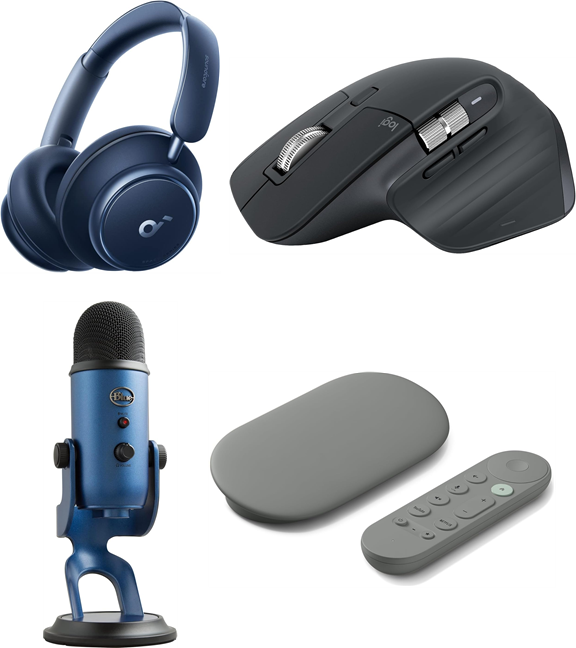
🎧 Anker Soundcore Space Q45 Headphones: Enjoy crystal-clear audio while watching timestamped YouTube video tutorials without disturbing others.

Save 36%. Now $89.99. 4.2 Stars. Check it out on Amazon!


💻 Logitech MX Master 3S Wireless Mouse: Ergonomic design with hyper-fast scrolling makes navigating long video transcripts and desktop web searches effortless.

Save 10%. Now $89.99. 4.6 Stars. Check it out on Amazon!


📺 Google TV Streamer (4K) : Bring conversational YouTube search features directly to your living room TV screen with fast 4K streaming.

Overall Pick. Now $99.98. 4.4 Stars. Check it out on Amazon!


🎙️ Blue Yeti USB Microphone: Perfect for voice searching on desktop and creating clear audio for your own YouTube videos.

Save 26%. Now $104. 4.6 Stars. Check it out on Amazon!


*Prices accurate when originally published.

One Cool Tip may earn a commission from qualifying purchases.

Fuel Your Adventure

Try Big Mike's Jerky!


bigmikesjerky.com


Now on TikTok!


Today's Cool Tip

Turn YouTube Into a Smart Assistant with Conversational AI Search


Ask YouTube transforms traditional video searching by allowing you to ask natural, complex questions and receive structured text answers paired with precise video clips. This Cool Tip demonstrates how to use this conversational AI feature on desktop and TV devices to find answers fast without scrubbing through endless video timelines.


Searching for specific information inside a long video has historically required patience. 


You type a few keywords into the search bar, click through several top results, and manually jump across video timelines hoping to spot the exact moment a creator demonstrates a skill or answers a niche question.


Here’s a Cool Tip: Skip keyword guessing and type full, natural questions into YouTube’s search bar to jump straight to the exact video timestamp with your answer.


Google is changing that experience by bringing conversational generative AI directly into the YouTube search ecosystem. 


Instead of guessing the right keyword string, you can now state your exact goal or problem in plain language. 


The platform processes your request, pulls together real-time web context, and serves up direct text summaries alongside video clips set to play at the exact timestamp you need.


Feature Explanation


Ask YouTube is an experimental conversational search feature powered by Google’s Gemini models. 


Rather than treating search purely as a list of video titles, it acts like an interactive query engine for visual content.


When you submit a prompt, the system synthesizes information from YouTube’s video index and real-time web sources. 


It returns a structured overview containing concise text explanations alongside curated selections of long-form videos and YouTube Shorts. 


Crucially, embedded video previews feature hover-to-play capabilities that start streaming at the precise timestamp relevant to your question.


The feature addresses a common pain point: finding specific answers within multi-topic or lengthy videos without wasting time watching unnecessary filler. 


It is currently expanding through YouTube’s experimental channels.


What You'll Gain


Save time by launching video previews automatically at the precise relevant timestamp.


Reduce confusion on complex projects by combining concise text summaries with visual video steps.


Discover better content by letting conversational AI surface exact answers hidden deep inside long-form videos.


Step-by-Step Instructions


Here's how to do it.


Web / Desktop (Chrome, Edge, Safari, Firefox)


  1. Navigate to YouTube.com on your desktop browser.
  2. Sign in to your Google Account.
  3. Click inside the top Search bar.
  4. Look for and click the Ask YouTube button located inside or adjacent to the main search bar.
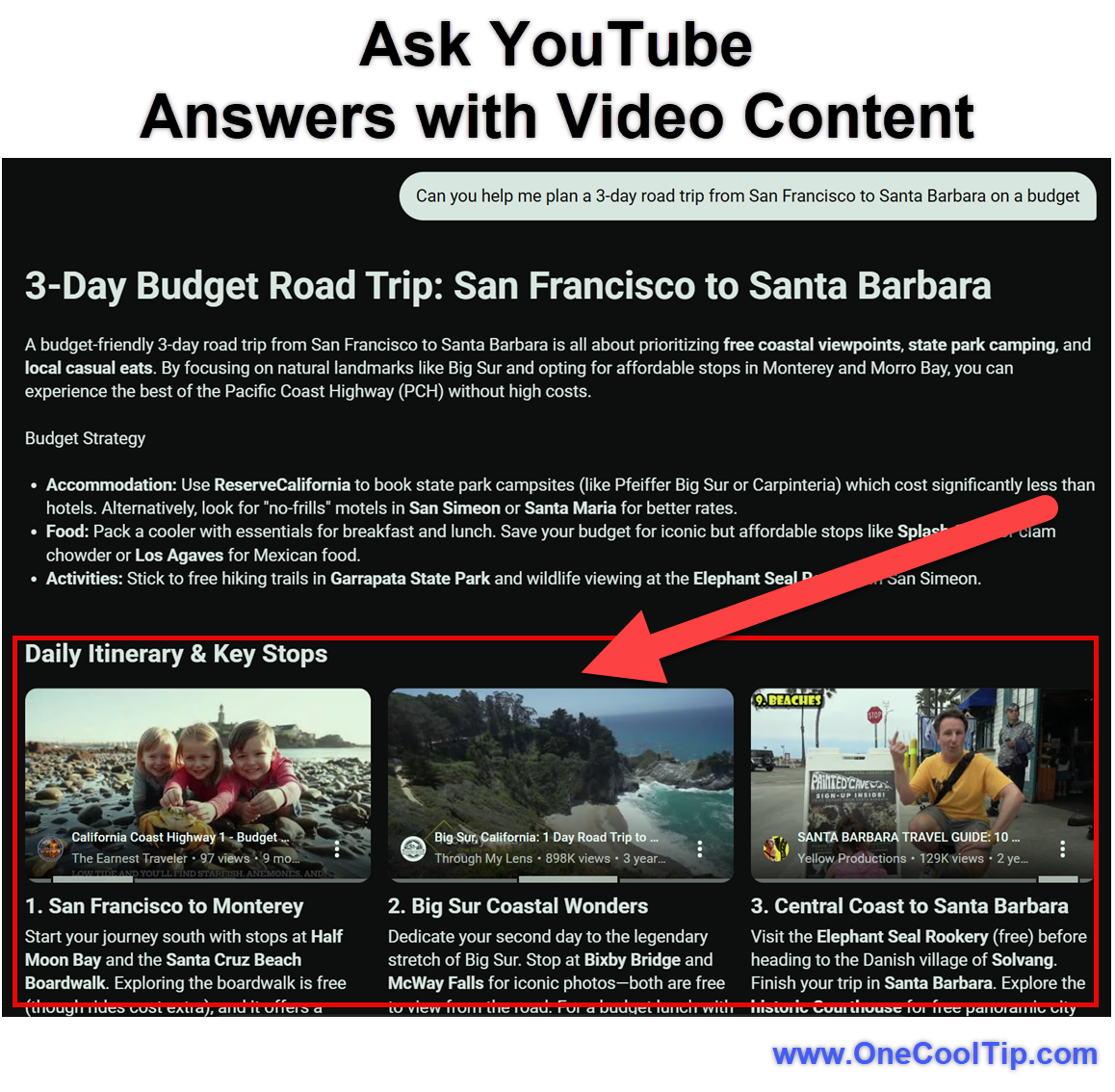
  5. Type a full, natural-language prompt (for example: "Can you help me plan a 3-day road trip from San Francisco to Santa Barbara on a budget?") and press Enter.
  6. Review the AI-generated response area. Hover your mouse cursor over any attached video card to preview the clip starting at the highlighted timestamp.
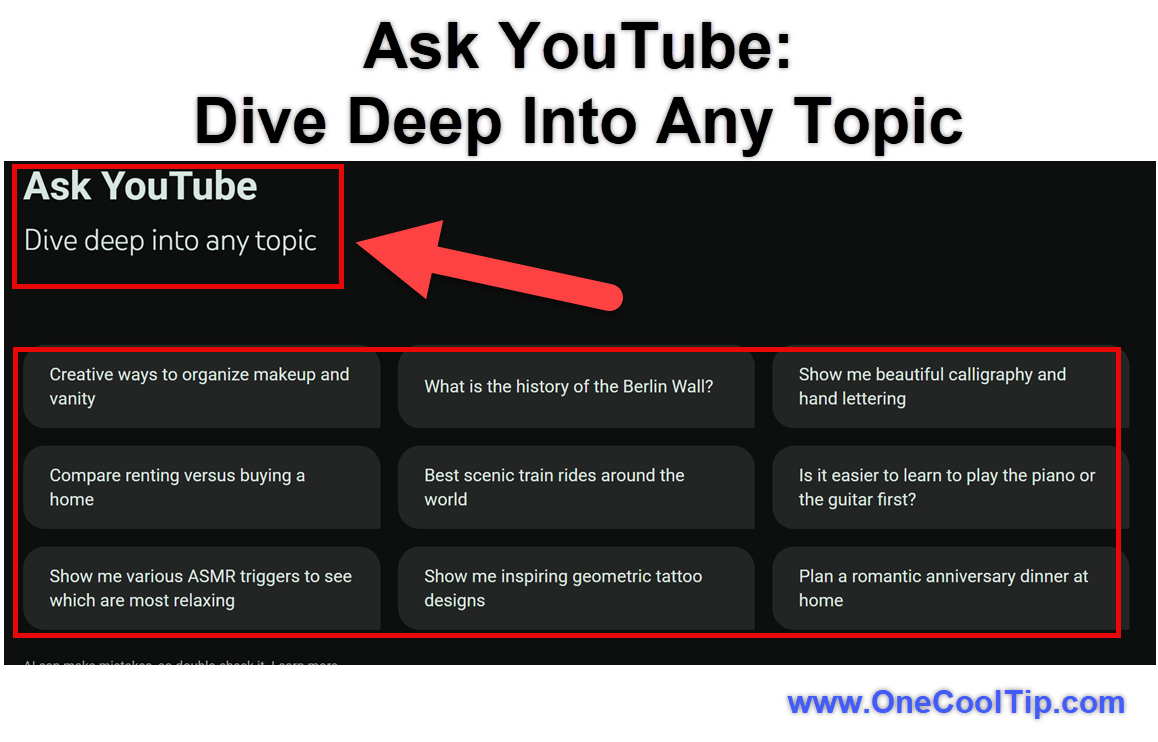
  7. To refine your results, click one of the suggested topic chips or enter a follow-up query into the Ask a follow-up field at the bottom of the page.


fig. 1 - Ask YouTube: Dive Deep Into Any Topic

fig. 2 - Ask YouTube Answers with Video Content

Mobile Devices (iOS & Android)


  • Not currently available on all mobile app builds, based on available source information. Rollout is expanding across mobile platforms gradually.


Pros and Cons


Pros:


  • Direct Timestamp Navigation: Eliminates manual scrubbing by jumping straight to the key segment of a video.
  • Multi-Modal Learning: Combines written step-by-step summaries with visual video demonstrations.
  • Interactive Refinement: Supports multi-turn conversations to narrow down wide topics without starting over.
  • Creator Exposure: Helps smaller or niche channels get discovered when their video segments match specific conversational queries.


Cons:


  • Experimental Delays: Generated AI searches require extra processing time compared to standard keyword matches.
  • Limited Regional & Language Access: Currently constrained primarily to U.S. accounts searching in English.
  • Inconsistent Availability: Access remains tied to test groups, desktop web, TV devices, or YouTube Premium status.


Feature Access


  • Target Audience: Signed-in U.S. users (aged 13+) searching in English.
  • Platform Availability: Desktop web browsers, Smart TVs, and gaming consoles; mobile support expanding gradually.
  • Subscription Status: Available across select experimental groups and YouTube Premium subscribers via YouTube Labs.
  • Restrictions: Ineligible on supervised kid accounts, YouTube Kids apps, and logged-out browser sessions.


Score

Criterion |  Score (0–10) |  Justification
Value |  8
Jumping straight to specific timestamps inside relevant videos saves substantial manual searching time.
Usability |  8
The interface blends cleanly into the standard search bar and provides quick hover previews.
Wow Factor |  9
Conversational video indexing powered by live Gemini integration represents a major evolution in video discovery.
Total: 25 / 30 |  🌟 Excellent
Ask YouTube fundamentally improves video research by turning massive video repositories into an interactive, timestamp-aware knowledge base.


Key Takeaways


Ask YouTube brings natural conversational search to the world's largest video platform. 


By pairing written Gemini overviews with exact video timestamp links, it eliminates tedious scrubbing and helps users learn skills or find answers significantly faster.


Cool Tip Snapshot


  • Feature Name: Ask YouTube
  • Platform(s): Desktop Web, Smart TVs, Gaming Consoles (Mobile rolling out)
  • Quick Benefit: Get direct text answers and video clips starting at the exact timestamp you need
  • Best For: Researching tutorials, comparing products, and finding niche answers in long videos
  • Access Type: Beta / Rolling Out (U.S. / English)
  • Difficulty: Easy


Try It Yourself


Head over to YouTube on your computer today, click the search bar, and test out a full question instead of basic keywords!


If you found this tip helpful, drop a comment below telling us what you searched for. 


Be sure to subscribe to the One Cool Tip Newsletter and share this article with your family, friends, and coworkers so they can start saving time on YouTube too!


READ MORE


Read the Full Cool Tip.

Check Out These Cool Tips & Tricks


  • Timestamp Sharing: Copy specific video moments easily. Right-click any YouTube video and select "Copy video URL at current time" to share an exact timestamp link.


  • Transcript Search: Find spoken words fast. Click the video description, select "Show Transcript," and press Ctrl+F (or Cmd+F) to search for specific terms.


  • Playback Speed: Control video pacing quickly. Press the Shift + > key to speed up video playback or Shift + < to slow it down.


  • Precision Seeking: Jump precisely frame-by-frame. Pause a video and press the comma , or period . key to move backward or forward single frames.


  • Keyboard Mute: Mute audio instantly. Press the M key on your keyboard while watching a video to toggle audio without touching the volume slider.


  • Picture-in-Picture: Multitask while watching videos. Double-right-click on a playing YouTube video and select "Picture in picture" to float the window over other apps.


  • Miniplayer View: Browse while watching content. Press the I key on desktop to shrink the current video into the bottom corner while exploring other pages.


  • Quick Replay: Jump back ten seconds easily. Press the J key to rewind ten seconds or the L key to fast-forward ten seconds instantly.


  • Search Filters: Narrow down broad search results. Click the "Filters" button after searching to sort content strictly by upload date, duration, or 4K quality.


  • Dark Theme: Reduce late-night eye strain. Click your profile avatar in the top corner, select "Appearance," and toggle on the "Dark theme" setting.

ICYMI - In Case You Missed It ...

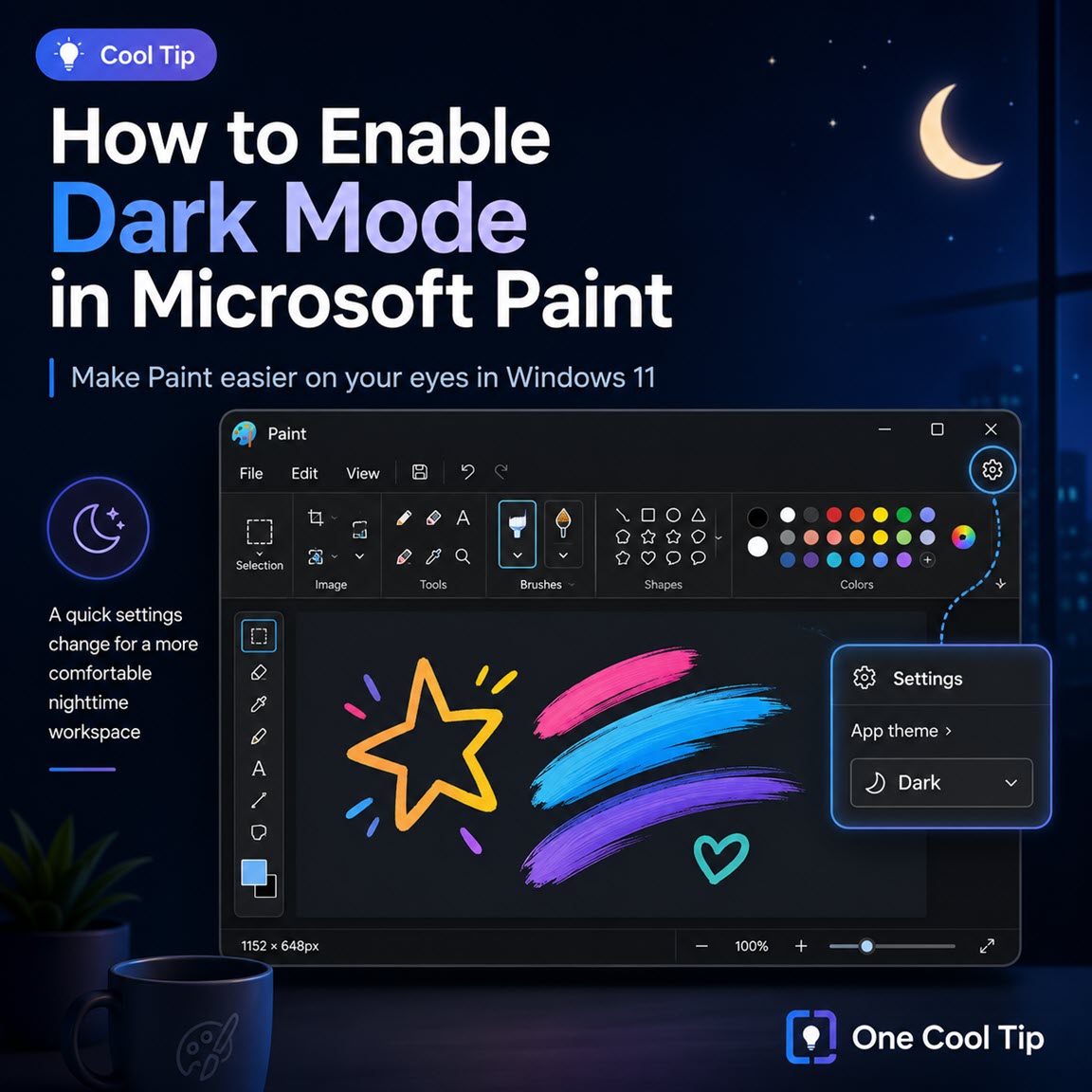
How to Enable Dark Mode in Microsoft Paint


Make Microsoft Paint easier on your eyes with Dark Mode! In just a few clicks, you can switch Paint’s bright interface to a sleek dark theme that's perfect for working at night and reducing eye strain. Learn how to enable this hidden productivity boost in Windows 11.


Read the Full Version.


Read the Newsletter Version.

Looking for your next adventure?


Call Denise at Travel For You.

314.660.3039


Sign Up for the Monthly Newsletter


http://www.travelforyouvacations.com/


https://www.facebook.com/TRAVEL.FOR.U/


See You Tomorrow

Tomorrow's Cool Tip is waiting to amaze you.


Until then, go forth and conquer the tech world with your newfound knowledge!


Be sure to visit www.OneCoolTip.com for Cool Tech Tips for a Cooler Life!


And if you Like One Cool Tip, please support with TipJar!


Enjoy!


Rodger

Chief Cool Tipper

onecooltip.com@gmail.com


What Do You Think?

What do you think of today's OneCoolTip newsletter?
Positive        Neutral        Negative
X Share This Email
LinkedIn Share This Email

Connect with One Cool Tip!!

Facebook  X  Instagram  Web  Pinterest  YouTube  LinkedIn
 

As an Amazon Associate, One Cool Tip may earn a small commission from qualifying purchases.


Our media content is intended solely for informational purposes only. Please do not construe anything here as legal, tax, investment, financial, marital or other advice.


Copyright © 2026 | www.OneCoolTip.com | All Rights Reserved