|
One Cool Tip Newsletter
October 12, 2026
| Your daily dose of tech-savvy brilliance! | | |
😀 Greetings!, Happy Back-to-Work Monday, Cool Tipper!
Get ready to streamline your digital life with simple, actionable tips delivered straight to your inbox.
Today's Cool Tip Theme: New PowerPoint Design Tools
New PowerPoint design tools add fresh SmartArt layouts, themes and other improvements that can help you create polished presentations faster.
IN THIS ISSUE
-
⚠️ Security Alert: Why you must pause and verify before ever clicking "Enable Content" on macro-enabled Office files.
-
☁️ Microsoft 365 Storage Shift: Family and Premium plans are moving from individual quotas to a single shared storage pool.
-
🤖 AI Executive Prompt: A plug-and-play prompt to generate a clean, 5-slide project update for senior leadership.
-
🎨 PowerPoint Design Tools: Build polished presentations faster with 13 fresh themes, modern SmartArt layouts, and a streamlined Design ribbon.
-
🔴 The New Accessible Red: How to use Microsoft's updated standard red font color to keep text legible on light backgrounds.
-
🎞️ Slides to Animated GIFs: An easy export trick to convert animated decks into lightweight, shareable visual summaries.
-
🧊 3D Presentation Models: How to insert, rotate, and animate interactive 3D elements to make complex ideas pop.
New here? Subscribe to the One Cool Tip Newsletter for daily updates. It's FREE!
-
😂 Laugh with Us! Enjoy our Tech Joke of the Day, Haiku and Cool Tip Comics.
-
🌐 Stay Informed! Check out ICYMI, and our One Cool Tip Video.
| | |
3️⃣
If you enjoy the One Cool Tip newsletter, please forward this newsletter to THREE friends or colleagues or share it on social media using the links below.
Leave a $$$ Tip!
Share this One Cool Tip Newsletter!
| | |
Today's Tech Trivia
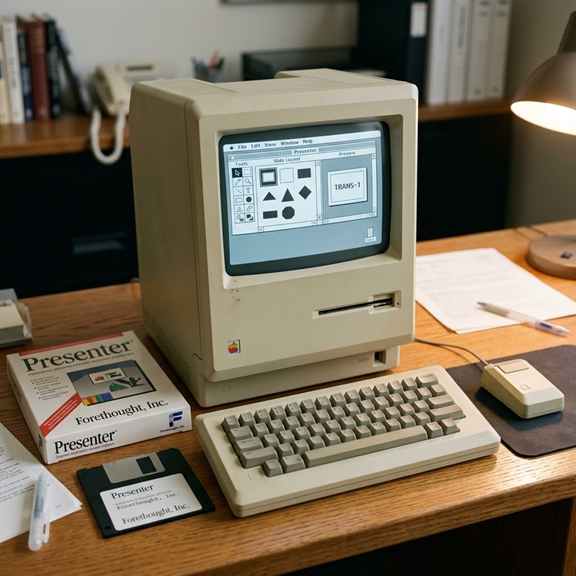
What was Microsoft PowerPoint originally named when it was first developed for the Apple Macintosh in 1987?
A) SlideCraft
B) Presenter
C) MacShow
D) QuickDeck
Answer at the end of this newsletter.
| | |
⚠️ Before You Click “Enable Content,” Stop and Think⚠️
A harmless-looking Word, Excel, or PowerPoint file can sometimes contain a malicious macro designed to infect your computer.
Macro viruses can hide inside documents, presentations, workbooks, templates, and other active content.
Microsoft 365 normally prevents macros and other active content from running automatically unless the file is trusted.
If a document asks you to select Enable Content, don't do it unless you're certain you know what the active content does, even if the file appears to come from someone you trust.
Another clue is the filename: macro-enabled Word, Excel, and PowerPoint files can use extensions such as .docm, .xlsm, and .pptm instead of the familiar .docx, .xlsx, and .pptx formats.
The Cool Tip:
When an unexpected Office file asks you to enable macros or content, pause and verify the file with the sender before clicking anything.
And in Other News...
- Microsoft 365 Is Changing How Family Storage Works
Microsoft 365 is changing cloud storage for Family and Premium subscriptions from separate per-person allocations to a shared pool.
Microsoft 365 Family and Premium will include 2 TB of shared cloud storage, while Pro will include 5 TB.
Up to six subscription members can draw from that shared storage, allowing people who need more space to use capacity that others are not using.
Your files, photos, and documents still remain private unless you choose to share them, so sharing storage does not mean sharing files.
New and upgraded subscriptions begin using the shared-storage model starting October 8, 2026, while existing eligible subscriptions generally transition when they renew on or after May 2, 2027.
The Cool Tip:
If your family uses OneDrive heavily, check your storage dashboard before your plan transitions so you know how much of the new shared pool everyone is using.
| | |
Try this Cool AI prompt. Copy and paste to ChatGPT, Gemini, Claude or Copilot.
"Act as an executive presentation designer.
I need to present a project update on [insert your project topic] to senior leadership.
Please create an outline for a 5-slide deck.
For each slide, provide a concise title, 3 short bullet points using active verbs, and a recommended visual layout style (such as a 3-step timeline, a team roster, or a comparison table) that avoids visual clutter."
| | PowerPoint’s New Design Tools Make Better Slides Easier | | |
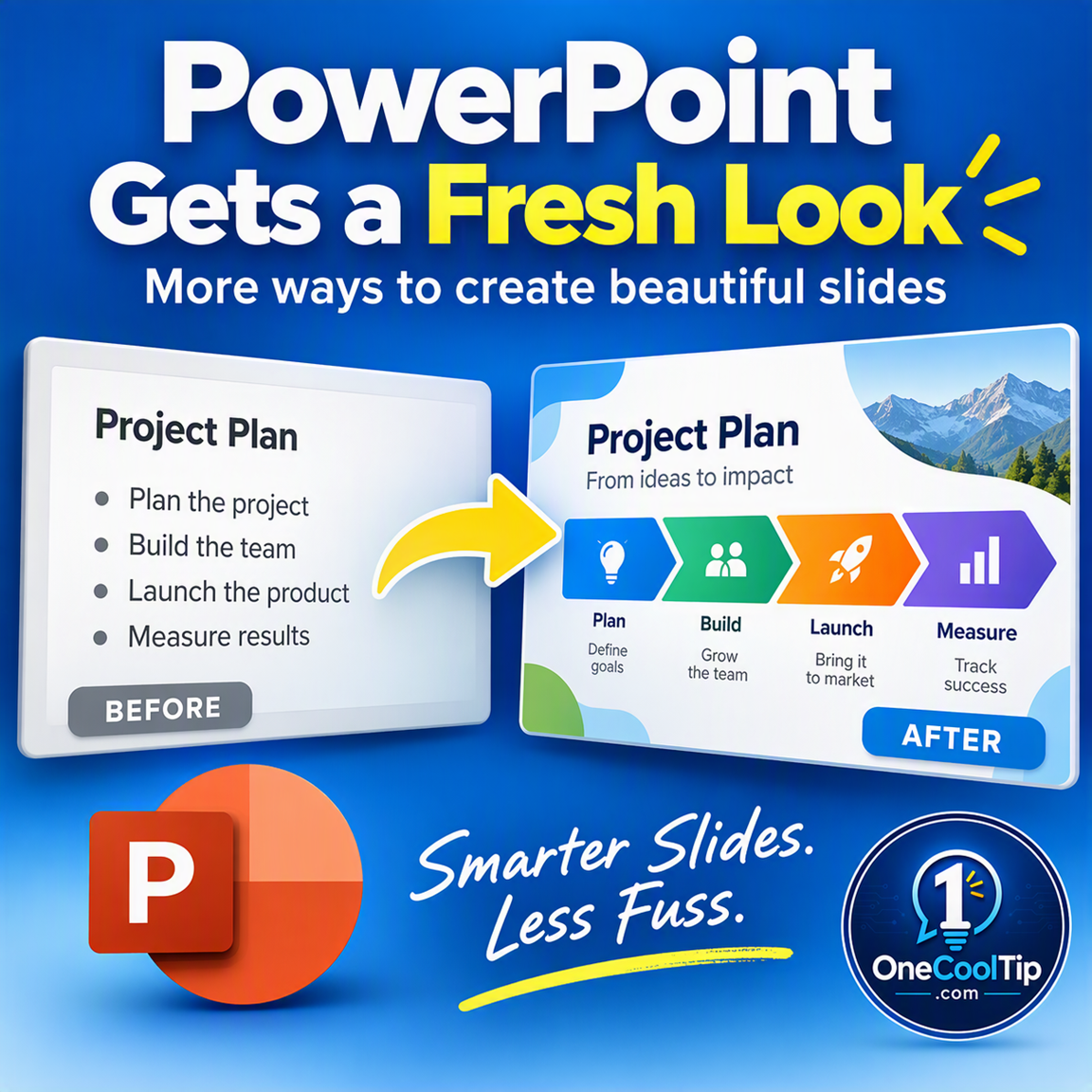
Microsoft PowerPoint is getting new design options aimed at making attractive presentations easier to build.
Fresh SmartArt choices, themes and design improvements give you more ways to turn ordinary information into polished slides while spending less time arranging everything yourself.
| | |
By Rodger Mansfield, Technology Editor
October 12, 2026
Subscribe
You know what you want to say.
The hard part is figuring out how to make the slide look good.
Microsoft is tackling that familiar problem with a collection of improvements to the PowerPoint creation experience.
The company's PowerPoint Craft initiative includes new SmartArt layouts, themes and changes intended to make creating and working with presentations easier.
These additions complement PowerPoint Designer, the established feature that can automatically suggest professionally arranged slide layouts.
Microsoft now refers to Designer as Design Suggestions for Copilot users.
The result is more choice before you start manually dragging text boxes, pictures and shapes around the screen.
Here’s a Cool Tip: Check PowerPoint’s design tools before building that next slide by hand.
Feature Explanation
The latest PowerPoint design work is best understood as a collection of improvements rather than one completely new feature.
SmartArt is one of the stars.
SmartArt lets you transform information into a visual structure instead of relying solely on text.
Microsoft's existing SmartArt gallery includes layouts for processes, relationships, hierarchies and other information.
For example, PowerPoint can use SmartArt to build a project timeline.
That's useful when you have information that is technically correct but visually lifeless.
Here are the new SmartArt options:
-
Meet the Team layouts: Designed to combine photos with identifying text, making them particularly suited to team-introduction slides.
-
Timeline layouts: New choices for presenting milestones, dates, project progress, and other chronological information.
-
Numbered layouts: New SmartArt options can turn numbered information into more visual lists.
-
Text Card category: This newer category includes visual card-style choices, including numbered designs.
-
Icon Circle Label List: A new layout under the List category.
-
Additional List and Process layouts: New variations have also appeared in these established SmartArt categories.
-
Non-numbered Timeline choices: The expanded Timeline category contains additional designs that don't rely on numbering.
Themes attack the problem from another direction.
A PowerPoint theme is a predefined collection of colors, fonts and visual effects that gives slides a consistent appearance.
PowerPoint adds 13 fresh themes covering a range of styles, from minimal and professional designs to more playful and educational looks.
The expanded collection gives users more starting points for creating presentations without designing an entire visual style themselves.
The update introduces a simpler Design ribbon, putting controls for Colors, Fonts, Effects and Background Styles in a more streamlined location.
Applying a theme can create a unified look while reducing manual formatting.
Then there's Designer, or Design Suggestions for Copilot users.
It can examine slide content and offer professionally designed layouts.
It can recognize elements such as pictures, charts and tables and suggest cohesive arrangements.
That distinction is important.
SmartArt, themes and Designer are established PowerPoint technologies.
The real Cool Tip is Microsoft's continuing work to expand and modernize PowerPoint's overall creation experience.
What You’ll Gain
-
Save time: Start with built-in visual layouts rather than positioning every element yourself.
-
Make information clearer: Turn appropriate lists and processes into SmartArt.
-
Create consistency: Themes coordinate fonts, colors and effects throughout a presentation.
-
Get another design perspective: Design Suggestions can propose alternative arrangements for suitable slide content.
Step-by-Step Instructions
Here's how to do it.
Windows/macOS: Create SmartArt
-
Open your presentation and select the slide where you want the visual.
-
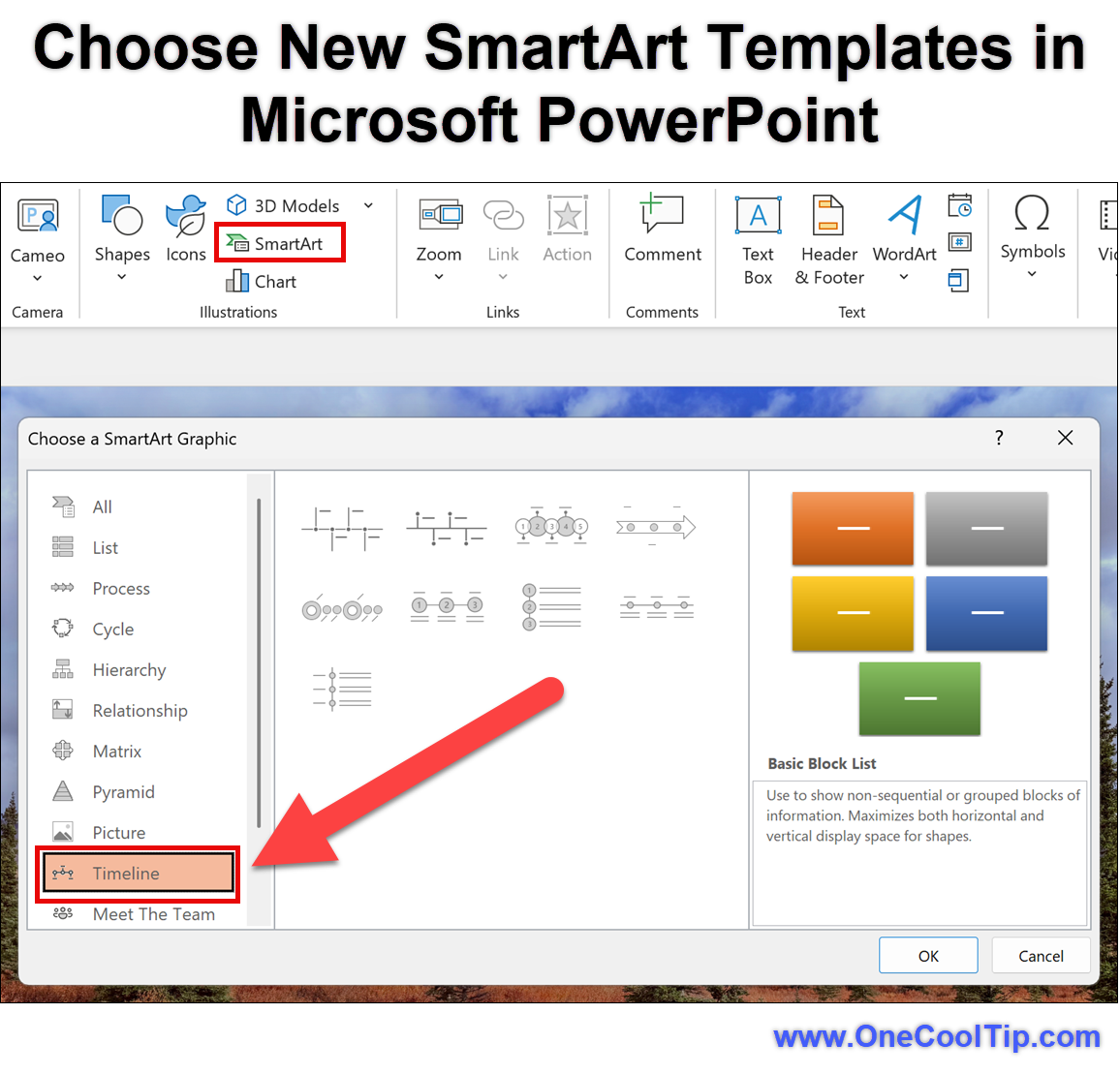
Select Insert > SmartArt.
-
In Choose a SmartArt Graphic, select the type and layout you want.
-
Select [Text] in the Text pane and enter your information.
-
PowerPoint displays the content using the selected SmartArt layout.
| | fig. 1 - Choose New SmartArt Templates in Microsoft PowerPoint | |
Cool Tip Example:
- Suppose your slide lists important project dates.
- Instead of leaving those dates as bullets, try a timeline.
- Do this: Insert > SmartArt > Timeline, then choose a timeline layout and enter your dates or milestones.
Cool Notes:
- For Copilot users, Designer is now called Design Suggestions.
- The feature may appear on the Home tab for Copilot users.
Windows/macOS: Try Design Suggestions
- Add appropriate content to a slide.
- Select Design > Design Suggestions.
- Review the ideas in the Design Suggestions pane.
-
Select the design you prefer.
- PowerPoint changes the slide to use that design.
Web
PowerPoint for the web supports themes and Designer.
-
Select Design, choose a theme or variant, or add suitable content and use Designer to select a suggested design.
Pros and Cons
Pros:
-
Faster starting point: SmartArt can convert ordinary information into a structured visual.
-
Consistent presentations: Themes coordinate colors, fonts and visual effects.
-
Good for business: Timelines can make project dates and milestones easier to communicate.
-
Helpful for school: Processes and hierarchies can be presented visually instead of as walls of text.
-
More design assistance: Designer can recommend arrangements for supported slide content.
Cons:
-
Not every suggestion will fit: A machine-suggested layout still needs human judgment.
-
Designer has restrictions: Microsoft documents circumstances where no design ideas are returned.
-
Connectivity matters: Microsoft says Designer goes online to obtain its design ideas.
-
Availability can differ: Do not assume every newly announced PowerPoint design improvement will appear simultaneously across every account and platform.
Who Should Skip This
PowerPoint veterans who already build every presentation from custom templates and slide masters may get less value from automated design suggestions.
Likewise, people working under strict organizational templates may prefer, or be required, to stick to layouts approved by their organization.
And if you enjoy designing every object yourself, SmartArt and Designer are optional helpers, not requirements.
Feature Access
- These new PowerPoint design improvements are rolling out through Microsoft 365. Availability may vary, and Microsoft has not confirmed the new additions for perpetual-license versions such as PowerPoint 2024 or PowerPoint 2021.
- Designer is available with a Microsoft 365 subscription.
Score
Criterion | Score (0–10) | Justification
Value | 8
Better visual starting points can reduce the time ordinary users spend manually formatting presentations.
Usability | 8
SmartArt, themes and Design Suggestions fit into familiar PowerPoint workflows and require little training.
Wow Factor | 6
The changes are useful improvements, but they refine PowerPoint presentation creation rather than reinventing it.
Total: 22/30 | 👍 Good
These improvements address a genuine PowerPoint pain point: making slides look polished without turning presentation creation into a graphic-design project.
Compared with drawing structures or arranging every object manually, SmartArt and Design Suggestions can provide a faster starting point while still leaving you in charge of the final slide.
Key Takeaways
PowerPoint's refreshed design experience gives everyday users more ways to turn raw ideas into attractive slides.
The real benefit is not simply prettier presentations.
It is spending less time formatting and more time deciding what your audience actually needs to see.
Cool Tip Snapshot
-
Feature Name: New PowerPoint Design Tools
-
Platform(s): PowerPoint for Windows, macOS and Web, with individual feature support varying
-
Quick Benefit: Create polished, visual slides with less manual formatting
-
Best For: Business users, students, educators and presentation creators
-
Access Type: Subscription / Rolling Out, depending on feature and account
-
Difficulty: Easy
Try It Yourself
Before manually rebuilding your next PowerPoint slide, check SmartArt, themes and Design Suggestions and see whether PowerPoint can give you a better starting point.
Tell us which tool saves you the most time in the comments, subscribe to the One Cool Tip newsletter for FREE, and share this Cool Tip with family, friends and coworkers.
READ MORE
Read the Cool Tip on One Cool Tip.com.
| | Help support One Cool Tip. Use this Amazon link when you shop online. | |
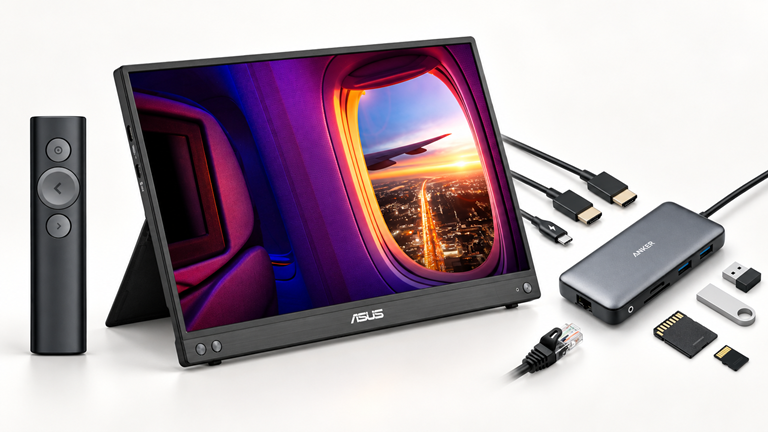
🎤 Logitech Spotlight Wireless Presentation Remote: Useful for presenters who prefer controlling their presentation without standing next to a laptop.
👀Look! $119.99. 4.4 Stars. Check it out on Amazon!
🔌 Anker 8-in-1 USB-C Laptop Docking Station: A multiport hub can help connect a presentation laptop to HDMI displays and other equipment.
Overall Pick! $53.99. 4.5 Stars. Check it out on Amazon!
🖥️ ASUS ZenScreen MB16AHV Portable Monitor: A portable secondary screen provides extra workspace for presentation editing and reference material when working away from a desk.
Limited Time! Save 30%. $99. 4.4 Stars. Check it out on Amazon!
Prices accurate at time of publication
One Cool Tip may earn a commission from qualifying purchases.
| | |
🆒Tell Me More
- 🎨 SmartArt is more than decoration. SmartArt is a way to visually represent information, with different layouts designed to convey different kinds of ideas.
- 🖥️ SmartArt works beyond PowerPoint; SmartArt is available in Excel, Outlook, PowerPoint and Word.
- ⌨️ You can create SmartArt without reaching for the mouse. On Microsoft 365 for Windows, Alt, N, M opens the Choose SmartArt Graphic dialog.
- 🎯 The layout matters. PowerPoint offers different SmartArt types because a process, hierarchy and relationship communicate different ideas. Pick the visual structure based on the information, not simply on which one looks prettiest.
- 🧰 Design tools are starting points. A polished layout still benefits from editing. Shorter text, consistent terminology and fewer competing elements can make even a good template work better.
⏩Quick Tips
-
🎨 Try SmartArt: Turn structured information into a visual instead of another bullet list. Choose Insert > SmartArt, then select the type and layout that fit the information.
-
🧹 Cut the Clutter: Give each slide one primary message. Remove secondary details that compete with that message or move them to another slide.
-
📐 Stay Consistent: Repeating fonts, colors and visual patterns makes a presentation easier to follow. Pick your overall design early instead of redesigning every slide independently.
-
⌨️ Undo Freely: Experiment without worrying about ruining a slide. On Windows, Ctrl+Z reverses the last action.
-
👀 Test the Show: Editing view is not the same as presentation view. Press F5 on Windows to run the presentation from the beginning and check readability at presentation size.
| | ✅ More Must-Read Tech Tips | | |
👀 🔴How Do I Use the New Red?
Ever struggled to read red text on a white slide?
You’re not the only one.
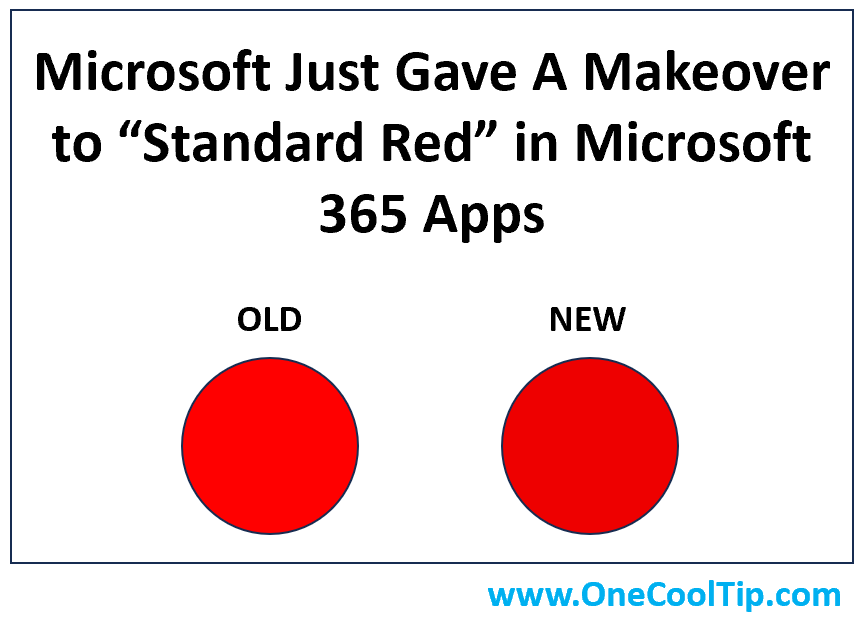
Microsoft Has Adjusted the Default Red in Microsoft 365 Apps.
Here's how to change the color manually:
-
Open Word, PowerPoint, Outlook, or OneNote.
-
Highlight the text you want to color.
-
Go to the Home tab → Font Color.
-
Select the red under “Standard Colors.”
-
Confirm accessibility using the Review tab → Accessibility Assistant.
Open Word or PowerPoint and try the new red today.
Discover more HERE.
| | |
🤔 Have You Ever Wondered How To Turn PowerPoint Slides into Animated GIFs?
Ever tried emailing a PowerPoint presentation only to find the file size ballooned with animations?
Turn PowerPoint slides into Animated GIFs.
Enter the humble .GIF, not just for memes anymore, but a surprisingly practical format for sharing visual summaries of your slides.
Here's how to do it.
On Windows/Mac (PowerPoint Desktop App)
-
Open your slide deck.
-
Click File > Export.
-
Select Create an Animated GIF.
-
Choose the size (Small, Medium, Large, or Extra Large).
-
Decide whether to use recorded timings and narrations.
-
Click Create GIF, choose a destination, and save.
Turn your next slide deck into a GIF and share it with your team or audience.
Find out more HERE.
| | |
🙋♂️ Here's How To Bring Your Slides to Life with 3D Models in PowerPoint.
Have you ever wondered how to make your presentations stand out in a sea of slideshows?
Insert 3D models.
3D models in PowerPoint are advanced graphics that can be inserted into slides to provide a more dynamic and interactive visual experience.
Here's how to do it.
-
Open your PowerPoint presentation.
-
Navigate to the slide where you want to add a 3D model.
-
Click on the Insert tab.
-
Select 3D Models from the Illustrations group.
-
Choose to insert a 3D model from This Device or Stock 3D Models.
-
If you choose Stock 3D models, select from the many options.
- Once inserted, use the 3D Model Tools on the Format tab to rotate, resize, and reposition your model.
- To animate your 3D model, go to the Animations tab and select from the special 3D effects.
Adding 3D models can significantly enhance the visual impact of your presentation, making complex data more comprehensible.
Learn more HERE.
| | |
❓Did you share this newsletter with three friends yet?
😎 Cool Facts
-
📅 1987: PowerPoint was originally released for the Apple Macintosh. Microsoft acquired its developer, Forethought, on July 30, 1987. Source.
-
🧑💻 4 Microsoft 365 applications: SmartArt graphics can be created in Excel, Outlook, PowerPoint and Word. Source.
-
⌨️ 3 keystrokes: On Microsoft 365 for Windows, pressing Alt, N, M opens the SmartArt selection dialog. Source.
-
▶️ 1 key: Pressing F5 starts a PowerPoint slide show from the beginning on Windows. Source.
⌨️Today's Cool Shortcuts
-
⌨️ Ctrl+M: Add a new slide.
-
↩️ Ctrl+Z: Undo your last action.
-
🎨 Alt, N, M: Open the Choose SmartArt Graphic dialog.
-
👥 Ctrl+G: Group selected shapes, pictures or WordArt.
-
▶️ F5: Start the slide show from the beginning.
😜 Tech Joke of the Day 😅
I told PowerPoint to make the meeting exciting.
PowerPoint suggested fewer meetings.
🔎 Do you have a Cool Tip or tech question? Email us at onecooltip.com@gmail.com.
| | |
Plain bullets retreat
Bright shapes give ideas a home
Slides finally breathe
| |
| 🤔 Which PowerPoint design helper interests you most? | | | | Did You See These Cool Tips This Week? | | | | Ask Gemini in Chrome to Explain Videos and Audio You Just Played | |
Gemini in Chrome can examine the video and audio content you play in your browser tabs to answer specific questions, pull quick summaries, and locate key information. Here is how to verify your settings, ensure page sharing is active, and query multimedia content without hunting through timestamps.
Read the Newsletter Version.
| | | | Is This AI? Check Before You Share | |
Google’s SynthID Detector checks images, videos, and audio for hidden AI watermarks. Learn how to interpret the results before sharing something that looks surprisingly real.
Read the Newsletter Version.
| |
ICYMI - In Case You Missed It ...
| | | | Meta Muse: The AI Agent That Runs Your Errands | |
Meta just launched Muse, a personal AI agent that does not just answer your questions, it actually does your work. Here is what it can handle, what it costs, and how to try it right now.
Read the Newsletter Version.
| | Even slides need a little work before they’re ready to face the board. | | |
Trivia Answer: B) Presenter
PowerPoint was originally created by Robert Gaskins and Dennis Austin at a software startup called Forethought, Inc., where it was developed under the name "Presenter" for the Apple Macintosh.
Shortly before its release in 1987, the team discovered a potential trademark conflict with another software product and renamed it PowerPoint.
Microsoft acquired Forethought later that year for roughly 14 million dollars, making it one of Microsoft's first major corporate acquisitions.
----------
Tomorrow's Cool Tip is waiting to amaze you.
Until then, go forth and conquer the tech world with your newfound knowledge!
Be sure to visit www.OneCoolTip.com for Cool Tech Tips for a Cooler Life!
And if you like One Cool Tip, please support with TipJar!
Enjoy!
Rodger
Chief Cool Tipper
onecooltip.com@gmail.com
| |
| What do you think of today's OneCoolTip newsletter? | | | |
Please Share the One Cool Tip Newsletter!
You asked for it. You got it. There is now a One Cool Tip Newsletter archive. Did you delete a newsletter and want to read it again? Check it out HERE.
Want to help One Cool Tip grow? Please forward this email using the link above. And if you see an OCT social media post, please LIKE, COMMENT and SHARE!
Have you subscribed to the One Cool Tip YouTube channel? Subscribe HERE.
| | Connect with One Cool Tip!! | | |
|
As an Amazon Associate, One Cool Tip may earn a small commission from qualifying purchases.
Our media content is intended solely for informational purposes only. Please do not construe anything here as legal, tax, investment, financial, marital or other advice.
Copyright © 2026 | www.OneCoolTip.com | All Rights Reserved
|
| | | |