2026–2027 • SECONDARY• EDITION 07

Level Up Learning with Live Checks for Understanding in Lumio 🎮

Black line-drawn bee with a soft yellow glow behind it on a white circular background.

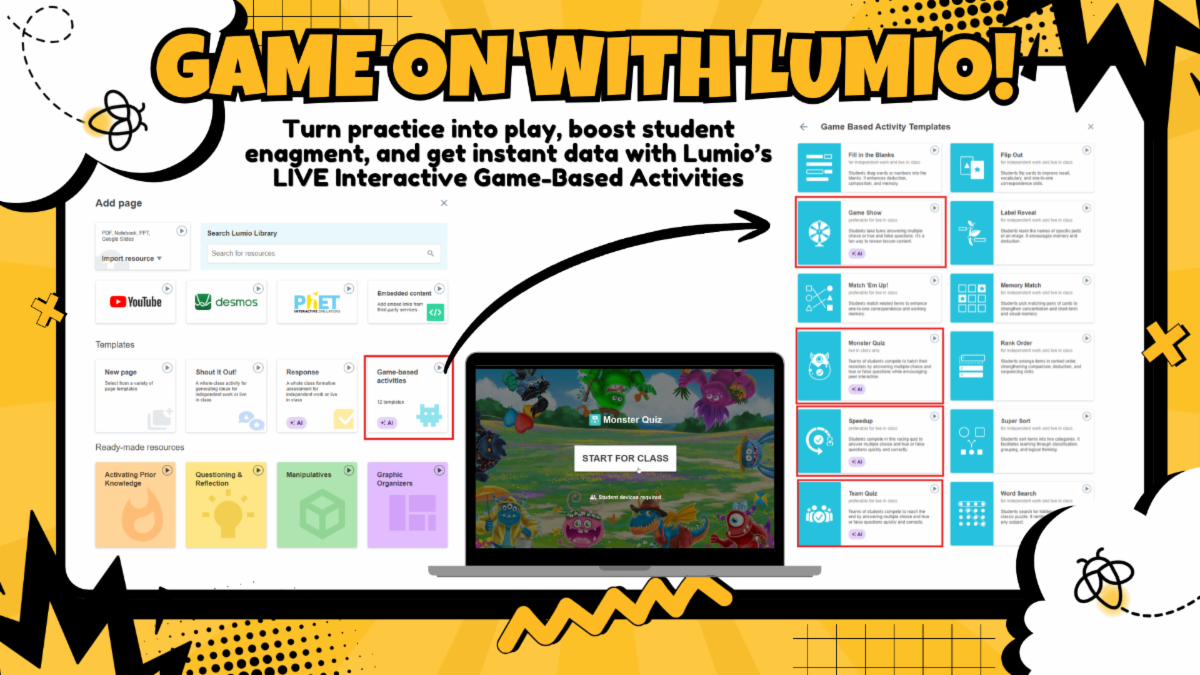
Looking for a way to make review and practice more interactive? Lumio offers four game-based activities that let students apply what they've learned, work together, and get immediate feedback. Whether you're reviewing before an assessment or checking understanding during a lesson, there's a game to fit your goal.

Graphic titled “Game On with Lumio!” showing how to find game-based activities in Lumio.

🏆 Students Love a Competition

Monster Quiz | Team Collaboration

Students answer questions on their own devices to help their team's monster hatch. Great for collaborative review and reinforcing key concepts.

Team Quiz: White group icon with a checkmark on a blue background.

Team Quiz | Race to the Finish

Teams work together to answer questions and advance toward the finish line. Use it to add friendly competition to review sessions.

Game Show: White quiz wheel with a question mark on a blue background.

Game Show | Individual Practice

Students answer questions in a game-show format to practice and reinforce their understanding.

Speedup: White circular arrow, checkmark, and race car on a blue background.

Speedup | Fast-Paced Review

Students race through questions in a timed activity, making it a quick option for practicing familiar skills.

📊 Actionable Data at Your Fingertips

The fun doesn't end when the game finishes! Once the quiz wraps up, you can:


  • Review Class Results: Look at whole-class performance or check team scoreboards directly in Lumio. 


  • Export Student Data: After hosting a Monster Quiz and Team quiz, Click Export Results to download a neat spreadsheet (CSV/Excel) showing individual student responses and scores. Use this data to quickly pinpoint gaps, guide intervention, or inform your gradebook.
  • IMPORTANT NOTE: You will need download the results immediately after finishing the game! You cannot go back into a session later to gather this data. 


Give one a try in your next review session and watch student engagement soar! 🚀

Ready to Try One?

Watch the tutorial or explore the step-by-step guides to get started.

Lumio monster quiz and team quiz video overview


Beyond Screenshots: Record Your Screen with Snipping Tool!

Did you know the Windows Snipping Tool can record your screen, too? It's an easy way to create quick tutorials for students, explain directions for a substitute, or walk families through an online process. You can even turn on your microphone to narrate as you record!

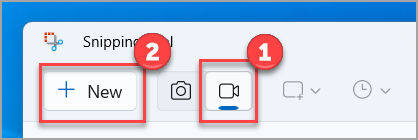
Snipping Tool toolbar highlighting the video recording icon (1) and New button (2).

How to Record Your Screen:


  1. Open Snipping Tool from the Windows Start menu.
  2. Select the video camera icon, then click New.
  3. Select the area of your screen you want to record.
  4. Turn on your microphone if you'd like to include narration, then click Start.
  5. When you're finished, click Stop and save your recording.


Quick Tip: Press Windows + Shift + R to open the screen recording tool directly on supported Windows devices.

 
Newsletter emerging from an envelope, representing past Digital Learning Update editions.

Looking for something we shared?

Browse Previous Digital Learning Updates

Digital Learning Quick Links

How Can We Support Your Campus?

Connect with your Digital Learning Specialist for planning, resources, technology integration, instructional support, and more!

 
Birdville Digital Learning Logo
 

Follow Digital Learning for more tips, resources, and ideas.

Instagram    Facebook    X