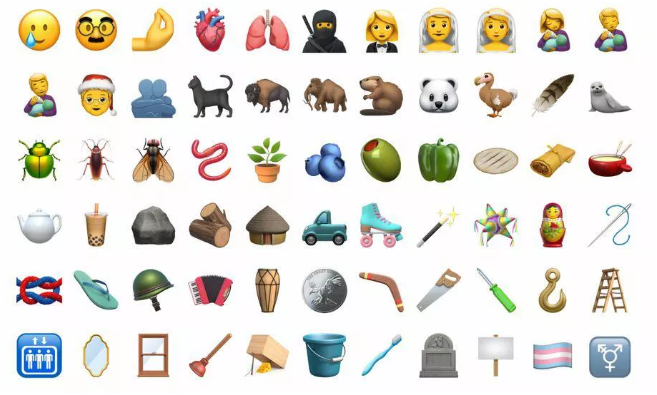
An emoji is one of the most useful shorthand communication tools of the 21st century. These days, a text is rarely ever just text. As emojis sprung up on smartphones over the last 10 years, they've given us a new language to communicate in, full of smiles, winks, and hearts.
Emoji can trace their roots back to the emoticons of the early 1980s -- if you're old enough to remember life before smartphones, you've probably used the smiley emoticon, :-), composed of a colon, dash, and closing parenthesis. Emoji, however, are massive sets of characters available through iOS, Android, Windows, Linux, and macOS.
A smiley face or a heart is simple enough to understand, but what do you make of a text message containing only a stiletto, a raccoon, and a hamburger emoji? Over time, their meanings have become subjective depending on the message context and wider cultural trends. And be careful, as some emojis have very different meanings than their pictures show.
|
|
No, this person isn't praying! In Japan, a folded hand gesture is commonly used to say 'please' and 'thank you'. |
|
|
Emojipedia is an online encyclopedia of emoji. The website sorts emoji into eight categories, including Smileys and People, Objects, Activity, and more. Clicking a category -- such as Smileys and People -- will open up a specific list of emoji including, well, smileys and people, families, hand gestures, clothing, and accessories.
If you click "😅", named grinning face with sweat," for example, Emojipedia will give you a brief description of the emoji, what it means, when it became an official emoji, and other possible names it might be known as.
Per Emojipedia > "It's intended to depict nerves or discomfort but commonly used to express a close call as if saying Whew! and wiping sweat from the forehead."
Emojipedia will also show you the different artwork styles for each emoji across different platforms since the characters often appear differently depending on your device.
|
|
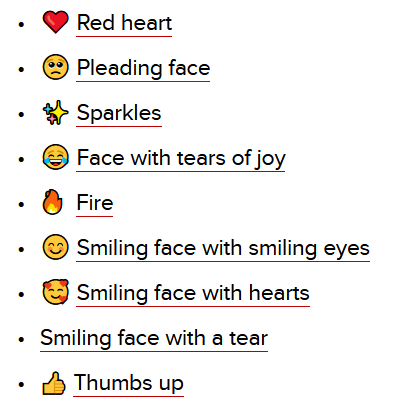
Which are the most popular emojis? |
excerpted from cnet 03 07 2021 |
|
|
SeniorNet is offering an online learning program in lieu of our in-person seminars and courses. We will be using Zoom, the free video chat platform, to host our presentations.
To participate in our webinars and online classes, you need to download Zoom on your computing device as well as register and pay online for our classes. However, webinars are free.
(Zoom is a free download.)
Computing devices include Windows / Mac Desktops & Laptops, iPad, iPhone, and Android Tablets & Smartphones.
|
|
Because registration is automated you must register by 10 AM sharp at least two days before the start of a class.
Some webinars and classes have maximum enrollment, so register early. If the class is sold out and you would like to receive an email if/when the class is offered again, please send an email to fslseniornet@fsl-li.org. Be sure to include the name of the class you are interested in.
This class is being delivered using Zoom Video Conferencing. If you need instructions on how to use Zoom, click here > SeniorNet's TechConnect
and click on HOW TO USE ZOOM.
|
|
SPRING 2021 CLASSES
Enjoy learning at home
with SeniorNet online!
|
|
WINDOWS 10
Wednesdays from 2 - 4 PM on April 7, 14, 21, 28
This four-session class presents the various functions of Windows using Windows 10, Microsoft’s newest Operating System. You will learn the regular procedures that work with any of the earlier versions of Windows such as the Desktop, Task Bar, Start Screen, installing and removing programs (Apps), customizing various Windows tools and permissions, and searching the Internet and your computer. The use of security and protection programs and the Settings menus will also be covered. Prerequisite: Introduction to Computers 1 or 2, or comparable skills.
Lesson 1 - Desktop ● Personalizing Your Computer & the Task Bar
Lesson 2 - The Start Menu ● Installing Apps (Programs) ● File Explorer
Lesson 3 - The Settings Panel ● Window 10 Accessories ● Shortcuts
Lesson 4 - Microsoft Edge ● Computer Security ● System Restore & Recovery
|
|
SPECIAL OPPORTUNITY TO LEARN
MICROSOFT EXCEL
ONLY 2 SPOTS LEFT!!!
|
|
|
Microsoft Excel
Fridays from 1 - 3 PM on April 16, 23, 30 May 7, 14
This five-lesson course is for those who wish to begin or increase their ability to use Microsoft Excel spreadsheets. The lessons will go from basic to advanced statistics. For those of you that are entirely new to spreadsheets, a spreadsheet at its simplest is a table consisting of columns and rows used to store textual information. Its purpose is to store, manipulate, and present financial and other quantitative information. Keep in mind that you don't need to know everything about using spreadsheets. Homework and practice are essential for learning and ultimately retaining what you've learned. So, set aside time for homework and enjoy learning.
Lesson 1 - Excel Spreadsheet Basics
Lesson 2 - Spreadsheet Formatting
Lesson 3 - Formatting Cells, Formulas, and Cell Addressing
Lesson 4 - Using Excel as a Database ● Range, Filtering and Sorting Data ● Creating Charts
Lesson 5 - Excel Advanced: IF Function ● Pivot Tables ● VLookup function ● Data Validation for drop-down boxes
|
|
ADVANCED FEATURES OF ZOOM
Class – Tuesdays from 2 - 3:30 PM on April 20, 27
Optional Labs - Thursdays from 2 - 3:30 PM on April 22, 29
This course is appropriate for Mac and PC users.
Once you’ve taken the prerequisite “How to Host a Meeting in Zoom” webinar, this class is the next step to learn advanced features that are especially useful. This one-session class teaches breakout rooms, screen sharing (documents, photos, videos, and iPad/iPhone), closed caption, sending and receiving files, launching polls, viewing poll results, and the attendance report.
We will offer an optional session for “lab practice” where students can join teams to practice in breakout rooms and beyond. The lab practice will focus on screen sharing and closed caption and will move to other topics as time permits.
A handout with step-by-step instructions and clickable video tutorial links will be distributed before class so that attendees can follow along during the lecture.
|
|
SMARTPHONE PHOTOGRAPHY
PHOTO EDITING
Tuesday from 10 - 11:30 AM on April 27
Prerequisite: Ability to take photos with your smartphone.
It is best to Zoom on your desktop or laptop so you can follow along on your iPhone or Android Phone.
Whether you’ve already taken our Smartphone Photography classes, or you’re taking lots of photos on your own, you still may want to make your most important photos, perfect! Of the many photos you’ve taken, there are some that are once-in-a-lifetime. e.g. the photo of your first grandchild, the seashore on a beautiful sunny day, or your first family gathering after a long time apart. In this one-session class, you’ll practice the skills you need to adjust or enhance your most important photos using the photo editing apps on your smartphone, and a third-party app called Snapseed.
Photo Editing ● Smartphone Native Editing Apps ● Third-Party Editing App: Snapseed ● Practice these skills with the teacher's assistance
|
|
GENEALOGY 2
Tuesdays from 10 - 11:30 AM on May 4, 11, 18
This course is appropriate for Mac and PC users.
Do you wonder about your family’s genealogical history? If you are just beginning to research your ancestors, you need sources of information that you can rely on. Find out with this three-session course. You will gain free access to the world’s largest collection of genealogical information. We will show you how to use the same tools employed by professionals. These sessions are appropriate for a beginner who's just getting started, to someone who is experienced in genealogy and wants to update his or her skills.
Lesson 1: How to Use the US Census
● Introduction to the Census ● Frequency, Census Questions, Enumeration Districts ● How to locate the US Census using the LDS Website ● How to use the indexing feature of LDS to search for your ancestors ● How to move around and magnify the information online.
Lesson 2: Introduction to Immigration
● The Big Migration ● Searching ship’s passenger list ● Ancestry ● LDS ● Using Google
Lesson 3: LDS Catalog and User Submitted Family Trees
● Content ● Filtering ● Indexing ● Finding and Using the Digital Catalog ● Making Queries ● Searching Other Family Trees ● Digital Book Library
|
|
ANDROID PHONE
Tuesdays from 2 - 3:30 PM on May 4, 11, 18, 25
It is best to Zoom on your desktop or laptop
so you can follow along on your Android phone.
In this class, you will learn about settings, camera, email, web browsing, calendar, music, and apps on your Android phone. You will also learn how to customize your phone, send texts, organize your pictures, and much more. All these tools and functions will help you make the most of your phone.
Lesson 1 - Setup and Calling
Lesson 2 - Pictures, E-mail & Texting
Lesson 3 - Web Browsing, Calendar & Maps
Lesson 4 - Music & Apps
|
|
STREAMING VIDEO
Wednesdays from 2 - 3:30 PM on June 2, 9
This course is appropriate for Mac and PC users.
There is a whole world of entertainment and educational media available to you beyond what is offered to you by your regular TV service provider. In this two-session class, you will learn about the different ways to stream video and access these sources either on your TV, tablet, computer, or phone. You will learn what hardware (Roku, Chromecast, etc.) and/or software you’ll need, and how to set them up. You’ll also learn how to “Cut the Cord” and the many ways to stream video without paying your cable company for TV.
Lesson 1: What is streaming video? ● Devices you can stream to ● Wi-Fi vs. Hardwiring ● Comparison of streaming appliances
Lesson 2: Set up Smart TV & Android TV ● Connect Streaming Stick to TV and the Internet ● Streaming Video and Educational sites ● Searching for sites ● Cutting the Cord
|
|
SMARTPHONE PHOTOGRAPHY
Thursdays from 10 - 11:30 AM on June 10, 17, 24
Prerequisite: Ability to take photos with your smartphone.
It is best to Zoom on your desktop or laptop so you can follow along on your iPhone or Android Phone.
Photography can add so much to our lives by recording and sharing special events, places, family and friends, and most importantly, our cherished memories. It can also be a wonderful hobby, as it gets us out and about, keeps us busy and creative, and enables us to continue to learn, grow, and enjoy life. Join us to learn about some of the most popular types of photography (Portraiture, Candid, Landscape, Nature, etc.), best practices to improve your photography skills, tips and techniques to enhance the quality of your photos, and photo editing to adjust/enhance your most important photos. We also offer an optional photo workshop after Lessons 1 and 2, so you can practice what you’ve learned. We’re certain to pique your interest and enjoyment of this wonderful hobby.
Lesson 1 - Portraiture ● Street ● Candid Photography
(Composition Best Practices; Smartphone Settings; Take/Share Photos) Following the session, an optional photo sharing workshop will be scheduled, based on student availability
Lesson 2 - Landscape ● Nature ● Wildlife ● Architectural Photography (Composition Best Practices; Smartphone Settings; Take/Share Photos) Following the session, an optional photo sharing workshop will be scheduled, based on student availability
Lesson 3 - Photo Editing with Smartphone Native Apps and Third-Party App: "Snapseed"
|
|
ONLINE REGISTRATION PROCESS
Step 1: Beneath each class listing you will Click to Register.
Step 2: The next screen opens > Complete all entries and Click Continue.
Step 3: Final screen > "Send Confirmation to:" Select the drop-down arrow and choose your name which will auto-complete all the other fields including payment information. You then have 30 minutes to checkout by clicking "Checkout" at the bottom.
You will receive an email confirming your registration once you complete your online enrollment. Check your Spam or Junk Mail folder if you do not receive the confirmation email. You may need to allow emails from ezregister.com.
You will receive an email from the instructor the day before the class with the web link, as well as Meeting ID and Password to join the Zoom meeting. The handout will also be attached to the email for you to print out.
We look forward to "seeing" you.
|
|
Some webinars and classes have maximum enrollment, so register early. If the class is sold out and you would like to receive an email if/when the class is offered again, please send an email to fslseniornet@fsl-li.org or call 631-470-6757. Be sure to include the name of the class you are interested in.
|
|
Refund Policy & 100% Money-Back Guarantee
|
|
Our classes teach how to use technology with individual attention and hands-on instruction for beginners to advanced students.
2021 Classes start April 7, 2021
Registration Now Open!
Reserve your spot now.
-----------------------------------
Our free webinars are class introductions where we show what can be done using today’s technology.
|
|
|
|
|
|
|