CCPC launches ProCare,
our new Childcare Administration System
Your immediate action is requested
Our longtime database administration system provider, Sandbox, has been acquired by ProCare, an industry leader in childcare administration.

At of the end of October, Sandbox discontinued all financial transaction features. As a result, every family will be required to create a Parent Portal in ProCare and set up a billing account for the payment of invoices and other occasional fees related to this school year.

We have compiled step-by-step instructions below for you to create your account. Please create your account immediately.

Please follow the 4 easy steps detailed below to create your portal and establish your billing account:
Step 1 - Create a ProCare Parent Portal
Step 2 - Set up your ACH Billing Account
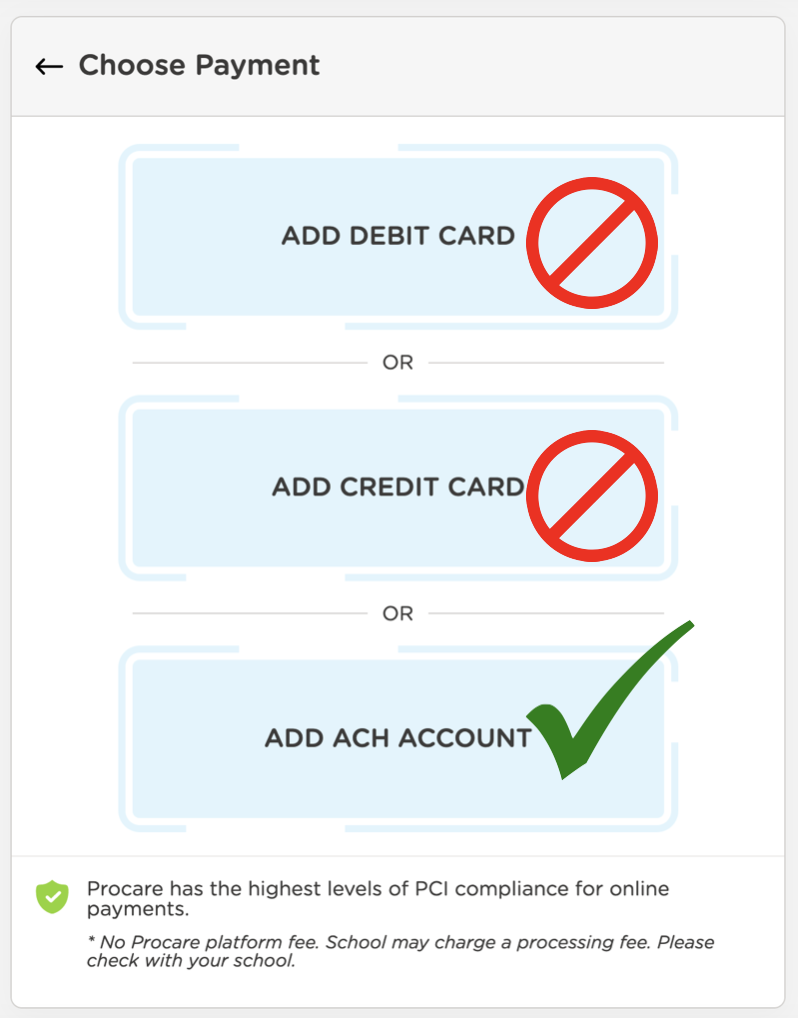
(no Credit or Debit Cards accepted, please do not select these options)
Step 3 - Choose your AutoPay Setting
Step 4 - Review your Outstanding Invoices

Although the instructions seem lengthy, the entire sign-up should take no more than 5 minutes. Please have your bank routing number and account number available to complete the set-up of your payment method.
Create a ProCare Parent Portal, following the directions in your email invitation from ProCare
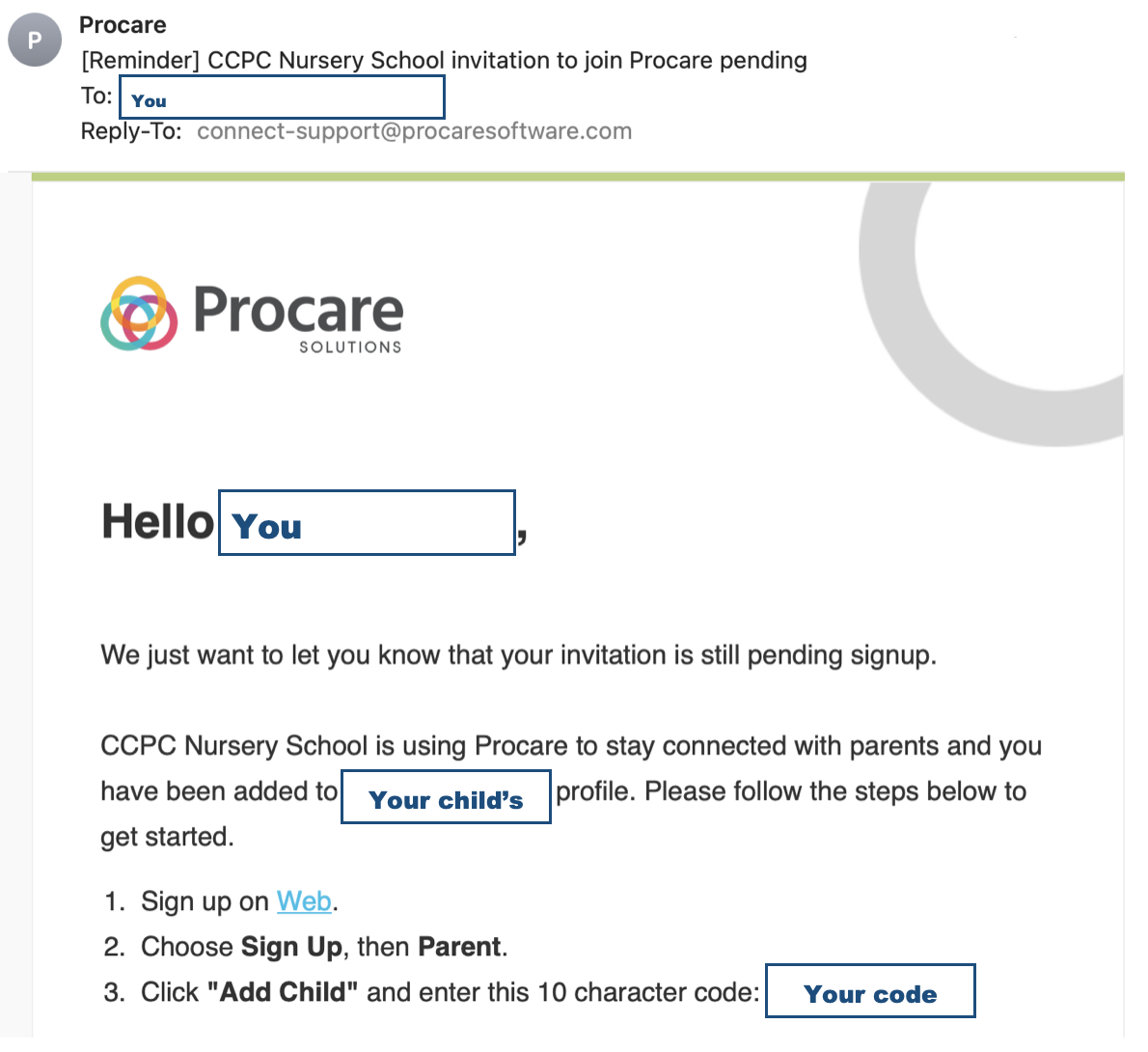
You will receive an email from ProCare inviting you to create your ProCare Portal Account.

Please don't delete it and don't delay, because the email contains a unique 10-digit code that will expire in 10 days. Please check your Junk or Spam folders if you don't see the ProCare invitation email in your inbox.

You only need to create one account per family. You are welcome to create a profile for each parent if you would like, or you can create just one, choosing the email account you prefer. (If you have created a ProCare login in the past, you will need to create your CCPC login with a different email address than you used before.)

The ProCare email contains the following instructions to create your account. You can create an account through your computer or you can download the ProCareapp onto your phone and create an account there.
After you have completed these three steps, you have created your ProCare Portal!
Set up your ACH Billing Account
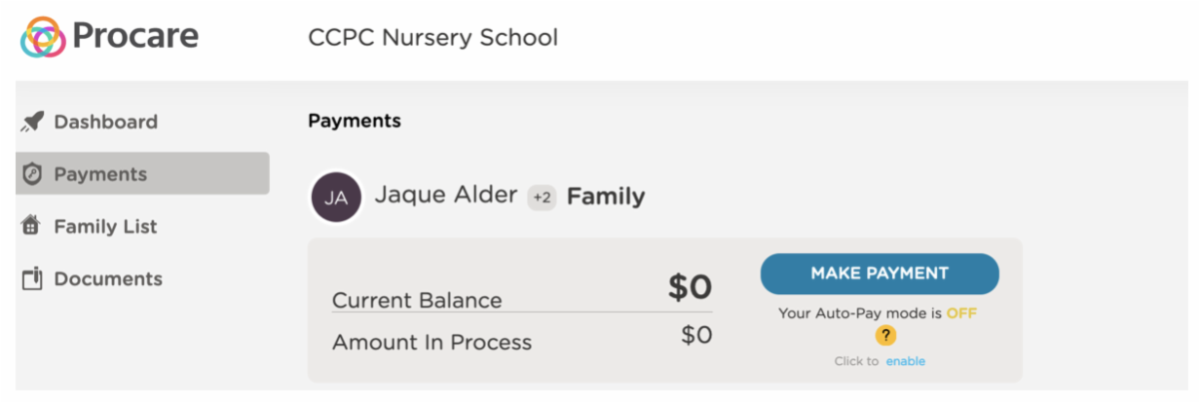
From your Portal, choose the "Payments" option from the menu.
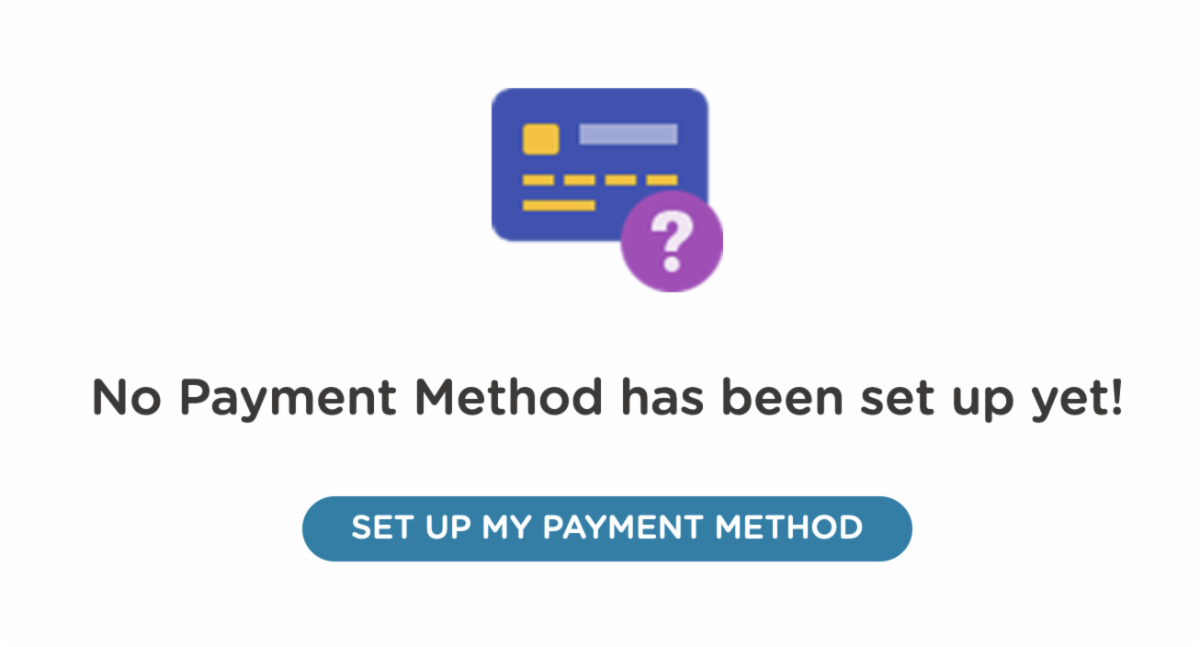
Click on the button titled "Make Payment" and you will see this message:
Click on the button titled "Set Up My Payment Method" and you will see this message:
CCPC Nursery School ONLY accepts
ACH Accounts for payment.
Please DO NOT choose the Credit or Debit Card options,
as your payments will not be processed.

Restricting payment method to ACH allows us to
keep tuition costs lower and
avoid charging you significant credit card processing fees.
Choose Your AutoPay Setting
Automatic Payment
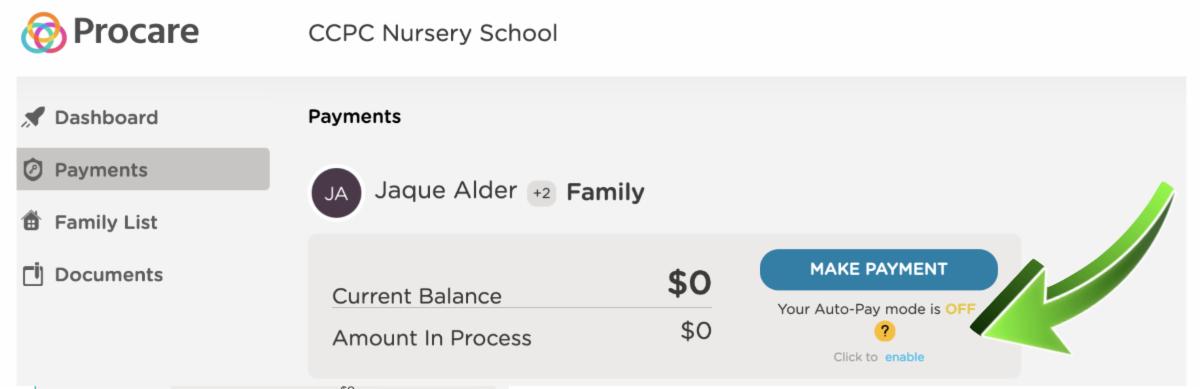
Most parents love the convenience of auto-pay for tuition payments. To choose this option, click the "Enable" link in the Payments section of your Parent Portal Account. Your invoice will be automatically scheduled for payment and will be debited from your bank account on the due date.
Manual Payment
If you prefer to initiate your payments manually, you should not click on the "Enable" link. You will receive an e-mail when your invoice is created and you will need to log into your Parent Portal initiate the payment on or before the due date.

Please choose Manual Payment if you have made special payment arrangements with CCPC.
Review your Outstanding Invoices
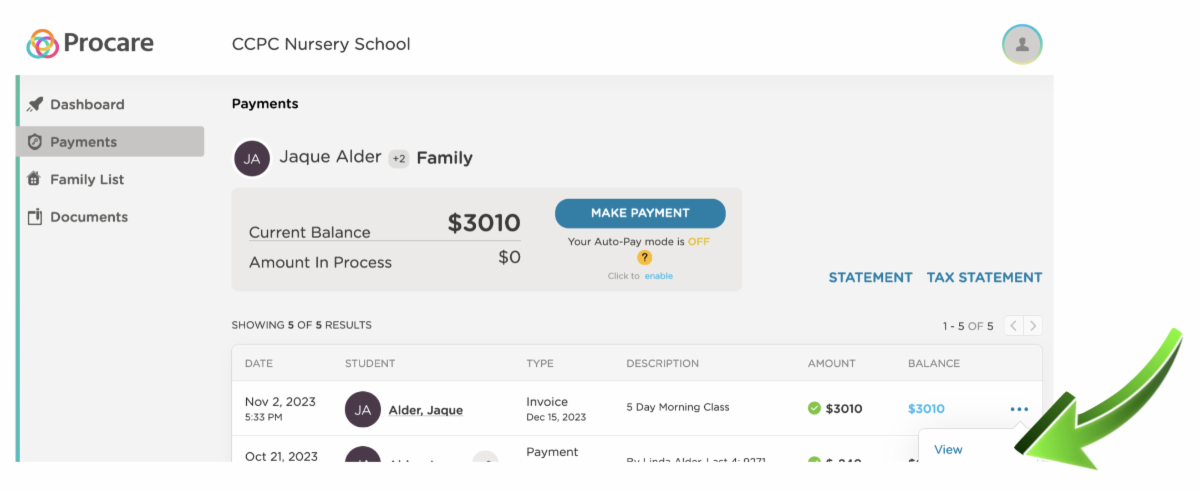
If you have chosen to enable AutoPay, your invoices will processed automatically on their due dates. If you have not enabled AutoPay, you will need to return to the Payments screen of your portal to initiate payment of your invoices on or before the due date.

You can see the detail of any invoice listed in your account by clicking on the "..." to the right of the invoice and choosing "View".
Invoice Information
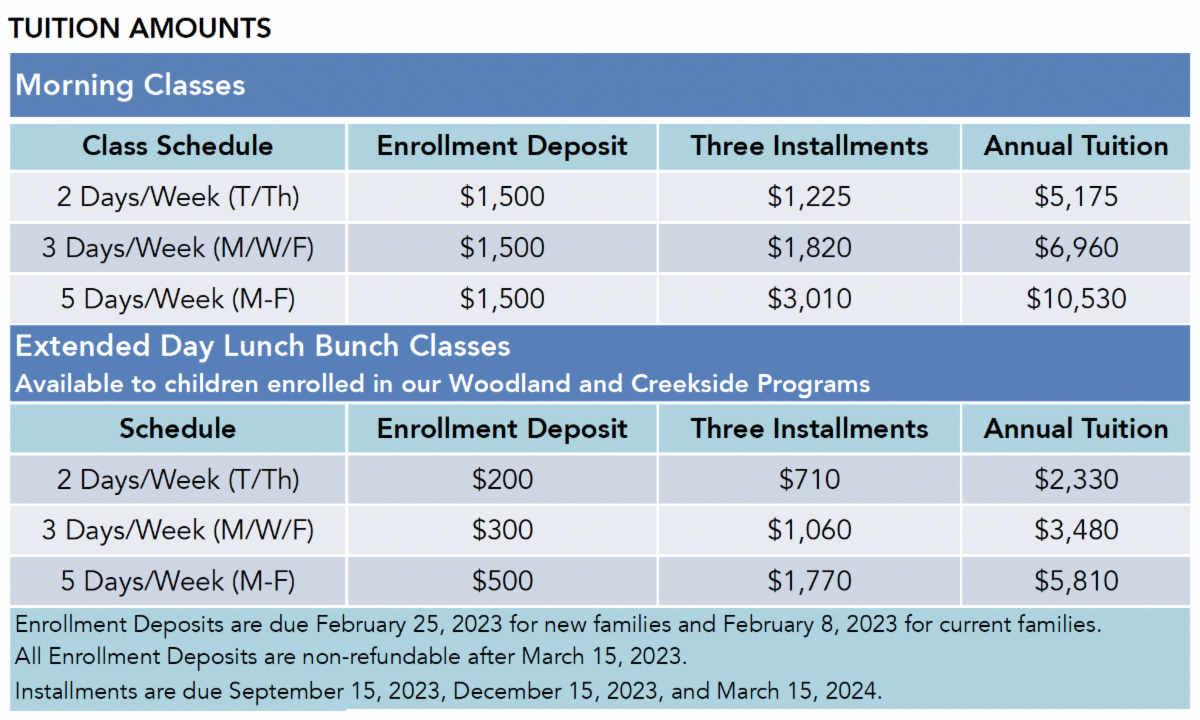
Due Dates of your 3-Installment Invoices
Elements of your Invoice

You will be billed for the tuition for Morning Classes and Extended Day Classes, Early Drop-off and Extended Day Drop-in charges. You can choose one annual payment in September, or a 3-installment plan.

On your September bill, you will see a one-time, annual Activity Fee. The Activity Fee covers all field trips, incidental classroom expenses, and a variety of special programs that come to our school each year.

During the year, charges for community events and annual fund donations may also be billed through your Parent Portal account.