|
How to Use Google Chrome’s New Tab Split View
See two websites side by side in one browser window and stop juggling tabs. Google Chrome’s new Tab Split View makes it easier to compare content, copy information, and work faster without bouncing between tabs.
How often do you flip back and forth between tabs just to compare two pages or reference information while you work?
For years, power users relied on window snapping at the operating system level or third-party extensions to solve this problem.
Here's a Cool Tip: Use Chrome's Tab Split View.
Chrome is addressing it directly with Tab Split View, a built-in way to place two tabs side by side inside a single browser window.
This is not flashy, but it is one of those features that immediately earns a permanent spot in your workflow once you start using it.
Feature Explanation
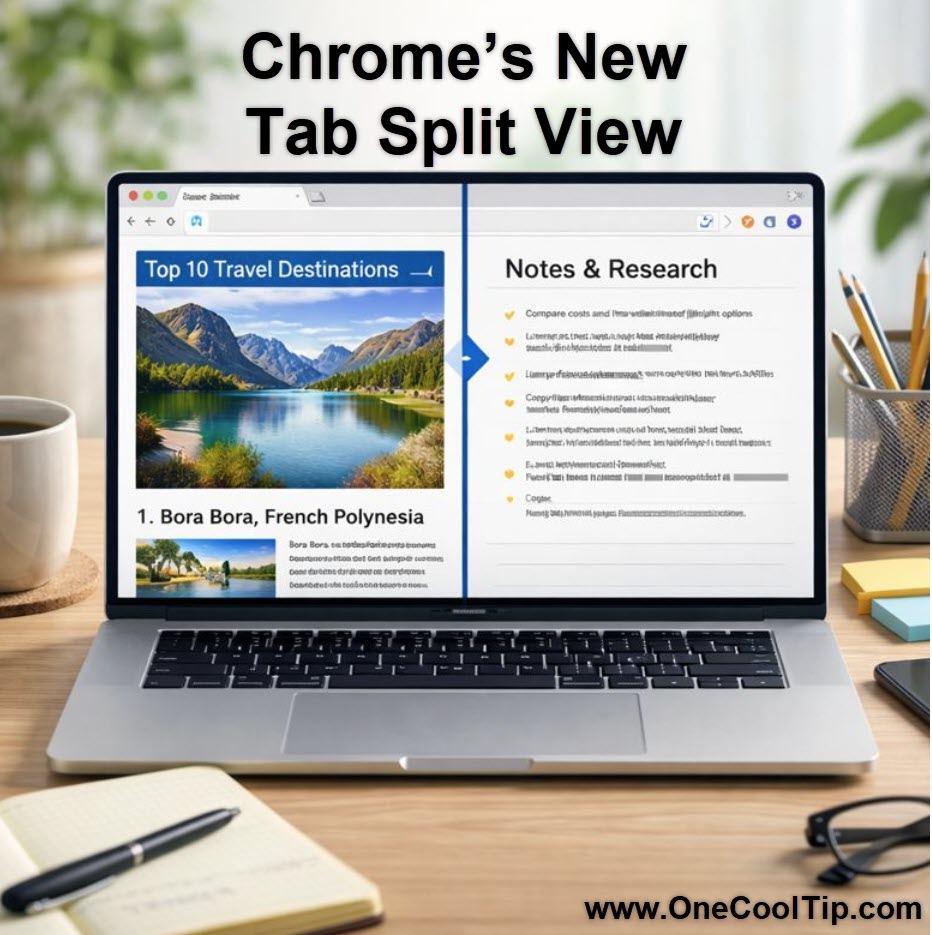
Tab Split View allows you to display two Chrome tabs next to each other within the same browser window.
Instead of opening multiple windows or constantly switching tabs, Chrome divides the viewing area so both pages remain visible at once.
The feature works entirely inside Chrome.
That matters because it keeps tabs grouped, preserves your browsing context, and works consistently across desktops without relying on operating system window snapping.
It is designed for comparison, reference work, and light multitasking rather than full multi-monitor replacement.
What You’ll Gain
- Faster research with fewer tab switches
- Easier copy-and-paste between sources
- Cleaner workflows without extra windows
Step-by-Step Instructions
Here's how to do it.
Desktop
-
Open two tabs you want to view together.
-
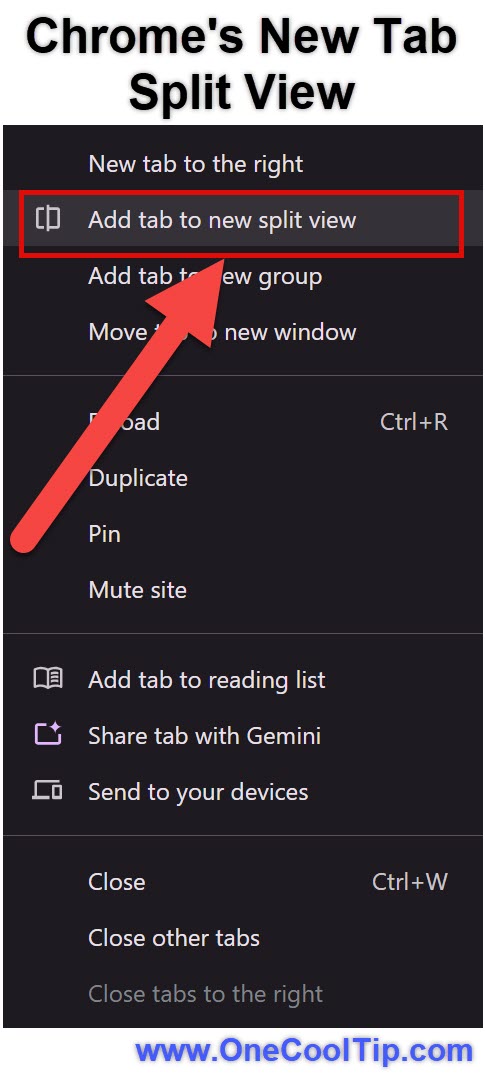
Right-click one of the tabs.
-
Select "Add tab to new split view".
-
Chrome automatically places the second tab beside the first.
-
Drag the divider to resize each side as needed.
|