Welcome to ITS Powertivity eNews | November 2025

Florida Gulf Coast University log on Powertivity Tips banner
 

We're here to help you SOAR!

Today's newsletter is 1139 words... a 4.30-minute read.


Where Do I Turn On Out-of-Office Notifications? >>>
Microsoft Outlook Integration with MS Teams Calling!

Technology blue background with a hand pointing to Outlook and Teams logo

The problem: You're about to leave the office for a couple of weeks. Where do you need to turn ON out-of-office notifications?


The solution: Keep it simple and focus on the Outlook Automatic Replies (Out of Office) feature which can also be tied to MS Teams Calling.


Note: Turn this feature ON just before you leave the office.


The Integration Tip: When the Outlook Automatic Replies alert is turned ON, this feature can also be connected to your MS Teams Calling out-of-office voicemail. This way you only need to worry about turning on the Outlook out-of-office feature before leaving (click the above link to learn how).


Note: This feature can be turned ON anytime and remains turned on as a permanent setting.

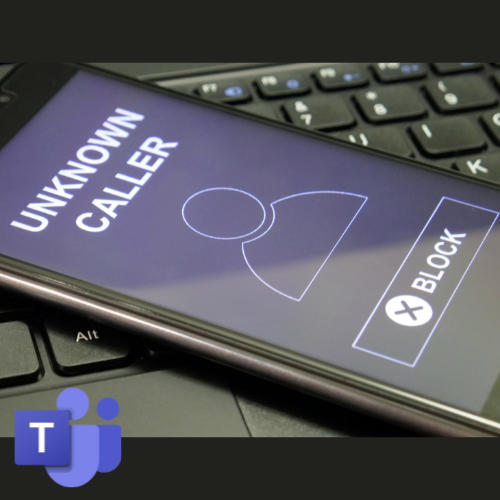
photo of a cell phone with unknown caller displayed and a block button

How do I block outside calls?


We get it. Receiving unwanted calls can disrupt the work day, especially the "unknown caller" ID.


You can block these unwanted calls within MS Teams Calling. Click Blocking Unwanted Calls in MS Teams Calling for instructions.


What Do I Do When It's Time For a Password Reset?

Desktop phone with an aqua colored shield over it and the Teams logo in the bottom right corner

When conducting a password reset at any time, you MUST sign out and sign back into ALL your devices running the MS Teams app:


1) Physical Desktop Phone - Log out of the phone BEFORE performing the password reset. Once the password reset is finished, complete the login/registration steps 1-7 on the first page of the FGCU Desktop Phone Quick Start Guide. 


2) Computer/Laptop - Within MS Teams, click on your profile picture > select Sign out. Then sign back in.


3) Mobile Device - Following the password reset, the MS Outlook app will require you to sign back into the app. When this step is completed, MS Outlook is integrated with the MS Teams app, which will automatically update (reboot) for you. 


Note: This question is also covered in the MS Teams Calling FAQ section of the Knowledge Base.

"Phew!" ~ Just in time tips!

Are you a recent new hire or have a MS Teams Calling question?


We've got your back! Visit the MS Teams Overview site to review FAQs, troubleshooting tips, support documentation, and quick reference guides for all things MS Teams and MS Teams Calling.


Copilot Chat Challenge: Journey Complete!

Star filled in with Copilot logo and coloring with the words Be a Copilot rock star on top


Whether you joined the Copilot Chat Challenge Journey or are just getting started, now is the perfect time to explore how Copilot can help you work smarter. Over six weeks, we shared tips on writing, organizing, brainstorming, and analyzing data - all with simple prompts. You can start using these features today!

Here's what you need to know to get the most out of Copilot:


  • Data Protection: Look for the green shield check mark - it means your data is secure.
  • How to Access: m365.cloud.microsoft/chat and sign in with your FGCU Eagle Access ID if not already signed in, which will take you into your Office 365 Web experience. You should see your profile picture in the bottom-left corner of the screen. Don’t forget to make this a Favorite bookmark!
  • Prompt Mechanics: Always review outputs for accuracy, bias, and relevance before sharing.
  • Ethical Use: Use Copilot responsibly - credit design work appropriately and avoid misrepresentation.


Congratulations to everyone who completed the journey! Keep experimenting with prompts like:


>> "Summarize my meeting notes and create action items."

>> "Draft a professional email to follow up on a project."

>> "Create a chart from this Excel data."


If you didn't, no worries - your next productivity breakthrough is just one prompt away!


Want more? Explore our Copilot Resources Hub for guides, examples, and best practices within the Tech How To site.

ITS Employee Spotlight

Azeneth Oropeza-Rios

Introducing IT Client Services Specialist ll | ITS Client Services, Azeneth Oropeza-Rios.


How long have you been with FGCU, and what brought you here?

4 incredible years! My journey began as a student, and over time, I was fortunate to grow both academically and professionally within the university. Three years ago, I joined the ITS team, and it has been an amazing experience ever since, filled with learning, collaboration, and meaningful contributions.


Can you describe your role in IT in a way that someone outside of technology would understand?

I'm essentially a go-to guide for anyone who needs help navigating technology, whether it's students, faculty, or staff. As part of the Client Services and Help Desk team, I tackle a wide range of tech challenges, from simple fixes to more complex troubleshooting. No two days are the same, which means my colleagues and I must be flexible, resourceful, and ready to jump into any situation, like jacks-of-all-trades, if you will.


What part of your job do you find most rewarding when it comes to helping FGCU students, faculty, or staff?

What I find most rewarding is the opportunity to make a real, positive impact on someone’s day. Whether it is a student trying to submit an assignment or a faculty member preparing for a lecture, being able to resolve their tech issues brings a sense of relief and joy, and I get to be part of that moment. It is incredibly fulfilling to know that my support helps keep things running smoothly across campus.

Yellow and blue 3D looking magaphone


What's something surprising or little-known about your work in IT?

One little-known aspect of my work in IT is just how collaborative it is. Over the years, I have had the opportunity to contribute to a variety of projects and partner with departments across the university. It has been rewarding to see how technology connects different areas of campus and how our work supports so many unique initiatives behind the scenes.


What's one piece of advice or insight you'd share with other FGCU employees about working with IT?

One key piece of advice I would share is to be proactive and provide as much detail as possible when reporting a tech issue. The more context we have, the quicker and more effectively we can resolve it. Clear communication helps us deliver smoother, more efficient support and ensures everyone gets back to what they do best with minimal disruption.


What do you enjoy doing outside of work?

Crocheting, traveling, playing sports, and spending time with family and friends!


Is there a project or achievement you're especially proud of at FGCU?

One achievement I am especially proud of is being part of the team that helped transition FGCU into a more mobile and flexible workforce [campus laptop implementation]. It was a transformative project that empowered our university community to stay connected and productive from virtually anywhere. Contributing to such a meaningful shift in how we work and collaborate was both exciting and deeply rewarding.


Thanks for helping FGCU run smoothly behind the scenes, Azeneth! Your work keeps our campus connected, supported, and ready for success.

Like to see a specific powertivity topic covered?

Send your suggestion to: itschange@fgcu.edu

How beneficial are the Powertivity tips to you? (1 sec. click)
1-star        2-stars        3-stars        4-stars        5-stars

Need to report an issue or have a question?

Contact the University Help Desk:


helpdesk@fgcu.edu or 239.590.1188


Be your own help desk, click to visit the Knowledge Base

 
FGCU ITS Logo image
 

Empowering the University Community to achieve new digital possibilities