|
Secure WhatsApp Without Waiting for a Login Code
WhatsApp passkeys let you verify your account with the same face, fingerprint, or screen lock you use to unlock your phone. The feature can make account recovery faster while reducing your dependence on one-time codes that criminals may try to steal.
Receiving a WhatsApp verification code can feel routine, but that short string of numbers is also a target for account thieves.
A convincing caller or message may ask you to share the code, then use it to register your WhatsApp account on another phone.
Here’s a Cool Tip: Create a WhatsApp passkey before you need to recover your account.
WhatsApp passkeys offer a simpler defense.
Instead of typing a code or remembering another PIN, you can confirm your identity with your phone's fingerprint reader, face recognition, or screen lock.
More than one billion people have already created a WhatsApp passkey.
WhatsApp also now allows more than one passkey on an account for people who use both Android and iOS devices.
What Is a WhatsApp Passkey?
A passkey is a cryptographic credential stored through your device's security system or password manager.
When WhatsApp needs to confirm that you own an account, your device asks for the same fingerprint, face scan, PIN, password, or pattern that normally unlocks it.
Your biometric scan stays within the device's security system.
WhatsApp receives confirmation that the check succeeded, not a copy of your fingerprint or face.
The passkey itself is not a password that someone can persuade you to read aloud or type into a fake page.
On WhatsApp, a passkey can replace a one-time SMS code when you register your account again.
It does not replace every security layer.
Your phone number still identifies the account, and WhatsApp's two-step verification remains a separate defense against unauthorized registration.
Passkeys are especially helpful for travelers who may have poor cellular service, families helping less-technical relatives recover accounts, and anyone who wants fewer codes to copy between screens.
What You’ll Gain
- Verify your WhatsApp account with your phone's familiar screen lock.
- Reduce your reliance on SMS codes that can be intercepted or socially engineered.
- Recover access more easily when cellular service is unreliable.
- Add separate passkeys when using supported Android and iOS devices.
Step-by-Step Instructions
Here's how to do it.
Before starting, update WhatsApp and make sure your phone has a screen lock enabled.
Your device may save the credential in Apple Passwords or Google Password Manager, depending on the platform and configuration.
iPhone
-
Open WhatsApp on your iPhone.
-
Tap Settings or your profile picture, depending on the interface shown.
-
Tap Account.
-
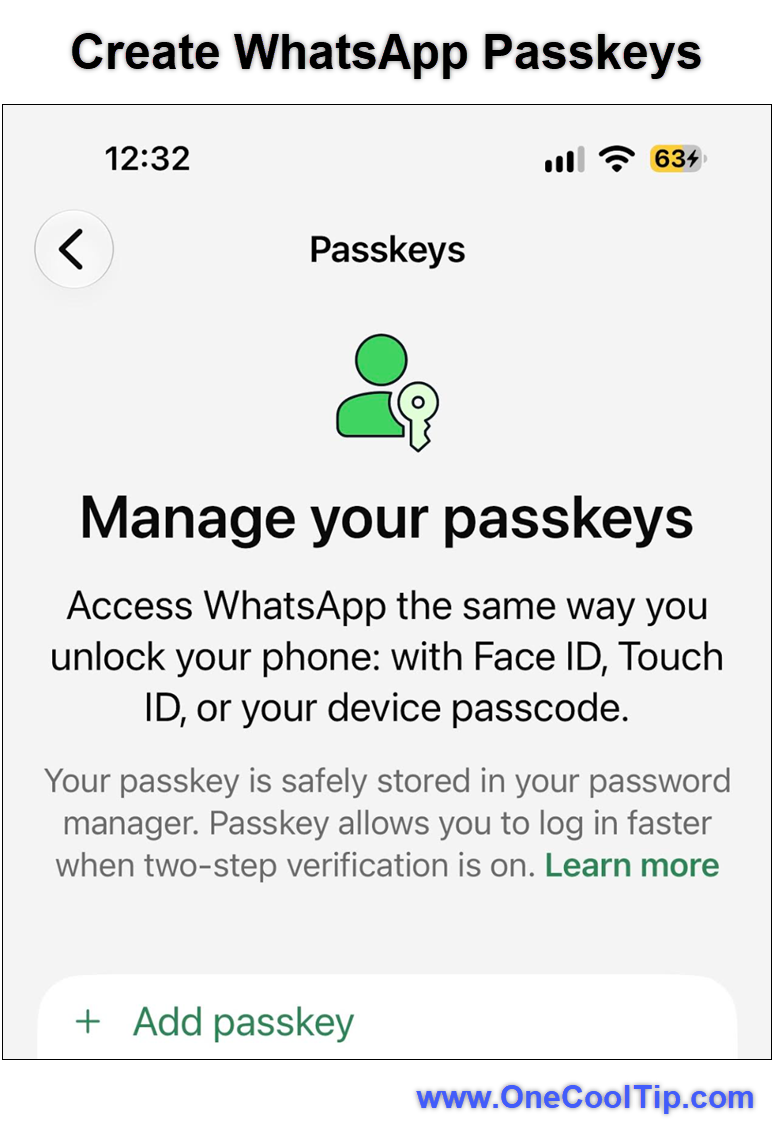
Tap Passkeys > Add passkey.
-
Follow the system prompt.
-
Approve the request with Face ID, Touch ID, or your iPhone passcode.
-
Return to Account > Passkeys and confirm that the passkey appears.
|