|
One Cool Tip Newsletter
August 12, 2026
| Your daily dose of tech-savvy brilliance! | | |
😀Greetings!, Happy Windows Wednesday, Cool Tipper!
Get ready to streamline your digital life with simple, actionable tips delivered straight to your inbox.
Today's Cool Tip Theme: 5 Cool Windows Tricks
IN THIS ISSUE
- 🛡️ Brinks Home Cybersecurity Alert.
- 🪟 Windows 11 Quality-of-Life Updates.
- 🤖 AI Commercial Mockup Prompt.
- ⚡ 5 Time-Saving Hidden Windows Features.
- ✌️ Open Multiple App Instances.
- ⌨️ Function Key Guide.
- 🖥️ Instant Desktop Access.
New here? Subscribe to the One Cool Tip Newsletter for daily updates. It's FREE!
-
😂 Laugh with Us! Enjoy our Tech Joke of the Day, Haiku and Cool Tip Comics.
-
🌐 Stay Informed! Check out ICYMI, and our One Cool Tip Video.
| | |
3️⃣
If you enjoy the One Cool Tip newsletter, please forward this newsletter to THREE friends or colleagues or share it on social media using the links below.
Leave a $$$ Tip!
Share this One Cool Tip Newsletter!
| | |
Today's Tech Trivia
Which version of Windows first introduced the Start button?
A) Windows 3.1
B) Windows 95
C) Windows XP
D) Windows NT 4.0
Answer at the end of this newsletter.
| | |
⚠️ A Cybersecurity Reminder for Every Smart Home Owner ⚠️
Brinks Home recently disclosed unauthorized access to part of its IT systems and is investigating what information may have been affected.
The company says its alarm monitoring and smart home security services continue to operate without interruption.
While the investigation is ongoing, Brinks is encouraging customers to be especially cautious of unexpected emails, text messages, or phone calls requesting personal information or account credentials.
Cybercriminals often take advantage of publicized incidents by launching follow-up phishing scams that target concerned customers.
This is a good reminder to verify any request for sensitive information before responding and to avoid clicking links in unsolicited messages.
Staying alert after a reported cyber incident can help protect both your personal information and your online accounts.
And in Other News...
Small Windows 11 Updates That Make a Big Difference
Sometimes the best tech upgrades are the ones you barely notice.
Microsoft's latest Windows 11 update delivers a collection of small improvements designed to make everyday computing smoother and faster.
Users can expect quicker app launches, smarter search results that work even when you make a typo, and improved voice controls that better filter background noise.
File Explorer now displays file sizes in easier-to-read formats such as MB and GB, and Windows Hello supports external fingerprint readers for more flexible sign-ins.
Touchpad users also gain more control over scrolling and zoom settings.
Be sure to install the latest Windows updates so you can take advantage of these practical enhancements.
| | |
Try this Cool AI prompt. Copy and paste to ChatGPT, Gemini, Claude or Copilot.
Place this product image into a realistic promotional scene. Use professional commercial lighting, a clean background, and tasteful props that match the product’s purpose. Keep the product’s design, colors, labels, and proportions accurate. Create a polished square image suitable for advertising and social media.
| | |
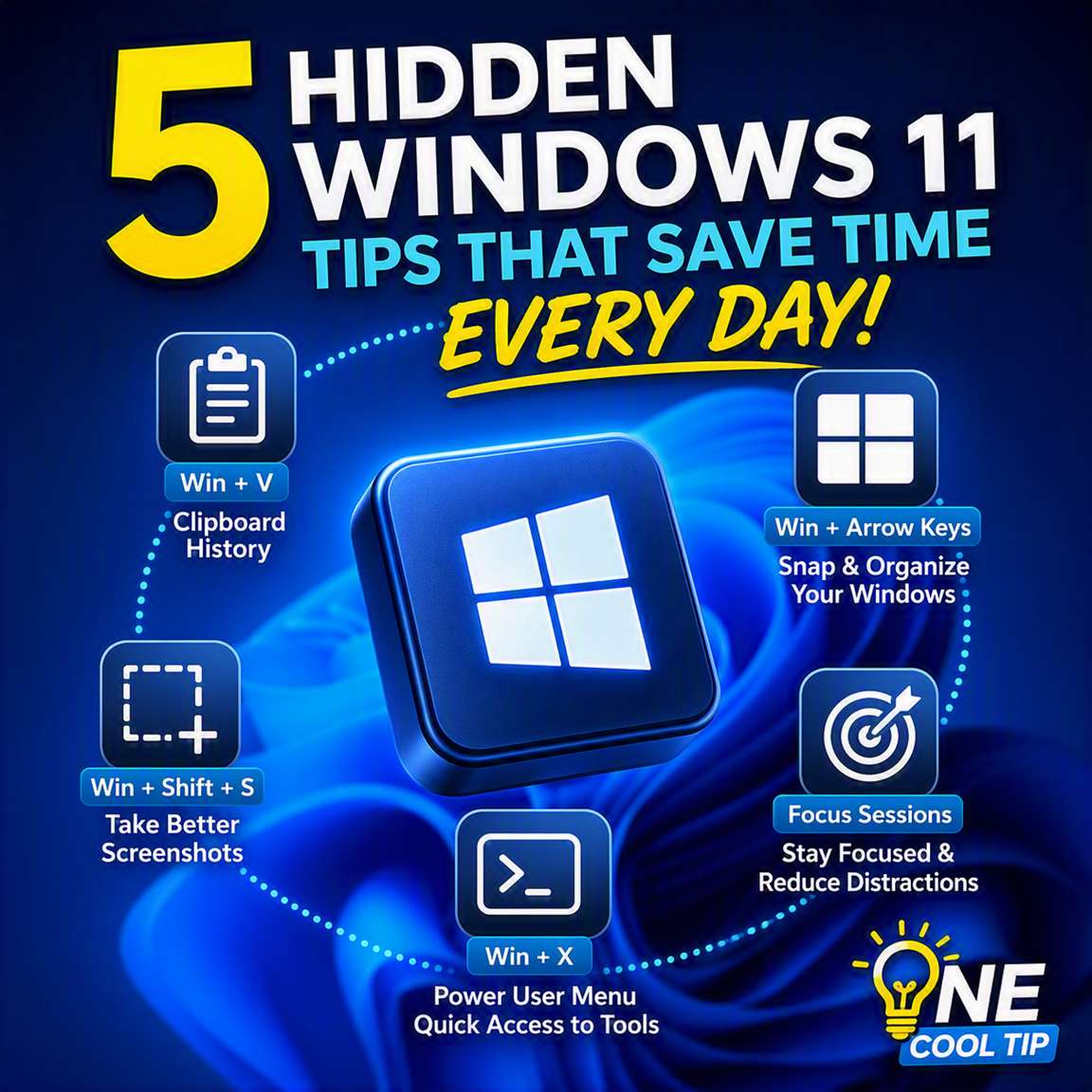
5 Hidden Windows 11 Features That Save Time Every Day
Windows 11 includes several built-in tools that can make everyday tasks faster, cleaner, and less frustrating. These five overlooked features help you copy smarter, organize your screen, capture better screenshots, focus longer, and reach system tools quickly.
If you use Windows all day, you probably spend more time than you realize switching between apps, copying bits of text, grabbing screenshots, and digging through settings.
The good news is that Windows 11 already includes several tools that make these little tasks easier.
Here's a Cool Tip: Learn These Five Windows Shortcuts and Put Windows 11 to Work.
The catch?
Many of them are hidden behind keyboard shortcuts, tucked inside system apps, or sitting in menus most users rarely open.
None of these tips requires extra software or a paid subscription. Most take just a few seconds to learn.
Feature Explanation
Windows 11 has a surprisingly useful set of built-in productivity features:
-
Clipboard History lets you retrieve more than the last item you copied.
-
Snap helps you arrange windows into clean workspaces.
-
Snipping Tool gives you fast screenshot options.
-
Focus helps reduce distractions while you work.
-
The Power User Menu puts important system tools within reach.
These features are not necessarily new, but they are overlooked.
They solve common problems without asking readers to install another app, sign up for another service, or change how they work.
The real benefit is friction reduction.
You spend less time hunting, resizing, recopying, cropping, and clicking.
That matters whether you are writing a report, helping a family member with a PC issue, studying for class, or managing a small business from a laptop.
What You’ll Gain
- Save time by using built-in Windows shortcuts.
- Reduce screen clutter when working with multiple apps.
- Capture screenshots faster and with less cropping.
- Stay focused by limiting notifications during work sessions.
Step-by-Step Instructions
Here's how to do it.
1. Use Clipboard History with Windows + V
-
Press Windows logo key + V.
-
Select Turn on if Clipboard History is not already enabled.
-
Copy text, links, or images as usual.
-
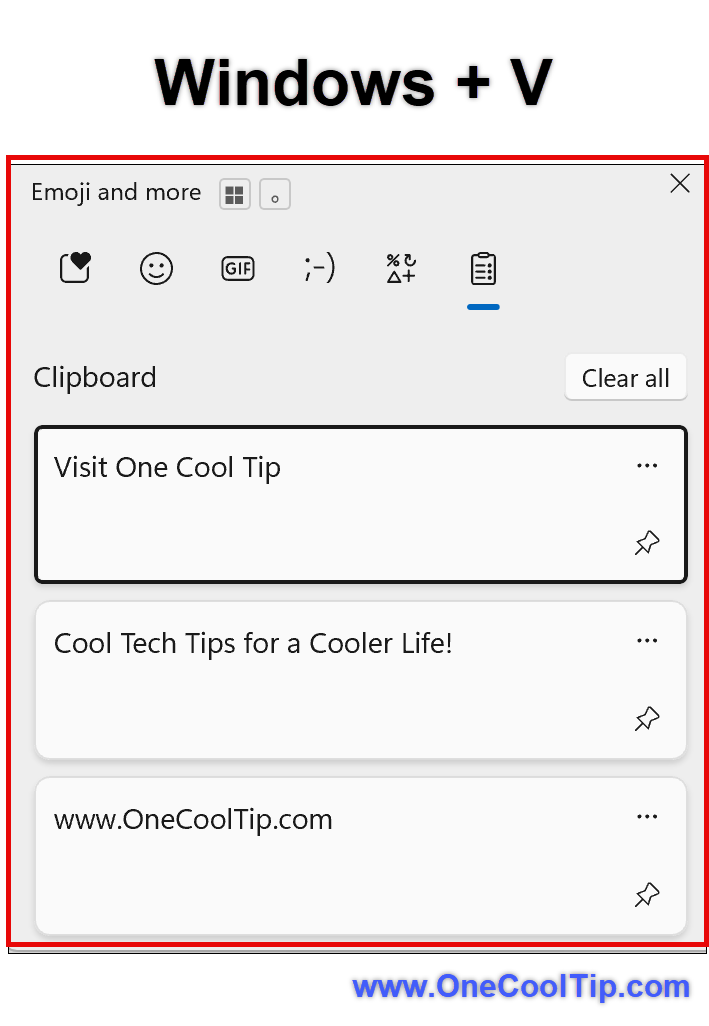
Press Windows logo key + V again to view recent copied items.
-
Select an item from the clipboard panel to paste it.
| | fig. 1 - Windows Logo + V | |
2. Organize Apps with Snap
-
Open two or more windows.
-
Drag a window to the left or right edge of the screen, or press Windows logo key + Left Arrow or Windows logo key + Right Arrow. Or use Windows logo key + Z, enter a number or click a zone to position the window.
-
Use Snap Assist to choose another open app for the remaining space.
-
Drag the divider between snapped windows to resize them.
-
To customize Snap, go to Settings > System > Multitasking.
3. Capture Screenshots with Windows + Shift + S
-
Press Windows logo key + Shift + S.
-
Select the area of the screen you want to capture.
-
Use the Snipping Tool window to edit, save, or share the capture.
-
Choose the snip type that fits your task, such as rectangle, window, full screen, or freeform.
-
Paste the screenshot into an email, Word document, PowerPoint slide, or chat.
4. Start a Focus Session
-
Select the clock or notification bell area on the taskbar, or press Windows logo key + N.
-
Choose a focus duration.
-
Select Focus to start.
-
You can also open Settings > System > Focus to configure future sessions.
-
If you prefer the Clock app, open Clock > Focus sessions and start from there.
5. Open the Power User Menu with Windows + X
-
Press Windows logo key + X.
-
Review the quick system menu.
-
Choose a tool such as Settings, Task Manager, Terminal, File Explorer, or Run, depending on what appears on your PC.
-
You can also right-click the Start button.
-
Close the menu by clicking away or pressing Esc.
Pros and Cons
Pros:
-
No extra software needed: These tools are built into Windows 11.
- Easy to learn: Most use simple keyboard shortcuts.
-
Useful across work and home: Great for reports, schoolwork, troubleshooting, research, and daily browsing.
-
Reduces repetitive steps: Less resizing, recopying, searching, and cropping.
-
Helpful for busy users: Small improvements add up during a full workday.
Cons:
-
Shortcuts take practice: Users may forget Windows + V or Windows + Shift + S at first.
-
Clipboard privacy needs attention: Clipboard History may store copied items until cleared.
-
Organization policies may interfere: Work or school PCs may restrict some settings.
-
Focus behavior depends on settings: Notification behavior may vary based on Focus and Do Not Disturb configuration.
Feature Access
- These tips apply to Windows 11 PCs.
- Availability may vary by device, region, Windows version, installed app version, and organization policy.
- No separate subscription is required for the basic Windows features covered here.
Score
Criterion | Score (0–10) | Justification
Value | 9
These features solve common daily problems, especially copying, multitasking, screenshots, and focus.
Usability | 9
Most are easy to access with a keyboard shortcut or a simple Settings path.
Wow Factor | 5
These are practical rather than flashy, but many users are still surprised they exist.
Total: 23/30 | 👍 Good
These are small Windows habits that can make everyday PC use noticeably smoother.
Key Takeaways
Windows 11 has several built-in tools that many users overlook.
Learn Windows + V, Windows + Shift + S, Windows + X, Snap, and Focus, and you can save time without installing another app.
The best part is that these tips are easy to try.
Pick one today and use it for a week.
Cool Tip Snapshot
-
Feature Name: Windows 11 Hidden Productivity Features
-
Platform(s): Windows 11
-
Quick Benefit: Faster copying, multitasking, screenshots, focus, and system access
-
Best For: Home users, business users, students, creators, and small businesses
-
Access Type: Free
-
Difficulty: Easy
Try It Yourself
Try one of these Windows 11 shortcuts today, then tell us which one saves you the most time.
Subscribe to the One Cool Tip newsletter, and share this article with family, friends, and coworkers who use Windows every day.
READ MORE
Read the Cool Tip on One Cool Tip.com.
| | Help support One Cool Tip. Use this Amazon link when you shop online. | |
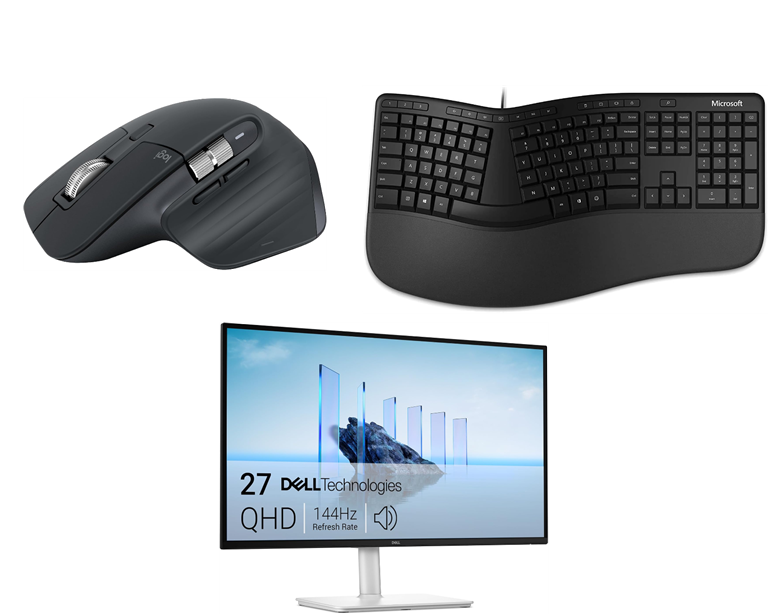
🖱️ Logitech MX Master 3S Mouse: A comfortable productivity mouse with customizable buttons that pairs well with power-user Windows workflows.
Save 20%. $79.99. 4.5 Stars. Check it out on Amazon!
⌨️ Microsoft Ergonomic Keyboard for Business: Ideal for users who rely on keyboard shortcuts throughout the day and want a more comfortable typing experience.
Microsoft. $319.95. 4.2 Stars. Check it out on Amazon!
💻 Dell 27 Plus Monitor: Makes Snap Layouts and multitasking even more useful.
Save 18%. $179.99. 4.6 Stars. Check it out on Amazon!
Prices accurate at time of publication
One Cool Tip may earn a commission from qualifying purchases.
| | |
🆒Tell Me More
- Clipboard History (Windows + V) can store multiple copied items and can optionally sync text across devices when enabled in Windows settings.
- Snap Layouts can be launched with Windows + Z, making it easier to arrange several apps on one screen.
- The Snipping Tool shortcut (Windows + Shift + S) lets you capture only the part of the screen you need.
- Focus Sessions are included in the Windows Clock app and can help structure concentrated work periods. Use Windows + N to show the Notifications window, then click Focus.
- The Windows + X menu provides quick access to administrative tools without digging through Settings.
⏩Quick Tips
-
📌 Pin a Clip: Keep frequently pasted text in Clipboard History. Press Windows + V, open the item’s menu, and select Pin.
-
🪟 Hover to Snap: You do not have to remember Windows + Z. Hover over an app’s maximize button and select a Snap Layout.
-
🎥 Record an Area: Capture a short screen recording without another utility. Press Windows + Shift + R, select the area, and begin recording.
-
🔕 Start Focus: Block routine interruptions while completing a task. Press Windows + N, select a duration, and choose Focus.
-
🧰 Open Task Manager: Skip the Start menu search. Press Windows + X and select Task Manager.
| | ✅ More Must-Read Tech Tips | | |
👀 How Do I Open Multiple Instances of an App?
Have you ever found yourself juggling between tasks and wishing for a quicker way to access multiple instances of your favorite apps?
What if the key to enhanced productivity lies right beneath your fingertips?
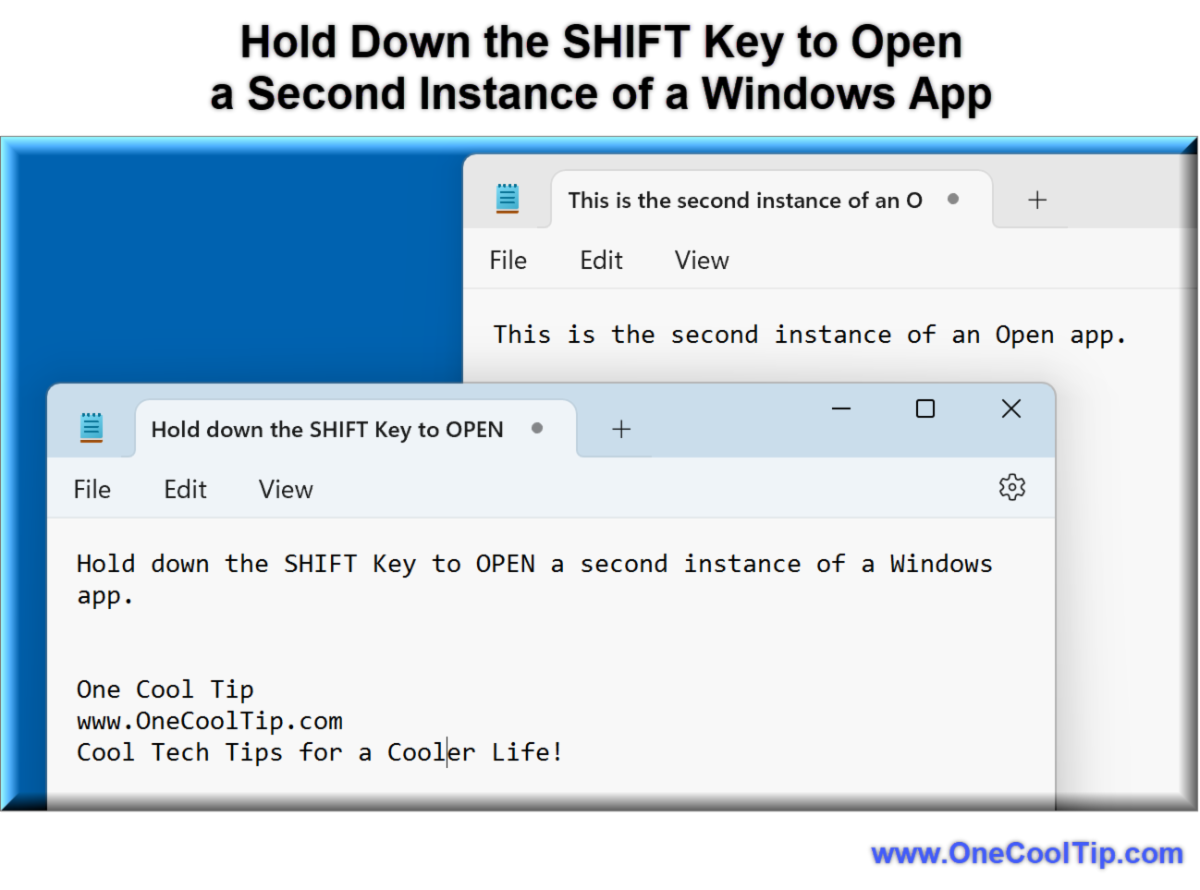
Having two instances of a Windows app can be incredibly useful to work on two projects simultaneously without the need to switch back and forth between documents or windows.
Here's how to do it.
-
Locate the app icon on your taskbar.
-
Hold down the Shift key.
-
While holding the key, click on the app icon.
-
Voilà! A new instance of the app will launch.
Embracing this simple shortcut can significantly boost your efficiency, allowing you to manage your digital workspace like a pro.
Discover more HERE.
| | |
🤔 Have You Ever Wondered How to Master the F Keys?
Want to boost your productivity by making full use of your keyboard?
The F keys, also known as function keys, are a row of keys at the top of your keyboard labeled F1 through F12.
Use them to quickly access a variety of functions (pun intended!).
F1: Opens the help menu in almost every application.
F2: Renames a selected file or folder.
F3: Opens the search feature in most applications.
F4: Closes the current window in most applications when combined with Alt.
F5: Refreshes the page in web browsers and other applications.
F6: Moves the cursor to the address bar in most internet browsers.
F7: Varies by program, but often checks spelling and grammar in word processors.
F8: Used to enter the Windows startup menu (only works during boot-up).
F9: Varies by program.
F10: Activates the menu bar in many applications.
F11: Enters or exits full-screen mode in most browsers.
F12: Opens the ‘Save As’ dialog in Microsoft Word.
The F keys can greatly increase your productivity by providing quick access to commonly used functions.
Experimentation and exploration are key to discovering the full potential of your F keys!
What is your favorite F key?
Find out more HERE.
| | |
🙋♂️ Here's How to Access Your Desktop.
Have you ever found yourself with too many open windows and just want to quickly access your desktop?
Try these:
1. Use the Show Desktop keyboard shortcut:
-
Press the Windows + D keys simultaneously to show the Windows Desktop.
- Press the shortcut again to restore the windows you just minimized.
2. Use the Minimize All keyboard shortcut:
-
Press Windows + M on your keyboard, and all the app windows are minimized to the taskbar at once, revealing the Desktop.
-
To reverse the effect and bring back the minimized app windows to your Desktop, use the keyboard shortcut Windows + Shift + M.
3. Use the Show desktop button on the taskbar:
- Click or tap on this thin button, and you can instantly access your Desktop.
- If you’re using a horizontal taskbar, the Show desktop button is found on the right edge of the taskbar.
- If your taskbar is vertical, the Show desktop sliver is located on its bottom edge.
Learn more HERE.
| | |
❓Did you share this newsletter with three friends yet?
😎 Cool Facts
25: Clipboard History stores up to 25 copied entries. When the limit is reached, Windows automatically removes older entries unless you have pinned them.
Source.
4 MB: Each Clipboard History item is limited to 4 MB. Microsoft lists text, HTML, and bitmap files as supported formats. Source.
4 Modes: Snipping Tool offers four standard image-capture modes: Rectangle, Window, Full screen, and Freeform. It also supports video capture, while some Copilot+ PCs offer additional capture features. Source.
2021: Windows 11 became generally available on October 5, 2021. Microsoft began offering it as a free upgrade to eligible Windows 10 computers and on new PCs with Windows 11 preinstalled. Source.
⌨️Today's Cool Shortcuts
-
Windows + V: Open Clipboard History.
-
Windows + Z: Open Snap Layouts.
-
Windows + Shift + S: Capture a custom screenshot.
-
Windows + X: Open the Power User menu.
-
Windows + Arrow Keys: Snap windows to screen edges.
-
Windows + N: Open Notification for Focus Panel.
😜 Tech Joke of the Day 😅
Clipboard History remembers everything I copied, except why I copied it.
🔎 Do you have a Cool Tip or tech question? Email us at onecooltip.com@gmail.com.
| | |
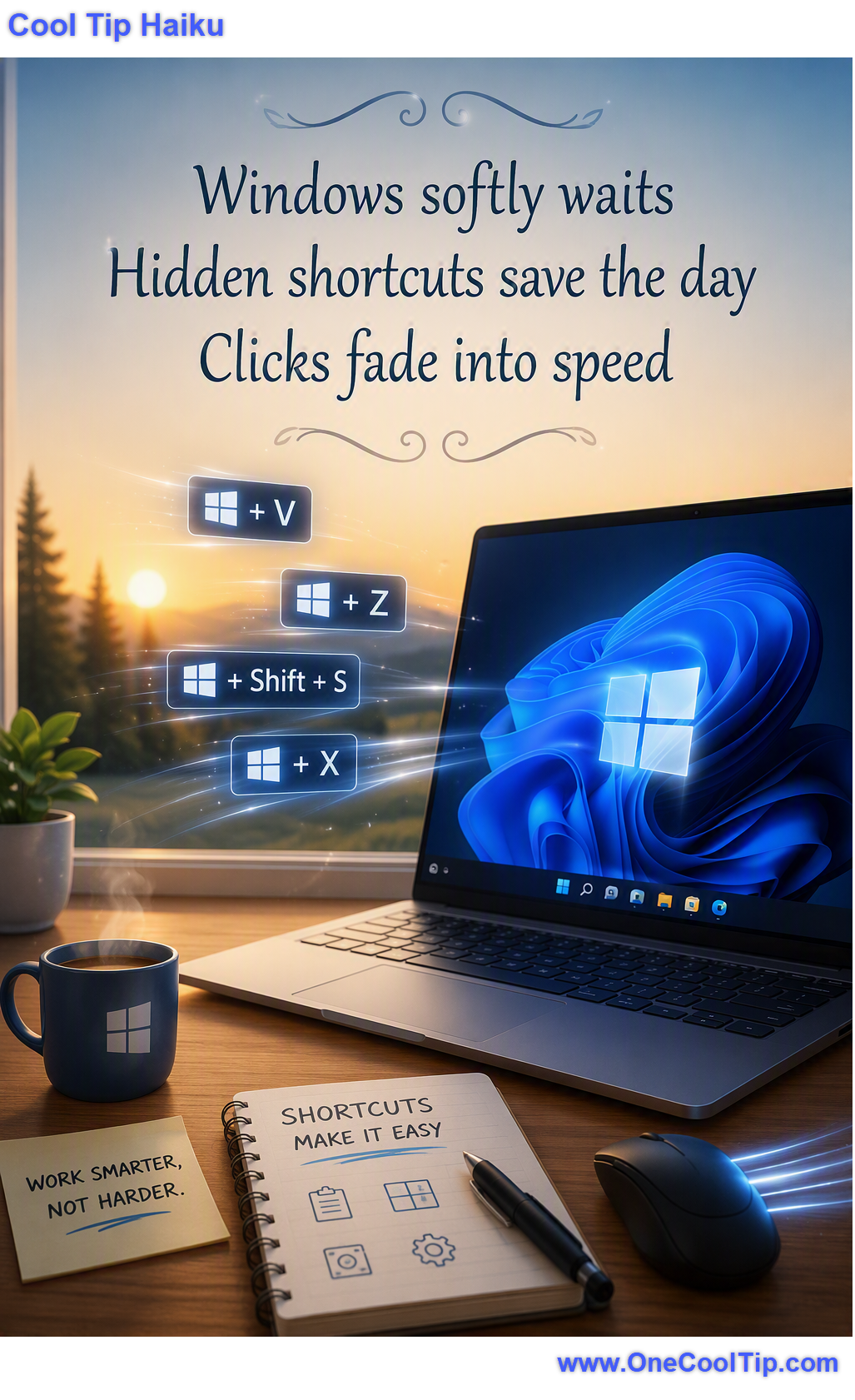
Windows softly waits
Hidden shortcuts save the day
Clicks fade into speed
| |
| 🤔 Which Windows 11 feature do you use most often? | | | | Did You See These Cool Tips This Week? | | | | Let Google Maps AI Find and Order Your Dinner | |
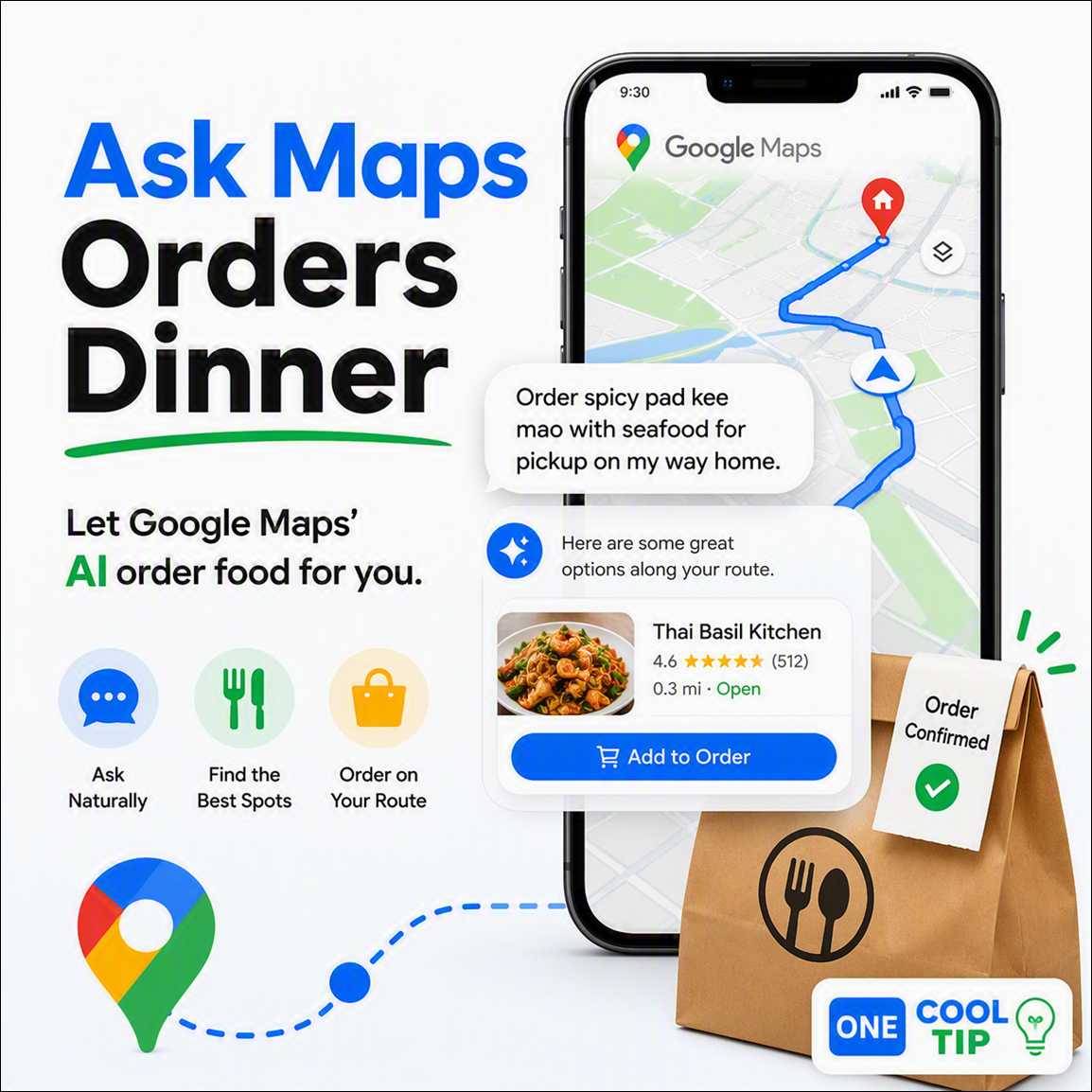
Google Maps can now handle multi-step restaurant ordering directly through conversational prompts. By combining Gemini AI models with route data and merchant partners, Ask Maps lets you build and place food orders while you travel.
Read the Newsletter Version.
| | | | Design On-Brand Decks and Convert Them to Video with Gemini | |
Transforming plain notes into fully styled presentation decks and multimedia videos no longer takes hours of formatting. With Gemini integrated into Google Slides and Google Vids, you can generate structured slide decks from reference files and turn those decks into narrated videos.
Read the Newsletter Version.
| |
ICYMI - In Case You Missed It ...
| | | | Stream Timeless Kindness: Mister Rogers’ Neighborhood Launches on YouTube | |
The official launch of a dedicated YouTube channel brings classic episodes, songs, and factory visits from Mister Rogers' Neighborhood to modern streaming devices. Parents, educators, and nostalgic fans can now easily access these timeless lessons on emotional growth and kindness for free.
Read the Newsletter Version.
| | |
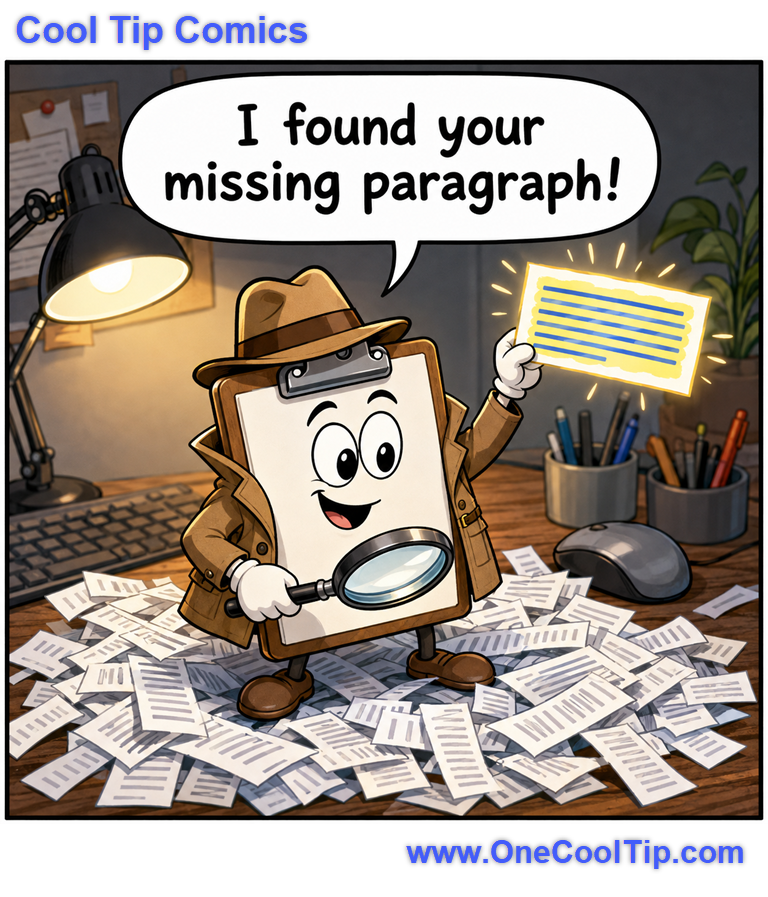
Case closed. The missing paragraph was hiding in Windows + V.
| | |
Trivia Answer: B) Windows 95
When Windows 95 launched, Microsoft introduced the Start button and Start menu, creating one of the most recognizable user interface elements in computing history.
Many of today's Windows navigation features still follow the basic design introduced with Windows 95.
The Start button became so familiar that later design changes often generated strong reactions from users, showing just how important this feature became to everyday computing.
----------
Tomorrow's Cool Tip is waiting to amaze you.
Until then, go forth and conquer the tech world with your newfound knowledge!
Be sure to visit www.OneCoolTip.com for Cool Tech Tips for a Cooler Life!
And if you like One Cool Tip, please support with TipJar!
Enjoy!
Rodger
Chief Cool Tipper
onecooltip.com@gmail.com
| |
| What do you think of today's OneCoolTip newsletter? | | | |
Please Share the One Cool Tip Newsletter!
You asked for it. You got it. There is now a One Cool Tip Newsletter archive. Did you delete a newsletter and want to read it again? Check it out HERE.
Want to help One Cool Tip grow? Please forward this email using the link above. And if you see an OCT social media post, please LIKE, COMMENT and SHARE!
Have you subscribed to the One Cool Tip YouTube channel? Subscribe HERE.
| | Connect with One Cool Tip!! | | |
|
As an Amazon Associate, One Cool Tip may earn a small commission from qualifying purchases.
Our media content is intended solely for informational purposes only. Please do not construe anything here as legal, tax, investment, financial, marital or other advice.
Copyright © 2026 | www.OneCoolTip.com | All Rights Reserved
|
| | | |