Customizing Your iPhone & iPad
So, you've got the basics down - making a phone call, taking a photo, using Safari to search the web.

Now it's time to refine this amazing device for better productivity and ease of use.
Share Contacts with Friends
You'd like to give your contact information to a friend. So, instead of tediously typing your name, address, phone(s), email address in their phone ... you can send them your information (because you have already entered your info in a Contact card and your iPhone!) and voilà.. it's now on their iPhone too.

Open the Contacts App on your iPhone
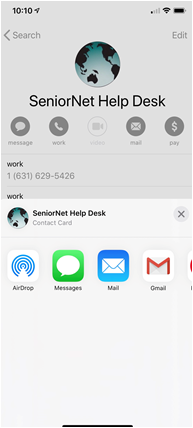
  • Find Your Contact, open it, and tap Share Contact.
  • Share will open and you can send via Mail or Messages (text).
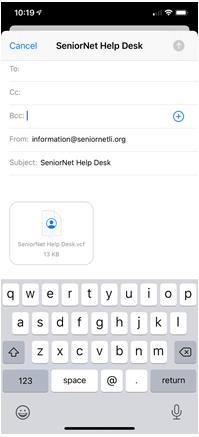
  • Tap on Mail and complete the TO field to send the email.
  • Tap Send.

For your friend on the receiving end, all they need to do is tap on the contact name vCard (.vcf) to see a preview of the information contained within (name, phone, address, etc).
  • The iPhone recipient chooses to tap either
  • “Create New Contact” to make a new address book entry for that individual, or
  • “Add to Existing Contact” to add the vCard data to an existing address book entry. For example, maybe you had the phone number but no email address so you're "updating" aka adding to existing contact.
  • Tap DONE (in upper right corner).
Open Your Contact
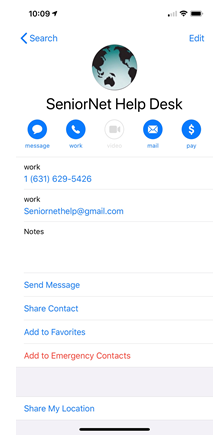
Tap Share Contact
Share Contact
Tap Mail or Message
Using Mail to Send
Notifications
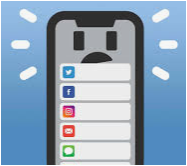
Notifications alert you to anything and everything - if you allow it.

You can fix that by customizing how you receive alerts.
Don't be a slave to your Notifications.

Make them work for you instead of driving you crazy.
Customize Notifications
Notifications are alerts that advise (aka annoy) you when you get an email, message, weather, New York Times article, Facebook post, etc. All of your apps will ask you if you want notifications. You can control if you get them and in what format.

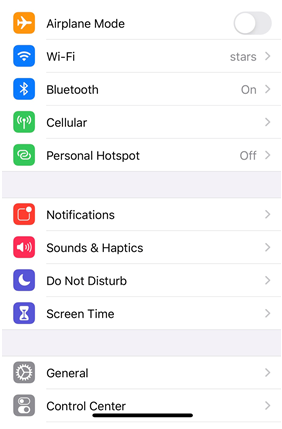
Start in Settings
Settings > Tap Notifications
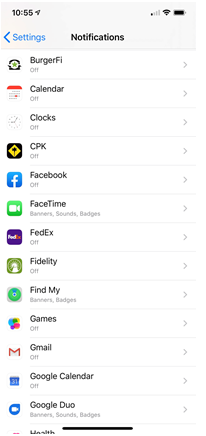
All your Apps are shown
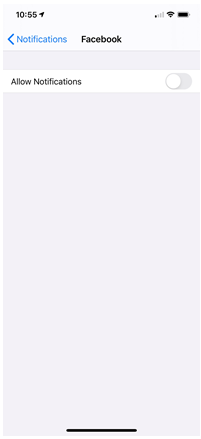
Tap on Facebook and this is showing NO notifications for Facebook
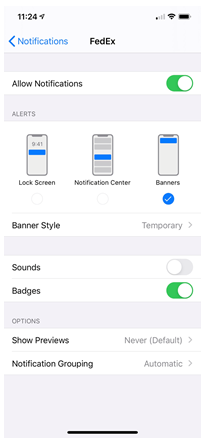
Tap on FedEx and this is allowing notifications for FedEx
My reasoning is that I do NOT want to get a Notification Banner or Sound
every time something posts to Facebook.
Allow Notifications set to OFF.

But, I do want to be alerted if a FedEx is updating me about a delivery,
but prefer to NOT get a Sound Alert.
Allow Notifications set to ON.
Sound set to OFF.
Once you enable Notifications you need to decide how they will arrive.
  • Alerts section >
  • Lock Screen - This allows Notifications to be seen on your Lock Screen. For security purposes I do not allow most Apps access to my Lock Screen as it by-passes security and gives access to your device.
  • Notification Center - This allows Notifications to show up in your Notification Center and need to be managed separately.
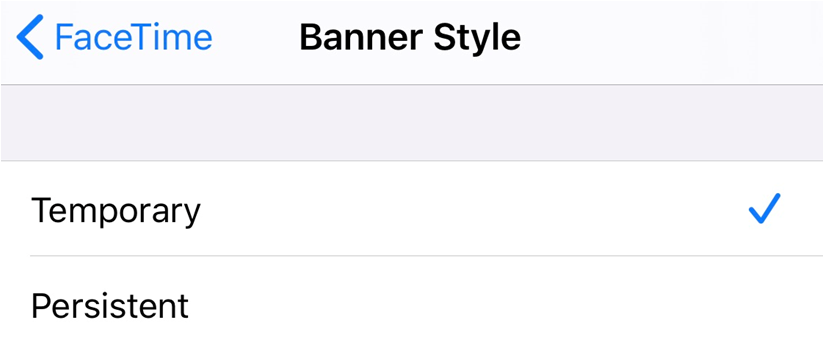
  • Banners / Banner Style - I find this the easiest way to manage Notifications. A Banner pops up at the top of your screen to alert you. Banners can be either Temporary or Persistent.
  • Temporary - gives a quick look and disappears after about three seconds
  • Persistent - stays as a banner until you swipe it away.
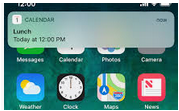
This is how the Banner will appear at the top of whatever screen is active on your device.
Sound Alerts
Do you want to hear every notification that comes in?

Some folks call this Noise Pollution!

If you do NOT want certain apps to audibly notify you then disable their sounds. This is done for each app.

Here's how to turn off notification sounds:

In the FedEx Notification Settings, I have disabled Sounds. I do not want to hear anything regarding these alerts.

But if you do want to enable a Sound, just toggle Sounds ON.
Notifications can be as simple or complicated as you want - and this is just the tip of the iceberg to get you started. Have fun!
We're here for you - email us at
The Computer Help Desk supports students’ classroom learning, provides guidance with Windows and computer operations, and advice on selecting the computer for your needs.
Stay safe & healthy!
We want to keep you apprised of technology during this health crisis.
SeniorNet at FSL is looking forward to re-engaging with everyone.