Welcome to the October issue of Tiger Bytes. This is your monthly dose of technology tips and tricks created by your Secondary BTIL team members and delivered to your inbox for you to use.


Tech Conference Reflection: ITEC


Here are a few "nuggets" from Derek Girling after attending the ITEC conference. Please follow up with the teachers listed if you have questions or want to learn more!


It was great to see the variety of tools with Google Gemini outside of the chatbox (Gems, Imagen, Deep Research, Storybook, etc.) I was able to obtain the "Gemini Certified Educator Certificate" due to the learning in this session. I look forward to continuing to explore Gemini's capabilities.


I also learned about prompting with images specifically. In Adobe Express (login with school email for free access), I am much more likely to get the desired result by including an artistic style". This is something I have never done previously, and it makes a huge difference when generating an image. 


Teacher Hack: Keyboard Shortcuts

by Briana Goodenbour & Kaitlynn DeLong


Everyone wants to be more efficient and take the quicker route. If you can incorporate some of these keyboard shortcuts, there is no limit to the amount of time and energy you will save.

Common Keyboard Shortcuts

Ctrl A = Select All 

Ctrl C = Copy 

Ctrl V = Paste 

Ctrl F = Find 

Ctrl O = Open 

Ctrl P = Print 

Ctrl S = Save 

Ctrl X = Cut 

Ctrl Y = Redo 

Ctrl Z = Undo


More Unique Keyboard Shortcuts

Ctrl Shift 8 = insert bullet points

Ctrl Shift T = reopen closed tab

Ctrl K = hyperlink a word

Alt Shift 5 = strike out selected text

Alt Tab = allows you to toggle

between windows

Shift Arrow Keys = allows you to

select more/less text

Windows Key Period = brings up

emoji window 🔥🎉💪


Curriculum Connection: Using Snorkl's AI-Powered Feedback for Student Videos

by Kenton Engels


As an instructional technology coach, I recently facilitated a professional development session introducing teachers to Snorkl, a video response platform that now includes AI-generated feedback capabilities. To demonstrate the tool, I recorded a sample student response using an assignment from Snorkl's library. A parallelogram proof from geometry.


Why Snorkl?

Snorkl's features are a potential feedback game-changer for teachers. Here's what makes it valuable:

  • Time-Saving: Students record their screen within the program. The tool then provides written feedback based on their video submission.
  • Standards-Aligned: Snorkl includes a built-in library of activities, allowing teachers to select specific standards for each assignment. The AI feedback then references those standards, making assessment more meaningful and targeted.
  • Immediate Student Feedback: Students don't have to wait for teacher feedback. They get constructive responses right away, which supports their learning process.


How It Works:

Teachers create or select a video prompt (Snorkl has a library of ready-made assignments across subjects). Students record their video responses. The AI analyzes the video against the selected standards and provides specific, actionable feedback. Teachers can review the AI feedback and add their own comments if desired.


Who Can Benefit:

This works across content areas. Any time students need to demonstrate understanding verbally or through presentation, Snorkl can streamline the feedback process.


Google Tips & Tricks: Accessing NotebookLM and Google Gemini

by Hannah Nash & Julie Cuvelier

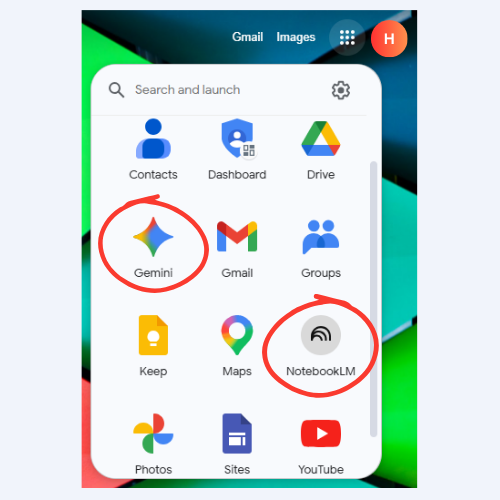
The CFCSD teaching staff now has access to NOTEBOOKLM & Google GEMINI. These are embedded in your apps through our GOOGLE DRIVE.  This means CLICK on the 9-square and locate the app in your portal.


Click the button for an example of how we took a lesson and used Gemini to enhance it. Gemini wrote RELEVANT, thorough, and engaging scenarios for high school students today. This partnership in this lesson development raised ENGAGEMENT and provided probing questions beyond, “What would you do?” Teachers love to learn, let Gemini be your guide!