iPhone & iPad Photos App Overview
|
|
Photos is where all the amazing photos you take with your
iPhone and iPad live. (iOS 13)
|
|
Open the Photos App and at the bottom of your screen you see four tabs:
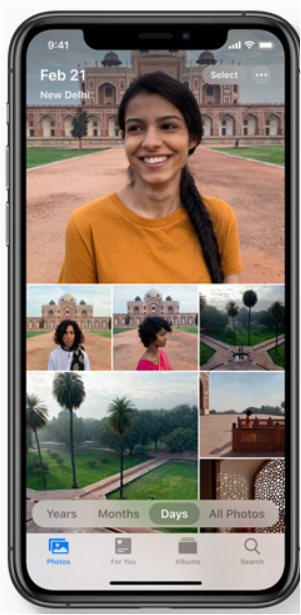
This view is "Photos"
- Photo - shows Years, Months, Days, All Photos
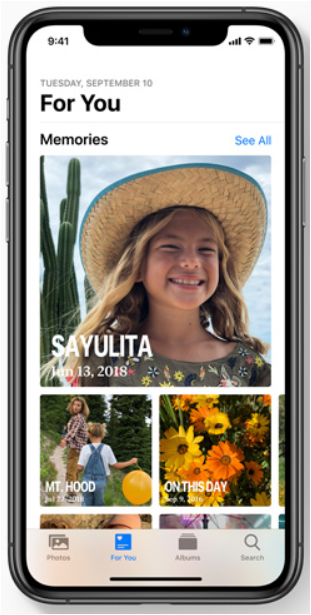
- For You - shows photos that Apple thinks you are most interested in seeing
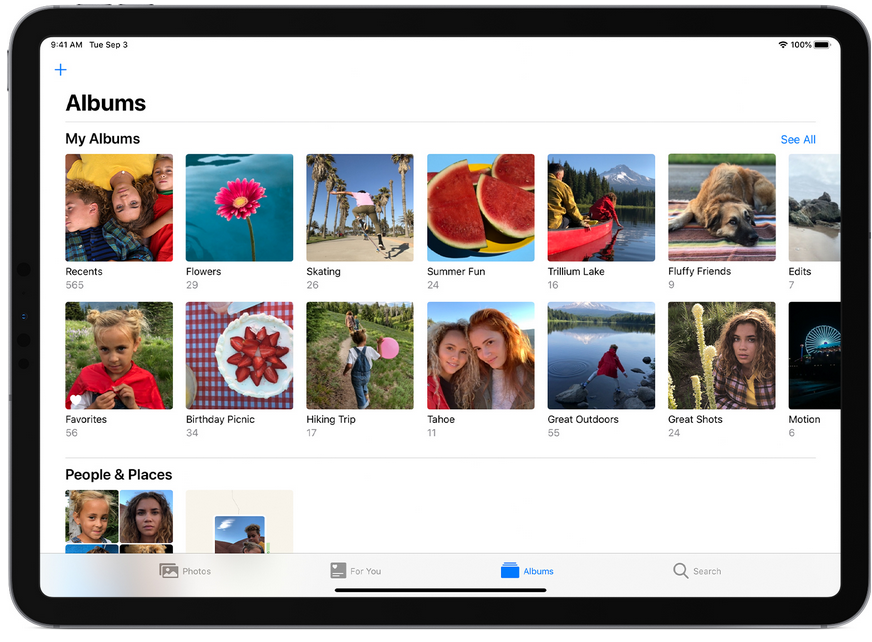
- Album – Sorts by "Albums" both default and personalized
- Search – You see suggestions for people, places, and photo categories to help you find what you’re looking for. Type a keyword into the search field to help you find a specific photo—for example, a person’s name, date, or location. And, ask Siri “Show me photos from January 2010”.
|
|
|
|
|
The
Photo Tab helps you find and relive your favorite photos and videos.
Just above the Tabs are four categories >
- Years highlights the best of your past photos.
- Months presents your photos by significant events.
- Days surfaces your best shots.
- And All Photos displays your photos and videos in a beautiful grid.
|
|
|
|
|
The
For You tab contains all your Memories, Shared Album activity, and the best moments from your library.
You’ll get intelligent suggestions about which photos could look even better with effects.
Memories intelligently searches and curates your photos and videos to find trips, holidays, people, pets, and more, then presents them in beautiful collections.
Memories also finds your best photos and videos and stitches them together into a
Memory Movie — complete with theme music, titles, and cinematic transitions — that you can edit and share.
|
|
|
|
|
In
Albums, you find the photo albums that are defaults and those you’ve created. On your iPhone, iPad, or iPod touch, the Recents* album shows your entire collection in the order you added them to your library.
- All of your photos are in either the *Recents album. The rest of the albums are sub-sets of these. For instance, the pictures in Selfies album are also in the Recents album.
- Shared Albums that you've created or joined.
- Automatic collections of different types of photos and videos, like Panoramas, Selfies, Slo-mo, and Time Lapse.
- You can even look at your photos arranged on a world map in the Places album, or browse your photos based on who’s in them in the People album.
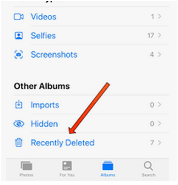
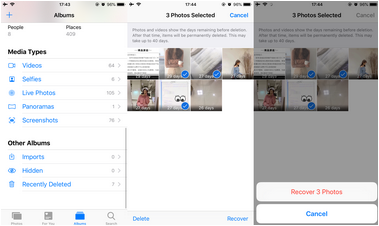
Scroll down in this view and you will find other Albums such as:
- Media Types > Selfies, Live Photos, Panoramas, Screenshots
- Other Albums > Imports, Hidden and Recently Deleted.
|
|
|
|
You must be in Album View to be able to see the Recently Deleted album.
The
Recently Deleted album is your best friend! Here is where photos temporarily live (for 30-days) when you delete them.
NOTE: You can delete a photo from an album, other than the Recents Album, and it will still exist in Recents and iCloud. (see Delete Choices below)
But if you remove it from Recents, then the photo goes into the Recently Deleted album. Photos are removed from the Recently Deleted album in rolling 30-day period, and once their time limit is up, the photo is permanently deleted including from your iCloud account.
When in the Recently Deleted album, you can
Recover a photo back to its original album by: (screenshots above)
- Open the Deleted Photos Album
- Tap Select, in upper right corner
- Tap the Photo(s) you want to recover (most recent on top), which are tagged with a blue check mark.
- Tap Recover and whoosh ... it flies back into its original album
Delete Photos Permanently:
Photos deleted from the Recently Deleted album are
permanently deleted
, no second chance to recover!
But this is a good way to free up space on your device.
|
|
|
|
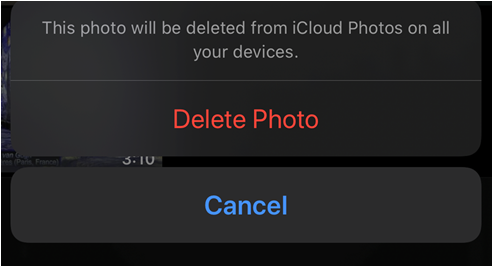
This shows a photo that is being deleted from any
default*
album
You have only one choice which is "
Delete Photo".
This photo will be deleted from iCloud Photos, if enabled, on all your devices.
Default albums are the ones that came pre-installed on your iPhone/iPad.
|
|
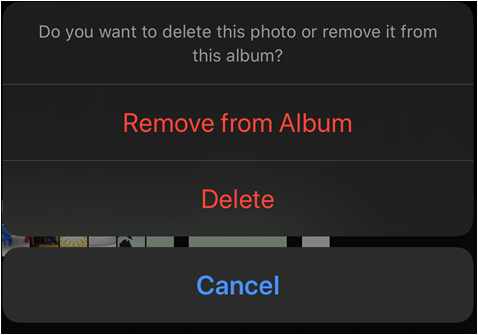
This shows a photo that is being deleted from a
personalized
album.
Tap on “
Remove from Album,” and that’s all that will happen; they’ll stay in your Recents and they’ll only disappear from the album they were deleted from.
If you tap on “
Delete,” it's the same as <<<
Delete Photo to the left.
|
|
Accidentally deleted? Recovery of the photo to your device is possible in the Recently Deleted album.
If you choose "
Delete" you have deleted the photo from
iCloud Photos
and
all associated devices, if enabled and signed into the same iCloud account.
|
|
We're here for you - email us at
The Computer Help Desk supports students’ classroom learning, provides guidance with Windows and computer operations, and advice on selecting the computer for your needs.
Stay safe & healthy!
|
|
We want to keep you apprised of technology during this health crisis.
SeniorNet at FSL is looking forward to re-engaging with everyone.
|
|
|
|
|
|
|