One Cool Tip Newsletter

September 24, 2026

Your daily dose of tech-savvy brilliance!

😀Greetings! Happy Thursday, Cool Tipper!


Get ready to streamline your digital life with simple, actionable tips delivered straight to your inbox.


Cool Tip Theme: Safari Notify Me


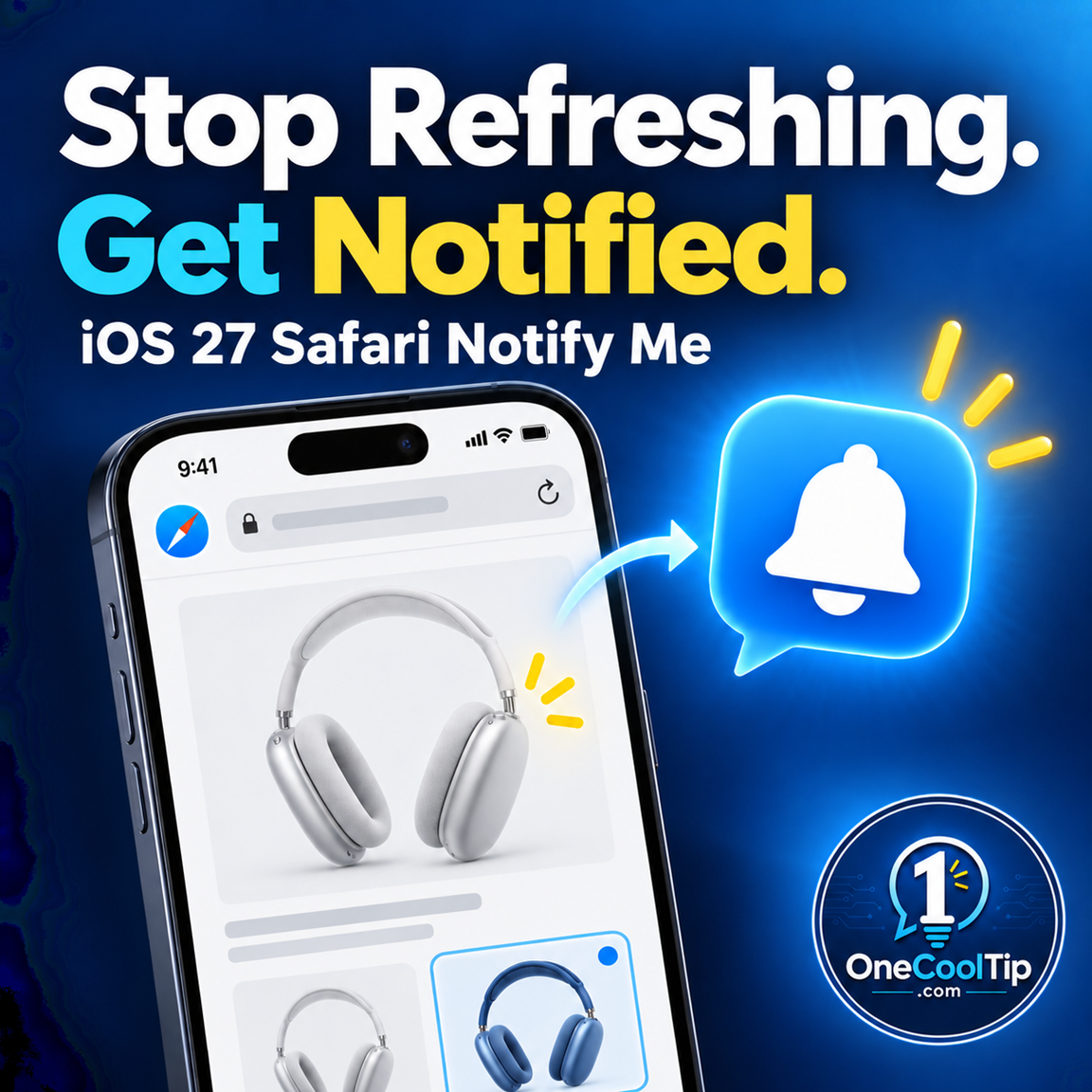
Waiting for a restock, price change, or registration opening? Safari Notify Me watches a webpage for the change you describe and alerts you when it detects one.


New here? Subscribe to the One Cool Tip Newsletter for daily updates. It's FREE!

3️⃣

If you enjoy the One Cool Tip newsletter, please forward this newsletter to THREE friends or colleagues or share it on social media using the links below.


Leave a $$$ Tip!


Share this One Cool Tip Newsletter!

X Share This Email
LinkedIn Share This Email
Pinterest Share This Email

🚨Why Every Data Breach Is a Reminder to Protect Your Personal Information🚨


The FBI recently disclosed that it is investigating claims of a compromise involving the fbijobs.gov portal and the possible exposure of personally identifiable information.


Officials say the source of the breach has not yet been determined, and the investigation is ongoing.


The lesson is simple: no organization is completely immune from cyber threats.


Make sure your most important accounts use strong, unique passwords and enable multi-factor authentication whenever available.


Regularly monitor financial accounts, credit reports, and online accounts for suspicious activity.


Data breaches are often out of your control, but how quickly you detect and respond to unusual activity is not.


A few proactive security habits today can help reduce problems tomorrow.

And in Other News...


  • Hidden in iOS 27: A Fun Piece of Apple History


Apple has tucked a nostalgic surprise into iOS 27 for longtime fans and curious users alike.


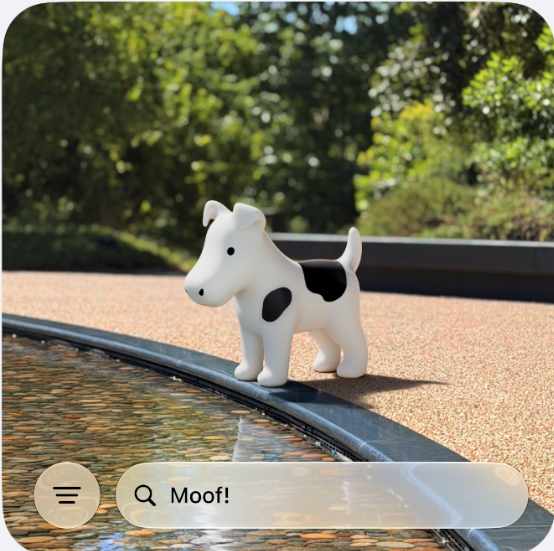
Deep inside the new Liquid Glass appearance settings is Clarus the Dogcow, a quirky mascot that dates back to the early days of the Macintosh and became a beloved part of Apple lore.


To find it, open Settings > Appearance > Liquid Glass, scroll to the bottom of the sample images, and keep scrolling until the word "Moof!" appears and the hidden image is revealed.


While this Easter egg won't make your iPhone faster or more productive, it is a fun reminder that technology companies sometimes add playful surprises for users to discover.


These hidden features also offer a glimpse into Apple's history and the traditions that helped shape the company. If you enjoy uncovering little-known tricks and secrets, this one is worth a look.

Cool Tip Poll

🤔 What would you ask Safari Notify Me to watch for?

Cool Deals of the Day

Help support One Cool Tip. Use this Amazon link when you shop online.


Check out these Cool Deals:

Apple AirPods Pro 3 Wireless Earbuds with Active Noise Cancellation: Enjoy premium wireless audio while staying connected to the trusted Apple devices associated with your Apple Account.

Save 20%. Now $199. 4.4 Stars. Check it out on Amazon!


Apple Watch Series 11 [GPS 42mm]: Keep notifications and Apple services close at hand through a wearable connected to your Apple Account and paired iPhone.

Look👉 Now $399. 4.7 Stars. Check it out on Amazon!


Apple iPad 11-inch: A trusted iPad can provide another convenient way to manage your Apple Account, reset your password, and access Apple services.

Save 5%. Now $427. 4.7 Stars. Check it out on Amazon!


*Prices accurate when originally published.

One Cool Tip may earn a commission from qualifying purchases.

Fuel Your Adventure

Try Big Mike's Jerky!


bigmikesjerky.com


Now on TikTok!


Today's Cool Tip

Stop Refreshing Webpages: Let Safari Notify You


Safari Notify Me can watch a webpage for a change you care about, such as a restock or price drop. Describe what you want Safari to find, choose how often it checks, and receive an alert when it detects an update.


You find the right product, but it is out of stock. Or registration for a class has not opened yet. 


You could keep returning to the webpage, hoping to catch the change before everyone else does.


Here’s a Cool Tip: Ask Safari to watch the page for you.


Feature Explanation


Safari’s Notify Me feature lets you describe the change you want to know about. Safari checks the webpage at an interval you can adjust and sends a notification if it detects an update. 


Apple gives price changes and product availability as examples. 


The feature is part of Apple Intelligence in iOS 27, iPadOS 27, and macOS 27.


The description you enter matters. “Tell me when this page changes” is vague.


“Notify me when the blue carry-on is back in stock” gives Safari a more useful target. 


When an alert arrives, open the webpage to confirm the current price, availability, and terms before you act.


What You’ll Gain


  • Spend less time reopening a webpage to check for an update.
  • Describe the particular change you want Safari to find.
  • Adjust how often Safari checks.
  • Receive an alert when Safari detects an update.


Step-by-Step Instructions


Here's how to do it.


iPhone and iPad


  1. Open Safari and visit the webpage you want to watch.
  2. Tap the Page Menu button, then tap Notify Me.
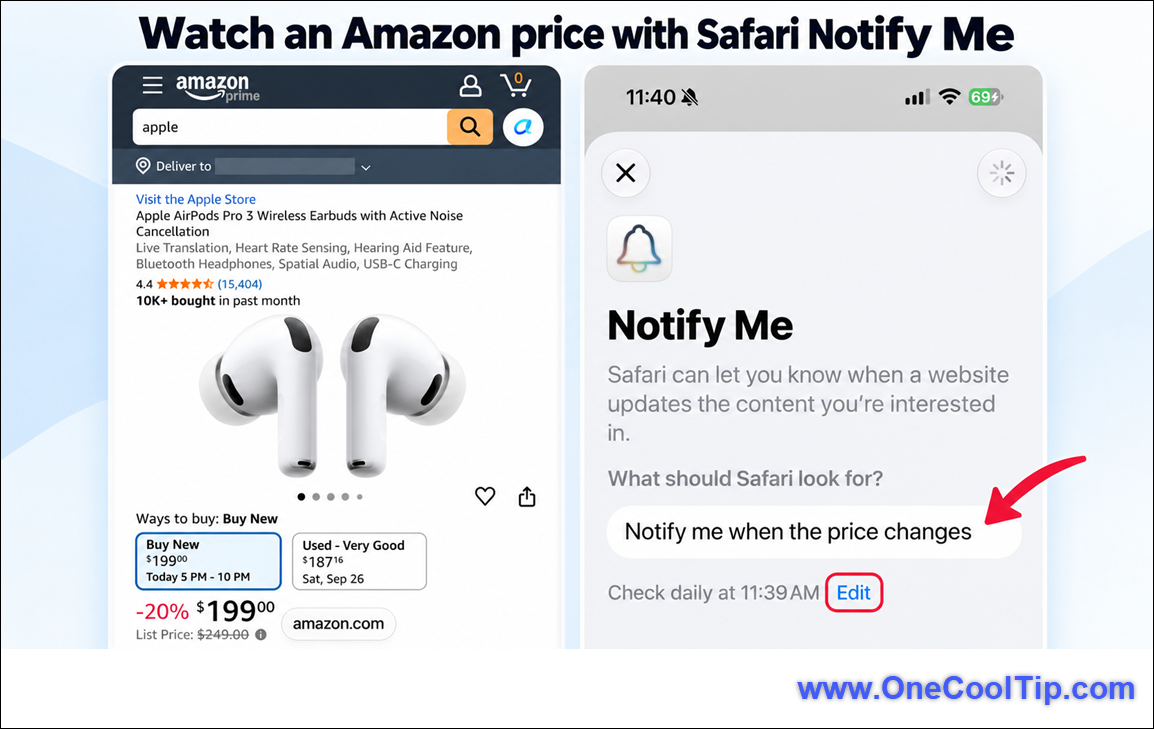
  3. Enter what Safari should look for. For example: “Notify me when the price changes.”
  4. To adjust how often Safari checks, tap Edit and choose from the available options.
  5. Tap the checkmark to finish. If Safari detects an update at the interval you selected, a notification appears on your device.


fig. 1 - Watch an Amazon Price with Safari Notify Me

Cool example:


A traveler could watch a hotel page for a particular room category to become available.


 A specific request is more useful than asking Safari to report every change to the page.


Mac


  1. Open the webpage in Safari.
  2. Click the Page menu button in the Smart Search field and choose Notify Me.
  3. Enter the change you want Safari to find.
  4. To change how often Safari checks, click Edit, choose a frequency or time, and click Done. Safari displays a notification on your Mac when it detects the update.


Pros and Cons


Pros:


  • Focused alerts: Describe the change that matters to you.
  • Less repetitive checking: Let Safari check a page you would otherwise revisit.
  • Adjustable schedule: Choose how often Safari looks for an update.
  • Built into Safari: Eligible users can set it up from the webpage’s Page Menu.


Cons:


  • Compatible devices required: Notify Me uses Apple Intelligence.
  • Periodic checks: An alert is not guaranteed to arrive the moment a webpage changes.
  • Availability varies: Apple Intelligence features may differ by language and region.
  • Verification still matters: A notification does not replace checking the live webpage before purchasing or registering.


Privacy and Data Notes


Notify Me uses the webpage you choose and the description you enter to identify an update. 


As with other notifications, an alert’s visibility depends on your device’s notification settings. 


Avoid putting private account details in your request or exposing sensitive webpage information in screenshots.


Feature Access


Safari Notify Me is for iPhone, iPad, and Mac with the corresponding version 27 operating system and a device that supports Apple Intelligence. 


Compatible iPhones include iPhone 15 Pro, iPhone 15 Pro Max, iPhone Air, and iPhone 16 models or later. 


Supported iPads include iPad mini (A17 Pro) and iPads with M1 or later.  


Supported Macs include those with an M1 chip or later, as well as the MacBook Neo (A18 Pro).


Device and Siri languages must match a supported language, and availability can vary by region.


Score

Criterion |  Score (0–10) |  Justification
Value |  8
It can save repeated checks of a page that matters to you.
Usability |  7
Setup is short, although device eligibility and the wording of your request take some attention.
Wow Factor |  7
Describing the change in plain language is a useful approach to a familiar problem.
Total: 22/30 | 👍 Good
Notify Me is a useful Safari tool for pages you would otherwise check repeatedly. Unlike a retailer’s stock alert, it lets you describe the change you want to watch from within Safari.


Key Takeaways


Safari Notify Me can check a webpage for a change you describe and alert you when it detects one.


Give it a specific request, choose an appropriate checking interval, and confirm the details on the live page when an alert arrives.


Cool Tip Snapshot


  • Feature Name: Safari Notify Me
  • Platform(s): iPhone, iPad, Mac
  • Quick Benefit: Get an alert when Safari detects a webpage change you described.
  • Best For: Restocks, price changes, and registration openings
  • Access Type: Included on eligible Apple Intelligence devices
  • Difficulty: Easy


Try It Yourself


Choose a page you have checked more than once this week and set up Notify Me with a specific request. 


Tell us what you chose in the comments, subscribe to the One Cool Tip newsletter, and share this tip with family, friends, and coworkers.


READ MORE


Read the Full Cool Tip.

Check Out These Cool Tips & Tricks


  • Be Specific: A precise request helps identify the change you care about. In Notify Me, describe the exact item, price change, or opening you want to track.


  • Check Frequency: The interval determines how often Safari looks for an update. Tap Edit during Notify Me setup to review the available choices.


  • Verify Alerts: A notification is your cue to inspect the current webpage. Open it before making a purchase or reservation.


  • Save Pages: Bookmarks keep useful webpages easy to find. Open Safari’s Share menu and choose Add Bookmark.


  • Read Later: Reading List saves an article for another time. Open the Share menu and choose Add to Reading List.


  • Use Reader: Reader can simplify supported articles. Open the Page Menu and select Show Reader when available.


  • Find Text: Search a long webpage for a name or phrase. Open the Page Menu and use Find on Page.


  • Group Tabs: Tab Groups keep related research pages together. Open the Tabs view and create a group for a project or trip.


  • Browse Privately: Private Browsing keeps a browsing session out of your regular history. Open the Tabs view and switch to Private.


  • Check Alerts: Review Safari’s notification controls if alerts are not appearing. On iPhone, check Settings > Apps > Safari > Notifications if that option is shown.

ICYMI - In Case You Missed It ...

Word's New Link to Location Feature Ends the "Scroll Down" Problem


Microsoft Word now lets you create a direct link to a specific location inside a document. If you work with long reports, proposals, research papers, or shared team documents, this feature can eliminate a surprising amount of friction.


Read the Full Version.


Read the Newsletter Version.

Looking for your next adventure?


Call Denise at Travel For You.

314.660.3039


Sign Up for the Monthly Newsletter


http://www.travelforyouvacations.com/


https://www.facebook.com/TRAVEL.FOR.U/


See You Tomorrow

Tomorrow's Cool Tip is waiting to amaze you.


Until then, go forth and conquer the tech world with your newfound knowledge!


Be sure to visit www.OneCoolTip.com for Cool Tech Tips for a Cooler Life!


And if you Like One Cool Tip, please support with TipJar!


Enjoy!


Rodger

Chief Cool Tipper

onecooltip.com@gmail.com


What Do You Think?

What do you think of today's OneCoolTip newsletter?
Positive        Neutral        Negative
X Share This Email
LinkedIn Share This Email

Connect with One Cool Tip!

Facebook  X  Instagram  Web  Pinterest  YouTube  LinkedIn
 

As an Amazon Associate, One Cool Tip may earn a small commission from qualifying purchases.


Our media content is intended solely for informational purposes. Please do not construe anything here as legal, tax, investment, financial, marital or other advice.


Copyright © 2026 | www.OneCoolTip.com | All Rights Reserved