|
One Cool Tip Newsletter
November 11, 2026
| Your daily dose of tech-savvy brilliance! | |
😀 Greetings! Happy Windows Wednesday Cool Tipper!
Get ready to streamline your digital life with simple, actionable tips delivered straight to your inbox.
Cool Tip Theme: Edge's New Tab Experience
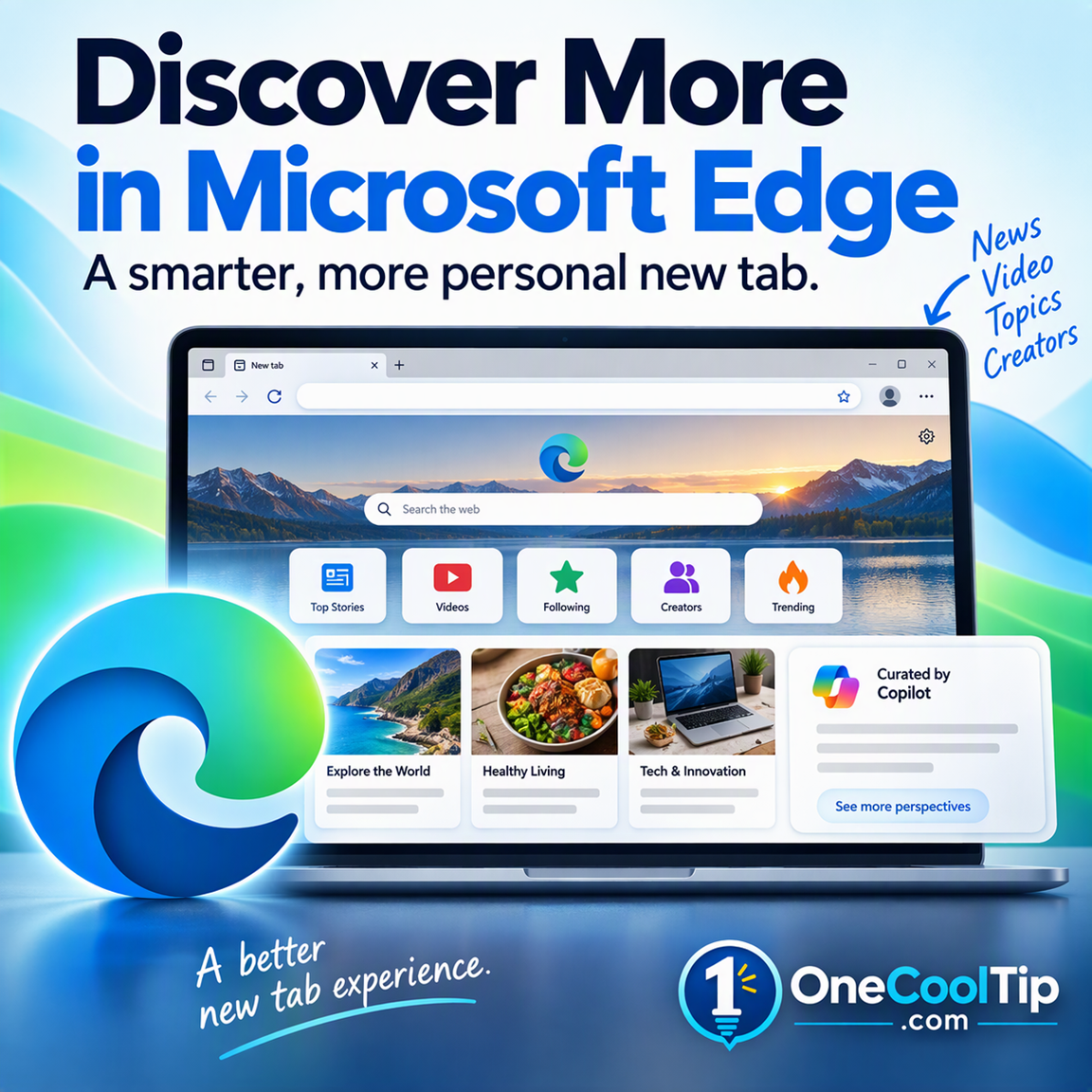
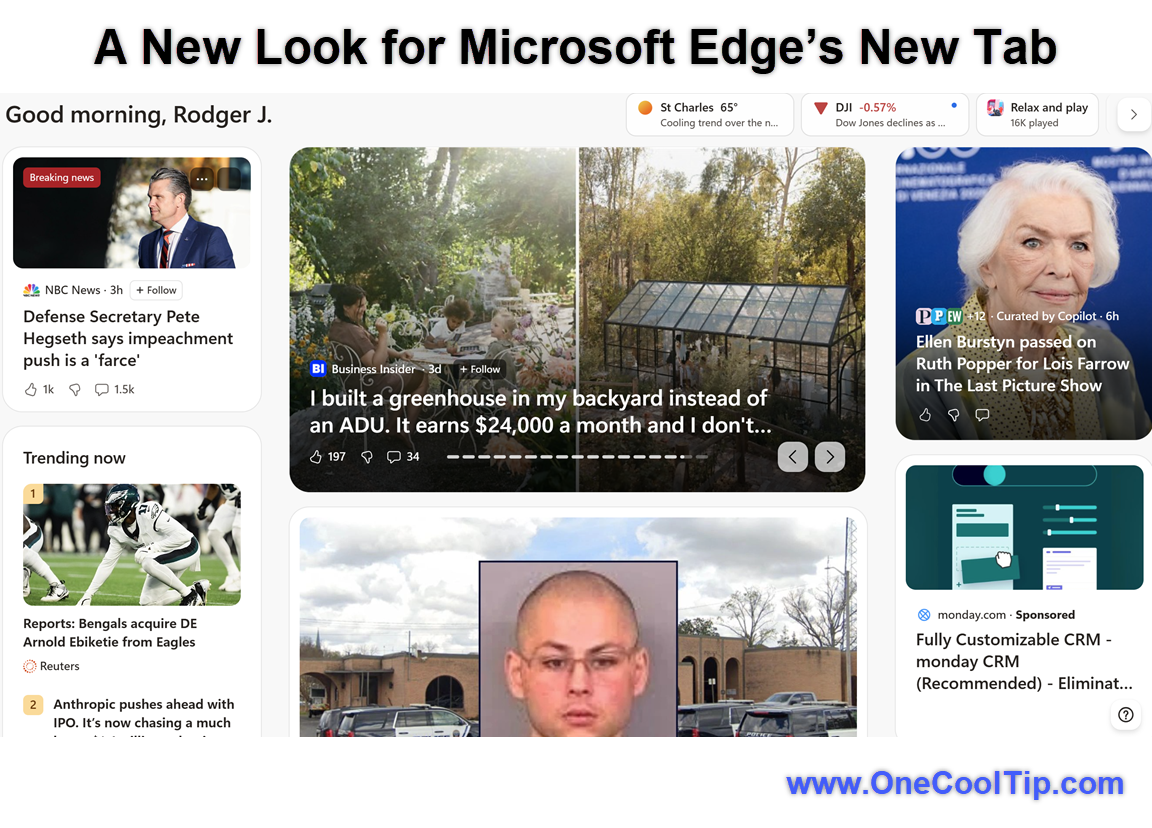
Microsoft Edge's redesigned new tab experience adds smarter recommendations, more video and personalized topics, publishers and creators.
New here? Subscribe to the One Cool Tip Newsletter for daily updates. It's FREE!
| |
3️⃣
If you enjoy the One Cool Tip Newsletter, please forward this newsletter to THREE friends or colleagues or share it on social media using the links below.
Leave a $$$ Tip!
Share this One Cool Tip Newsletter!
| | |
🚨 Who Gives A Crap Customers Hit by Data Breach🚨
Who Gives A Crap, an eco-friendly toilet paper and household paper products company, says some customer information was accessed without authorization following a security incident at one of its marketing software providers.
The exposed information included names, email addresses, phone numbers, mailing addresses and the total amount customers had spent with the company.
Payment details, order details and passwords were not involved, and the company says customer accounts were not directly accessed.
Who Gives A Crap says it has disconnected the provider from its systems and changed access credentials.
The company also says it has no evidence so far that the exposed information has been misused.
The Cool Tip:
If you're an affected customer, be especially cautious of unexpected emails, texts or calls that use your personal information to make a message appear legitimate.
And in Other News...
- Microsoft Edge Wants to Save You Money While You Shop
Holiday shopping could get a little easier with new built-in tools in Microsoft Edge.
Edge can recognize when you have similar products open in multiple tabs and offer to have Copilot compare their prices, specifications and other information in one view.
At checkout, the new Checkout Savings feature can look for an available coupon and surface it without sending you to another coupon site.
Edge also includes Price Comparison, Price History and Price Tracking tools that can help you decide whether you're really getting a good deal.
The shopping tools are built into Edge for Windows and Mac, although availability and functionality can vary by website.
Here's how to do it.
- Open Microsoft Edge and shop normally at a participating retailer.
-
To compare products: Open similar products in separate tabs. When Edge offers to compare them, select the comparison option and Copilot will create a side-by-side summary.
-
To check prices: Look for the Shopping tag in the address bar and select it to see Price Comparison, Price History and other shopping information.
-
To track a price: Turn on Price Tracking for an item and Edge can alert you if the price drops.
-
To find coupons: Continue to checkout and Checkout Savings can automatically look for an available coupon and surface one when found. No extension is required.
The Cool Tip:
Before buying that holiday gift, check Edge's Shopping tools to see if there's a better price or coupon waiting for you.
| |
| 🤔 What do you want to see when you open a new browser tab? | | | |
-
Have you tried the Upside app? Everyday cash back on gas, groceries and dining.
Help support One Cool Tip. Use this Amazon link when you shop online.
Check out these Cool Deals:
| | |
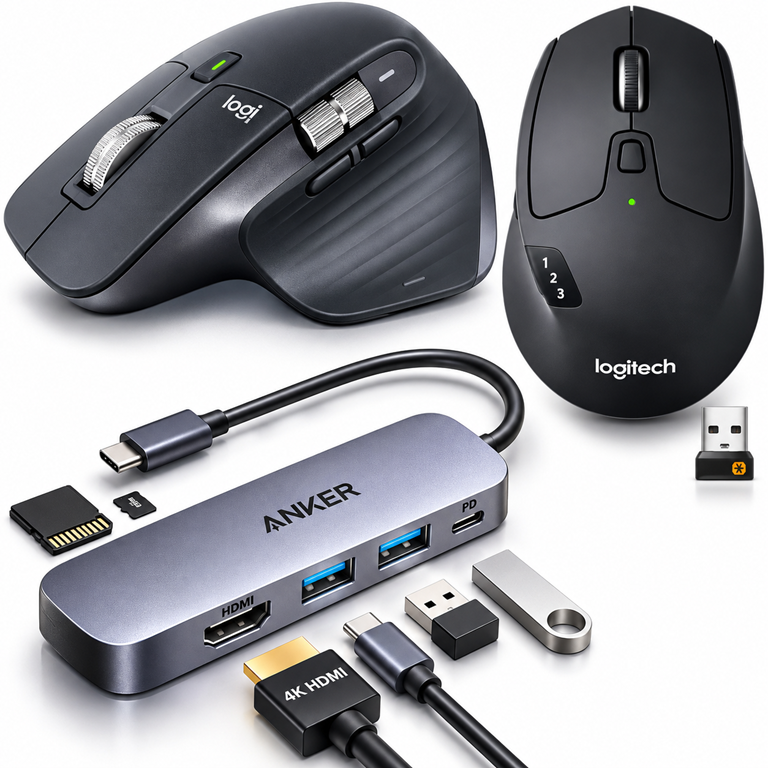
🖱️ Logitech MX Master 3S Wireless Mouse: Its fast scrolling and programmable controls make browsing lengthy articles and websites easier.
Save 20%. Now $79.99. 4.6 Stars. Check it out on Amazon!
🖱️ Logitech M720 Triathlon Multi-Device Mouse: A convenient choice for switching between multiple desktop or laptop computers.
Amazon's Choice! Now $44.99. 4.4 Stars. Check it out on Amazon!
🔌 Anker 7-in-1 USB-C Hub: Adds connection options for a laptop-based browsing workstation, including external display support.
Save 15%. Now $21.99. 4.5 Stars. Check it out on Amazon!
*Prices accurate when originally published.
One Cool Tip may earn a commission from qualifying purchases.
| | Microsoft Edge Makes Every New Tab More Personal | | |
Opening a new tab in Microsoft Edge can now lead to more than another search box.
Microsoft's redesigned content experience puts more emphasis on relevant stories, video, personalized topics, publishers and creators, while giving you controls to tailor what appears.
| | |
By Rodger Mansfield, Technology Editor
November 11, 2026
Subscribe
You open a new browser tab intending to search for one thing.
Before typing a word, you spot a story about a subject you follow. Five minutes later, you've learned something you weren't looking for.
Microsoft wants to make that kind of discovery more useful.
On Nov. 5, Microsoft introduced a redesigned content experience for the Microsoft Edge new tab page.
The updated experience uses smarter recommendations and a wider range of voices and formats to help people find useful content.
Microsoft has also expanded Curated by Copilot, which uses AI to synthesize perspectives from multiple articles into one view.
Readers can then explore the original reporting in greater detail.
Here’s a Cool Tip: Personalize your Edge new tab page around what you actually want to read.
Feature Explanation
Microsoft describes this as a “reimagined content experience” built into Edge's new tab page.
The company says it rebuilt its recommendation system to put greater emphasis on relevance, freshness and quality so the stories displayed better reflect a person's interests and what's happening in the world.
The redesigned experience includes trending stories, personalized articles and videos, publishers and creators. Users can also follow topics and publishers to tailor what appears.
Video receives a larger role.
Microsoft reported on Nov. 5 that video accounted for more than 40% of engagement on its content platform and that its partners were publishing more than 45,000 videos each day.
Then there's Curated by Copilot.
Microsoft says the AI-powered feature synthesizes perspectives from multiple articles into one view based around topics the reader cares about. Attribution to the original sources gives people a way to continue to the underlying reporting.
That last part matters. An AI-generated overview can help you understand a topic quickly, but important stories still deserve a visit to the original reporting.
What You’ll Gain
-
Find relevant stories faster: Microsoft's redesigned recommendation system emphasizes relevance, freshness and quality.
-
Personalize what you see: Follow topics and publishers that interest you.
- Discover more video: Video receives more prominent placement and recommendations in the redesigned experience.
-
Compare perspectives: Curated by Copilot can synthesize information from multiple articles while connecting readers to original reporting.
Step-by-Step Instructions
Here's how to do it.
Microsoft Edge Desktop
-
Open Microsoft Edge on a desktop computer.
-
Open a new tab.
-
If the redesigned experience is available in your market, explore the content presented on the new tab page.
-
Follow topics and publishers that interest you to tailor what appears.
-
Review the available settings to customize the look and feel of the experience.
| | fig. 1 - A New Look for Microsoft Edge’s New Tab | |
How to Open the Discover Dashboard in Windows 11
-
Select the Widgets area on the Windows 11 taskbar, or press Windows key + W to open the Widgets board.
-
In the navigation bar, select Discover.
-
This opens the Discover dashboard and its personalized stream of news and other content.
-
If Discover does not appear, select the Settings button on the navigation bar.
-
Under Dashboards, make sure Discover is set to On.
-
Return to the Widgets board and select Discover from the navigation bar.
Cool Tip:
- You can personalize Discover by selecting your user account button while viewing the dashboard.
- Under the Discover tab, you can choose topics and publishers to follow.
-
You can also use More like this or Fewer like this on individual stories to help fine-tune your feed over time.
Pros and Cons
Pros:
-
Better personalization: Following topics and publishers gives readers more control over what appears.
-
More formats: The experience combines articles, video, publishers and creators.
-
Source discovery: Curated by Copilot provides attribution to original sources, giving readers a path to the underlying reporting.
-
Convenient location: The experience is built directly into the Edge new tab page for eligible users in supported markets.
Cons:
-
Limited initial markets: U.S., Canada, U.K., Australia and India.
-
Potential distraction: A richer content feed won't appeal to everyone, particularly people who prefer a quiet browser start page.
-
Personalized recommendations aren't for everyone: Some readers will still prefer choosing each news source themselves.
-
Mobile comes later: Planned for the coming months.
Who Should Skip This
If you prefer your browser's new tab page to be a simple, distraction-free starting point, an expanded content experience may not add much value.
The same is true if you already use an RSS reader or another carefully curated source for your news.
For some people, a blank new tab is still the better productivity tool.
Troubleshooting and Limitations
Problem: The redesigned content experience doesn't appear.
-
Why it happens: Several settings can affect what you see when you open a new tab. The new experience initially launched in the U.S., Canada, U.K., Australia and India. You may also see a different new-tab experience if the Copilot new tab page is enabled or if Edge is configured to open a different page.
-
Fix or workaround: First, open a new tab and check its Settings to make sure content is enabled. If you are seeing the Copilot/AI experience instead, open the new-tab Settings, select More settings, and check the Copilot new tab page setting. Also check Settings > Start, home, and new tab page to make sure Edge is using the new-tab page you expect. If you are outside a currently supported market, you may need to wait for Microsoft to expand availability.
Problem: I don't want so much content on a new tab.
-
Why it happens: The redesigned experience is intended to surface stories, articles, videos, publishers and creators.
-
Fix or workaround: Review the available new tab settings. Microsoft says users can adjust settings to customize the look and feel of the experience.
Privacy and Data Notes
Personalized recommendations naturally raise questions about what information shapes what you see.
Edge can store information such as cookies and browsing history on a device and, depending on settings, may send some browsing data to Microsoft.
Edge also collects required diagnostic data, while users can control whether optional diagnostic data is shared.
For tracking prevention, Edge provides Basic, Balanced and Strict settings under:
- Settings and more > Settings > Privacy, search, and services > Tracking prevention
The practical approach is to review your Edge privacy settings, customize the content experience to suit your preferences and treat AI-generated summaries as starting points rather than replacements for original reporting.
Feature Access
- The redesigned content experience is available when opening a new tab in Edge on desktop or opening the Discover dashboard from the Windows taskbar in:
- U.S.
- Canada
- U.K.
- Australia
- India
- Microsoft plans to expand the experience to more countries and surfaces, including mobile and MSN.com, in the coming months.
Score
Criterion | Score (0–10) | Justification
Value | 7
Better recommendations and easier content discovery can be useful, although readers who prefer minimalist browser tabs may see less value.
Usability | 8
The experience sits directly on the new tab page, with options to follow topics and publishers and adjust settings.
Wow Factor | 7
Curated by Copilot and the broader mix of publishers, creators and video make the refresh interesting, but browser content feeds themselves aren't new.
Total: 22/30 | 👍 Good
Microsoft's redesigned Edge new tab experience is a useful improvement for people who already use their browser as a gateway to news and discovery.
Compared with a conventional browser content feed, the most interesting addition is the expanded Curated by Copilot, which synthesizes perspectives from multiple articles while providing attribution to original sources.
Key Takeaways
Microsoft's redesigned Edge experience gives readers more ways to shape what appears when they open a new tab.
The strongest additions are better recommendations, topic and publisher following, more prominent video, and Curated by Copilot. Readers who prefer a quiet browser start page may find the richer experience more distracting than useful.
Cool Tip Snapshot
-
Feature Name: Microsoft Edge Redesigned New Tab Content Experience
-
Platform(s): Edge desktop and Windows Discover dashboard in supported markets
-
Quick Benefit: More personalized content and news discovery
-
Best For: News readers, students, researchers and curious browsers
-
Access Type: Free / Regional Availability
-
Difficulty: Easy
Learn More
Microsoft's official Edge announcement explains the redesigned new tab experience, including smarter recommendations, additional publishers and creators, more prominent video, Curated by Copilot, personalization options and current availability.
Try It Yourself
Open a new tab in Microsoft Edge and take a closer look at the redesigned content experience.
Follow a topic or publisher, explore the available customization options and tell us whether the new experience makes Edge more useful or simply more distracting.
Comment with your experience, subscribe to the One Cool Tip newsletter, and share this Cool Tip with family, friends and coworkers who use Microsoft Edge.
READ MORE
Read the Full Cool Tip!
| | |
Check Out These Cool Tips & Tricks
-
Follow Publishers: Following publishers is another documented way to customize what you see. Choose sources you're genuinely interested in following.
-
Check Sources: Curated by Copilot synthesizes perspectives from multiple articles while providing attribution to original sources. Use those sources when a story deserves closer attention.
-
Adjust Settings: You can adjust settings to customize the new experience's look and feel. Review the available controls and choose what works for you.
-
Read Deeper: Treat Curated by Copilot as a starting point rather than the final word. Continue to the original reporting when accuracy and context matter.
-
Watch Video: Microsoft is giving video more prominent placement and recommendations in the redesigned experience. Explore video when that format makes sense for the subject.
-
Reduce Distraction: More content isn't necessarily better for every workflow. If the feed pulls you away from what you opened Edge to accomplish, adjust the available settings.
-
Review Privacy: Edge provides Basic, Balanced and Strict tracking-prevention levels. Review them under Settings and more > Settings > Privacy, search, and services > Tracking prevention.
-
Consider Balanced: Microsoft identifies Balanced as its recommended tracking-prevention setting. Strict blocks more trackers but can cause some websites to behave unexpectedly.
-
Check Availability: Don't assume something is wrong if the redesigned experience is missing. The U.S., Canada, U.K., Australia and India are available markets.
| | ICYMI - In Case You Missed It ... | | | | |
Ask Gemini in Chrome to Explain Videos and Audio You Just Played
Gemini in Chrome can examine the video and audio content you play in your browser tabs to answer specific questions, pull quick summaries, and locate key information. Here is how to verify your settings, ensure page sharing is active, and query multimedia content without hunting through timestamps.
Read the Full Version.
Read the Newsletter Version.
| | |
Tomorrow's Cool Tip is waiting to amaze you.
Until then, go forth and conquer the tech world with your newfound knowledge!
Be sure to visit www.OneCoolTip.com for Cool Tech Tips for a Cooler Life!
And if you Like One Cool Tip, please support with TipJar!
Enjoy!
Rodger
Chief Cool Tipper
onecooltip.com@gmail.com
| |
| What do you think of today's One Cool Tip Newsletter?
| | | | Connect with One Cool Tip! | | |
|
As an Amazon Associate, One Cool Tip may earn a small commission from qualifying purchases.
Our media content is intended solely for informational purposes. Please do not construe anything here as legal, tax, investment, financial, marital or other advice.
Copyright © 2026 | www.OneCoolTip.com | All Rights Reserved
|
| | | |