New Features in FPSOnline!

We have added some new features to FPSOnline based on user feedback that will help improve the experience for all user roles. Please review the info below and share it with all of your FPS coaches and students. Thank you all for your continued feedback and support. We look forward to continuing the progress of the FPSOnline system.


New 2022 GIPS Scoring Updates

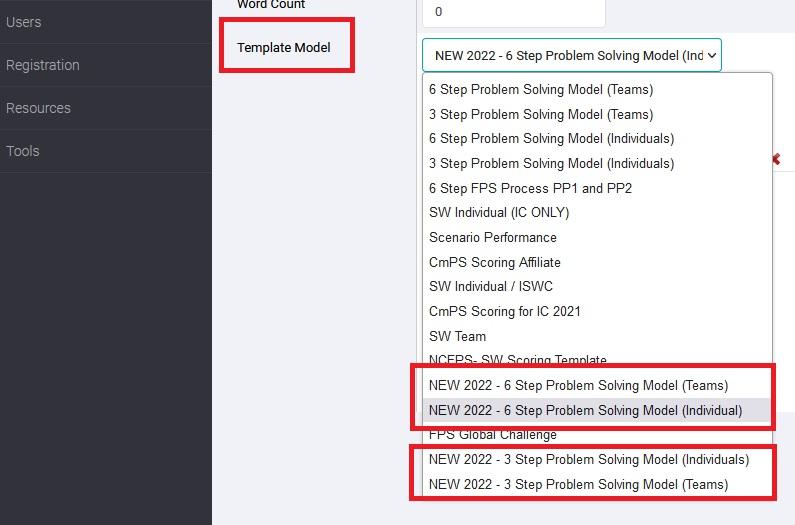
We have created new templates that apply the new 2022 GIPS scoring changes. To use these new GIPS updates, when making your topic --> Under the 'Template' tab --> In the 'Template Model' drop-down menu --> Select one of the templates with 'NEW 2022' at the beginning of the template name. There will be 4 to choose from 3 Step Individual, 3 Step Team, 6 Step Individual, and 6 Step Team.


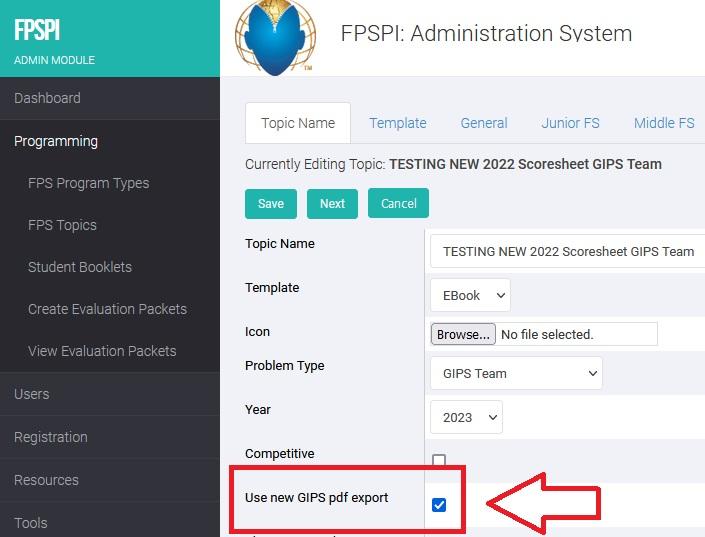
For the exported pdf scoresheet to apply the new scoresheet changes, you will also need to check the checkbox located under the 'Topic Name' tab --> the checkbox is labeled 'Use new GIPS pdf export'.

Pop-up Warning for Students


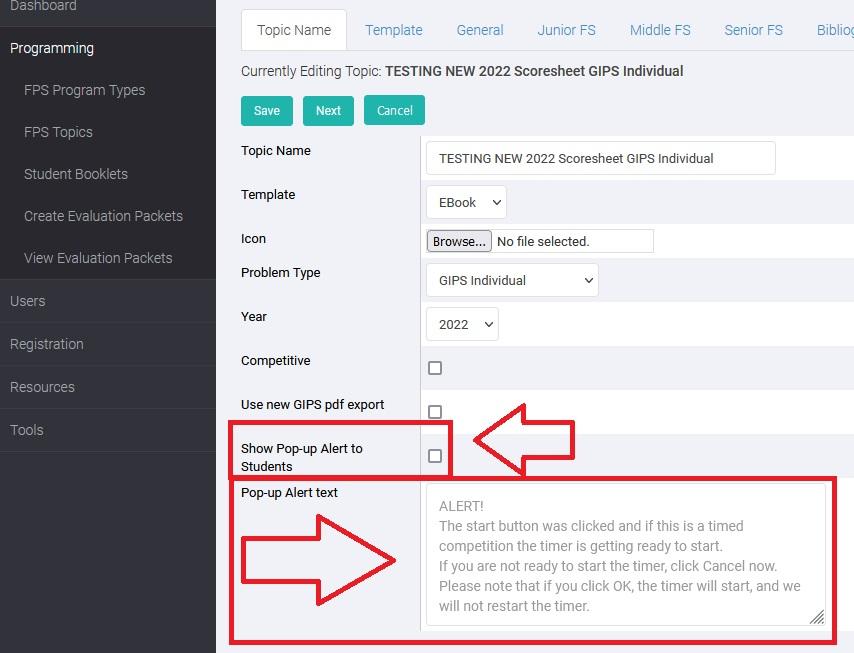
We have added an additional layer for informing the students when they click the 'Go To Virtual Booklet' button that their timer will start so they have the opportunity to back out and not start the timer before they are ready to begin. You can enable this pop-up alert box when creating a topic --> Under the 'Topic Name' tab --> The checkbox is labeled 'Show Pop-up alert to Students' --> Check that box and save the changes.

Also directly under that checkbox is a text area that has a predefined alert box message displayed however, you can customize that alert box message by typing your message into the text area.


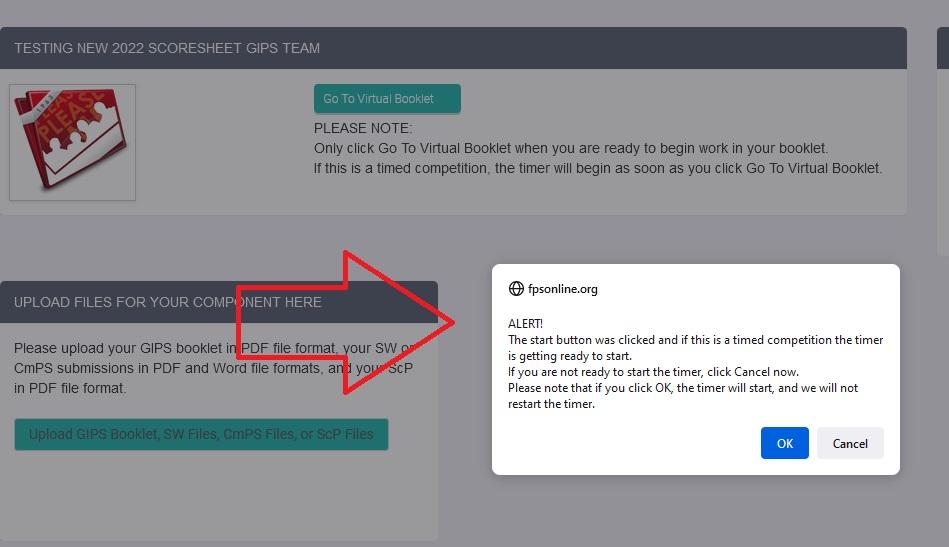
All students associated with that topic will receive a pop-up alert once they click the 'Go To Virtual Booklet' button where they will be provided an option to press 'OK' and proceed to enter the booklet and start the timer OR they can press 'Cancel' to back out of the action and not start the timer.


Highlighting in the Future Scene

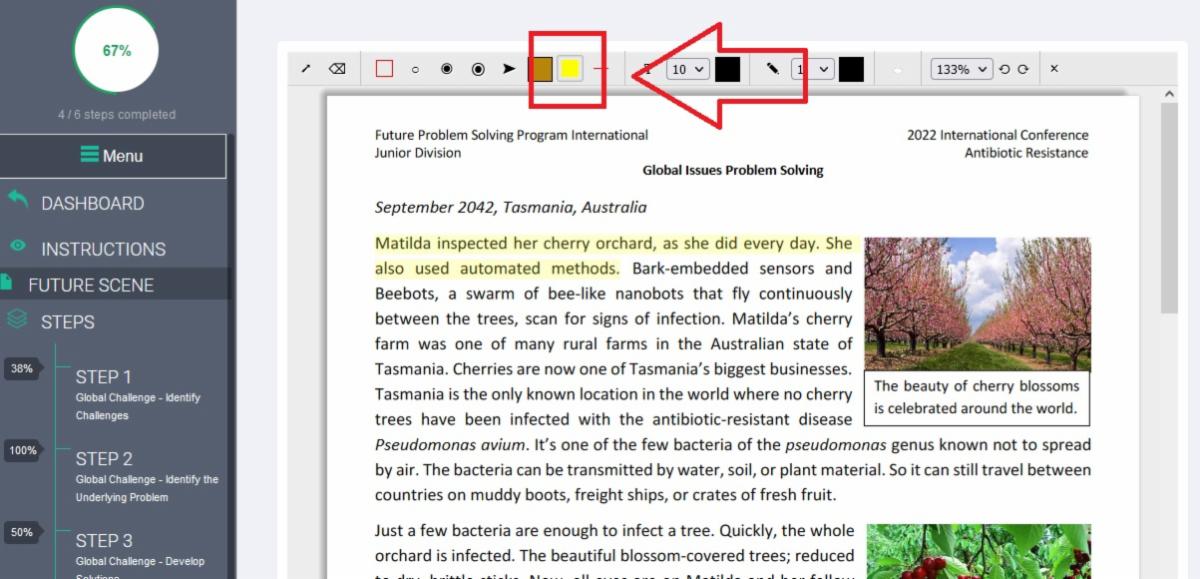
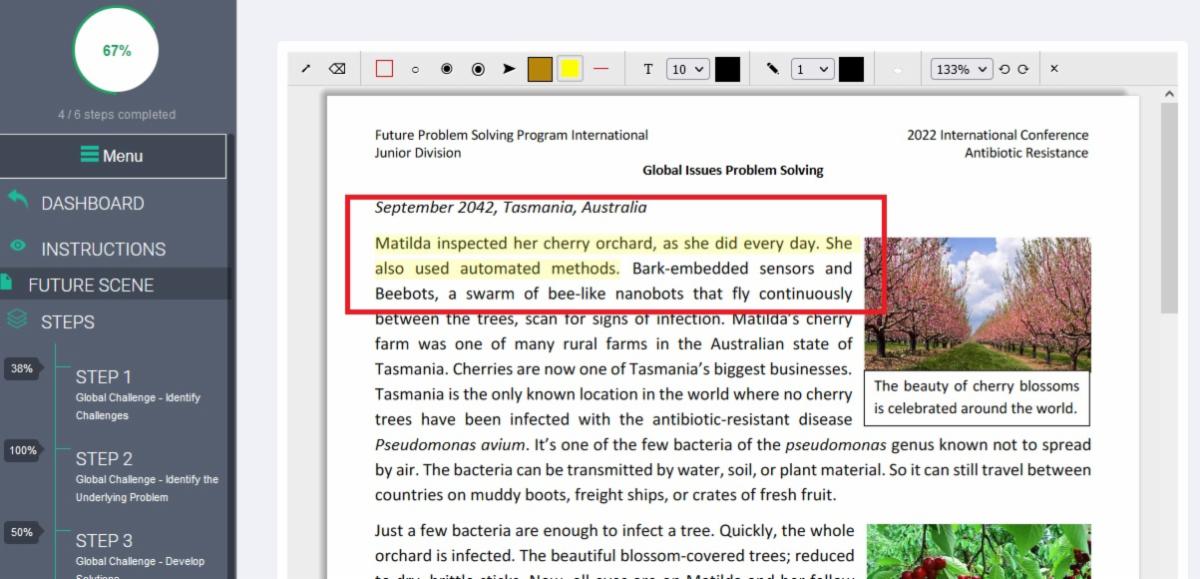
We have added the ability for students to highlight in the Future Scene (FS). To enable the highlight feature when viewing the FS, there is a 'Yellow' box located in the toolbar at the top of the FS. Click that yellow box and then drag the cursor over the text to highlight it. Once done click off of the text and it should then be highlighted. Any text highlighted in the FS will also be visible as highlighted to other team members if this is a GIPS Team viewing the same FS.

Please email Damien at damien@fpspi.org if you have any questions.

Facebook  Twitter  Instagram  LinkedIn  YouTube