One Cool Tip Newsletter

November 17, 2026

Your daily dose of tech-savvy brilliance!

😀 Greetings! Happy Tuesday, Cool Tipper!


Get ready to streamline your digital life with simple, actionable tips delivered straight to your inbox.


Cool Tip Theme: Chrome Enhanced Autofill


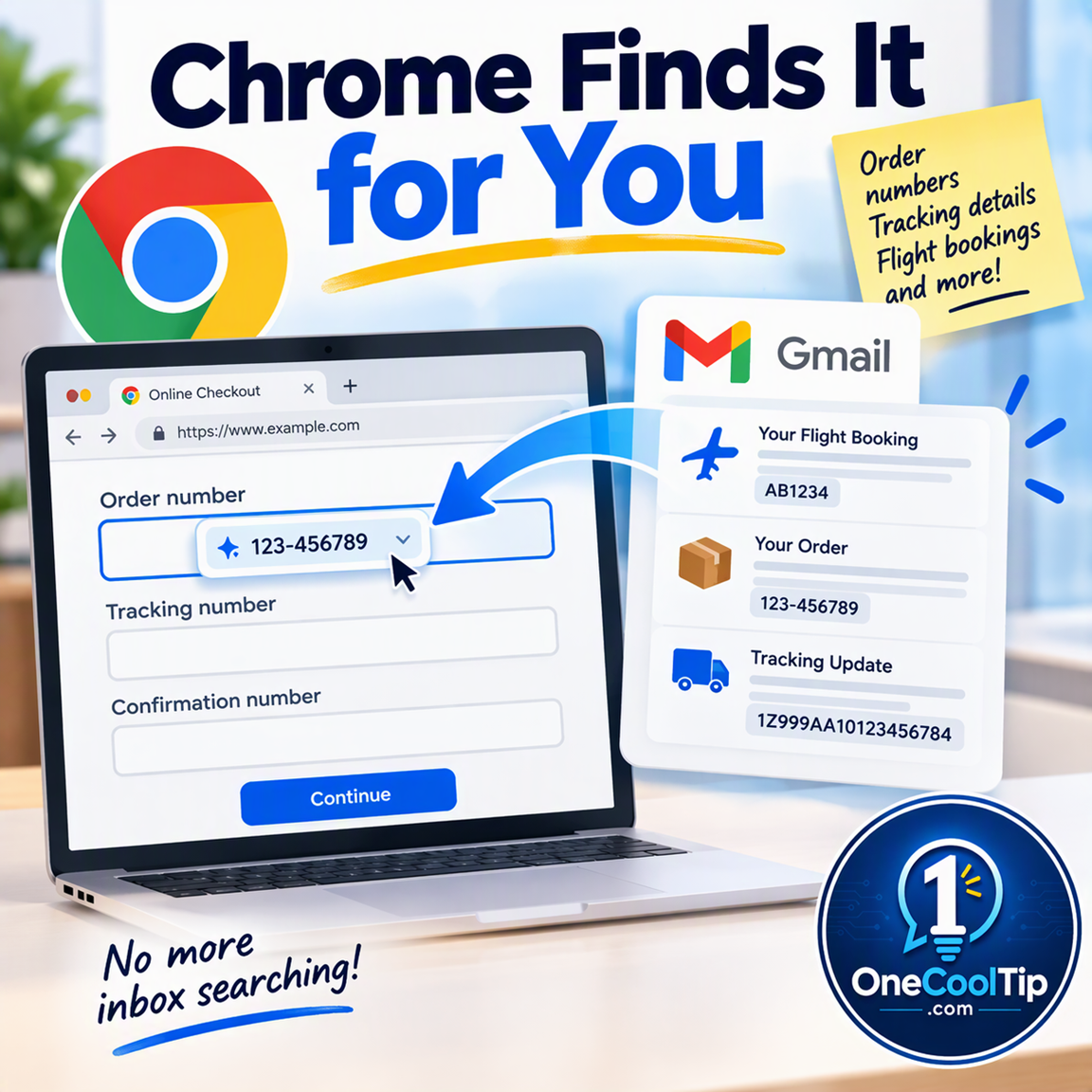
Save time by allowing Google Chrome's enhanced autofill feature to suggest order numbers, tracking IDs and flight details directly from Gmail.


New here? Subscribe to the One Cool Tip Newsletter for daily updates. It's FREE!

3️⃣

If you enjoy the One Cool Tip Newsletter, please forward this newsletter to THREE friends or colleagues or share it on social media using the links below.


Leave a $$$ Tip!


Share this One Cool Tip Newsletter!

X Share This Email
LinkedIn Share This Email
Pinterest Share This Email

🚨 Before You Buy That Gift Card, Check the Back 🚨


That gift card hanging on a store rack may already be compromised.


The Federal Trade Commission warns that scammers sometimes remove protective stickers or scratch off the back of gift cards so they can steal the card number and PIN before the card is purchased.


Once an unsuspecting shopper buys the card and adds money, the scammer can use those stolen numbers to take the funds.


Before buying a gift card, carefully check the back for scratched areas, missing protective stickers or other signs of tampering.


If something looks suspicious, don't buy the card and alert a cashier or store manager.


The FTC also recommends keeping a copy of the gift card and store receipt in case you need to report a problem.


The Cool Tip:


Before buying a gift card from a store display, inspect it for scratched-off areas, missing stickers or other signs that someone may have tampered with it.


And in Other News...


  • Chrome Just Got Another Security Update. Don’t Put This One Off.


Google Chrome received another important security update this past week, just days after an earlier update.


The latest desktop release includes 80+ security fixes, including five vulnerabilities rated Critical.


The update brings the Stable version to 157.0.8103.78/.79 on Windows and Mac and 157.0.8103.78 on Linux.


Chrome normally updates automatically, but an update may be waiting if you rarely close and reopen your browser.


You can check manually by opening the three dot menu in the top right, then Help, About Google Chrome.


Let Chrome download any available update, and select Relaunch if prompted.


The Cool Tip:


Open About Google Chrome today and make sure Chrome has installed the latest security update before you keep browsing.


  • Don’t Be Alarmed: A Nationwide Emergency Alert Test Is Coming


The Federal Communications Commission says a nationwide test of the Emergency Alert System is scheduled for today, Nov. 17, 2026, at approximately 2:20 p.m. Eastern Time.


The test will be conducted by the Federal Emergency Management Agency in coordination with the FCC.


The Emergency Alert System is the national system being tested, so this announcement should not be confused with a nationwide Wireless Emergency Alert test specifically targeting cellphones.


The FCC also says the alert must comply with its accessibility requirements.


If today's test cannot take place, Dec. 3, 2026 is the backup date.


The Cool Tip:


Mark 2:20 p.m. ET today on your calendar so you’ll know the nationwide emergency alert is a scheduled test and not an unexpected emergency.

Cool Tip Poll

🤔 How do you usually find your confirmation numbers?

Cool Deals of the Day

  • Have you tried the Upside app? Everyday cash back on gas, groceries and dining.


Help support One Cool Tip. Use this Amazon link when you shop online.


Check out these Cool Deals:

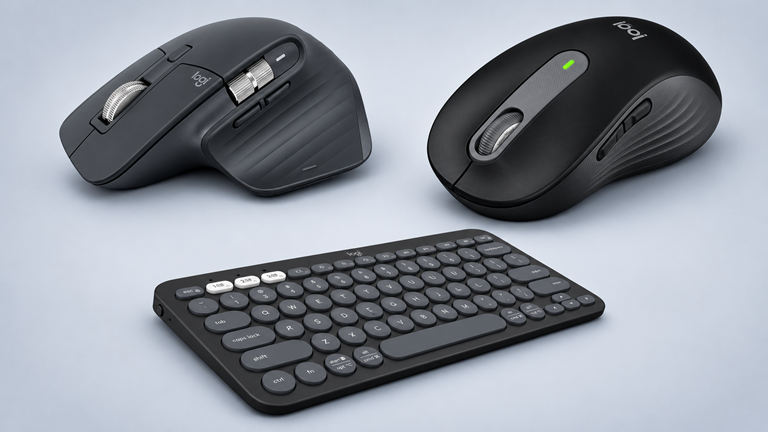
🖱️ Logitech MX Master 3S Wireless Mouse: Navigate your web browser with precision and speed using this highly rated productivity mouse.

Save 20%. Now $79.99. 4.6 Stars. Check it out on Amazon!


⌨️ Logitech Pebble Keys 2 K380s: A compact keyboard for finishing fields you still need to type.

Save 15%. Now $33.99. 4.3 Stars. Check it out on Amazon!


🖱️ Logitech Signature M650 Wireless Mouse: A straightforward wireless mouse is useful for browser-heavy work and everyday form filling.

Look! Now $39.99. 4.5 Stars. Check it out on Amazon!


*Prices accurate when originally published.

One Cool Tip may earn a commission from qualifying purchases.

Fuel Your Adventure

Try Big Mike's Jerky!


bigmikesjerky.com


Today's Cool Tip

Fill Web Forms Faster With Chrome's New Gmail Autofill

Tired of switching tabs to find confirmation codes? Google Chrome now uses artificial intelligence to automatically suggest order numbers and flight details directly from your Gmail inbox.

By Rodger Mansfield, Technology Editor

November 17, 2026

Subscribe


Booking a flight or checking the status of an online order often involves a familiar, frustrating ritual. 


You open a web form, realize you need a specific 10-digit confirmation number and then switch over to your email to hunt for the right message. 


You copy the number, return to the form and hope you did not accidentally copy an extra space. 


Google is changing that process. 


The company recently updated its browser to bridge the gap between your inbox and the forms you fill out every day.


Here's a Cool Tip: Use Chrome's enhanced autofill to let the browser find your confirmation numbers for you.


Feature Explanation


Google Chrome has remembered names, street addresses, phone numbers and credit cards for years.


That traditional autofill relies on information you manually save to your browser profile. 


The new enhanced autofill feature works differently. 


Instead of relying on static data you type into settings, it dynamically reads information from your Gmail inbox.


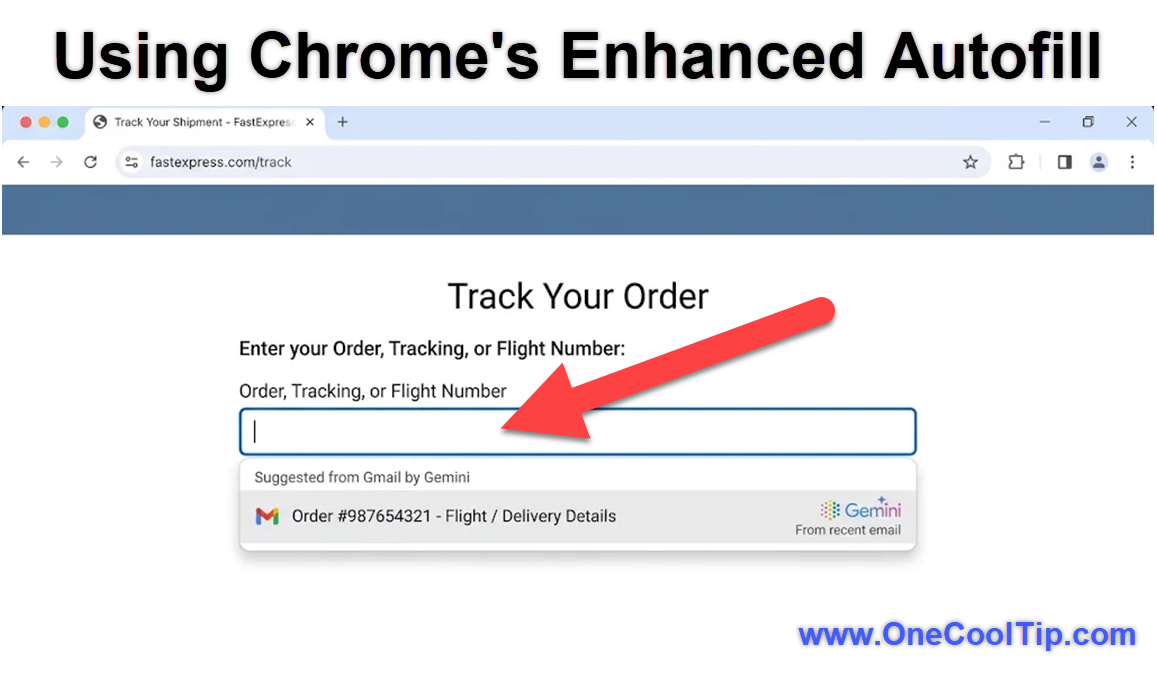
When you click into a web form that asks for a tracking number, membership ID or flight reservation code, Chrome uses Gemini artificial intelligence to scan your recent emails for the correct information. 


If the browser finds a match, it displays the information in a dropdown menu right below the text field.


The option includes a label stating it was suggested by Gemini. 


You simply click the suggestion to populate the field. This capability saves you the trouble of opening a new tab, searching your inbox and copying text. It turns a multi-step chore into a single click.


What You'll Gain


  • Save time by eliminating the need to search through your inbox for confirmation numbers.
  • Reduce confusion when sorting through multiple emails from the same airline or retailer.
  • Make daily work easier by keeping your focus on the current web page rather than juggling tabs.


Step-By-Step Instructions


Here's how to do it.


Web/Desktop:


  1. Navigate to a retailer or airline website that requires a confirmation number.
  2. Click into the empty text field.
  3. Look for the dropdown menu offering a suggestion labeled by Gemini.
  4. Click the suggestion to automatically fill the text box.


fig. 1 - Using Chrome's Enhanced Autofill

Windows, macOS, iPhone/iPad, Android:


  1. Open the Google Chrome browser.
  2. Click the three vertical dots in the upper right corner to open the menu.
  3. Select Settings.
  4. Click Autofill and passwords in the left sidebar.
  5. Select Enhanced autofill.
  6. Toggle the feature on.
  7. Click into a supported web form field, such as a flight booking number, and select the Gemini suggestion from the dropdown menu.


Pros And Cons


Pros:


  • Speeds up the checkout and customer service process for online shoppers.
  • Helps business users quickly enter invoice or tracking numbers into shipping portals.
  • Eliminates the risk of mistyping long, complex alphanumeric reservation codes.
  • Integrates directly into the browser without requiring third-party extensions.


Cons:


  • Requires users to enable Personal Intelligence, which grants Gemini access to personal email data.
  • Currently limited to users in the United States, based on the October 2026 rollout announcement.
  • Excludes work, school and supervised accounts.


Who Should Skip This


Users who prefer strict separation between their email and their web browser should leave this feature disabled. 


If your inbox contains sensitive medical or financial correspondence that you want to keep entirely isolated from browser scripts, manual copying and pasting remains the safer choice. 


Additionally, individuals outside the United States or those using Google Workspace accounts for business or school will not be able to use the feature at this time.


Configuration Guide


You control enhanced autofill through the main Chrome Settings menu under the Autofill and passwords section. Here, you can toggle the entire feature on or off. 


Because this capability relies on Google Gemini, you must also have a personal Google account with the Keep Activity setting switched on. 


Furthermore, you need to enable Personal Intelligence, which is the specific permission that allows Gemini to read data from connected apps like Gmail. 


If you ever want to stop Gemini from reading your email completely, you can visit your Gemini settings and disconnect Gmail under the Connected Apps menu.


Troubleshooting And Limitations


Problem: The suggested information is incorrect.


  • Why it happens: The artificial intelligence might pull a number from an older email or misinterpret a string of text.
  • Fix or workaround: You can delete a bad suggestion directly from the dropdown menu and manually type the correct information.


Problem: The enhanced autofill option is missing from the settings menu.


  • Why it happens: The feature requires a personal Google account and is currently rolling out to U.S. users only.
  • Fix or workaround: Ensure you are logged into a personal account rather than a school or work account. If you meet the criteria, you may need to wait for the rollout to reach your specific device.


Problem: The browser does not suggest anything when clicking a form field.


  • Why it happens: The website might use custom code that Chrome does not recognize as a standard input field for tracking or order numbers.
  • Fix or workaround: You will need to manually retrieve the information from your email for that specific website.


Privacy And Data Notes


Allowing a browser to read your email requires a high level of trust. Google states that sensitive data remains encrypted and that the user stays in control. 


However, enabling Personal Intelligence means you are allowing artificial intelligence to process the contents of your inbox. 


The system reads your emails to identify relevant strings of numbers and text. 


For consumer accounts, the default setting often allows Google to use your interactions to improve its artificial intelligence models, meaning human reviewers could potentially read snippets of data. 


If privacy is your primary concern, you may prefer to opt out of these data collection settings or keep the feature disabled entirely.


Feature Access


  • This feature is currently rolling out to users in the United States on desktop, Android and iOS devices. 
  • You must use Gemini in Chrome and have Personal Intelligence enabled. 
  • The tool requires a personal Google account for users who are 18 or older. 
  • The feature is not available for work, school or supervised accounts, and it is not currently available in regions like the European Economic Area or the United Kingdom.


Score

Criterion |  Score (0–10) |  Justification
Value |  8
Eliminates the annoying task of searching for confirmation codes.
Usability |  9
Works automatically and requires just one click to use.
Wow Factor |  6
Helpful and clever, though it feels like a natural extension of existing tools.
Total: 23/30 | 👍 Good
This is a highly practical update that removes friction from everyday web browsing, similar to how password managers eliminate the need to memorize login credentials.


Key Takeaways


Chrome's enhanced autofill bridges the gap between your inbox and web forms. 


By using artificial intelligence to pull order numbers and flight details from Gmail, it saves you from constantly switching tabs. 


While it requires you to grant Google more access to your personal data, the convenience it offers for online shopping and travel is substantial.


Cool Tip Snapshot


  • Feature Name: Enhanced Autofill
  • Platform(s): Windows, macOS, Android, iOS, Web
  • Quick Benefit: Automatically fills web forms with tracking and order numbers from Gmail.
  • Best For: Online shoppers and frequent travelers.
  • Access Type: Free, currently rolling out to U.S. personal accounts
  • Difficulty: Easy


Learn More


Read the official announcement to understand exactly how Chrome uses Gemini to make filling out online forms faster and more accurate.


Try It Yourself


Next time you need to track a package or check in for a flight, let Chrome do the heavy lifting. 


Turn on enhanced autofill and see how much time you save. 


Do you think this is a helpful addition to Chrome? 


Share your thoughts in the comments, subscribe to the One Cool Tip Newsletter and share this Cool Tip with family, friends and coworkers.


READ MORE


Read the Full Cool Tip!

Check Out These Cool Tips & Tricks


  • Fast Settings: Access Autofill. Type chrome://settings/autofill in your address bar to jump straight to the menu.


  • Quick Delete: Remove suggestions. Highlight a bad suggestion in the dropdown and press Shift plus Delete to erase it.


  • Check Sync: Verify account. Click your profile picture in Chrome to ensure you are logged into the correct personal account.


  • Activity Controls: Manage Gemini. Visit your Google Account dashboard to review your Keep Activity settings for artificial intelligence.


  • Form Click: Trigger suggestions. Double-click inside an empty text box to force Chrome to display available autofill options.


  • Security Check: Protect data. Run Chrome's Safety Check in the settings menu to ensure your saved information is secure.


  • Update App: Get features. Check the Google Play Store or Apple App Store to ensure your mobile browser is up to date.


  • Tab Management: Close tabs. Use the new autofill feature to reduce the number of email tabs you leave open while shopping.


  • Limit Access: Disconnect apps. Go to your Google account settings if you decide you no longer want Gemini to read your emails.


  • Test Drive: Try it. Book a fake hotel reservation and immediately check the website to see how fast the feature recognizes the email.

ICYMI - In Case You Missed It ...

Combine Carts Across Stores Using Google's New Universal Cart


Juggling dozens of browser tabs and forgotten online carts across different websites creates digital clutter and missed savings. Google's new Universal Cart unites your items from multiple retailers into a single shared shopping hub inside Google Search and the Gemini app.


Read the Full Version.


Read the Newsletter Version.

Looking for your next adventure?


Call Denise at Travel For You.

314.660.3039


Sign Up for the Monthly Newsletter


http://www.travelforyouvacations.com/


https://www.facebook.com/TRAVEL.FOR.U/


See You Tomorrow

Tomorrow's Cool Tip is waiting to amaze you.


Until then, go forth and conquer the tech world with your newfound knowledge!


Be sure to visit www.OneCoolTip.com for Cool Tech Tips for a Cooler Life!


And if you Like One Cool Tip, please support with TipJar!


Enjoy!


Rodger

Chief Cool Tipper

onecooltip.com@gmail.com


What Do You Think?

What do you think of today's One Cool Tip Newsletter?
Positive        Neutral        Negative
X Share This Email
LinkedIn Share This Email

Connect with One Cool Tip!

Facebook  X  Instagram  Web  Pinterest  YouTube  LinkedIn
 

As an Amazon Associate, One Cool Tip may earn a small commission from qualifying purchases.


Our media content is intended solely for informational purposes. Please do not construe anything here as legal, tax, investment, financial, marital or other advice.


Copyright © 2026 | www.OneCoolTip.com | All Rights Reserved