|
Stop Accidental Disclosures With Gmail's New Reply All Warning
Google recently introduced a privacy safeguard in Gmail that warns you before replying to all participants on an email thread where you are not directly listed. This notification helps prevent embarrassing mistakes when you receive a message as a blind carbon copy.
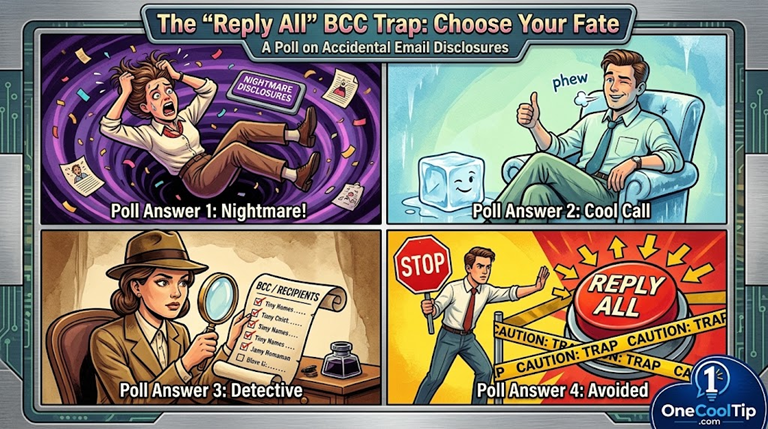
We have all experienced that moment of panic after hitting send on an email.
You receive a message from a boss or client, click reply to all, and suddenly realize you were originally blind copied.
Your response just alerted everyone on the thread that you were secretly listening in on the conversation.
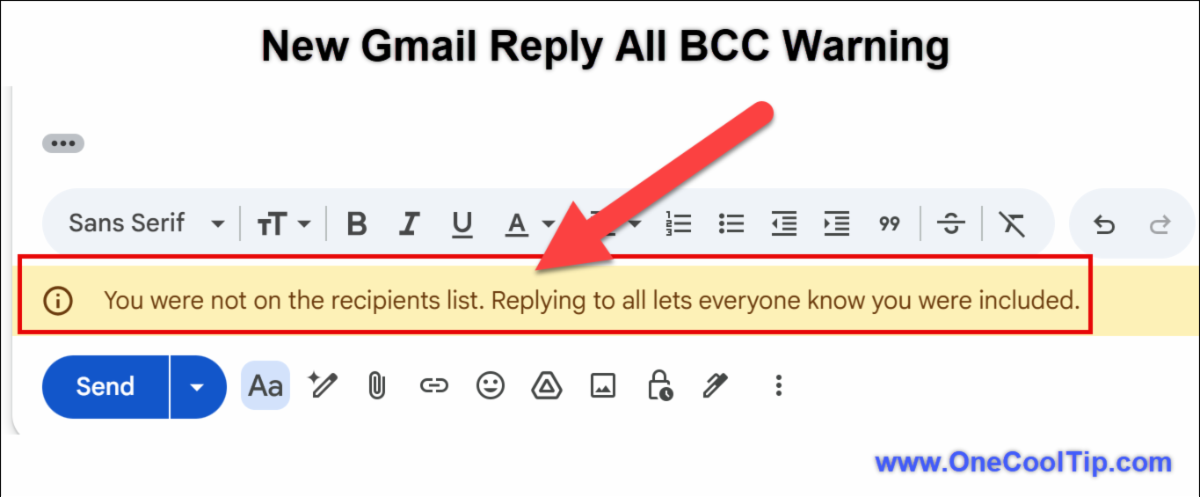
Here’s a Cool Tip: Watch for the yellow warning banner in Gmail before you hit send.
Google is finally solving this common communication problem.
A recent update to Gmail adds a simple but effective safety net for those times when you are not explicitly named in the recipient list.
Feature Explanation
The new Reply All warning in Gmail is a direct intervention tool designed to protect your privacy and professional reputation.
When you click the reply to all button on an email where your address is missing from the To or CC fields, Gmail automatically displays a prominent alert.
The banner clearly states that you are not on the recipients list and that replying to all lets everyone know you were included.
This feature works behind the scenes to analyze message headers.
If your email address arrived via a BCC, an auto-forwarding rule, or a delegated account, the system recognizes the mismatch between the visible recipients and your account.
The warning gives you a chance to pause and reconsider your action.
This matters because accidental disclosures can breach trust in business negotiations, violate client confidentiality, or simply cause awkward social interactions.
Anyone who frequently handles sensitive information benefits from this added layer of security.
It is a newly available, built-in protection that requires zero configuration from the end user.
What You’ll Gain
- Save time by avoiding apologies for unintended replies.
- Reduce confusion when managing emails forwarded from secondary accounts.
- Improve privacy by keeping your hidden recipient status secure.
- Make daily work easier by relying on automated prompts instead of manual checks.
Step-by-Step Instructions
Here's how to do it.
Web/Desktop:
-
Open your web browser and navigate to Gmail.
-
Select a message where you were included as a BCC recipient or received the message through an auto-forwarding rule.
-
Click the Reply All button at the bottom of the message or in the top right menu.
-
Look at the top of the compose window. You will see a banner stating that you are not on the recipients list.
-
Choose whether to discard the draft, switch to a standard Reply, or proceed with the Reply All if you truly intend to reveal your presence.
|