Learn21's Weekly EdTech Update
May 16, 2024
| |
|
ETLA Deadline Looming: Submit your Proposals by Sunday, May 19th
Time is almost up! We are in the last few days of accepting proposal submissions for the EdTech Leaders Alliance 2024 Conference! Formerly known as the Learn21 Ohio CoSN-ISTE Conference, our new name, ETLA, signifies our commitment to bringing together the best in educational leadership across the Midwest. We are excited to offer the same great Workshops and Presentations as years past with two new session types, OH Talks and L21 Talks.
The portal to submit proposals is open and will close Sunday, May 19, 2024.
Conference Details
When: Sunday, October 20 - Tuesday, October 22, 2024
Who: Administrators, Instructional and Technology leaders, Teachers, Innovators
Where: Nationwide Conference Center Columbus, Ohio
Session Types
- Workshops - 2.5 hour sessions on Monday, 10/21 only. These are hands-on opportunities to dive deep into a topic. Participants should be able to leave with something they can apply in their practice.
- Presentations - 45 minute sessions offered on Monday, 10/21 and Tuesday, 10/22. More traditional conference-type sessions but instructional best practices are expected to apply.
- OH Talks - 10-minute talks on the main stage at 4pm on Monday, 10/21 or online at a pre-conference session. These are an excellent opportunity for engaging speakers to pontificate on an educational topic about which they are passionate.
- L21 Talks - 21 slides for 21 seconds (no exceptions) on Tuesday, 10/22. These talks are for the adventurous presenter.Possible Session Topics
Possible Session Topics:
- Curriculum Design and Development: Innovative approaches to curriculum planning and development that incorporate technology and digital tools.
- Cybersecurity and Data Privacy: Addressing the challenges and best practices for ensuring cybersecurity and privacy of data in educational settings.
- Digital Equity, Access, and Accessibility: Addressing the challenges and solutions related to providing equal access to technology and digital resources that meet the learning of individual students and staff members.
- Innovative Instructional Strategies: Presentations on cutting-edge teaching techniques, especially those integrating technology in classrooms.
- Leadership and Vision: Focus on effective leadership strategies and visioning for school leaders.
- Professional Development: Effective professional development models and practices for educators in the digital age.
- Social-Emotional Learning and Technology: Exploring the intersection of social-emotional learning and technology in education.
- Student Engagement, Motivation, and Connections: Strategies and technology tools to increase student engagement, motivation, and connect learners worldwide.
|
Video 5: Enhancing Online Learning Through AI
We're excited to announce the fifth video in our 11-week series, "Turning Research into Practice: Leveraging Generative AI in K-12 Education" is up on YouTube!
This week we are addressing the question, What does the research say about pedagogical approaches to using generative AI? In this video we explore the evidence-based pedagogical methods for incorporating AI in teaching, focusing on enhancing instructional quality and student learning experiences.
Check it out, leave a comment and let us know what you think. We're reviewing and reporting on the research to amplify your abilities. Let us know how we're doing. Oh, and Like and Subscribe while you're there.
| |
Setting default styles in Google Docs and Word
Text styles in Microsoft Word and Google Docs are a great way to keep documents looking fresh and consistent. To achieve a uniform and professional look across your teaching materials, mastering the use of styles is key. When you use styles instead of manually selecting a font, font size, and font style, you gain the ability to easily keep the document consistent. You are also able to change the look of the entire document in a few clicks.
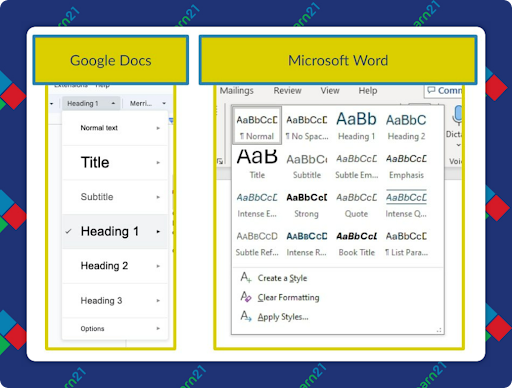
For example, there are several built-in styles with Docs and Word.
| |
|
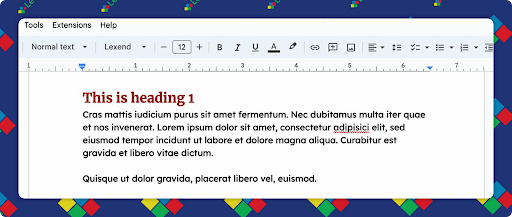
By selecting Heading 1 for your headers in your document, all of your headers will look identical, saving you from selecting your attributes for each one. Later on, you may decide to select a different font for your header. Since you used a style, if you change the style, all of your text that uses that style will automatically update.
Today we'll take you through the steps for setting up and customizing your default styles in both Google Docs and Word, ensuring that every document you create reflects a standard of consistency.
Customizing Styles in Google Docs
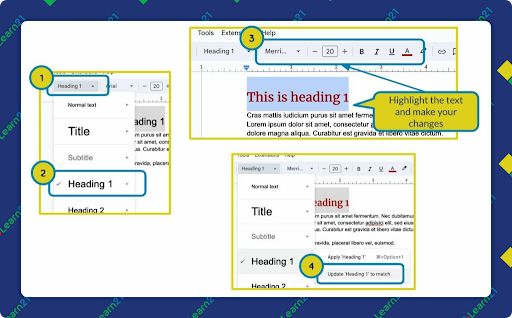
- Select the style you want to change from the drop down menu and enter some text.
- Highlight that text and change it to your liking. Switch up the font, set it to be bold, maybe even add some color.
- Once you have the style to your liking, go back to the Styles menu and select the style you want to change. Mouse over the side menu to “Update ‘Style Name’ to match.”
- That style will now use your updated look.
| |
|
Bonus: If you want to save these styles as your default styles, go to the Styles dropdown menu ➡ Options ➡ Save as my default styles. From that point forward, your new documents will use these new styles. No more Arial (unless you want Arial).
Google Docs, unfortunately doesn’t let you create additional styles; you’re limited to the built-in styles.
Customizing Styles in Word
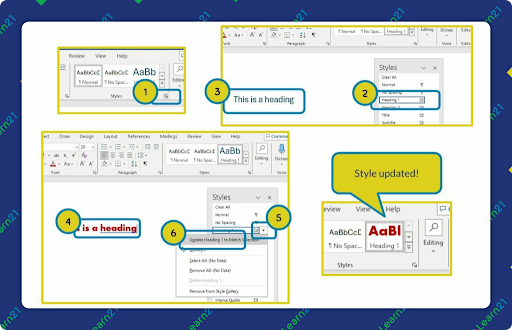
- Pop open the Styles palette by clicking the icon in the bottom right corner of the styles section under Home.
- Select the style you want to change from the palette and enter some text.
- Highlight that text and change it to your liking. Switch up the font, set it to be bold, maybe even add some color.
- Once you have the style to your liking, go back to the Styles palette and select the style you want to change. Click the dropdown menu beside the style name and select “Update ‘Style Name’ to Match Selection.”
- That style will now use your updated look.
|  | |
Bonus: To make these styles the default styles for all new documents, you will need to modify the normal.dot or normal.dotm file. On Windows this is usually located at C:\Users\[username]\AppData\Roaming\Microsoft\Templates.
For macOS users, the easiest way is to create your own template and double-click on it to create new documents based on the template. Set up a document how you like it, then use Save As… to save it as a template. Put it on your Desktop, or better yet, save it to your Documents folder and then drag it to your Dock for quick access.
Make your documents your own
I like to set my default styles to something different every year or so. Not only does this make my documents feel fresh, but it also gives me motivation to update older documents that I’m still using.
| |
|
Tips and Tricks
Selecting a great font for a document is an art in itself, but those choices can be problematic for some audiences. Let’s look at fonts, define some characteristics, and examine the issues we may have.
Serif, Sans Serif, and decorative
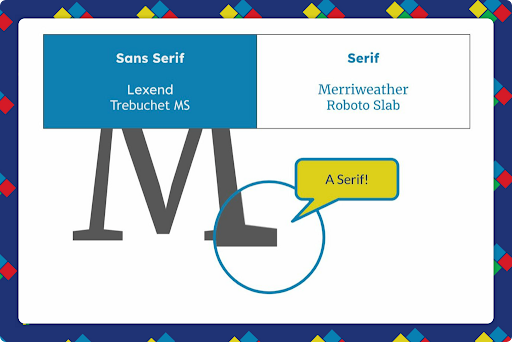
The biggest difference among fonts is whether or not they have a serif. The serif is the little “feet'' that may appear at the bottom of letters. A Sans Serif font does not have them:
| |
|
The other category of fonts are the decorative fonts. This is where everyone’s favorite font punching bag Comic Sans lands. These fonts can add an additional “pop” to documents, but should be used sparingly.
Pick Two
Much like Panera’s lunch choices, you want to limit the number of fonts in a document. Two is a good number to start with, and maybe a third if you want to use a decorative font in spots. But, no more than three! Your document can start to resemble a ransom note if you add more than two or three fonts.
Body font
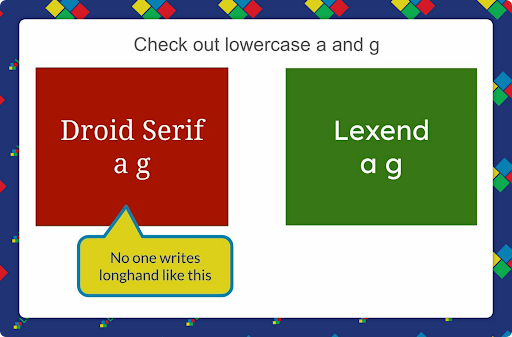
Choose your body font first. A lot of designers will recommend a serif font, but almost all of those are problematic with primary or intermediate students. The a and g are usually “fancy,” causing some problems with letter identification.
| |
|
I’ve grown quite fond of using Lexend for a body font. It’s designed to be readable for people with dyslexia and it has an a and a g that look like they could have been written by a human.
Next, pick a font for your headings and titles. If you use a sans serif font like Lexend for the body, pick a serif font for the headings. One of my favorites is Merriweather.
| |
|
Extra Credit
Electronic grading in the 90s was supposed to revolutionize communicating to parents how their children were doing at school. But here in the 21st century it hasn’t turned out to be that great. Not only is there micromanagement by parents, there is also a weird behavior I’ve noticed with high school students. Some of them become obsessive with checking their grades, giving them this false sense of completing work whereas they’re basically wasting time. It feels like they believe the act of checking their grades somehow magically changes them.
When students don’t have a support group, whether it’s through family, friends, or school, they are increasingly turning to AI chatbots, and the advice is sometimes not the best. Every day we come closer to a world as depicted in Her and I don’t think that is a good idea. But, before we blame technology, the loneliness of today has its roots going back 40 or 50 years with the disappearance of third places. Look at the sitcoms of the 90s, a lot of the action took place at coffee shops (Friends) or diners (Seinfeld) but today, shows like The Neighborhood or Extended Family take place mostly at home.
I read an article today about the future of AI and its ability to not replace creativity but to reduce tediousness. Unfortunately, AI is still in its infancy when it comes to a lot of tasks that have legal or factual basis, such as employee handbooks (Archive). For companies that are having AI write their handbooks the outcome is not looking so good.
| |
|
🙋♂️ Bytes and Insights is written by Eduk8me’s Ryan Collins who writes about education and educational technology. He is also the Director of Technology for Kenton City Schools in Ohio. Sign up for his Of Bits and Bytes newsletter at https://eduk8.me!
If you'd like to take a hiatus from Bytes & Insights, please use the Update Profile link below. This will allow you control over which emails you receive from Learn21.
| | | | |