|
One Cool Tip Newsletter
July 15, 2026
| Your daily dose of tech-savvy brilliance! | | |
😀Greetings!, Happy Windows Wednesday, Cool Tipper!
Get ready to streamline your digital life with simple, actionable tips delivered straight to your inbox.
Today's Cool Tip Theme: Windows 11 Point-in-Time Restore
IN THIS ISSUE
- ⚠️ Gold Coin Courier Scam Alert.
- 📰 Windows 11 July 2026 Update.
- 🤖 Explain AI Prompt.
- ⏪ Windows 11's New Point-in-Time Restore.
- 👀 Nearby Sharing.
- 🤔 Windows Screen Time.
- 🙋♂️ Live Captions.
New here? Subscribe to the One Cool Tip Newsletter for daily updates. It's FREE!
-
😂 Laugh with Us! Enjoy our Tech Joke of the Day, Haiku and Cool Tip Comics.
-
🌐 Stay Informed! Check out ICYMI, and our One Cool Tip Video.
| | |
3️⃣
If you enjoy the One Cool Tip newsletter, please forward this newsletter to THREE friends or colleagues or share it on social media using the links below.
Leave a $$$ Tip!
Share this One Cool Tip Newsletter!
| | |
Today's Tech Trivia
Which Windows feature first appeared in Windows Me in 2000?
A. BitLocker
B. Windows Defender
C. System Restore
D. File History
Answer at the end of this newsletter.
| | |
⚠️Don't Fall for the Gold Coin Courier Scam⚠️
A growing scam is targeting older adults with calls from people pretending to be government officials, police officers, or bank representatives.
The scammer claims your money or identity is at risk and urges you to buy gold or silver to keep your assets "safe."
Victims are then told to hand the precious metals, cash, or other valuables to a courier who comes to their home.
Law enforcement officials warn that no legitimate government agency, bank, or reputable precious metals company will ever ask you to buy gold or give assets to a courier.
If you receive a call like this, stop and verify the information using a trusted phone number before taking action.
Pressure to act quickly, secrecy, and requests to move money are all warning signs of a scam.
And in Other News...
Windows 11 July 2026 Update Adds New Recovery Tools and Everyday Improvements
Microsoft's latest Windows 11 update (KB5095093) introduces a new recovery feature and several quality-of-life improvements aimed at making PCs more reliable and easier to use.
The biggest addition is Point-in-Time Restore, a new recovery feature that lets users roll their PC back to a recent automatic restore point. Apps, settings, and personal files can be restored, helping users recover more quickly when software problems occur. See the Cool Tip below.
Other notable improvements include:
-
Faster and more responsive File Explorer performance, including improvements when mounting disk images.
-
Fixes for OneDrive issues in File Explorer, including duplicate favorites and shortcut reliability problems.
-
Corrected notification badge counts in apps such as Microsoft Teams and WhatsApp.
-
Better Bluetooth reliability, including improvements for AirPods, Beats Studio Pro headphones, voice calls, and device reconnections.
-
A redesigned Widgets experience that reduces distractions by limiting default notifications and taskbar badges.
-
A new Windows Update calendar that allows users to pause updates until a selected date for up to 35 days.
| | |
Try this Cool AI prompt. Copy and paste to ChatGPT, Gemini, Claude or Copilot.
"Explain XXX Like I'm..."
Cool Examples:
Explain quantum computing like I'm 10 years old.
Explain investing like I'm teaching my grandparents.
Explain Wi-Fi like it's a pizza delivery system.
| | |
Windows 11's New Point-in-Time Restore Can Save Hours of Recovery
Windows 11's new Point-in-Time Restore feature can help you recover from bad updates, driver problems, and software mistakes without rebuilding an entire PC. If something breaks, you may be able to roll back to a previous working state in minutes instead of spending hours troubleshooting.
One bad driver update or software installation can turn a perfectly good PC into a troubleshooting project.
For years, Windows users have relied on backups, system images, or the aging System Restore feature when something went wrong.
Here's a Cool Tip: Update Windows with the July 2026 Update for Point-in-Time Restore.
Microsoft is now introducing a more modern recovery approach called Point-in-Time Restore, a built-in Windows 11 capability designed to help users recover from software problems more quickly.
Point-in-Time Restore can restore apps, settings, and local user files captured in an available restore point.
The goal is simple: reduce downtime and help users recover from problems without resorting to a full reinstall.
Feature Explanation
Point-in-Time Restore is a new Windows 11 recovery feature that automatically creates restore points at regular intervals and stores them locally on the device.
When a problem occurs, users can restore their PC to a previously captured state using the Windows Recovery Environment (Windows RE).
These restore points can include:
- Windows system files.
- Installed applications.
- System settings.
- Application configurations.
- Local user files.
The feature is intended to help recover from situations such as:
- Problematic Windows updates.
- Faulty drivers.
- Application corruption.
- Configuration mistakes.
- Other changes that cause instability.
Unlike the older System Restore tool, Point-in-Time Restore is integrated into Windows 11 Settings and is designed with modern device management in mind.
It can also include local user files as part of the restore point.
This feature will likely be most useful for:
- Home users.
- Small business owners.
- Remote workers.
- Students.
- IT professionals supporting Windows devices.
What You'll Gain
- Recover from software problems faster than rebuilding a PC.
- Restore apps, settings, and local files from an earlier system state.
- Reduce downtime after problematic updates or driver installations.
- Add another layer of protection alongside your regular backups.
Step-by-Step Instructions
Here's how to do it.
July 2026 Windows 11 Update
-
Open Settings.
-
Select Windows Update from the left navigation pane.
-
Click Check for updates.
-
Install any available updates.
-
If you see a feature update for Windows 11 version 24H2, 25H2, or a newer release, choose Download and install.
-
Restart your PC when prompted.
-
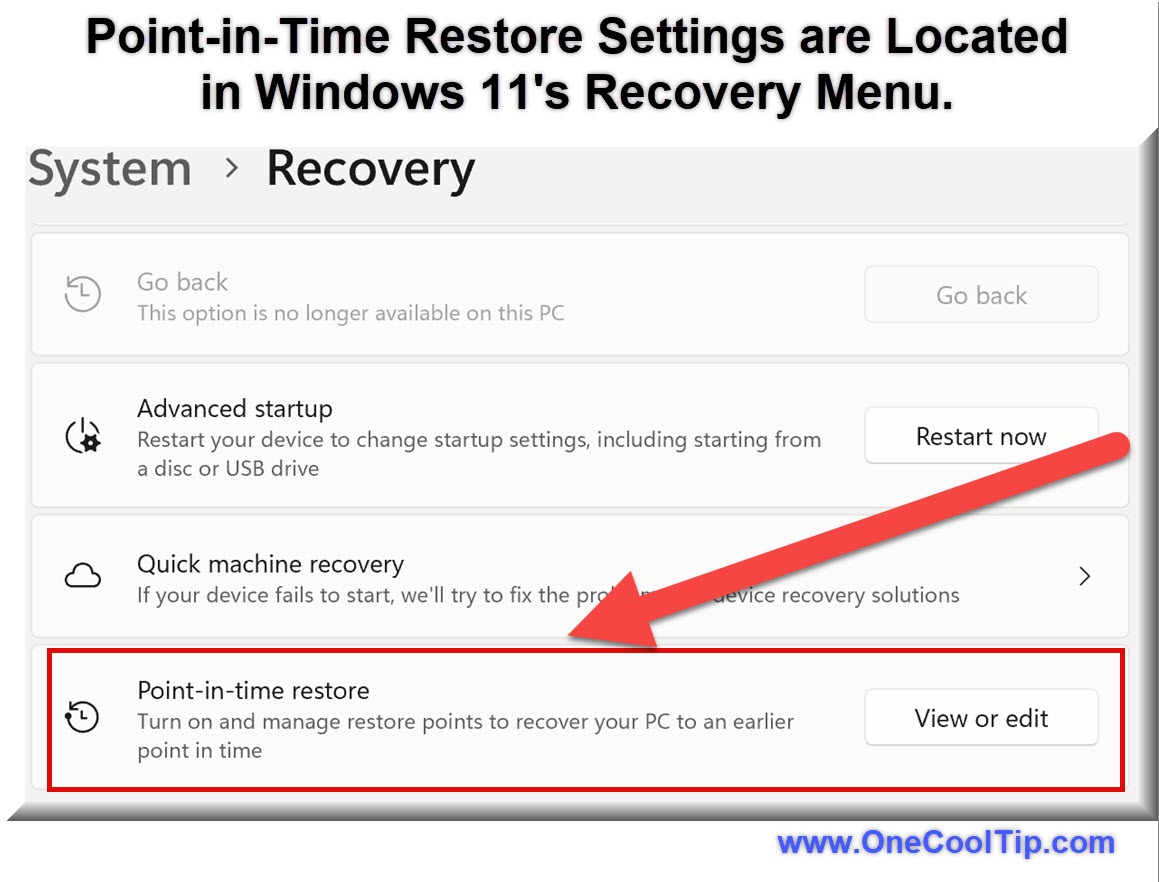
Return to Settings → System → Recovery to check whether Point-in-Time Restore is available.
Restore Your PC
If Windows is still working, you can access the recovery tools from Settings.
If your PC won't start normally, Windows may automatically open the recovery screen after several failed startup attempts.
-
Open Settings.
-
Go to System → Recovery.
-
Next to Advanced startup, click Restart now.
-
When the blue recovery screen appears, select Troubleshoot.
-
Choose Point-in-Time Restore.
-
Select a restore point from before the problem occurred.
-
Review the information displayed and click Continue (or the equivalent on-screen option).
-
Allow Windows to restore the PC and restart automatically.
| | fig. 1 - Point-in-Time Restore Settings | |
What you'll see:
After restarting, Windows will return to the state captured in the selected restore point. Apps, settings, and local files that were part of that restore point should be restored.
Cool Example:
If a graphics driver installed yesterday causes display problems today, choose a restore point from before the driver was installed.
Windows can return the PC to that earlier working state without requiring a complete reinstall.
Pros and Cons
Pros:
- Automatically creates restore points on a recurring schedule.
- Can restore installed applications, settings, and local files captured in a restore point.
- Built directly into Windows 11.
- Useful for both individual users and organizations.
- May significantly reduce recovery time after software-related issues.
Cons:
- Availability may vary based on Windows version, device configuration, and rollout status.
- Restore points are stored locally and are not a substitute for a full backup solution.
- Recovery is currently initiated through Windows Recovery Environment rather than directly from the desktop experience.
- Managed devices may have different default settings or administrative controls.
Feature Access
-
Feature: Point-in-Time Restore
-
Platform: Windows 11
-
Supported Editions: Home, Pro, and Enterprise
-
Version Requirement: Microsoft states Windows 11 version 24H2 and later.
-
Subscription Requirement: None identified in Microsoft's announcement.
-
Admin Controls: Available for managed environments.
-
Rollout Status: Generally available, although availability may vary by device, management status, update level, and rollout timing.
Score
Criterion | Score (0–10) | Justification
Value | 9
Recovering from software failures without rebuilding a PC can save significant time and frustration.
Usability | 8
The feature is straightforward once available, although recovery still requires Windows RE.
Wow Factor | 6
The technology is practical rather than flashy, but it solves a real-world problem.
Total: 23/30 | 👍 Good
One of the most practical Windows recovery improvements Microsoft has delivered in years.
Point-in-Time Restore serves a role similar to recovery snapshots and rollback tools available on other operating systems, but is built directly into Windows 11.
Key Takeaways
Point-in-Time Restore gives Windows 11 users a faster way to recover from software-related problems without rebuilding an entire PC.
By automatically creating restore points and allowing rollback through Windows RE, it provides an additional safety net when updates, drivers, or applications cause unexpected trouble.
Cool Tip Snapshot
-
Feature Name: Point-in-Time Restore.
-
Platform(s): Windows 11.
-
Quick Benefit: Roll back a PC to an earlier working state after software problems.
-
Best For: Home users, students, remote workers, families, and small businesses.
-
Access Type: Generally Available (availability may vary by device and rollout status).
-
Difficulty: Easy.
Try It Yourself
Open Settings → Windows Update and install the latest Windows 11 updates, then check Settings → System → Recovery to see whether Point-in-Time Restore is available on your PC.
If you found this tip useful, share this Cool Tip with your family, friends, and coworkers.
READ MORE
Read the Cool Tip on One Cool Tip.com.
| | Help support One Cool Tip. Use this Amazon link when you shop online. | |
🔑 SanDisk Ultra Flair 64GB USB 3.0 Flash Drive: Use a dedicated flash drive for Windows recovery media, emergency utilities, and a securely stored copy of important recovery instructions.
Save 50% Now $19.97. 4.6 Stars. Check it out on Amazon!
💾 Samsung T7 Shield 1TB Portable SSD: Keep a separate copy of documents, photos, and work files before attempting a full-system rollback. Its rugged portable design also makes it suitable for moving backups between computers.
Now $286.88. 4.7 Stars. Check it out on Amazon!
🔋 APC Battery Backup: A battery backup can keep a desktop PC, router, or storage device running through a brief power interruption. That extra protection matters while Windows is updating, backing up, or restoring the system.
Now $83.99. 4.5 Stars. Check it out on Amazon!
Prices accurate at time of publication
One Cool Tip may earn a commission from qualifying purchases.
| | |
🆒Tell Me More
- 💾 Point-in-Time Restore automatically creates restore points on a recurring schedule.
- 🖥️ The feature is designed to help recover from problematic updates, drivers, and software changes.
- 🔒 Restore points are stored locally on the device rather than in the cloud.
- 🏢 Enterprise administrators can manage the feature through organizational controls.
- ⚠️ Availability may vary because Microsoft is using gradual rollouts for some Windows features.
⏩Quick Tips
-
🛡️ Backup First: Always keep important files backed up. Use OneDrive or an external drive before major updates.
-
🔍 Check Recovery Settings: Visit Settings → System → Recovery and review your recovery options before you need them.
-
⬆️ Stay Updated: Open Settings → Windows Update and install the latest security and feature updates.
-
💽 Watch Free Space: Recovery tools work best when your drive isn't nearly full. Check Settings → System → Storage.
-
🔑 Save Your Recovery Key: If you use BitLocker, verify that you know where your recovery key is stored.
| | ✅ More Must-Read Tech Tips | | |
👀 How Do I Use Nearby Sharing?
Ever emailed yourself a file just to move it across the room?
If so, you're not alone.
Windows Nearby Sharing is a built-in feature that quietly solves this problem with surprising elegance.
Think of it as Microsoft’s answer to Apple’s AirDrop, except it’s baked into Windows 10 and 11, and it works over Bluetooth or Wi-Fi.
Here's how to do it.
Windows 10/11 Desktop
-
Go to Settings > System > Nearby sharing.
-
Choose: My devices only or Everyone nearby.
-
Right-click any file > Share > Share to More Apps (...) > Select a nearby device to share a file.
-
To receive a File: Accept the notification > File. The file saves to your Downloads folder.
Windows Nearby Sharing is a fast, wireless way to send files between nearby Windows devices.
It’s built-in, easy to use, and ideal for business, education, and personal productivity.
Discover more HERE.
| | |
🤔 Have You Ever Wondered How to Check Screen Time on Windows 11?
In today’s digital world, screen time awareness is more important than ever.
Windows 11 makes it easy to check how long your display has been active.
Windows 11 (Laptop Users)
-
Click the Start menu.
-
Select Settings.
-
Navigate to System > Power & battery in the left panel.
-
Scroll down and click Battery usage to view a detailed breakdown.
-
Below the battery level graph, you'll see screen on time, screen off time, and sleep time for the past 24 hours.
-
Switch to the Last 7 days option to check your average screen-on time for the week.
For Windows 11 (Desktop Users)
For desktop users, try this:
-
Open the Task Manager app.
-
Select Performance > CPU to see how long your system has been running.
Note: This doesn’t reflect active screen time, but rather total system uptime since the last restart.
Take control of your digital habits today!
Find out more HERE.
| | |
🙋♂️ Here's How to Use Windows 11 Live Captions
Have you ever struggled to catch every word in a video, webinar, or live meeting?
Or wished you could follow along with audio content in a noisy environment?
Windows 11's Live Captions feature addresses these challenges by providing real-time, on-screen captions for any audio source on your PC.
This tool is not just for those with hearing impairments; it's a game-changer for anyone seeking to enhance their comprehension and productivity.
For Windows 11 (version 22H2 and later):
Via Settings:
-
Go to Settings > Accessibility > Captions.
-
Toggle on Live Captions.
Using Keyboard Shortcut:
-
Press Windows logo key + Ctrl + L.
Through Quick Settings:
-
Click on the Network, Volume, or Battery icon on the taskbar to open Quick Settings.
-
Select Accessibility, then toggle on Live Captions.
Upon first activation, you'll be prompted to download the necessary language files.
Once downloaded, Live Captions will be ready to use offline.
Enable the feature on your Windows 11 device and discover how it can enhance your interaction with audio content.
Learn more HERE.
| | |
❓Did you share this newsletter with three friends yet?
😎 Cool Facts
-
📅 24: Microsoft says Point-in-Time Restore captures restore points automatically on a default schedule of every 24 hours. Source.
-
⏱️ 72: Multiple reports covering Microsoft's rollout state that restore points are retained for up to 72 hours by default before older snapshots are removed. Source.
-
📆 35: Recent Windows 11 updates add new controls that can pause updates for up to 35 days. Source.
⌨️Today's Cool Shortcuts
-
Windows + I: Open Settings.
-
Windows + R: Open the Run dialog.
-
Windows + X: Open the Power User menu.
-
Ctrl + Shift + Esc: Open Task Manager.
-
Windows + Pause/Break: Open System information.
😜 Tech Joke of the Day 😅
Why did the computer show up at work late?
It had a hard drive.
🔎 Do you have a Cool Tip or tech question? Email us at onecooltip.com@gmail.com.
| | |
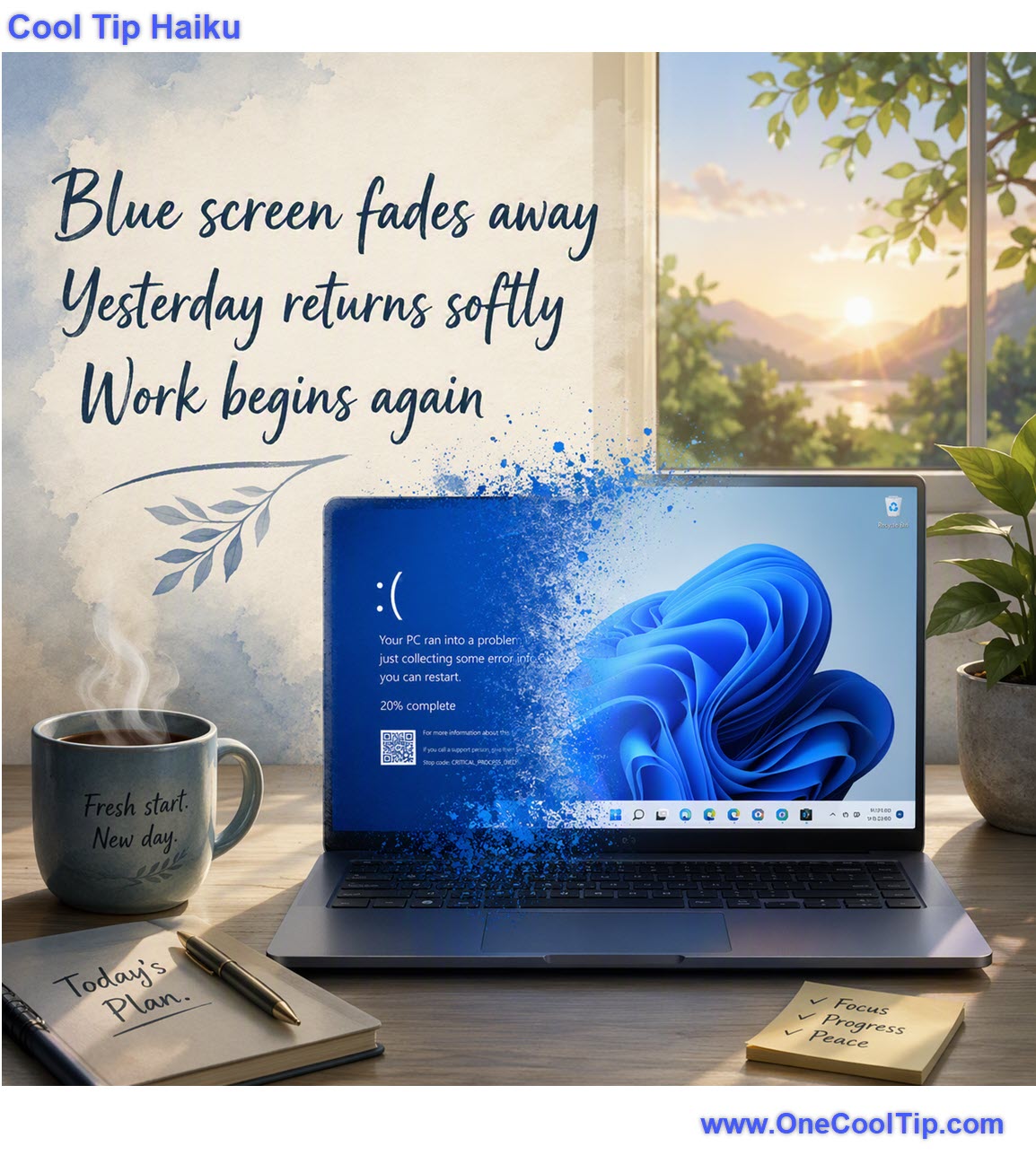
Blue screen fades away
Yesterday returns softly
Work begins again
| |
| 🤔 Have you ever needed to recover a Windows PC after a bad update? | | | | Did You See These Cool Tips This Week? | | | | GPT Live Makes ChatGPT Voice Feel More Natural | |
GPT Live makes talking with ChatGPT feel less like issuing voice commands and more like having a flowing conversation. It listens while it speaks, handles interruptions more naturally, and can draw on search and reasoning tools without ending the conversation.
Read the Newsletter Version.
| | | | Stop Losing Your Place in Large Excel Spreadsheets | |
Microsoft Excel's Focus Cell feature highlights your active row and column, making large spreadsheets easier to read and navigate. If you regularly enter data, review reports, or analyze tables, this simple tool can help reduce mistakes and improve accuracy.
Read the Newsletter Version.
| |
ICYMI - In Case You Missed It ...
| | | | Turn Copilot Notebooks into Your Smart Workweek Engine | |
Copilot Notebooks help you organize your work and turn scattered information into real deliverables. This Cool Tip shows how to use it to manage projects and create Word, Excel, and more.
Read the Newsletter Version.
| | |
How to Use Windows Clipboard History
Have you ever copied something important, only to accidentally overwrite it with something else before pasting?
Have you ever wished you could access your clipboard history and retrieve something you copied earlier?
Watch
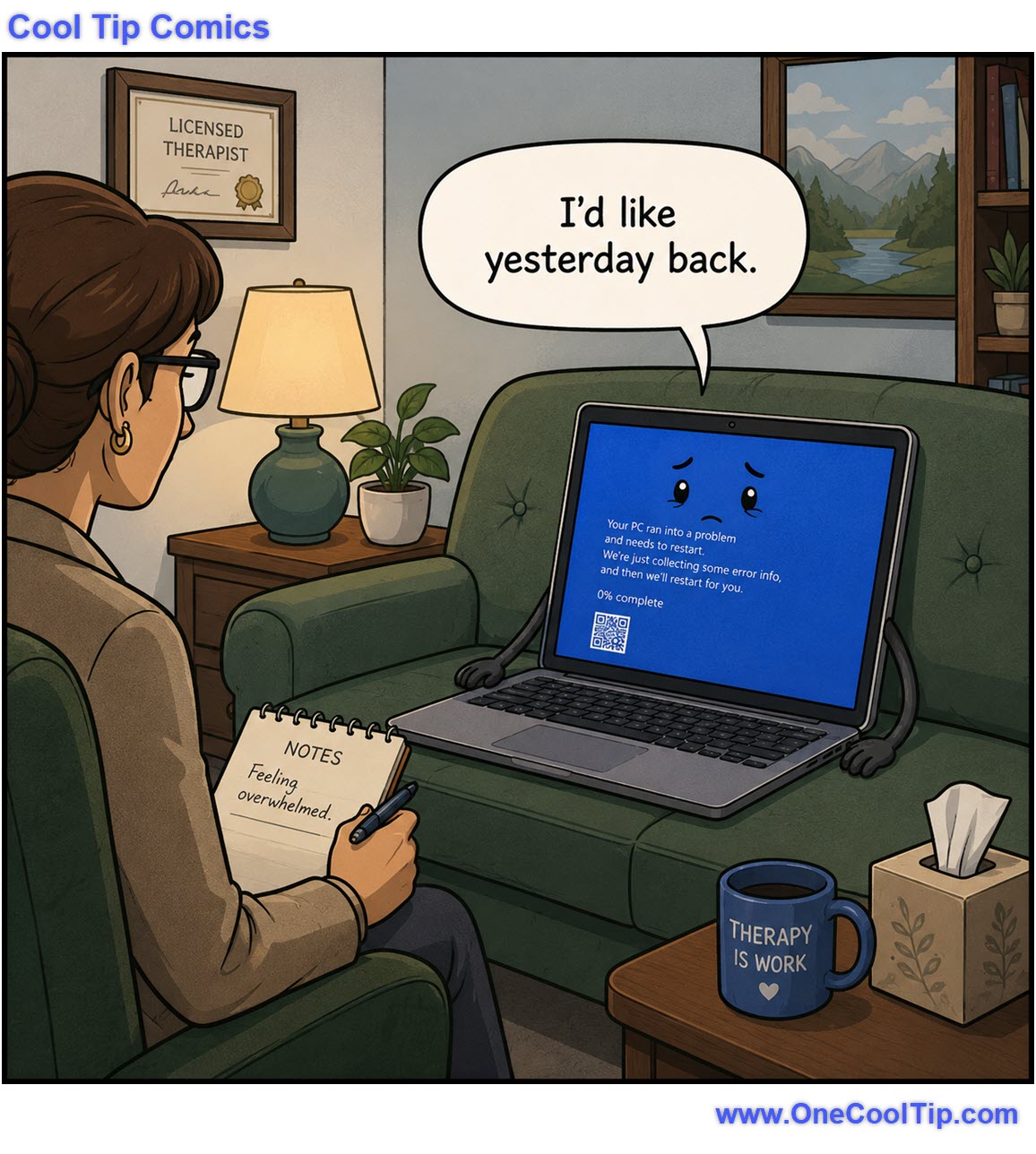
| | Windows finally found a therapist who understands its need to restore a previous session. | | |
Trivia Answer: System Restore
System Restore debuted in Windows Millennium Edition (Windows Me) and provided users with a way to roll back system changes when software installations caused problems.
Point-in-Time Restore builds on the same recovery concept but is designed for modern Windows 11 devices and recovery scenarios.
----------
Tomorrow's Cool Tip is waiting to amaze you.
Until then, go forth and conquer the tech world with your newfound knowledge!
Be sure to visit www.OneCoolTip.com for Cool Tech Tips for a Cooler Life!
And if you like One Cool Tip, please support with TipJar!
Enjoy!
Rodger
Chief Cool Tipper
onecooltip.com@gmail.com
| |
| What do you think of today's OneCoolTip newsletter? | | | |
Please Share the One Cool Tip Newsletter!
You asked for it. You got it. There is now a One Cool Tip Newsletter archive. Did you delete a newsletter and want to read it again? Check it out HERE.
Want to help One Cool Tip grow? Please forward this email using the link above. And if you see an OCT social media post, please LIKE, COMMENT and SHARE!
Have you subscribed to the One Cool Tip YouTube channel? Subscribe HERE.
| | Connect with One Cool Tip!! | | |
|
As an Amazon Associate, One Cool Tip may earn a small commission from qualifying purchases.
Our media content is intended solely for informational purposes only. Please do not construe anything here as legal, tax, investment, financial, marital or other advice.
Copyright © 2026 | www.OneCoolTip.com | All Rights Reserved
|
| | | |