2026–2027 • SECONDARY• EDITION 09

Turn Content into Interaction with Lumio AI Assist!

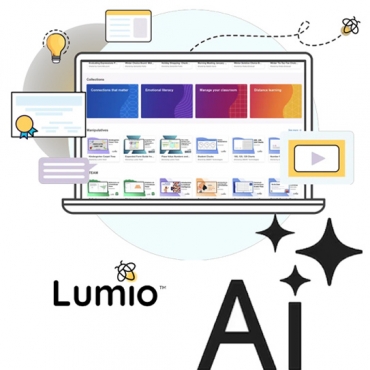
Lumio AI graphic featuring a laptop with lesson resources, activity templates, and creative icons.

Have lesson slides or resources ready to go? Lumio's AI Assist can use your existing content to suggest interactive activities, including quizzes, games, and checks for understanding. Preview and refine the suggestions before adding them to your lesson!

Start with Your Curriculum Resources

Purple AI Assist button with white text and sparkle icons.

For more relevant activity suggestions, upload your lesson materials before using AI Assist.


  1. Upload Your Content: Import an existing PowerPoint, Google Slides, or PDF into Lumio.
  2. Open AI Assist: In Edit mode, click AI Assist in the bottom-left corner.
  3. Generate Suggestions: Select Suggest activities to generate activities based on your lesson content.
  4. Review and Add: Preview the suggestions, make any needed edits, and add the activities where they fit your lesson.


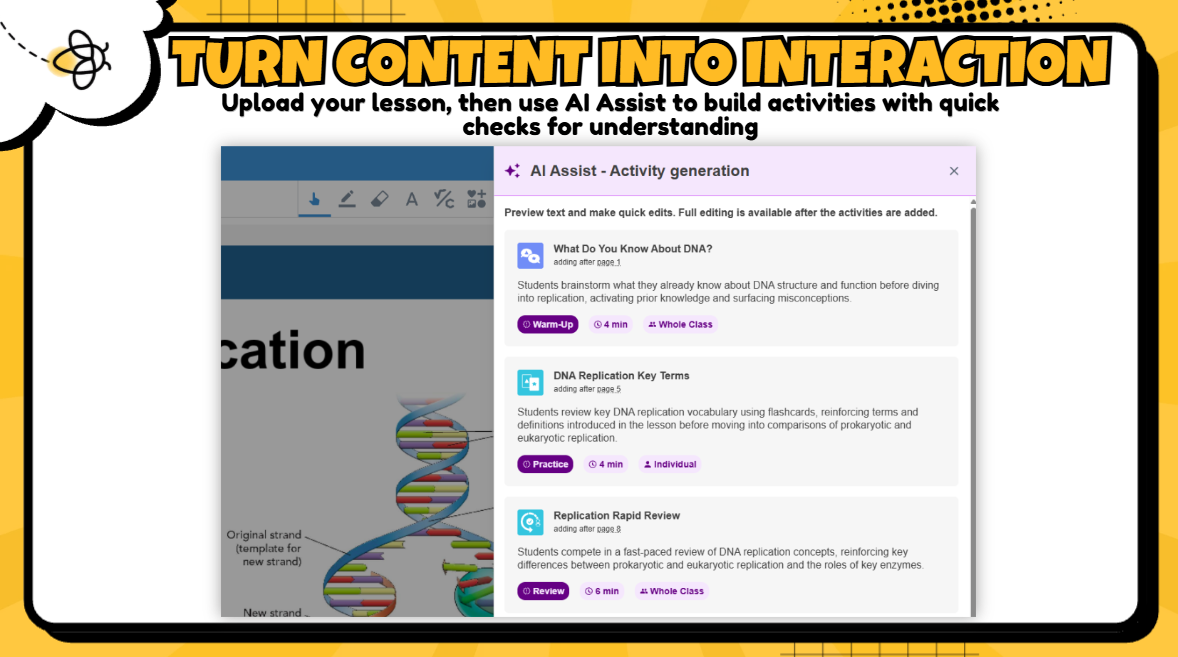
For example: A biology teacher could upload a lesson on DNA replication and use AI Assist to create a Monster Quiz or Shout It Out activity to check understanding before independent practice.

Lumio AI Assist suggesting interactive activities for a DNA replication lesson, including practice and review.

A Few Things to Know

5 AI Uses Per Day: Lumio's daily limit is shared across its AI tools, not five uses per feature.


Review Before Using: Check AI-generated activities for accuracy, alignment with your curriculum, and appropriate rigor before sharing them with students.


📺Watch AI Assist Activity Creation

Video tutorial demonstrating how to use Lumio AI Assist to create interactive lesson activities.

Give It a Try!

Already have a lesson planned? Open it in Lumio and see how AI Assist can help you turn your existing content into an interactive learning experience.


Level Up Your Canva Presentations with Keyboard Shortcuts!

Did you know Canva has built-in keyboard shortcuts that work while you're presenting? From countdown timers to fun visual effects, Canva's Magic Shortcuts can help you manage classroom activities and add a little excitement to your presentations!

The Classroom Favorite: Instant Countdown Timers!

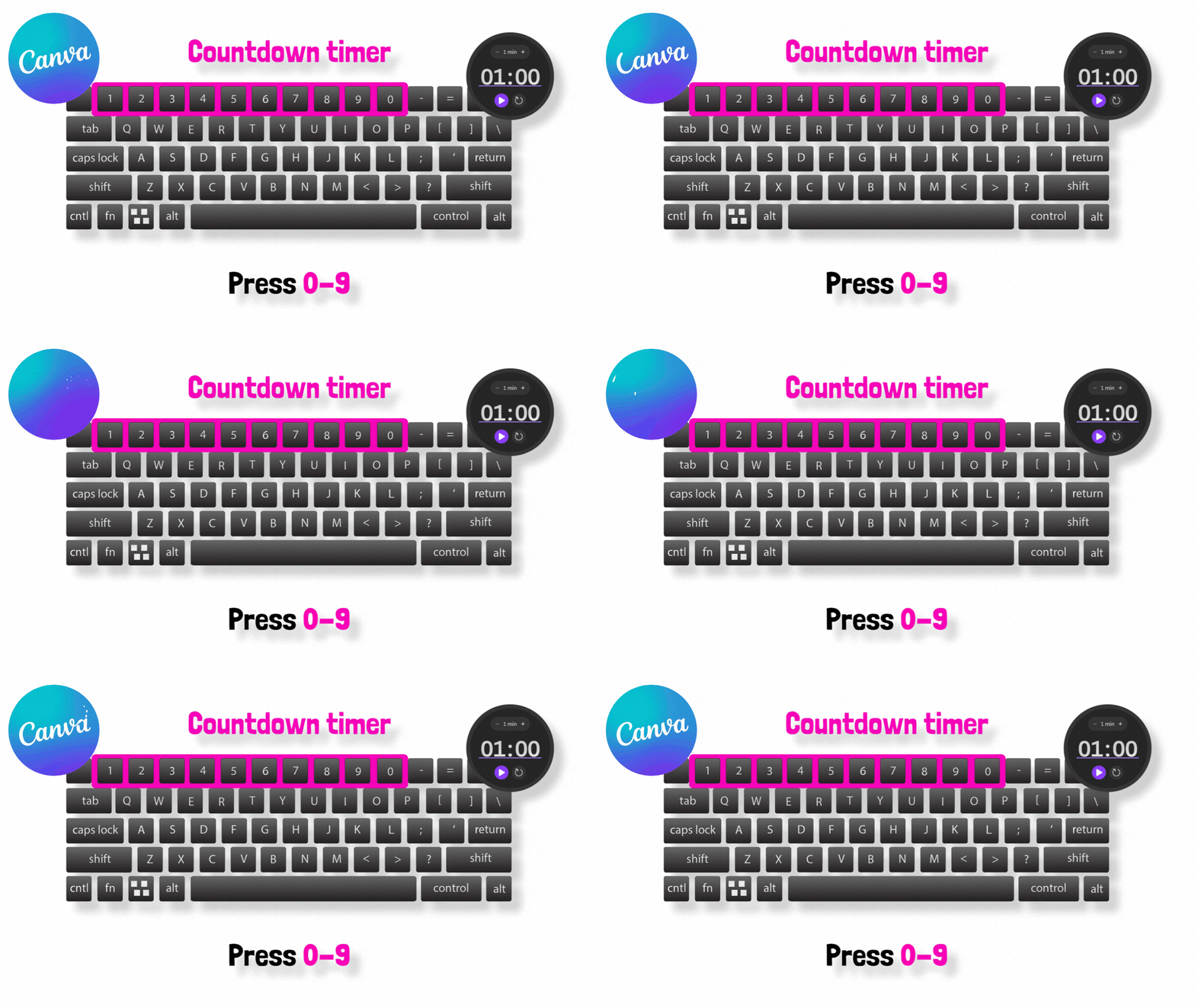
Animated black stopwatch icon showing a countdown timer on a dark gray background.

While presenting in Canva, press any number key 1–9 to display a countdown timer for that number of minutes. Try 2 minutes for a quick reflection, 5 minutes for partner discussions, or 9 minutes for independent practice. No separate timer needed!

There's More Magic to Explore!

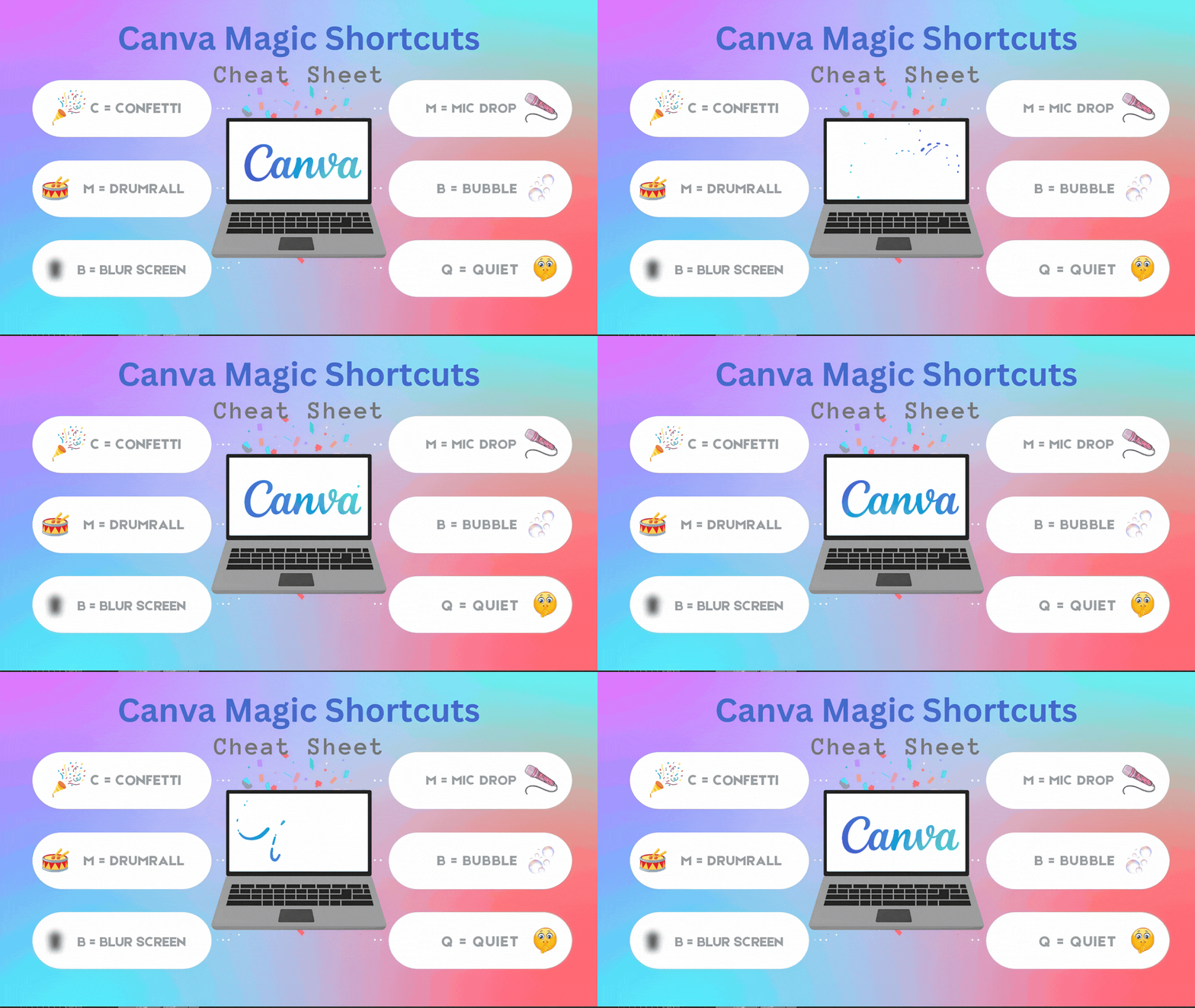
Canva also has shortcuts for confetti, drumrolls, bubbles, mic drops, and more! Just press the corresponding letter while presenting to activate the effect.

Canva Magic Shortcuts cheat sheet showing keyboard effects for confetti, drumroll, blur, and more.

Give it a try! Use the cheat sheet below to explore the shortcuts and add a little magic to your next Canva presentation.

 
Newsletter emerging from an envelope, representing past Digital Learning Update editions.

Looking for something we shared?

Browse Previous Digital Learning Updates

Digital Learning Quick Links

How Can We Support Your Campus?

Connect with your Digital Learning Specialist for planning, resources, technology integration, instructional support, and more!

 
Birdville Digital Learning Logo
 

Follow Digital Learning for more tips, resources, and ideas.

Instagram    Facebook    X