Say Goodbye to 100 Passwords with Passkey Sign-On
The average individual has 100 passwords to remember, according to a NordPass study. Apparently, no one has studied how many we actually remember versus how many we reset over and over. No matter. New developments could save us from having to remember passwords altogether, as major players are moving to a single passkey sign-on approach.

What is passkey sign-on?

Apple, Google, and Microsoft have joined forces to support “passwordless” sign-in across all their mobile, desktop, and browser platforms. The initiative, announced in May to coincide with World Password Day, is expected to roll out in 2022/23.

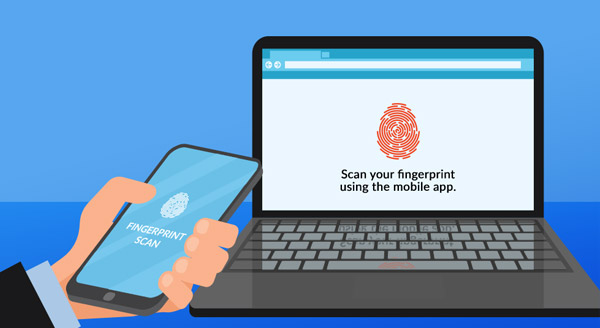
What does passkey login involve? Users choose a physical device to use to authenticate them on apps, websites, and other digital services. For many of us, this would be a mobile phone. You’d unlock the phone as you normally do. Then, you could enter a PIN, draw a pattern, or use your fingerprint to sign into the digital services you need. 

To put it simply, it’s a four-stage process:

  1. You navigate to the site or app or service you want to use.
  2. You approve access using your passkey device.
  3. A public passkey (mirroring the private one on your device) is shared.
  4. Login is completed.
 
You don’t need a password because the login is done using a cryptographic token (the passkey). Your selected device shares that passkey with the website, app, or other online services.

Advantages of the passkey

Using a passkey means you need to remember only the one PIN or pattern to unlock access … or have fingertips! And you don’t have to come up with a complicated passphrase either, which means no more frustrating upper and lowercase character, number, and symbol combo.

The passkey sign-in method is touted as more secure. Passwordless authentication makes it more difficult for hackers to compromise login details. After all, they would need access to the physical device you use to access digital services, apps, and websites.

You keep personal information safe and cut password vulnerabilities that plague us today:

  • Phishing attacks, which use fake websites to capture login details, won’t work.
  • Brute-force attacks, which use trial and error to guess credentials, won’t get anywhere.
  • Spoofing your device will no longer work, as the passkey device must be near the computer.

Making the most of multi-factor authentication

With a passkey that is unique to you, you’ll no longer have to worry about keeping track of multiple passwords.
Still, until this technology is available, you'll want to protect your online activity. Our experts can help secure your home networks and set you up with a password wallet.

Contact us today at 940-282-0290.
"Help, I Dropped My Laptop!" Now What?
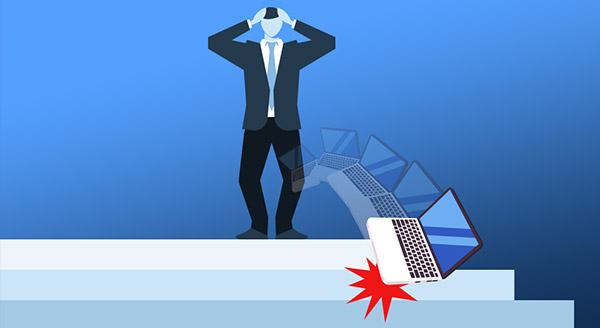
Dropping your laptop is not a good idea. Trust us: this is not a statement you want to test. Still, it can happen. Typically, this happens in painful slow motion where the laptop is just out of your reach to recover it in time.

Dropping a laptop doesn’t always lead to damage, but it will depend on several factors. Learn more about this common concern.
What happens to your laptop if it is dropped will depend on different considerations:

  • how hard and far it fell;
  • what kind of surface it fell onto;
  • whether it was running at the time of the fall;
  • the laptop model;
  • whether you have a mechanical hard drive or a solid-state drive.

Drop a laptop from a footstool onto a thick plush carpet and you might not see any damage. Push that same laptop off a kitchen island onto a hard tile floor, and it might be completely destroyed.

Buying a protective cover for your laptop can help prevent damage. You can also get a screen protector. Another good idea is to be wary of where you put your laptop down. Don’t put it in high-traffic areas. Also, make sure corded accessories don’t create a tripping hazard that will see someone taking your laptop down as they fall.

Common red flags

Let’s assume the laptop appears to have survived the fall. You still have an intact screen, and the laptop continues to power on. Whew! That’s great. Still, after a laptop drop, you’ll want to look for the following warning signs:

  • noisy fan;
  • flickering or dim screen;
  • unresponsive keyboard;
  • a blue “screen of death”;
  • error message saying, “unmountable boot volume”;
  • computer won’t power up;
  • Bluetooth or Wi-Fi connectivity no longer works.

Your laptop is a convenient, compact computer. That means that inside that hard case the parts are packed tightly. Dropping the laptop can jar important parts. It’s best to take your laptop to a computer professional to help address any boot, screen, power, or other issues.

What do I do when my laptop falls?

First, don’t panic. Yes, it’s scary to see your technology fall to the floor but try to remain calm. Retrieve your laptop carefully and handle it gently as you take the following steps:

  • Inspect the exterior looking for scratches, dents, or cracks. Small, cosmetic injuries you might cover with stickers. The bigger ones? You may need a technician’s help.
  • Examine the screen to see if there are any cracks and if the screen still works as a display. Keep an eye out for lines, spots, dead pixels, or a flickering display.
  • Boot the system to ensure the laptop remains functional.
  • Listen for unfamiliar noises which could indicate parts have come loose.

The earlier that you respond to the damage from dropping a laptop, the better. So, don't just hope that any issue you notice will go away. Instead, take your computer to a local repair shop for repairs or parts replacement. The reward could be a longer overall life cycle for your laptop. We're here to help.

Contact us today at 940-282-0290!
Brian W. Norby
 
(Owner of both BWN Computer
AND That Computer Man)


1-940-282-0290