Professional Learning Newsletter

See below for the list of recordings and resources from the summer series!

This week we are looking at ACTIVE STUDENT ENGAGEMENT.

See below for tips.


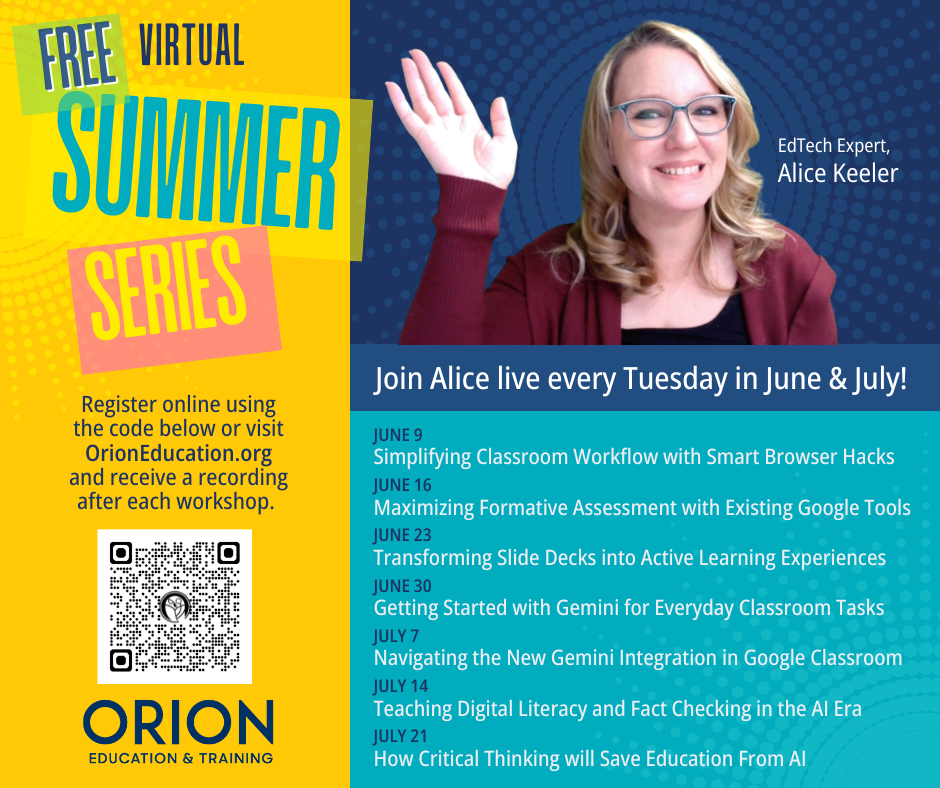
This week our Professional Learning Consultant Alice Keeler is going to dive into Active Student Engagement. Can Google Slides help? Register free to join at noon 
or receive the resources.

Summer Series Recordings and Resources

Better AI That Is Actually Helpful 

Click Here for the recording.

View the presentation slides: Click Here. 
If you participated, please
submit for your certificate.


Simplifying Classroom Workflows with Smart Browser Hacks

Click Here for the recording.

View the presentation slides: Click Here. 
If you participated, please
submit for your certificate.


Maximizing Formative Assessment with Existing Google Tools

Click Here for the recording.

View the presentation slides: Click Here. 
If you participated, please
submit for your certificate.


Join live Tuesday 6/22 at 12pm Central.

Zoom link will be sent out 1 hour before the workshop.

Unable to participate? We will send out the recording 
and resources after the presentation.


Make sure you are signed up for updates.


Teaching & Learning
Active Student Engagement


Try out my Google NotebookLM notebook on Active Student Engagement.


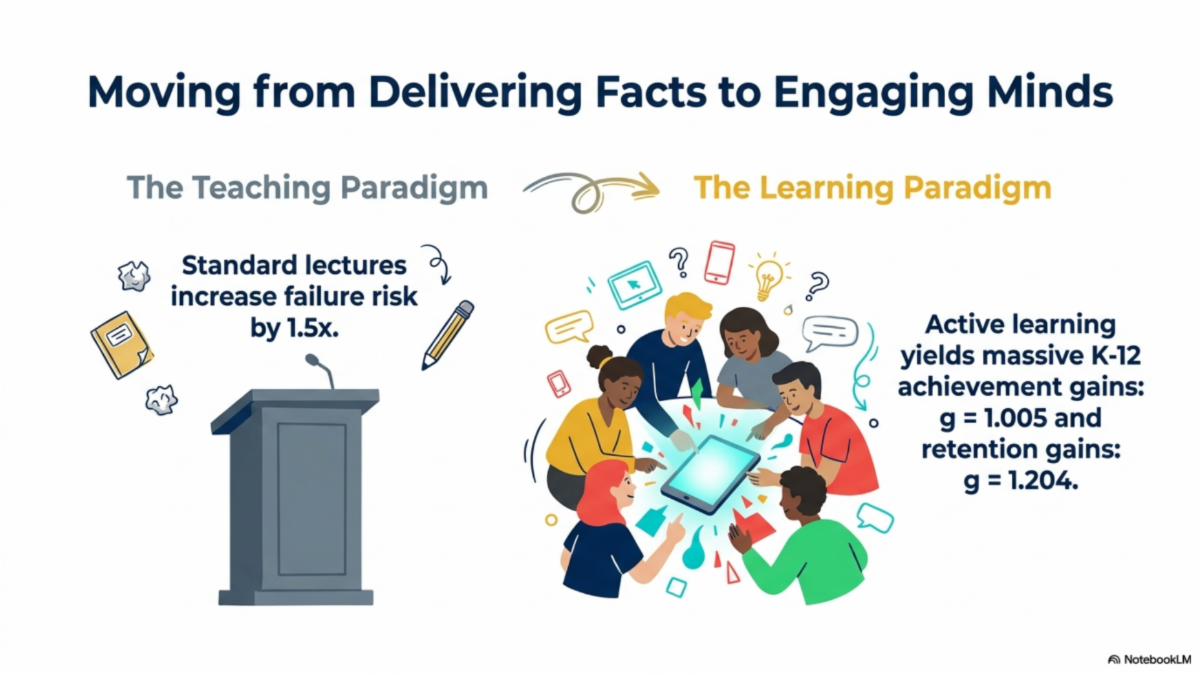
Active learning is a complete shift from a traditional "teaching paradigm" (where students passively listen to a lecture) to a "learning paradigm".


In this model, students are active participants who do the heavy lifting of analyzing, synthesizing, and evaluating to build their own deep understanding.


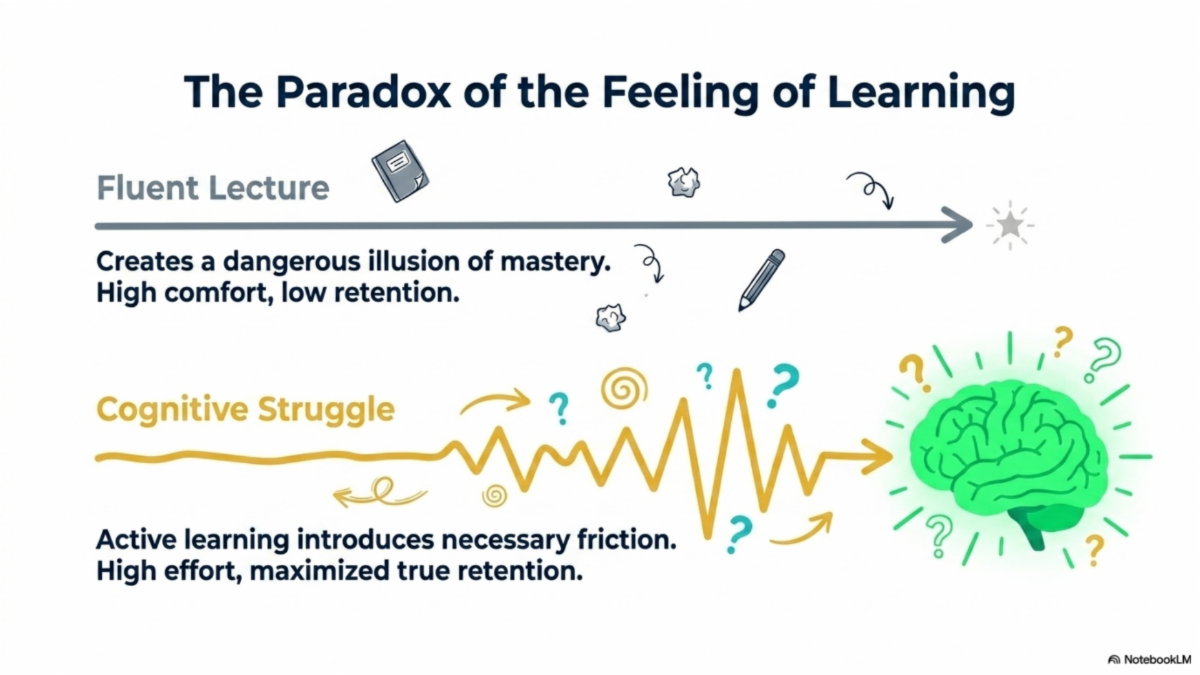
But here is where it gets tricky: the fluency paradox.


A highly polished, perfectly delivered lecture creates a feeling of "cognitive ease". Students feel like they are learning a lot because the presentation flows so smoothly, but it is often just an illusion of mastery.


True active learning requires cognitive friction and struggle. Because wrestling with concepts takes real mental effort, students can misinterpret that difficulty as a sign of poor learning. The reality? That exact intellectual struggle is the mechanism that drives long-term retention and significantly higher performance.


Tips for Active Student Engagement


Does Google Slides encourage active student engagement? Spoiler alert, it does not. As with all tools, it depends on the intentional decisions you make in how you use them. How could you enhance these active student engagement techniques with Google Slides?


 Think-Pair-Share

Students take one minute to reflect and jot down notes on a question individually, discuss their thoughts with a nearby partner for two minutes, and then share their joint insights with the entire class. This routine gives everyone immediate space to process new information, organize prior knowledge, and confidently voice their ideas.


Jigsaw Discussions

The class divides into "expert groups" where students work together to master a specific subtopic or reading selection. Once they have mastered their section, they reorganize into "home groups" where each student is responsible for teaching their area of expertise to their peers.


Clarification Pauses (The 3-2-2 Rule)

During a brief period of direct instruction, pause three times for two minutes each. During these gaps, students must stop transcribing what you are saying and instead use the time to consolidate their notes and write a rapid summary of the preceding few minutes of the lesson.


Gallery Walk

Students place their completed work, projects, or posters on their desks or classroom walls. The rest of the class stands up and physically moves around the room to review their classmates' work, actively leaving peer critiques and feedback on sticky notes.


Case Studies

Teams dive into concise, contextually rich stories where real-world characters must navigate a difficult issue or conflict with no easy answer. Students must integrate their classroom knowledge to evaluate different perspectives, debate the real-world consequences, and collaboratively defend a decision.

Teaching with Google Workspace
Using Google Slides


Knowing how to effectively use Slides allows you consider if Google Slides would help you deploy a particular strategy.

Adding Audio to a Slide

When students view a Google Slides presentation you can have audio automatically start playing. For this, you will need an MP3 in Google Drive. Use the Insert menu to add audio. This adds the MP3 as an icon to the slide. Using the "Format Options" select for it to play automatically instead of "On click."


Internal Hyperlinking

Each slide has a unique URL. This means you can create buttons on a slide by linking a shape or image to another slide, thus providing the student choices for how they interact with the presentation. Use Control K (or the link icon in the toolbar). Type "Slide 5", for example, to select to link to that particular slide. Note, after linking to "Slide 5", if you move the slide, the link is still to that slide and not the position of that slide.


Theme Builder

Use the View menu to choose "Theme builder." This will allow you to create graphic organizers on the background of a slide that a student cannot accidentally move or delete.


Canvas Resizing

You may want to later print out the slides. Use the File menu to choose "Page size" to change the dimensions to 8.5" by 11". Make sure the units are inches instead of the default pixels.


Version History

Before sharing a collaborative document with students, be sure to name the template. Use the File menu to select "Version history". Name the current version "Template" to make it easy to restore.


Image Masking to Shapes

Instead of sticking to standard rectangular visuals, you can use the Mask image feature to instantly transform photos into customized geometric forms. After inserting an image, click the small dropdown arrow next to the crop icon on the toolbar to select a shape. Choose from circle, banner, or rounded rectangle etc...


For the summer, Alice Keeler is creating our PL Newsletter. As an Educational Technology and Math expert the summer newsletter will skew towards her expertise. Coming this fall will include segments from all of the professional learning consultants at Orion. Stay tuned!

More Topics and Templates to Come!!


Summer 2026

Join Orion for Professional Learning

In Person, Virtual, Asynchronous, and Credit Earning


Ready to learn more? This summer we have a lot of options for you. Please reach out to akeeler@orioneducation.org for more details.

INSTRUCTOR: 

Alice Keeler

DATE: 
All Summer

TIME: 

Varies, see website


LOCATION:

Online or Asynchronous


IN PERSON:

ORION SERVICE CENTER

13939 Diagonal Rd, Clearwater, KS 67026


More to Come! Please share this newsletter with other educators and let us know what you'd like us to cover in the future.

For more information, contact Alice Keeler at akeeler@orioneducation.org.

Orion Education & Training offers a variety of onsite and online professional learning opportunities with new workshops available monthly.

To learn more, visit us at orioneducation.org and click WORKSHOPS,

or give us a call at 620-584-3300.