|
One Cool Tip Newsletter
October 29, 2025
| Your daily dose of tech-savvy brilliance! | |
😀Greetings!, Happy Windows Wednesday, Cool Tipper!
Get ready to streamline your digital life with simple, actionable tips delivered straight to your inbox.
Today's Cool Tip Theme: Windows Night Light
IN THIS ISSUE
- ⚠️ Security Alert: Stellantis Data Incident.
- 🤖 Grokipedia is Here!
- 🚀 Midweek Momentum Plan.
- 🖼️ Ghostly Halloween Image.
- 💡 Cool Tip: Windows Night Light.
- 👀 Compare Global Times.
- 🤔 Multiple App Instances.
- 🙋♂️ Efficient Windows Shutdown.
New here? Subscribe to the One Cool Tip Newsletter for daily updates. It's FREE!
-
😂 Laugh with Us! Enjoy our Tech Joke of the Day, Haiku and Cool Tip Comics.
-
🌐 Stay Informed! Check out ICYMI, and our One Cool Tip Video.
🔔 Is your email provider (Gmail, Yahoo, Outlook...) not delivering the newsletter?
Check the Junk folder - Move the newsletter to your Inbox. And reply to this email with a “Hey, Rodger” or “I got it.” That tells your mail service you want this newsletter!
Today's Tech Trivia
Answer at the end of this newsletter.
| |
| What is the primary purpose of Windows Night Light? | | | | |
3️⃣
If you enjoy the One Cool Tip newsletter, please forward this newsletter to THREE friends or colleagues or share it on social media using the links below.
Leave a Tip!
Share this One Cool Tip Newsletter!
| |
🚨Stellantis Data Incident🚨
Stellantis (Chrysler, Dodge, Jeep, Ram, Fiat) has confirmed unauthorized access to a third-party platform supporting its North American customer service operations. While no financial or sensitive personal data was exposed, contact information may have been accessed. Customers should be on high alert for phishing attempts.
What Happened
On September 21, 2025, Stellantis detected a breach involving a third-party service provider. The compromised platform supports customer service, not core systems, and does not store financial data or sensitive personal identifiers. The company acted quickly, launching an investigation, notifying authorities, and reaching out to affected customers.
What You Should Do
- Be skeptical of unexpected emails, texts, or calls claiming to be from Stellantis or related brands.
- Do not click suspicious links or share personal information unless you’ve verified the source.
- Contact Stellantis directly via official channels if you receive any questionable communication.
- Monitor your inbox for phishing attempts that may use your name or contact details.
Why It Matters
Even limited contact data can be weaponized in social engineering attacks. Scammers may impersonate customer service reps, offer fake promotions, or claim to need “account verification.” This incident is a reminder that data breaches don’t need to expose credit cards to be dangerous.
Stay safe, stay skeptical and keep your inbox clean.
And in Other News...
xAI just launched Grokipedia, an AI-powered Wikipedia rival with 800K+ auto-generated, fact-checked articles.
Search, edit, flag errors in one click at www.grokipedia.com.
Less bias, more truth? Try it. What’s your first search?
| | |
🚀 Make It a Great Week!
Copy/Paste this AI-powered prompt. Use with your favorite assistant: Gemini, Copilot, Grok, DuckAI, Meta and ChatGPT
“It’s midweek, and I want to finish strong! Ask me what my top three priorities are for the rest of the week, then help me:
- Break each one into quick, doable steps.
- Suggest the best time of day to tackle them based on energy or focus levels.
- Create a short ‘Momentum Plan’ I can glance at tomorrow morning to stay on track.”
| | | |
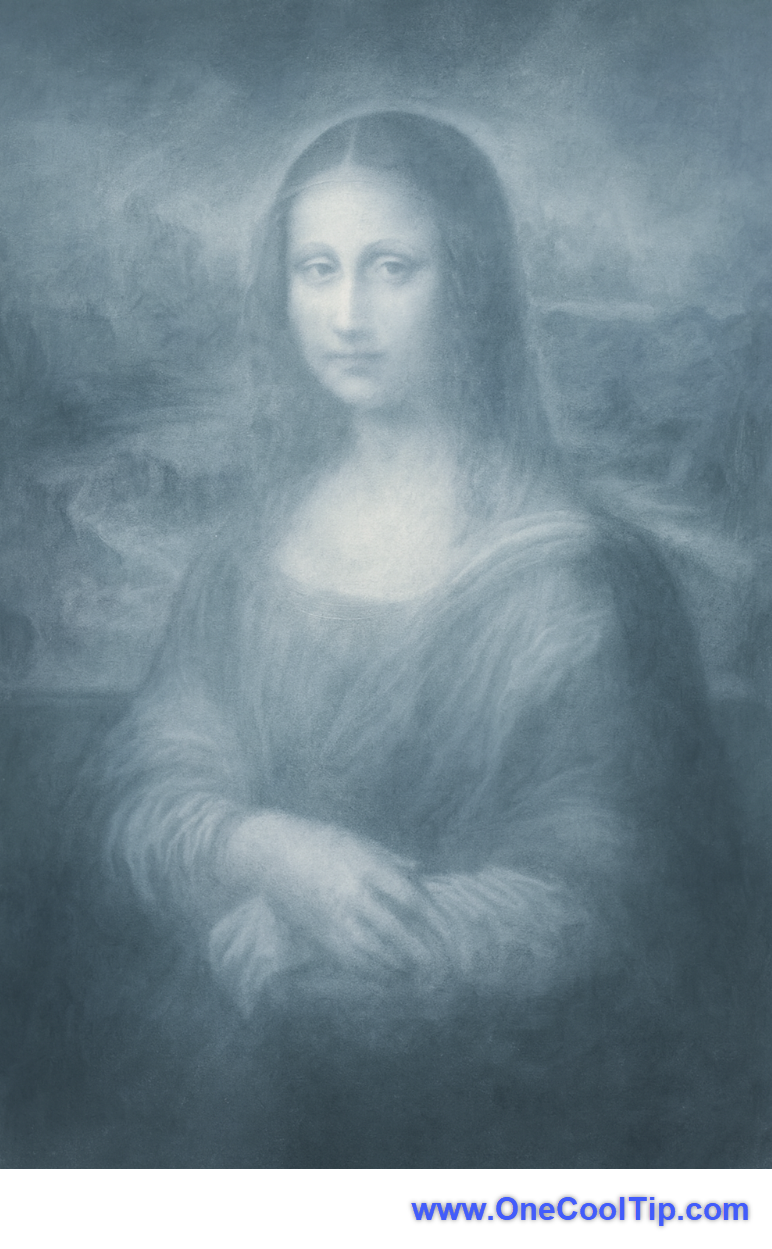
🖼️ Cool ChatGPT AI Prompt of the Day
Use this ChatGPT prompt to create a Halloween image!
“I’m uploading a photo. Make it look like a ghostly image for Halloween.
Add a transparent, misty glow around the subject, slightly fade the edges, and give the background a subtle fog or haunted-room atmosphere.
Keep the look spooky but not scary, like a classic ghost photo from an old movie.
Keep faces softly visible, and use cool, pale tones like silver, gray, and faint blue.”
| | |
Sleep Better, Work Smarter: How Windows Night Light Can Save Your Eyes
Reduce eye strain, improve sleep, and make late-night work less punishing with this built-in Windows feature.
Have you ever finished a late-night spreadsheet session and felt like your eyeballs just ran a marathon under stadium lights?
You're not imagining it.
Blue light from screens messes with your sleep, strains your eyes, and leaves you feeling wired when you should be winding down.
Here's a Cool Tip: Windows Night Light.
Windows Night Light is Microsoft’s quiet fix—and it’s probably already on your PC.
Feature Explanation
Night Light shifts your screen’s color temperature toward warmer tones, reducing the blue light that disrupts circadian rhythms and contributes to digital eye strain.
It’s not a gimmick.
Studies have shown that blue light exposure in the evening can suppress melatonin production, making it harder to fall asleep.
Night Light helps mitigate that by tinting your screen amber during set hours, giving your eyes a break and your brain a chance to power down.
What You'll Gain
- Reduce eye fatigue during nighttime work.
- Improve sleep quality by limiting blue light exposure.
- Customize screen warmth and schedule to fit your routine.
Step-by-Step Instructions
Here's how to do it.
Windows 10 & 11 (Desktop)
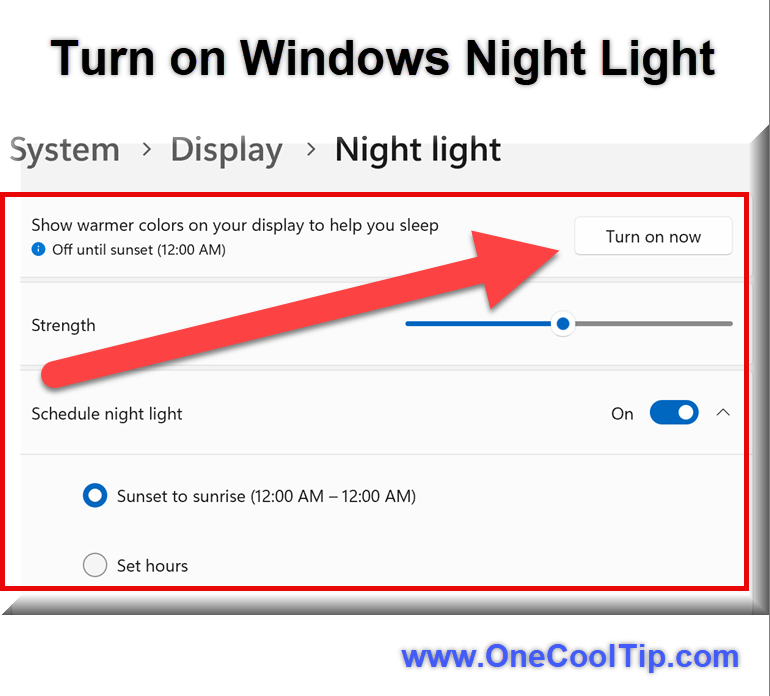
- Open Settings (Windows key + I).
-
Go to System > Display.
- Toggle Night Light to On.
-
Click Night Light Settings to:
- Adjust warmth with the slider.
- Set a schedule (Sunset to Sunrise or custom hours).
| | |
iOS & Android
Night Light is a Windows feature, but mobile equivalents exist:
-
iOS: Settings > Display & Brightness > Night Shift.
-
Android: Settings > Display > Night Light or Blue Light Filter.
Pros and Cons
Pros
- Built-in and free—no downloads required.
- Customizable warmth and schedule.
- Syncs with location for automatic sunset activation.
Cons
- Doesn’t work on external monitors without driver support.
- May slightly distort color accuracy for designers or editors.
- Requires location services for sunset/sunrise scheduling.
Feature Access
Night Light is available to:
- All Windows 10 and Windows 11 users.
- No subscription required.
- Works on most laptops, desktops, and tablets.
Score
Criterion | Score| Justification
Value: 9/10
Helps reduce eye strain and improve sleep for virtually every user.
Usability: 9/10
Easy to find, toggle, and customize without technical knowledge.
Wow Factor: 7/10
Not flashy, but surprisingly effective and quietly delightful.
Total Score: 25/30 🌟 Excellent. Highly recommended for immediate use.
Key Takeaways
Windows Night Light is a simple, effective way to reduce blue light exposure and improve your digital wellness.
It’s free, customizable, and already built into your system, just waiting to be turned on.
Try It Yourself
Try Night Light tonight and see how your eyes feel tomorrow.
Share your experience in the comments, subscribe to our newsletter, and pass this tip along to your team or classroom.
READ MORE
Read the Full Cool Tip
| | |
Help support One Cool Tip. Use this Amazon link when you shop online.
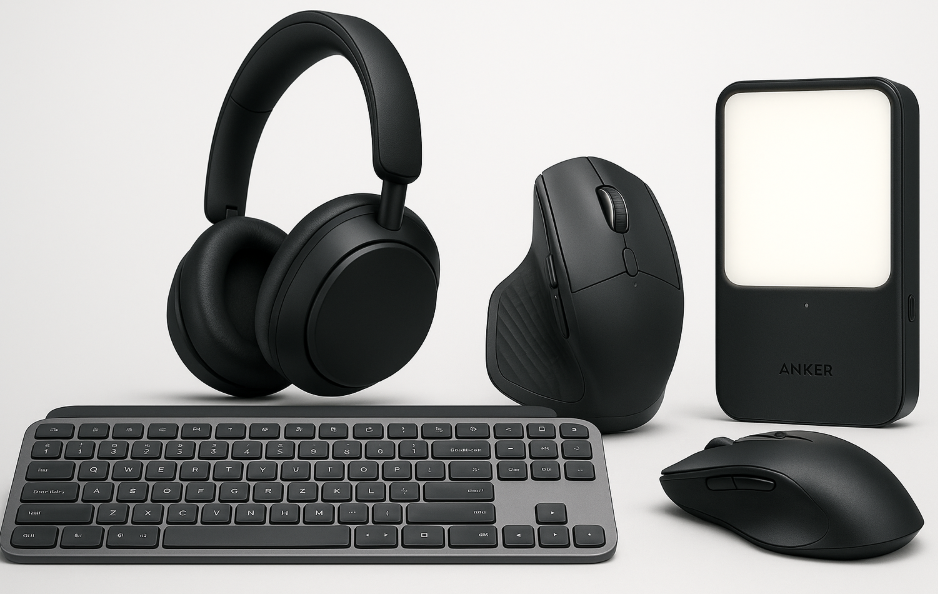
Look at these Cool Products:
|
-
💻 Logitech MX Keys S Keyboard: Smooth, silent keys with smart backlighting make it perfect for late night PC use. Save 12% 👉 Check it out on Amazon!
-
🎧 Sony WH-1000XM5 Headphones: Industry-leading noise cancellation keeps distractions away while you type at night. Save 43% 👉 Check it out on Amazon!
- 🔋 Anker Nano Power Bank (20W Fast Charging): Compact and reliable — ensures your laptop or phone stays charged during long nights. Overall Pick! Save 14% 👉 Check it out on Amazon!
-
🖱️ Logitech MX Master 3S Mouse: Ergonomic design with precision scrolling enhances comfort during extended PC use. Save 11% 👉 Check it out on Amazon!
| | |
🆒Tell Me More
- Night Light filters blue light wavelengths between 400–490nm.
- You can schedule it manually or sync with sunset/sunrise.
- Warmer tones (3400K–4800K) are less disruptive to melatonin production.
- Night Light is built into Windows 10 and 11 with no extra software needed.
- Designers may want to disable it during color-critical work.
⏩Quick Tips
-
💡 Turn it on fast: Press Windows + A and click “Night Light.”
-
🕒 Schedule it: Go to Settings > Display > Night Light Settings.
-
🌇 Use sunset mode: Enable location services for automatic timing.
-
🎨 Adjust warmth: Use the slider to find your comfort zone.
-
📌 Pin it: Add Night Light to Quick Settings for one-click access.
| | ✅ More Must-Read Tech Tips | |
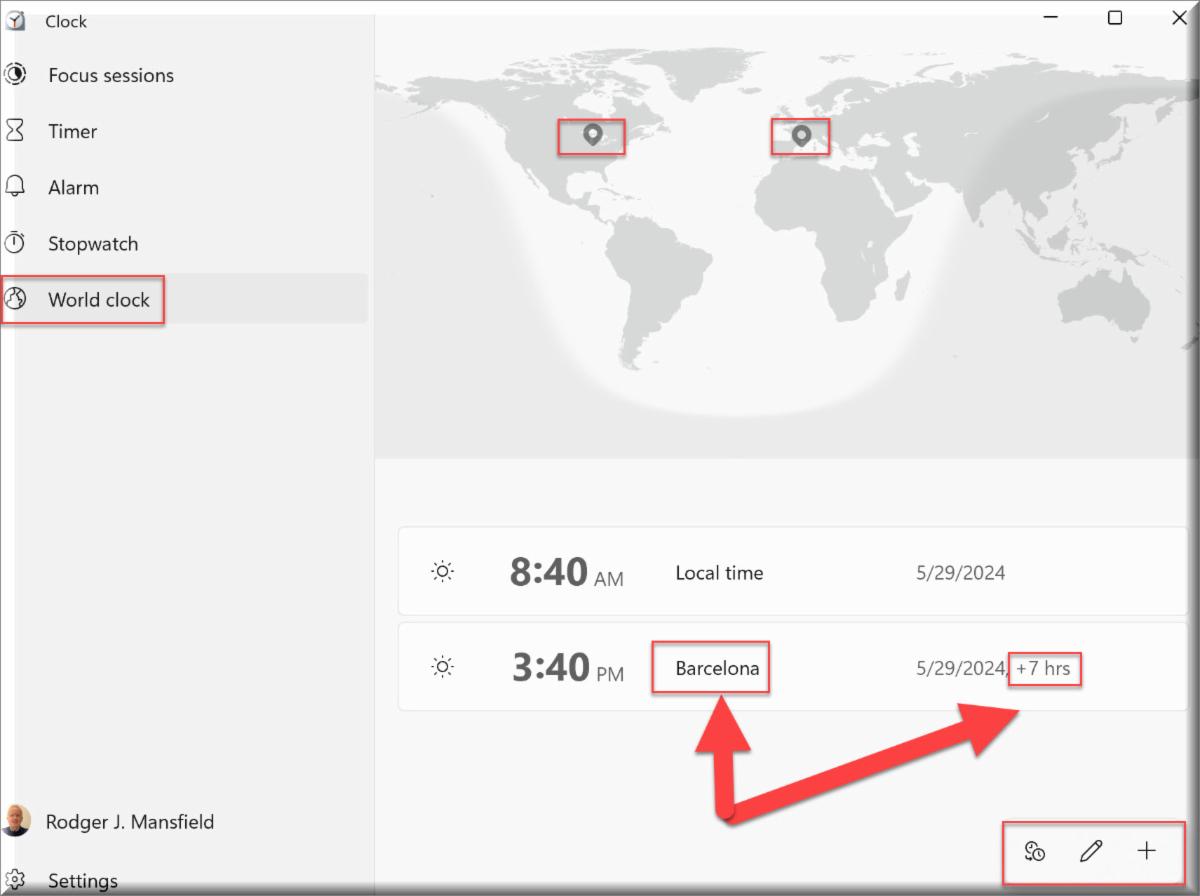
👀 How Do I Compare Global Times in Windows 11?
Have you ever scheduled a meeting only to realize it’s midnight for your colleague in Tokyo?
In our interconnected world, keeping track of multiple time zones is not just a necessity but a skill.
The Windows 11 Clock app is a versatile tool designed to help you manage your time effectively.
Here's how to do it.
-
Open the Windows 11 Clock App.
-
Navigate to the World Clock tab.
-
Click on ‘Add a new city’ and enter the desired location.
-
Repeat the process for the second location.
-
Use the ‘Compare’ feature to view times side by side.
The Windows 11 Clock App’s World Clock feature is a boon for anyone working across time zones.
By following these steps, you can avoid timing mishaps and stay connected with the world.
Discover more HERE.
| |
🤔 Have You Ever Wondered How to Multiple App Instances in Windows?
Have you ever found yourself juggling between tasks and wishing for a quicker way to access multiple instances of your favorite apps?
Holding down the Shift key when opening a Windows app opens a second instance of the app.
Here's how to do it.
-
Locate the app icon on your taskbar.
-
Hold down the Shift key.
-
While holding the key, click on the app icon.
-
Voilà! A new instance of the app will launch.
By eliminating the need to navigate through menus, it significantly reduces the time spent switching between applications, allowing for a more efficient working environment.
However, not all apps support multiple instances, which may lead to confusion or frustration if users are unable to open multiple windows of their desired programs.
Embracing this simple shortcut can significantly boost your efficiency, allowing you to manage your digital workspace like a pro.
Find more HERE.
| | |
🙋♂️ Here's How to Efficiently Shut Down Windows.
Ever wished there was a quicker, more efficient way to shut down your Windows computer?
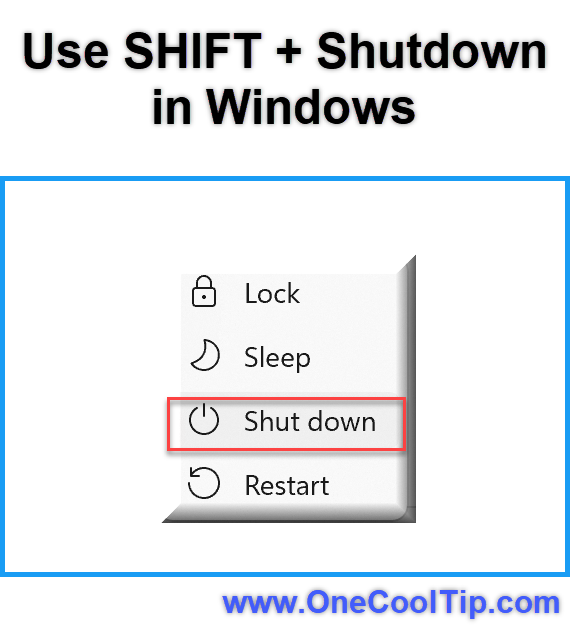
Shift+Shutdown is a powerful method to shut down your Windows computer.
By holding the Shift key while selecting shutdown, Windows skips the hibernation data writing process, resulting in a faster and cleaner shutdown.
This feature is crucial as it ensures a complete shutdown, preventing potential issues with system performance and stability.
Here's how to do it.
-
Make sure all your work is saved.
-
Click on the Start menu or press Ctrl + Alt + Del to bring up shutdown options.
-
While holding the Shift key, click on the Shutdown button.
-
Your computer will shut down more quickly and completely than with a regular shutdown.
This reduces shutdown time by bypassing the hibernation data writing process and ensures all background tasks and processes are properly closed.
By incorporating this practice into your routine, you can ensure a cleaner, faster shutdown, boosting overall system performance.
Learn more HERE.
| | |
❓Did you share this newsletter with three friends yet?
😎 Cool Facts
-
50%: Night Light can reduce melatonin suppression by up to 50%. Source.
-
30 Minutes: Users report falling asleep 30 minutes earlier on average when using Night Light. Source.
-
75%: The default setting reduces blue light by 50%, while max settings cut it by 75%. Source.
-
6500K - 3400K: Night Light adjusts color temperature from 6500K to 3400K, mimicking candlelight. Source.
⌨️Today's Cool Keyboard Shortcuts
-
🪟 Windows + A: Open Quick Settings to toggle Night Light.
-
🧭 Windows + I: Open Settings directly.
- 🔒 Windows + L: Locks your screen quick.
😜 Tech Joke of the Day 😅
Why did the computer go to sleep?
Because it needed a byte of rest!
🔎 Do you have a Cool Tip or tech question? Email us at onecooltip.com@gmail.com.
| | |
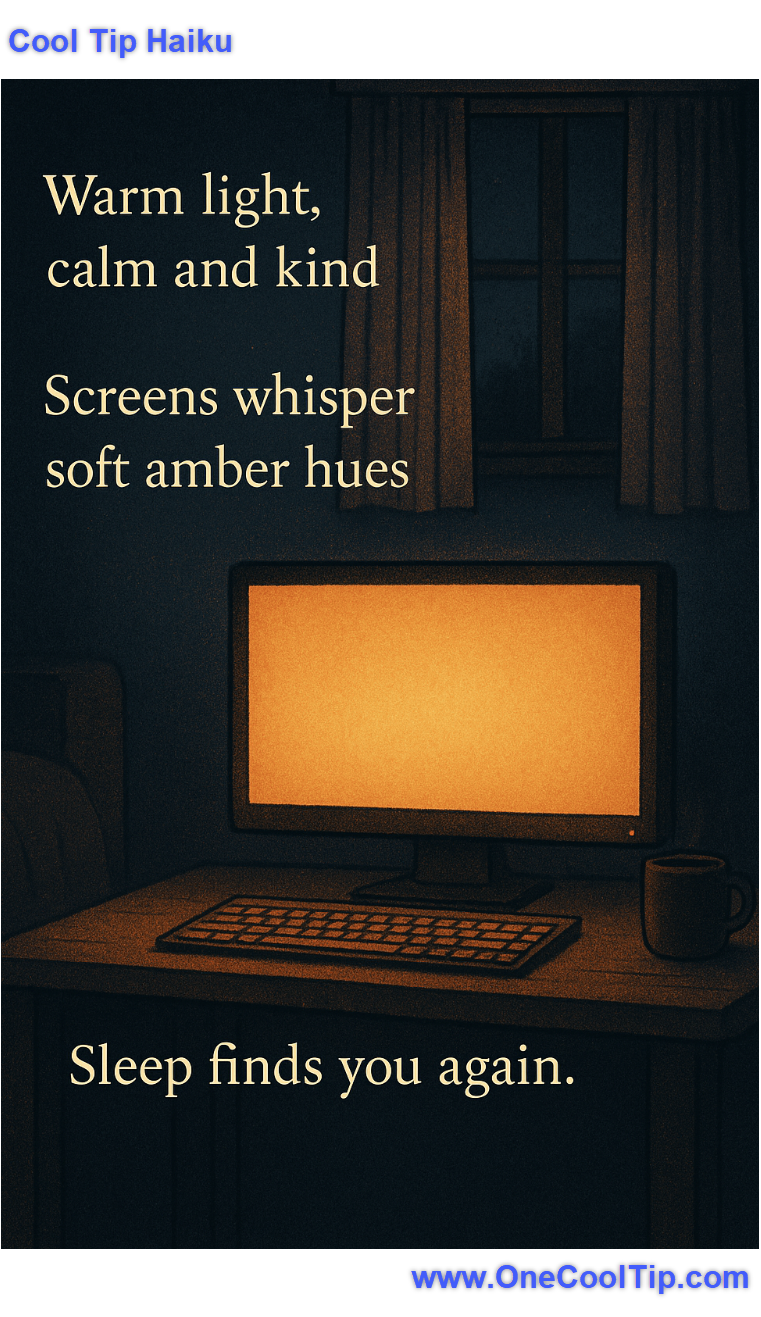
Warm light, calm and kind,
Screens whisper soft amber hues,
Sleep finds you again.
| |
| 🤔 Poll: How do you use Night Light on your computer? | | | |
Did You See These Cool Tips This Week?
| | | | Grok's Kids Mode Makes Chatbots Kid-Proof Without Killing the Fun | Have you ever caught your kid grilling an AI about black holes one minute, only to worry what unfiltered rabbit hole they'll tumble into next? In a world where chatbots can veer from cosmic wonders to questionable corners, Elon Musk's latest tweak to Grok promises a smarter safeguard. | | | | Master AI and Cloud Skills Faster with Google Skills: Your One-Stop Learning Hub | A fresh way to build in-demand AI and cloud expertise, Google Skills brings together thousands of labs, courses and badges that serve individuals and teams alike. | |
ICYMI - In Case You Missed It ...
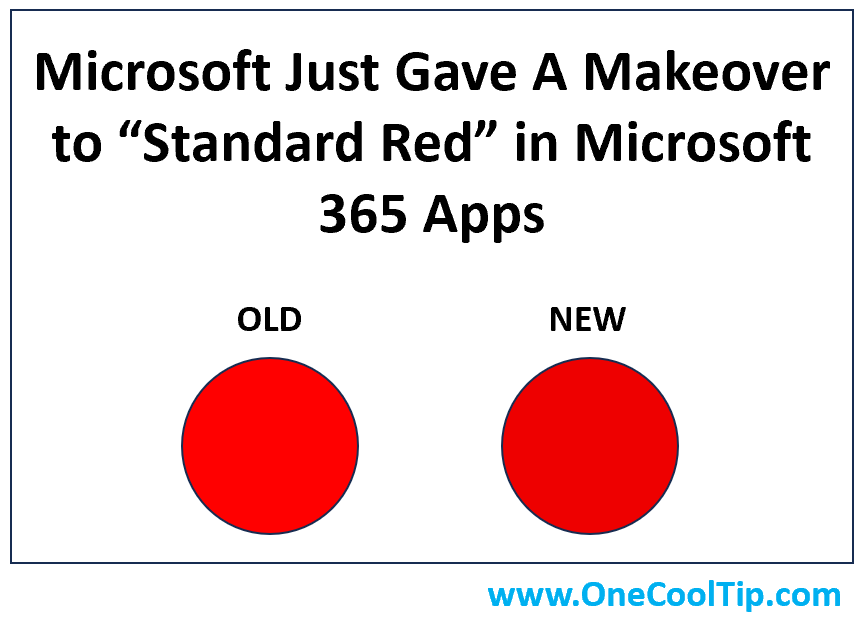
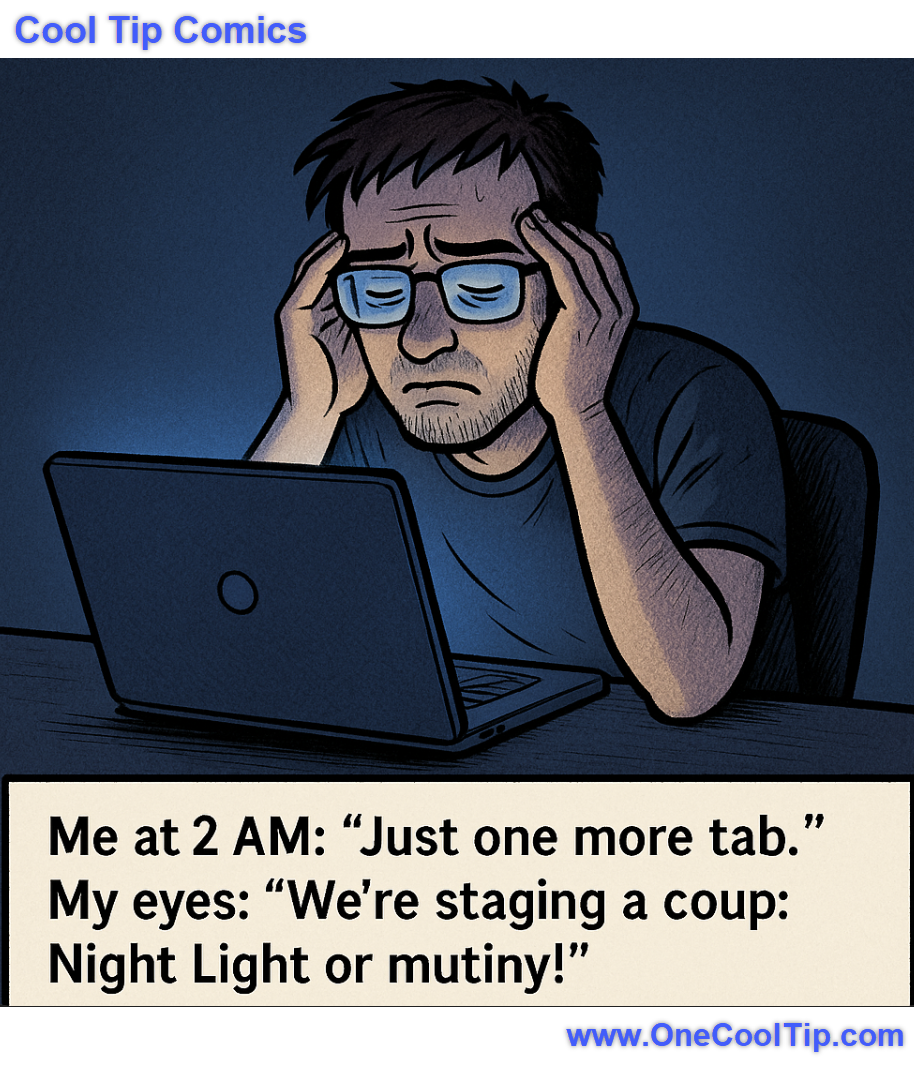
| | | | Microsoft’s Red Gets a Makeover. Here’s Why It Matters for Accessibility | Microsoft 365 quietly updated its standard red font color to improve readability and meet accessibility standards. This small change makes a big difference, and you can apply it manually too. | | This is the face of a man who thought Night Light was optional, until his eyeballs filed for worker’s comp. | | |
Trivia Answer: B) To reduce blue light emission
Windows Night Light reduces blue light emission, which can interfere with sleep.
By shifting the color palette to warmer tones, Night Light makes it easier on the eyes and helps regulate the body's natural sleep-wake cycle.
----------
Tomorrow's Cool Tip is waiting to amaze you.
Until then, go forth and conquer the tech world with your newfound knowledge!
Be sure to visit www.OneCoolTip.com for Cool Tech Tips for a Cooler Life!
And if you Like One Cool Tip, please support with TipJar!
Enjoy!
Rodger
Chief Cool Tipper
onecooltip.com@gmail.com
| |
| What do you think of today's OneCoolTip newsletter? | | | |
Please Share the One Cool Tip Newsletter!
You asked for it. You got it. There is now a One Cool Tip Newsletter archive. Did you delete a newsletter and want to read it again? Check it out HERE.
Want to help One Cool Tip grow? Please forward this email using the link above. And if you see an OCT social media post, please LIKE, COMMENT and SHARE!
Have you subscribed to the One Cool Tip YouTube channel? Subscribe HERE.
| | Connect with One Cool Tip!! | | |
|
As an Amazon Associate, One Cool Tip may earn a small commission from qualifying purchases.
Our media content is intended solely for informational purposes only. Please do not construe anything here as legal, tax, investment, financial, marital or other advice.
Copyright © 2025 | www.OneCoolTip.com | All Rights Reserved
|
| | | |