One Cool Tip Newsletter

September 28, 2026

Your daily dose of tech-savvy brilliance!

😀Greetings! Happy Monday, Cool Tipper!


Get ready to streamline your digital life with simple, actionable tips delivered straight to your inbox.


Cool Tip Theme: Copilot Change History Summaries


Excel Copilot can summarize workbook changes, identify who made edits, and help you review updates faster in shared spreadsheets.


New here? Subscribe to the One Cool Tip Newsletter for daily updates. It's FREE!

3️⃣

If you enjoy the One Cool Tip newsletter, please forward this newsletter to THREE friends or colleagues or share it on social media using the links below.


Leave a $$$ Tip!


Share this One Cool Tip Newsletter!

X Share This Email
LinkedIn Share This Email
Pinterest Share This Email

🚨The New AI Scam Risk: Criminals Can Read Your Inbox in Minutes🚨


Microsoft recently announced the disruption of EvilTokens, an AI-powered cybercrime platform that helped criminals analyze compromised email accounts and identify the best opportunities for fraud.


Instead of manually reading thousands of messages, attackers could use AI to map relationships, find financial conversations, identify decision-makers, and even draft convincing impersonation emails.


The platform was linked to more than 12,000 compromised inboxes across over 10,000 organizations worldwide before it was disrupted.


The lesson is simple: protecting your email account is more important than ever.


Enable multi-factor authentication, be cautious of unexpected login requests, and regularly review your account's security settings.


If you receive a request involving money, gift cards, banking changes, or sensitive information, verify it through a trusted second channel before taking action.


AI is helping criminals work faster, but a few extra seconds of verification can stop many scams before they succeed.


And in Other News...


  • Excel Just Changed a 40-Year-Old Rule


For decades, Excel users have been limited to storing just one value in each cell.


Microsoft is now testing a new capability that allows multiple values to exist within a single cell using lists and arrays, opening the door to more flexible spreadsheet designs.


Excel users may be able to group related information together without creating extra rows or columns, which can make some worksheets easier to organize and manage.


This feature has the potential to simplify data entry, reduce clutter, and create more powerful spreadsheet solutions.


While it may take some time before it becomes widely available, it represents one of the most significant changes to Excel's cell structure in years.


If you regularly work with lists, schedules, inventories, or project trackers, this is a feature worth watching.


It could change the way you build spreadsheets in the future.

Cool Tip Poll

🤔 What causes the most confusion in your spreadsheets?

Cool Deals of the Day

Help support One Cool Tip. Use this Amazon link when you shop online.


Check out these Cool Deals:

💻 Dell 4K 27" Monitor: More screen space makes reviewing large spreadsheets easier.

Save 10%. Now $268.99. 4.4 Stars. Check it out on Amazon!


🔌 Anker 8-in-1 USB-C Hub: Useful for professionals working across multiple devices and displays.

Look!👉 Now $49.99. 4.3 Stars. Check it out on Amazon!


🖥️ Laptop Stand for Desk: Improves ergonomics during long spreadsheet review sessions.

Save 15%. Now $25.49. 4.6 Stars. Check it out on Amazon!


*Prices accurate when originally published.

One Cool Tip may earn a commission from qualifying purchases.

Fuel Your Adventure

Try Big Mike's Jerky!


bigmikesjerky.com


Now on TikTok!


Today's Cool Tip

Stop Guessing What Changed in Excel


Shared spreadsheets can change quickly, especially when several people edit them throughout the day. Excel Copilot can help you understand what changed, who made the changes, and where to focus your attention without manually reviewing long change logs.


You open an important spreadsheet on Monday morning and immediately notice that several numbers, formulas, or worksheets look different. 


The workbook was updated while you were away, but figuring out exactly what changed can take time.


Here's a Cool Tip: Ask Copilot to catch you up on Excel workbook changes.


Excel has long offered tools for reviewing changes, but those logs can become difficult to navigate in busy shared workbooks. 


Microsoft has added a Copilot capability that lets you ask questions about workbook changes in plain language and receive summaries of recent activity.


Instead of searching through long lists of edits, you can ask Copilot to explain what happened and highlight the most important updates.


Feature Explanation


Excel Copilot can analyze information stored in a workbook's change history and provide easy-to-understand summaries.


You can ask Copilot to:


  • Summarize changes made to a workbook.
  • Review changes during a specific period.
  • Identify who changed certain worksheets, tables, or cells.
  • Explain edits made by a particular user.
  • Show changes previously made by Copilot.


This approach can save significant time when multiple people collaborate in the same workbook. 


Rather than reviewing every individual edit, you can start with a concise summary and then investigate specific details if needed.


The feature is especially useful for business teams, project managers, financial analysts, educators, and anyone who regularly works with shared spreadsheets.


Copilot reports information available in a workbook's change history. 


Some edits may not appear if they were made with unsupported Excel versions or features that are not tracked through change history.


What You'll Gain


  • Save time reviewing collaborative spreadsheets.
  • Quickly identify who made important changes.
  • Reduce confusion when multiple people edit the same workbook.
  • Focus on significant updates instead of every individual edit.


Step-by-Step Instructions


Here's how to do it.


Excel with Copilot


  1. Open a workbook that contains tracked changes.
  2. Open the Copilot pane.
  3. Enter a prompt such as:
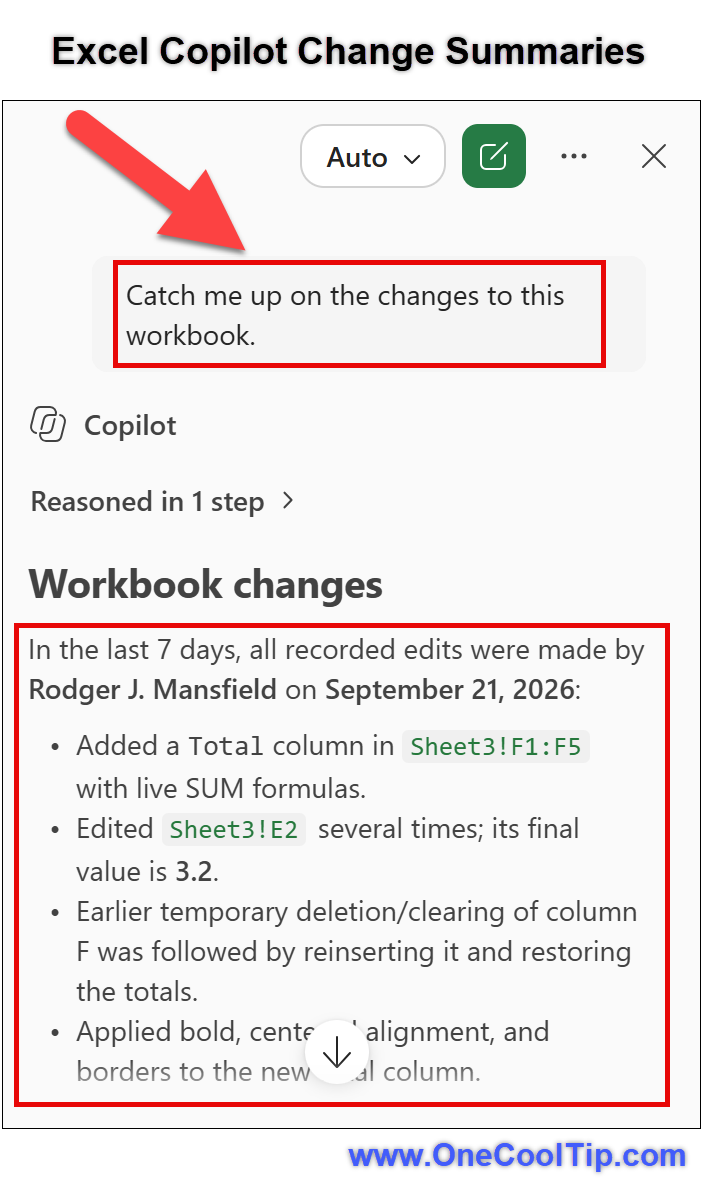
  • "Catch me up on the changes to this workbook."
  • "Summarize the changes made in the past seven days."
  • "Who changed the values on the Forecast sheet?"
  1. Review Copilot's summary.
  2. Ask follow-up questions to narrow the results to specific worksheets, ranges, cells, people, or time periods.
  3. If you want to see the underlying details, go to Review > Show Changes.


fig. 1 - Excel Copilot Change Summaries

Cool Example:


  • Suppose six members of a sales team update a shared forecasting workbook during the week. 
  • Instead of manually checking every worksheet, you can ask Copilot to summarize changes from the past seven days and quickly identify the most important updates.


Cool Notes:


  • Copilot summarizes information from Excel's existing change history. 
  • For the most complete results, use modern co-authoring versions of Excel and store collaborative workbooks in OneDrive or SharePoint.
  • If your workbook has not been tracking changes, or if edits were made using unsupported Excel versions or features, Copilot may not be able to report those changes. 
  • You can check available history by selecting Review > Show Changes in Excel.


Pros and Cons


Pros:


  • Makes change history easier to understand.
  • Helps identify who made edits.
  • Speeds up review of collaborative workbooks.
  • Supports natural-language questions.
  • Works alongside Excel's existing change-tracking tools.


Cons:


  • Depends on available workbook change history.
  • Some edits may not be included.
  • Requires access to Copilot in Excel.
  • Availability may vary by account, subscription, organization, or app version.


Feature Access


Availability may vary based on:


  • Microsoft 365 subscription
  • Copilot access
  • Organization policies
  • Account type
  • App version
  • Deployment status


Score

Criterion | Score (0–10) |  Justification
Value |  8
It solves a common collaboration challenge and can reduce time spent reviewing edits.
Usability |  8
Natural-language prompts make the feature easy to use for most Excel users.
Wow Factor |  6
Useful and practical, though it builds upon existing workbook change history.
Total: 22/30 | 👍 Good
A practical productivity feature that helps users understand workbook activity without manually combing through change logs.
Similar to Excel's Show Changes feature, but provides human-readable summaries instead of raw edit records.


Key Takeaways


Excel Copilot can turn workbook change history into readable summaries that are much easier to understand. 


For teams that regularly collaborate in shared spreadsheets, it can save time and reduce confusion when reviewing updates.


Cool Tip Snapshot


  • Feature Name: Copilot Change History Summaries.
  • Platform(s): Excel with Copilot support.
  • Quick Benefit: Quickly understand workbook changes.
  • Best For: Shared spreadsheets and collaborative work.
  • Access Type: Subscription / Availability May Vary.
  • Difficulty: Easy.


Try It Yourself


Open a shared workbook, ask Copilot to summarize recent changes, and see how quickly you can catch up on workbook activity. 


If you find the feature useful, leave a comment, subscribe to the One Cool Tip newsletter, and share this article with family, friends, and coworkers.


READ MORE


Read the Full Cool Tip.

Check Out These Cool Tips & Tricks


  • Catch Up: Ask Copilot for a workbook summary when returning after time away. Open Copilot and type "Catch me up on the changes to this workbook."


  • Date Range: Focus on recent activity instead of the entire workbook history. Ask Copilot to summarize changes from the last seven days.


  • Find Editors: Quickly identify contributors to important worksheets. Ask who changed a specific worksheet or range.


  • Formula Check: Investigate unexpected calculation results. Ask Copilot which formulas were modified.


  • Sheet Focus: Narrow results to reduce information overload. Include the worksheet name in your prompt.


  • Cell Tracking: Review activity on critical cells. Ask what changed in a specific cell or range.


  • Copilot Audit: See what AI-assisted edits were made. Ask "What changes has Copilot made to this workbook?"


  • Show Changes: Verify important findings manually. Go to Review > Show Changes.


  • Version Recovery: Restore older workbook versions when necessary. Open Version History from Excel.


  • Ask Better Questions: Specific prompts usually generate better answers. Include people, dates, worksheets, or cell ranges in your request.

ICYMI - In Case You Missed It ...

Explore Space in 3D With NASA’s Eyes


NASA’s Eyes turns real NASA data, imagery, and spacecraft models into interactive 3D experiences. Explore planets, follow spacecraft, track nearby asteroids, monitor Earth, and visit distant worlds from your web browser.


Read the Full Version.


Read the Newsletter Version.

Looking for your next adventure?


Call Denise at Travel For You.

314.660.3039


Sign Up for the Monthly Newsletter


http://www.travelforyouvacations.com/


https://www.facebook.com/TRAVEL.FOR.U/


See You Tomorrow

Tomorrow's Cool Tip is waiting to amaze you.


Until then, go forth and conquer the tech world with your newfound knowledge!


Be sure to visit www.OneCoolTip.com for Cool Tech Tips for a Cooler Life!


And if you Like One Cool Tip, please support with TipJar!


Enjoy!


Rodger

Chief Cool Tipper

onecooltip.com@gmail.com


What Do You Think?

What do you think of today's OneCoolTip newsletter?
Positive        Neutral        Negative
X Share This Email
LinkedIn Share This Email

Connect with One Cool Tip!

Facebook  X  Instagram  Web  Pinterest  YouTube  LinkedIn
 

As an Amazon Associate, One Cool Tip may earn a small commission from qualifying purchases.


Our media content is intended solely for informational purposes. Please do not construe anything here as legal, tax, investment, financial, marital or other advice.


Copyright © 2026 | www.OneCoolTip.com | All Rights Reserved