|
One Cool Tip Newsletter
October 26, 2026
| Your daily dose of tech-savvy brilliance! | | |
😀 Greetings!, Happy Back-to-Work Monday, Cool Tipper!
Get ready to streamline your digital life with simple, actionable tips delivered straight to your inbox.
Today's Cool Tip Theme: PowerPoint Interactive Slides
Learn how Copilot creates interactive PowerPoint slides with timelines, dashboards, filters, and other elements your audience can explore.
IN THIS ISSUE
- ⚠️ Fake Charity Sweepstakes Alert: Spot the warning signs of scam prize giveaways impersonating charities before they take your money.
- 🎓 AI in Education: How schools are balancing accessibility and personalized learning with critical thinking and academic integrity.
- 🤖 Cool AI Prompt: A ready-to-use prompt to help you plan interactive presentation layouts using Copilot.
- 📊 Interactive Slides in PowerPoint: Turn dense bullet points into clickable dashboards, timelines, and comparisons with Microsoft Copilot.
- ✍️ One-Click Word Proofreading: Instantly batch-correct spelling and grammar errors in Word for the Web using Copilot.
- 📈 Direct Chart Editing in Excel: Customize and edit chart data label text directly inside Excel for the Web without opening the desktop app.
- 🙋♂️ PowerPoint Explainer Tool: Right-click confusing charts, jargon, or acronyms to get an instant, plain-English summary from Copilot.
New here? Subscribe to the One Cool Tip Newsletter for daily updates. It's FREE!
-
😂 Laugh with Us! Enjoy our Tech Joke of the Day, Haiku, and Cool Tip Comics.
-
🌐 Stay Informed! Check out ICYMI and our One Cool Tip Video.
| | |
3️⃣
If you enjoy the One Cool Tip newsletter, please forward this newsletter to THREE friends or colleagues or share it on social media using the links below.
Leave a $$$ Tip!
Share this One Cool Tip Newsletter!
| | |
Today's Tech Trivia
Which keyboard shortcut starts a PowerPoint slideshow from the beginning on Windows?
A) Ctrl + P
B) F5
C) Alt + Enter
D) Ctrl + Shift + S
Answer at the end of this newsletter.
| | |
⚠️ You Won a Prize? ⚠️
Scammers are impersonating well-known charities and telling people they have won charity-sponsored sweepstakes.
The Federal Trade Commission says the biggest warning sign is simple: real prizes are free, so anyone demanding payment or personal information to claim your winnings is running a scam.
Criminals may use the names of real charities, convincing social media ads, and even spoofed caller ID information to appear legitimate.
Before trusting a contest, research the organization independently and be cautious of paid search advertisements that could lead to impostor websites.
Legitimate sweepstakes do not require you to pay or buy something to enter or improve your odds of winning.
The Cool Tip:
If someone says you won but wants money first, the real prize is recognizing the scam before they get your cash.
And in Other News...
- AI Is Already in the Classroom. The Real Question Is How We Use It
Artificial intelligence is quickly becoming part of education, and Microsoft says the choices made today could shape how students learn and prepare for future careers.
Research highlighted in Learning Curves: The Future of Education, from Classrooms to Careers, in an AI-Driven World explores AI’s impact from K-12 classrooms through college and entry-level jobs.
AI can support accessibility and personalized learning, but it can also encourage over-reliance, cheating, and difficulty recognizing inaccurate information.
The research emphasizes that teachers need appropriate training and that there is no single approach to AI education that works everywhere.
Just as important are durable human skills such as empathy, judgment, and critical thinking.
The Cool Tip:
Encourage students to use AI as a tool that strengthens their thinking, not as a replacement for learning how to think for themselves.
| | |
Try this Cool AI prompt. Copy and paste to ChatGPT, Gemini, Claude or Copilot.
“Help me plan an Interactive Slide for a PowerPoint presentation.
My topic is [TOPIC] and my audience is [AUDIENCE].
Suggest whether a timeline, dashboard, comparison, process, or another interactive format would explain the information best.
Describe what information should appear on the slide, what the audience should be able to explore, and give me a concise prompt I can adapt for Copilot in PowerPoint.
Keep the design simple and presentation-friendly.”
| | Make Your PowerPoint Slides Interactive | | |
PowerPoint presentations don't have to be a parade of static slides anymore.
Interactive Slides uses Copilot to create visual experiences that you and your audience can explore during a presentation.
| | |
By Rodger Mansfield, Technology Editor
October 26, 2026
Subscribe
You have probably sat through a presentation where a complicated chart or crowded timeline appeared on screen and everyone was expected to understand it instantly.
Microsoft is giving PowerPoint presenters another option.
Interactive Slides uses Copilot to create slides with visual elements you can explore during a presentation.
Depending on what Copilot creates, you might expand a step, filter a chart, or move through a timeline instead of simply looking at a finished graphic.
The feature is particularly interesting for dashboards, project timelines, comparisons, business processes, and other subjects where revealing information progressively can help an audience follow the story.
There is one important catch. Interactive Slides are still rolling out.
The rollout for PowerPoint on Windows and Mac in Current Channel and Monthly Enterprise Channel began in mid-October 2026 and is expected to finish by the end of October.
The web rollout follows the same schedule.
Here's a Cool Tip: Ask Copilot to turn complicated information into a slide your audience can explore.
Feature Explanation
Interactive Slides are PowerPoint slides created by Copilot with visual interactivity built into them.
Instead of constructing the interactive elements yourself, you describe the story or information you want to present and let Copilot generate the slide.
You can also base an Interactive Slide on existing content.
Copilot can create a dashboard using a snapshot of data from an Excel workbook or build a timeline using information from a project document through Work IQ.
Editing works differently from a conventional PowerPoint slide.
You cannot directly edit the interactive content on the slide canvas.
Instead, you continue prompting Copilot with the changes you want, such as changing a visualization to a bar chart, adding a regional filter, or matching colors to your presentation theme.
There's also an interesting option for Microsoft Teams.
When an Interactive Slide is presented through PowerPoint Live, each attendee can explore it independently.
Their interactions are not shared with the presenter or other attendees.
Synchronized presenter interactions are planned as a future improvement.
That makes the feature particularly promising for project reviews, classroom explanations, business presentations, product comparisons, and other situations where an audience needs to explore information instead of simply looking at it.
What You'll Gain
- Explain complicated information progressively instead of cramming everything onto one slide.
- Turn existing information into something explorable, such as a timeline or dashboard.
- Reduce manual slide-building work by describing the interactive experience you want to Copilot.
- Give viewers more ways to explore information when a presentation is viewed on a supported platform.
Step-by-Step Instructions
Here's how to do it.
Windows, macOS, and Web
-
Open the presentation you want to use in an eligible version of PowerPoint.
-
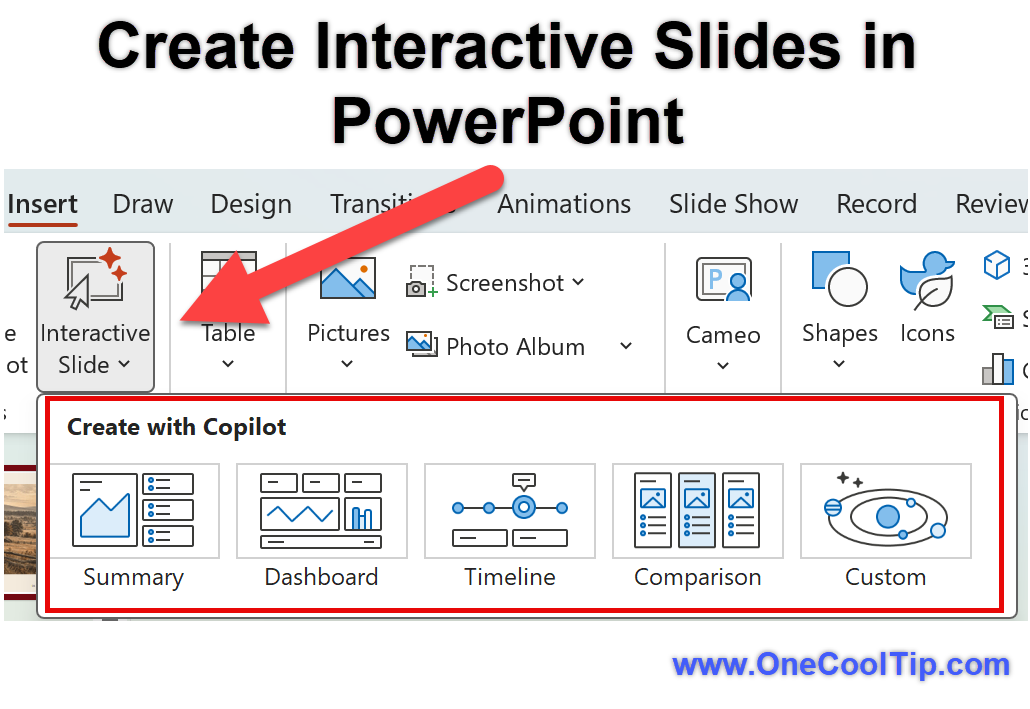
Select Interactive Slide from the Home or Insert ribbon. This opens the Copilot chat pane. You can also select Create interactive slide from Copilot's skill picker.
-
Choose one of the suggested categories or ask Copilot to create a custom Interactive Slide.
-
Describe the information and experience you want. Be specific about the type of slide you need.
-
Review the Interactive Slide that Copilot creates.
-
If it needs changes, keep the Copilot pane open and tell Copilot what you want changed. Interactive content is updated through Copilot rather than directly on the slide canvas.
-
Run the presentation and test the interactive elements before presenting or sharing it.
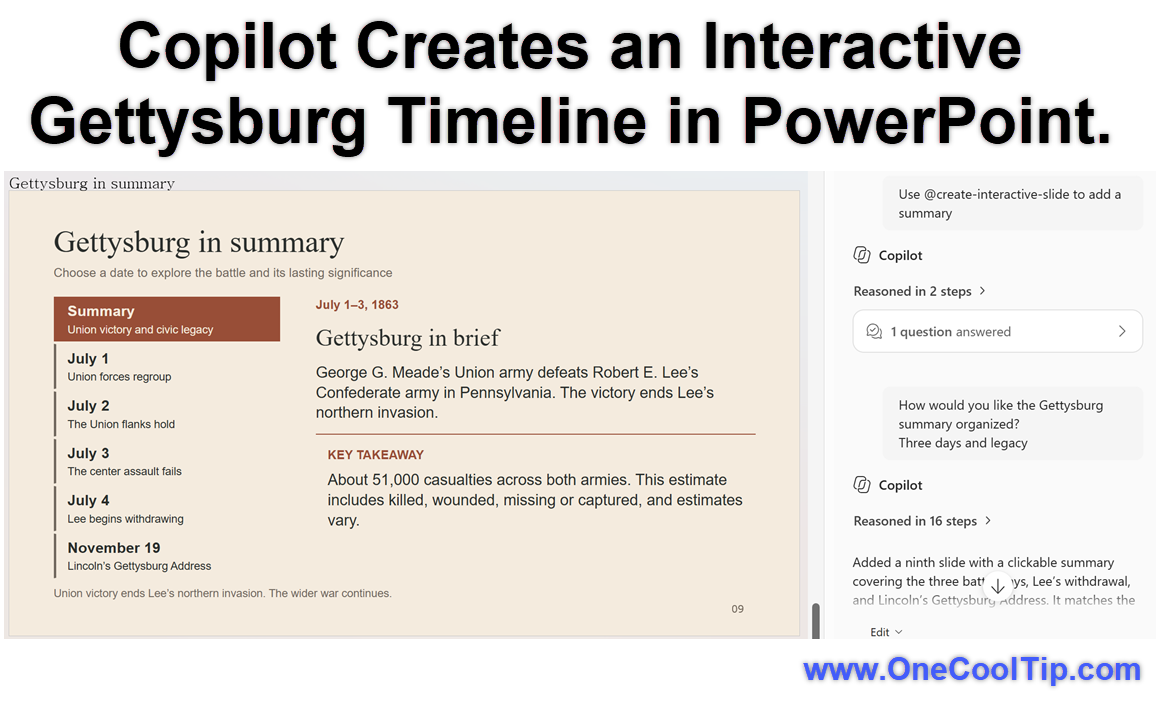
| | fig. 1 - Create Interactive Slides in PowerPoint | fig. 2 - Copilot Creates an Interactive Gettysburg Timeline in PowerPoint. | |
A Realistic Example
Suppose you're managing a project with several important milestones or creating a presentation about the Battle of Gettysburg.
You could ask Copilot to build a timeline using information from your project document.
During the presentation, the resulting Interactive Slide can let you move through the timeline rather than displaying all of the information at once.
Pros and Cons
Pros:
-
More engaging explanations: Reveal information progressively instead of displaying every detail simultaneously.
-
Good fit for complex subjects: Timelines, dashboards, and similar presentations can give viewers more ways to examine information.
-
Natural-language creation: Tell Copilot what kind of Interactive Slide you want instead of building the interactive content manually.
-
Works with existing content: Copilot can ground Interactive Slides in work content, including Excel data and project documents.
-
Recipients don't need their own Copilot license: Anyone you share the presentation with can explore its interactivity, even without a Copilot license.
Cons:
-
Still rolling out: Some eligible users may not see the feature yet.
- Editing is Copilot-driven: Interactive content cannot be edited directly on the slide canvas.
-
Mobile limitations: iPhone and Android show Interactive Slides as static images.
-
AI-generated content needs review: The generated result may be unexpected or contain inaccuracies.
Who Should Skip This
Stick with conventional PowerPoint slides when you need precise manual control over every slide element or when your presentation will primarily be consumed as a PDF, printed document, iPhone presentation, or Android presentation.
Those formats do not retain the interactive experience.
Users without eligible Copilot access in PowerPoint also won't be able to create or update Interactive Slides.
Troubleshooting and Limitations
Problem: Interactive Slide doesn't appear
-
Why it happens: The rollout may not have reached your account yet, or Copilot may not be included with your Microsoft 365 subscription or available because of your organization's settings.
-
Fix or workaround: Check your Copilot eligibility and update PowerPoint. If your account is eligible, check again as Microsoft's rollout progresses.
Problem: I can't manually edit the interactive elements
-
Why it happens: Interactive Slides are created and updated through Copilot rather than by directly editing the slide.
-
Fix or workaround: Keep the Copilot pane open and describe the change you want.
Problem: The slide is static on my phone
-
Why it happens: Microsoft currently doesn't support Interactive Slide interactivity on iPhone or Android.
-
Fix or workaround: Use a supported platform when the interactivity matters.
Problem: My exported PDF isn't interactive
-
Why it happens: Interactive Slides appear as non-interactive images when printed or exported to formats such as PDF.
-
Fix or workaround: Share the original presentation and use a supported platform when you want recipients to experience the interaction.
Problem: Presenter View behaves differently on Mac
-
Why it happens: Interactive Slides currently work in Slide Show on Mac, but not Presenter View. Support for Presenter View on Mac is planned as a future improvement.
-
Fix or workaround: Use Slide Show on your Mac when you need the interactive elements.
Privacy and Data Notes
Interactive Slides use Microsoft 365 Copilot and Microsoft 365 Copilot agents to create and update slides.
The web views used to display Interactive Slides are sandboxed and don't connect to other content or services.
As a practical precaution, carefully review any work information you use to ground an Interactive Slide before sharing the finished presentation outside its intended audience.
The Create Interactive Slide skill uses Microsoft 365 Copilot and Microsoft 365 Copilot agents in the context of Microsoft Purview organizational policies and Information Protection sensitivity labels.
Treat AI-generated presentation material like any other important draft.
Review the source information and verify the finished slide before you present or share it.
Microsoft specifically warns that Copilot-generated Interactive Slides may contain inaccuracies.
Feature Access
-
Create or update: Copilot app and Copilot in PowerPoint for Windows, Mac, and web.
-
View and interact: Copilot app, PowerPoint for Windows, Mac, web and iPad, plus PowerPoint Live in Microsoft Teams.
-
No interactivity: iPhone, Android, printed copies, and exports to formats such as PDF. These display a non-interactive image instead.
-
Windows and Mac rollout: Current Channel and Monthly Enterprise Channel rollout started in mid-October 2026 and is expected to finish by the end of October 2026.
-
Web rollout: Started in mid-October 2026 and is expected to finish by the end of October 2026.
-
Earlier access: Users with access to Frontier, Microsoft 365 Insiders Beta Channel, or Current Channel (Preview) may have earlier access depending on platform.
-
License: Available to eligible consumer and commercial users with access to Copilot in PowerPoint, including Microsoft 365 Copilot Basic and Premium. No separate Interactive Slides license is required.
Availability may vary by account, organization, platform, subscription, and rollout status.
Score
Criterion | Score (0–10) | Justification
Value | 9
Interactive timelines, dashboards, and other explorable slides address a genuine presentation problem: explaining complicated information without overwhelming the audience.
Usability | 7
Prompt-driven creation is approachable, but Copilot-only editing, platform limitations, and the current rollout add some friction.
Wow Factor | 9
Turning an ordinary PowerPoint slide into something the audience can actively explore is clever and genuinely interesting.
Total: 25/30 | 🌟 Excellent
Interactive Slides earns its score by changing how audiences can explore information instead of merely automating another PowerPoint formatting task.
Compared with conventional animations and static charts, the important difference is that the generated content itself can respond as someone explores it.
Key Takeaways
Interactive Slides give PowerPoint users an interesting way to turn timelines, dashboards, comparisons, and other complicated information into content that can be explored during a presentation.
It is one of Microsoft's more ambitious uses of Copilot inside PowerPoint, but check your account before planning an important presentation around it because the rollout is still underway.
Cool Tip Snapshot
-
Feature Name: Interactive Slides
-
Platform(s): Create on Windows, Mac, web, and Copilot app; additional interactivity support on iPad and PowerPoint Live in Microsoft Teams
-
Quick Benefit: Turn complicated information into explorable presentation content
-
Best For: Business presentations, project updates, education, dashboards, timelines, and comparisons
-
Access Type: Subscription / Rolling Out
-
Difficulty: Easy to Moderate
Learn More
Microsoft's official support guide explains how to create, refine, present, and share Interactive Slides, along with supported platforms, licensing, accessibility, and current rollout information.
Try It Yourself
Try turning one complicated timeline, comparison, or dashboard in your next presentation into an Interactive Slide.
Then tell us how it worked in the comments, subscribe to the One Cool Tip Newsletter, and share this Cool Tip with family, friends, and coworkers who spend their days inside PowerPoint.
READ MORE
Read the Cool Tip on One Cool Tip.com.
| | Help support One Cool Tip. Use this Amazon link when you shop online. | |
🖱️ Logitech R500s Wireless Presenter: A presentation remote with Bluetooth and USB receiver connectivity that gives presenters more flexibility when moving around the room.
Save 16%. $37.99. 4.4 Stars. Check it out on Amazon!
🔌 DINOSTRIKE USB-A/USB-C Presentation Clicker: A useful option for presenters who regularly switch between computers with different USB connections.
Overall Pick! $25.99. 4.4 Stars. Check it out on Amazon!
⏱️ Logitech R800 Professional Presenter: A presentation remote with an LCD timer that can help speakers keep track of presentation time.
Save 21%. $43.70. 4.6 Stars. Check it out on Amazon!
Prices accurate at time of publication
One Cool Tip may earn a commission from qualifying purchases.
| | |
🆒Tell Me More
-
👥 Recipients don't need Copilot: People you share a presentation with can explore Interactive Slides even if they do not have their own Copilot license.
-
📱 Mobile support is mixed: Interactive Slides can be explored on iPad, but they appear as non-interactive images on iPhone and Android.
-
💻 You don't edit them normally: Interactive Slide content is created and updated through Copilot rather than directly editing its contents on the slide canvas.
-
👥 Teams gets interesting: In PowerPoint Live, meeting attendees can independently explore an Interactive Slide without changing what other attendees see.
-
📄 PDF removes the interaction: Printing or exporting an Interactive Slide to a format such as PDF produces a non-interactive image of the slide.
⏩Quick Tips
🎯 Be Specific: Tell Copilot what kind of Interactive Slide you want, not just its topic. Start from Home or Insert > Interactive Slide, then describe something specific such as a dashboard or timeline.
📊 Use Your Data: Interactive Slides can incorporate existing work content through Work IQ, such as dashboards based on an Excel workbook snapshot or timelines based on project documents.
✍️ Keep Prompting: Don't settle for Copilot's first attempt. Keep the Copilot pane open and request changes such as a different chart, filter, or color treatment.
🔎 Check Everything: Copilot may generate unexpected or inaccurate information. Review and verify an Interactive Slide before presenting or sharing it.
📱 Know Your Audience: Don't rely on interactivity if many recipients will view the presentation on iPhone or Android. Those platforms currently display the slide as a non-interactive image.
| | ✅ More Must-Read Tech Tips | | |
How Do I Use One-Click Proofreading in Word for the Web?
Is Your Document Still Stuck in Red Squiggle Hell?
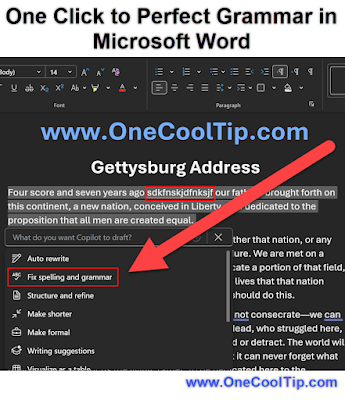
Microsoft’s “Fix Spelling and Grammar” feature gives Word for the Web users a way to batch correct errors flagged by Copilot in one command.
Here's how to do it.
On Word for the Web (Desktop or Browser)
-
Open your document in Word for the web, word.cloud.microsoft/.
-
Select the text you want to proofread or leave it unselected to fix the entire document.
-
Look for the Copilot icon (pen with sparkles) in the left margin.
-
Click Fix spelling and grammar in the Copilot chat box.
- Review the changes.
-
Click Keep all to accept or Undo all to revert.
-
To undo a specific change, hover over the word and click the Undo icon.
Microsoft 365 Copilot’s proofreading feature in Word for the web lets users fix all spelling and grammar errors instantly.
Discover more HERE.
| | |
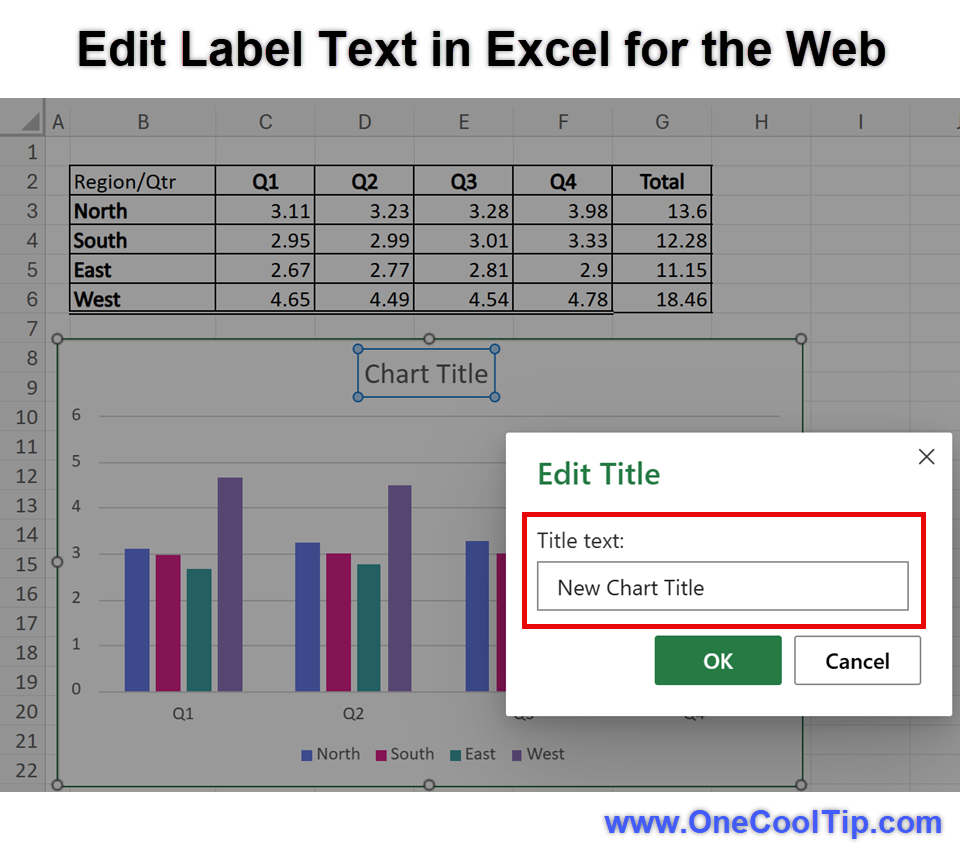
🤔 Have You Ever Wondered How To Instantly Edit Data Label Text in Excel for the Web?
How often have you found yourself squinting at an Excel chart, trying to extract relevant details from a jumble of garishly colored bars or columns?
Here's how to do it.
Excel for Web/Desktop
-
Open your Excel workbook in the browser, excel.cloud.microsoft/.
- Insert or select a chart.
- Click on a label text within the chart.
- Type directly into the label to customize the text.
- Press Enter to save your changes.
You can now edit chart data labels directly in Excel for the web with no desktop detour needed.
Find out more HERE.
| | |
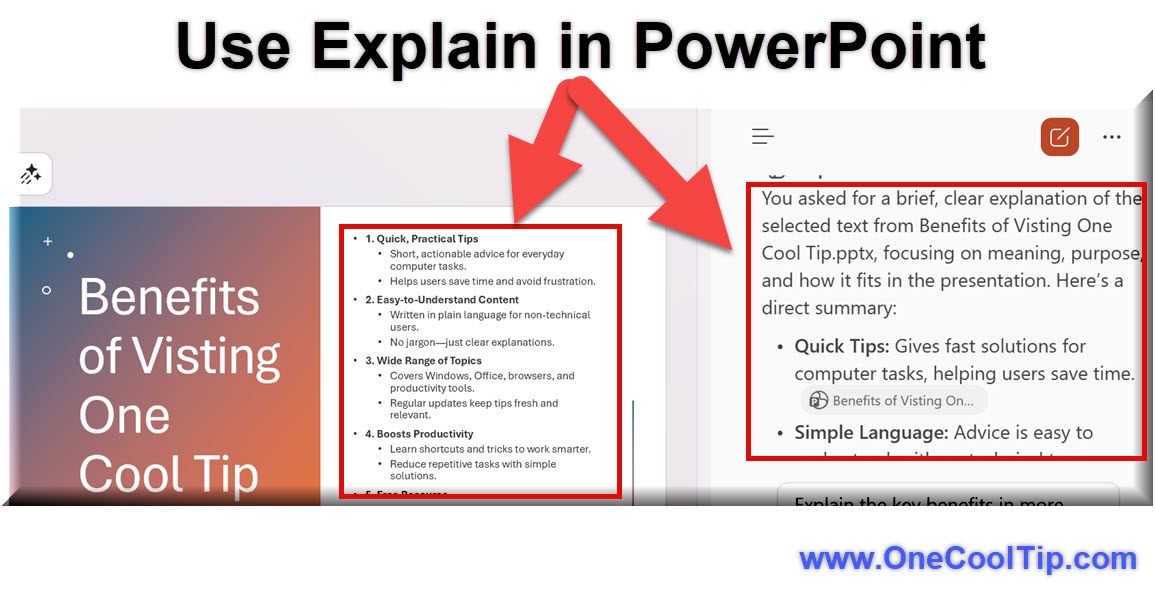
🙋♂️ Here's How PowerPoint’s Explainer Tool Makes Dense Slides Actually Understandable.
You know that moment in a meeting when a slide full of acronyms and chart junk hits the screen and everyone politely nods while silently thinking, “What does this even mean?”
Now imagine being able to right-click that mess and get a clear, one-paragraph explanation that speaks human.
Here's how to do it.
Microsoft PowerPoint (Desktop)
-
In PowerPoint, open a deck that contains dense text, jargon, or complex tables.
-
Select the content you want explained.
-
Either click a text box or table, or highlight a specific sentence or paragraph.
-
Right-click and choose Explain (or Explain This).
-
Read the explanation in the Copilot pane.
-
Use thumbs up or thumbs down in the Copilot pane to rate the explanation and help improve results.
-
If needed, reselect a smaller or more focused portion of the slide and run Explainer again.
Right-click the most confusing slide in your next PowerPoint deck and try Explain to see how much faster you understand the story.
Learn more HERE.
| | |
❓Did you share this newsletter with three friends yet?
😎 Cool Facts
1987: Microsoft completed the acquisition of Forethought, Inc. (developers of PowerPoint, initially named Presenter) on July 30, 1987, for $14 million in cash, marking Microsoft's first significant software company acquisition. Source.
30 Million: Widely cited across presentation studies, technology analysts, and business benchmarking reports, stating approximately 30 million to 35 million PowerPoint slide decks are created or delivered daily worldwide. Source.
100+: Official Microsoft 365 documentation lists well over 100 dedicated keyboard shortcuts, accessibility navigation strokes, ribbon keytips, and slide-show control sequences for PowerPoint desktop applications. Source.
⌨️Today's Cool Shortcuts
Tab: Moves keyboard focus into the Interactive Slide and then through its interactive elements.
Esc: Moves focus from the interactive content back to PowerPoint. Pressing Esc again leaves the slide show.
Left Arrow: Moves to the previous PowerPoint slide, even when an Interactive Slide is displayed.
Right Arrow: Moves to the next PowerPoint slide. Interactive content does not capture these slide-navigation commands.
😜 Tech Joke of the Day 😅
I asked Copilot to make my presentation more exciting.
It removed the meeting invite.
🔎 Do you have a Cool Tip or tech question? Email us at onecooltip.com@gmail.com.
| | |
Slides wait for a click
Charts reveal a hidden tale
Meetings wake at last
| |
| 🤔 What would you build first with Interactive Slides? | | | | Did You See These Cool Tips This Week? | | | | Google Chrome's New AI Protection Helps Stop Online Scams | |
Google Chrome is getting smarter about detecting online scams, including fake virus warnings and dangerous instructions hidden on websites. Learn how its improved AI-powered protection works and the simple setting that can help you browse more safely.
Read the Newsletter Version.
| | | | Talk Directly to Your Inbox with Gmail Live on Mobile | |
Finding specific details buried inside sprawling email threads usually requires tedious scrolling and pinching on small mobile screens. Gmail Live introduces a conversational voice interface that reads your inbox context and delivers spoken answers alongside direct source citations.
Read the Newsletter Version.
| |
ICYMI - In Case You Missed It ...
| | | | Stop Accidental Disclosures With Gmail's New Reply All Warning | |
Google recently introduced a privacy safeguard in Gmail that warns you before replying to all participants on an email thread where you are not directly listed. This notification helps prevent embarrassing mistakes when you receive a message as a blind carbon copy.
Read the Newsletter Version.
| | When the new slide shows up with buttons, filters, and sunglasses, the bullet points know their days are numbered. 😎 | | |
Trivia Answer: B) F5
F5 is one of PowerPoint's handiest keyboard shortcuts.
Press it to begin your slideshow from the first slide, even when you're editing a slide farther into the presentation.
Want to begin with your current slide instead? Press Shift + F5.
These shortcuts can spare you some awkward clicking when everyone is watching the projector.
----------
Tomorrow's Cool Tip is waiting to amaze you.
Until then, go forth and conquer the tech world with your newfound knowledge!
Be sure to visit www.OneCoolTip.com for Cool Tech Tips for a Cooler Life!
And if you like One Cool Tip, please support with TipJar!
Enjoy!
Rodger
Chief Cool Tipper
onecooltip.com@gmail.com
| |
| What do you think of today's OneCoolTip newsletter? | | | |
Please Share the One Cool Tip Newsletter!
You asked for it. You got it. There is now a One Cool Tip Newsletter archive. Did you delete a newsletter and want to read it again? Check it out HERE.
Want to help One Cool Tip grow? Please forward this email using the link above. And if you see an OCT social media post, please LIKE, COMMENT and SHARE!
Have you subscribed to the One Cool Tip YouTube channel? Subscribe HERE.
| | Connect with One Cool Tip!! | | |
|
As an Amazon Associate, One Cool Tip may earn a small commission from qualifying purchases.
Our media content is intended solely for informational purposes. Please do not construe anything here as legal, tax, investment, financial, marital, or other advice.
Copyright © 2026 | www.OneCoolTip.com | All Rights Reserved
|
| | | |