|
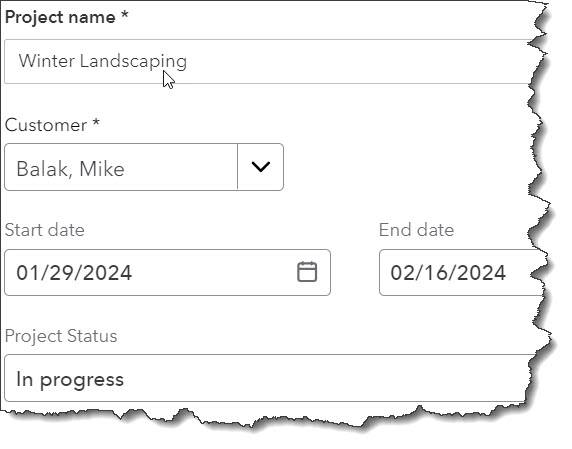
Before you start assigning transactions, you’ll create a Project record.
Assigning Transactions to Projects
Now that you’ve created a Project record, you can start assigning income and costs to it. There are seven types of transactions that can be assigned to projects: Invoice, Receive payment, Expense, Estimate, Time, Bill, and Purchase order. Where you enter the project name depends on the form type.
When you’re spending money on a project that you will eventually bill a customer for, (expense, bill, purchase order), you’ll choose a Vendor at the top of the form as you document billable purchases. In the table below (where you enter the products and/or services that you’re buying), you’ll select your Customer/Project in a column there. Be sure there’s a checkmark in the Billable column.
TIP: On Bill and Expense forms, you’ll notice another column in front of Customer/Project labeled Markup %. You can add a percentage to your billables to charge the customer a little extra for your work in obtaining needed materials.
When you’re creating the other four types of transactions (invoices, receive payment, estimate, and time), you’ll find your project listed under the Customer name at the top.
WARNING: When you’re assigning transactions to projects, make sure you select the actual project name, not just the customer name.
The Project “Homepage”
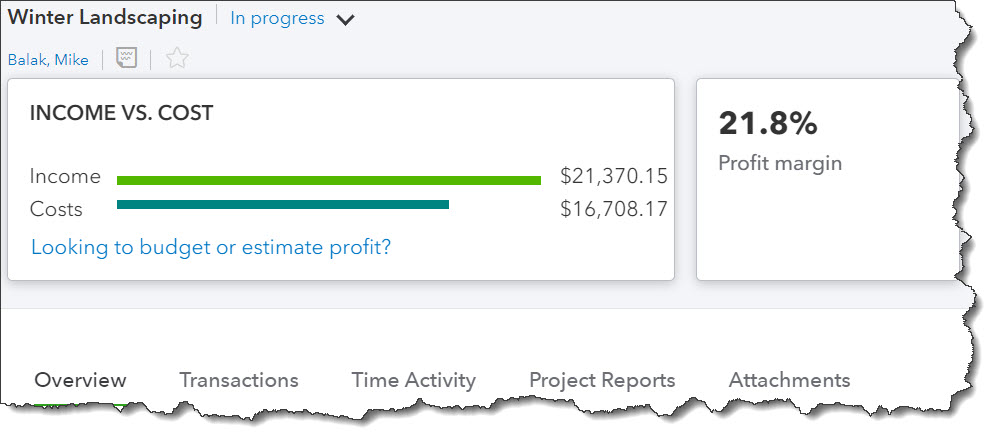
Once you’ve created a project, you can get to its relevant “homepage” by clicking it in the list on the main Projects page. This is where you can track each project’s progress, including its real-time profitability.
|