|
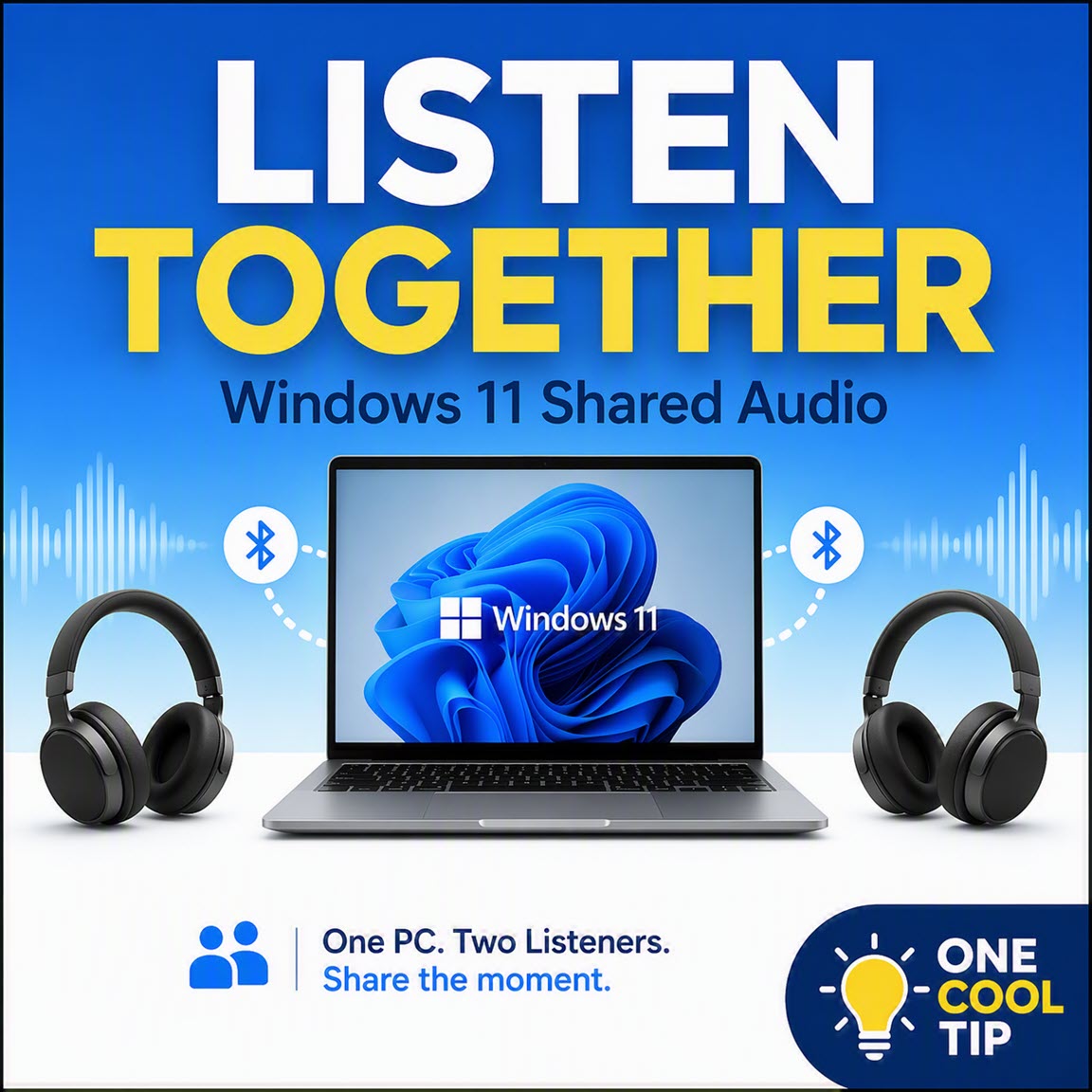
Listen Together: Windows 11 Shared Audio Explained
Learn how Windows 11 Shared Audio allows compatible PCs to share audio with two Bluetooth LE Audio devices, making listening together easier.
Whether you're traveling with a friend, studying with a classmate, or reviewing content with a client, sharing audio from a laptop has traditionally involved compromises.
Most PCs connect audio to a single Bluetooth device at a time, leaving users searching for splitters, adapters, or awkward workarounds.
Here's a Cool Tip: Share One Audio Stream with Two Listeners Using Windows 11 Shared Audio.
Microsoft recently released an update with Shared Audio, a Windows 11 feature designed for compatible devices that support Bluetooth LE Audio.
The feature allows users to broadcast the same audio stream to two supported listening devices from a single PC.
For people who frequently share videos, music, presentations, or training content, it offers a more convenient way to listen together without additional accessories.
Feature Explanation
Shared Audio is a Windows 11 feature that allows supported PCs to send audio to two compatible Bluetooth LE Audio devices simultaneously.
The feature is designed to make shared listening easier.
Instead of passing around earbuds or relying on wired splitters, users can connect compatible Bluetooth devices and listen to the same content together.
The practical benefit is straightforward.
Whether you're watching a movie during a flight, reviewing educational content with a classmate, or sharing a presentation with a colleague, everyone can hear the same audio directly through their own headphones or earbuds.
Shared Audio may be especially useful for:
- Travelers
- Students
- Families
- Educators
- Content creators
- Business professionals
Because the feature relies on Bluetooth LE Audio technology, both the Windows device and the connected audio accessories must support the necessary standards.
Availability may also vary depending on Windows version, hardware compatibility, and rollout status.
What You'll Gain
- Listen to audio together without sharing earbuds.
- Reduce the need for headphone splitters and adapters.
- Enjoy a more comfortable experience when traveling or studying with others.
- Take advantage of newer Bluetooth LE Audio capabilities built into supported Windows devices.
Step-by-Step Instructions
Here's how to do it.
Windows
The exact experience may vary depending on your Windows version, Bluetooth hardware, and rollout status.
-
Open: Settings > Bluetooth & devices. Ensure your compatible Bluetooth LE Audio devices are paired and connected.
-
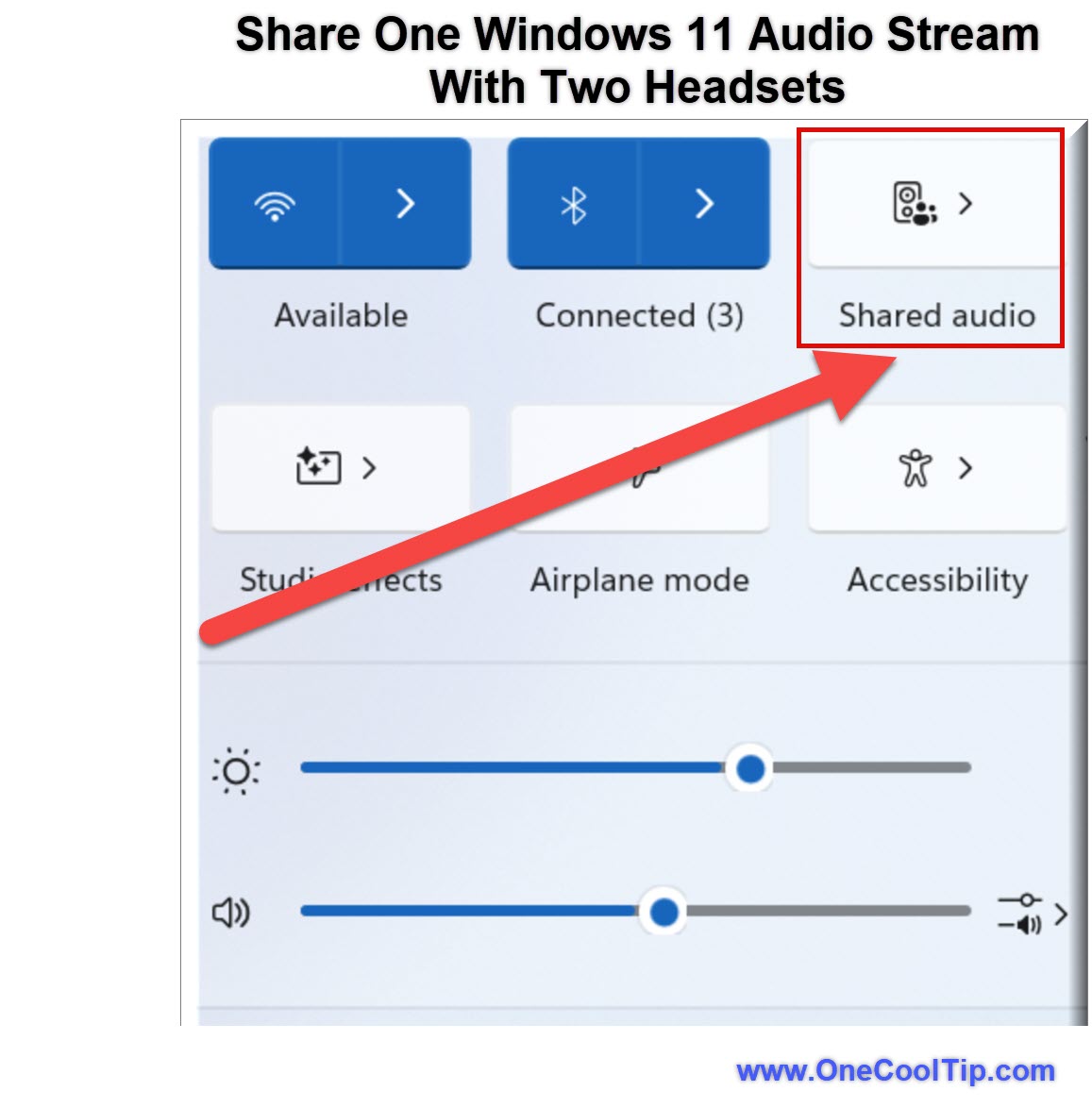
Press Windows + A to open Quick Settings.
-
Locate Shared Audio. If Shared Audio is available on your device, it should appear within Quick Settings after compatible devices are connected.
-
Select Your Listening Devices: Choose the compatible audio devices you want to use for shared listening.
-
Begin playback of music, video, or other audio content. Both selected devices should receive the same audio stream.
-
Return to Shared Audio and end the session when you're finished.
|