How to Scan Using Your Android Phone
(and iPhone too)
So, you’re home due to the pandemic and you have a document you need to scan. You've seen the slew of third-party scanner apps you have to pay for in the Google Play Store. Which one to choose? Google Drive has this feature built-in.

P.S. Google Drive can also be used on iPhones (download in App Store).

Scan a Document
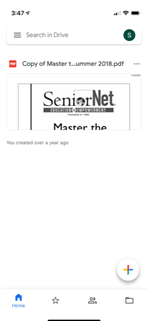
  • Open the Google Drive app, and make sure you're on the Home Tab.
  • In the bottom right, tap on the plus (+) icon. (first picture)
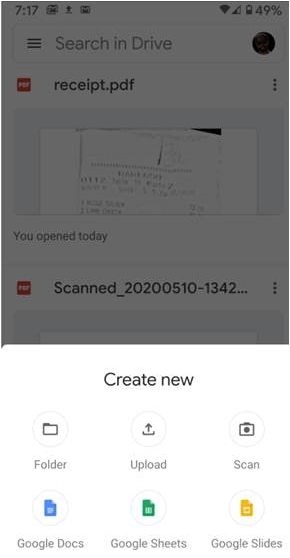
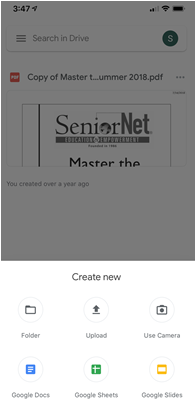
  • Tap Scan (Android) or Use Camera (iPhone) (middle and right picture)
  • Take a photo of the document you'd like to scan.
  • Tap the Check icon.
  • You'll now see the picture you just took. You can now: (bottom pictures)
  • Adjust scan area: Tap Crop.
  • Rotate the image.
  • Change the color.
  • Redo the picture.
  • You now have the option to rename the document.
  • To save the finished document to your Google Drive, tap Save.
Google Drive Home Page
"+" Icon
in lower right corner
ANDROID APP
Tap Scan and take a photo of the document
iPHONE APP
Tap Use Camera and take a photo of the document
The black EDIT Bar is expanded
in the picture to the right --->
EDIT Bar: from right to left >
  • Adjust Scan Area: Tap Crop
  • Rotate the Image
  • Change the Color
  • Redo the picture
Add a Scanning Shortcut to Your Home Screen
  • Open widgets for your Android phone or tablet.
  • Find the "Drive Scan" widget.
  • Touch and hold the widget.
  • Drag it onto your Home screen. You may be asked to select an account.
  • Choose the folder you'll save documents inside. If you want to create a folder, tap New Folder "+"
  • Tap Select. You'll see the folder name in the widget.
Sharing, Deleting or Adding Comments to Your Scan
  • Open the Google Drive app, and make sure you're on the Home Tab.
  • Tap on the document that you're interested in.
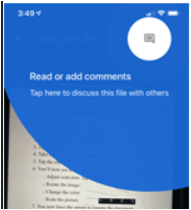
  • To add comments about your document, tap on the Comments icon - shown to the right.
  • To either share or delete your document, tap on the Menu icon in the upper right section of your screen. The Menu icon is 3 vertical dots (ellipsis).
We're here for you - email us at
The Computer Help Desk supports students’ classroom learning, provides guidance with Windows and computer operations, and advice on selecting the computer for your needs.
Stay safe & healthy!
We want to keep you apprised of technology during this health crisis.
SeniorNet at FSL-LI is looking forward to re-engaging with everyone.