|
One Cool Tip Newsletter
March 16, 2026
| Your daily dose of tech-savvy brilliance! | |
😀Greetings!, Happy Monday, Cool Tipper!
Get ready to streamline your digital life with simple, actionable tips delivered straight to your inbox.
Today's Cool Tip Theme: AI Meeting Notes
IN THIS ISSUE
- 🚨 Security Alert: Details on the CarGurus data breach involving 1.7 million records and advice on how to protect your PII and accounts from "vishing" attacks.
- 🖼️ Cool AI Prompt: A ready-to-use OCR transcription prompt to turn images of handwritten notes into clean, typed text.
- 📝 Meeting Mastery: How to use AI tools to transform messy meeting fragments or audio files into professional, structured summaries.
- 🦆 Privacy First: A quick guide on using DuckDuckGo AI for a secure, private search and chat experience.
- 📁 Project Organization: How to use the "Projects" feature in ChatGPT to keep your workspaces and conversations organized.
- 🎥 Gemini Live: Step-by-step instructions for using the new real-time camera and screen-sharing features in Google Gemini on Android and iOS.
New here? Subscribe to the One Cool Tip Newsletter for daily updates. It's FREE!
-
😂 Laugh with Us! Enjoy our Tech Joke of the Day, Haiku and Cool Tip Comics.
-
🌐 Stay Informed! Check out ICYMI, and our One Cool Tip Video.
| | |
3️⃣
If you enjoy the One Cool Tip newsletter, please forward this newsletter to THREE friends or colleagues or share it on social media using the links below.
Leave a Tip!
Share this One Cool Tip Newsletter!
| | |
Today's Tech Trivia
Answer at the end of this newsletter.
| | |
⚠️CarGurus Breach⚠️
ShinyHunters, a well-known cybercrime group, posted CarGurus to its leak site claiming to have stolen 1.7 million records.
The group warned CarGurus to respond by February 20 or face public data exposure and “several annoying digital problems.”
The stolen data reportedly includes personally identifiable information (PII) and internal corporate files.
The breach is part of a larger campaign involving voice phishing attacks. Other recent victims include Panera Bread, Betterment, CarMax, and Figure Technologies.
What You Should Do
-
If you use CarGurus for business listings or purchases: Monitor your account and email for unusual activity.
-
If you’re a CarGurus employee or partner: Watch for phishing attempts and unauthorized access.
-
General advice: Enable multi-factor authentication (MFA) and avoid sharing login codes over the phone.
Cool Tip
If you receive a suspicious call asking for login codes or verification steps, hang up.
Voice phishing is increasingly used to bypass MFA protections.
Source: haveibeenpwned.com
| | |
Try this Cool AI prompt. Copy and paste to ChatGPT, Gemini or Copilot.
Do you have an image full of text that you want to be able to copy and paste? Try this prompt:
You are an OCR transcription assistant.
I will upload an image of handwritten notes.
Please carefully read the handwriting and convert everything in the image into clean, typed text that can be copied and pasted.
Instructions:
• Transcribe all visible words.
• Preserve the order of the notes.
• Use bullet points if the notes appear as lists.
• Correct obvious spelling mistakes caused by OCR errors.
• If a word is unclear, write [unclear].
Output only the cleaned, typed text.
Here is the image:
[UPLOAD IMAGE]
| | |
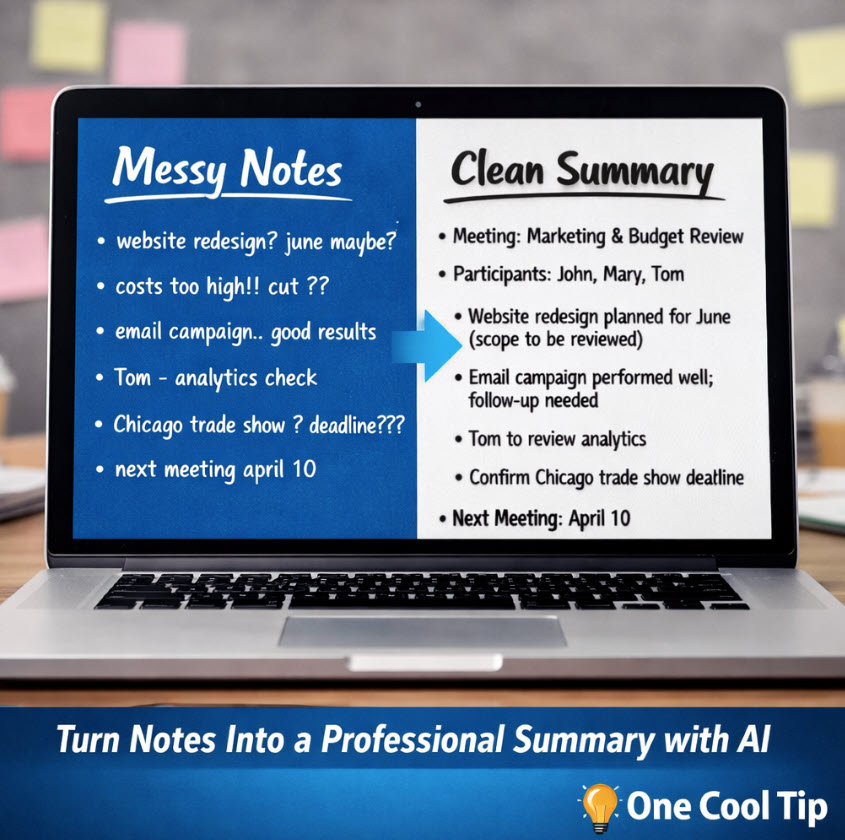
Turn Messy Meeting Notes Into a Clean Summary with AI
Capture rough meeting notes and turn them into clear, organized summaries using ChatGPT or similar AI tools in seconds.
Have you ever left a meeting with pages of notes that barely make sense?
Most people type or scribble ideas quickly during meetings.
The result is usually a messy collection of bullet fragments, partial thoughts, and scattered reminders.
Later, someone has to rewrite everything into a clean meeting summary.
AI tools such as ChatGPT can do that work in seconds.
Paste the raw notes, provide a structured prompt, and the AI organizes the content into a clear summary that includes key discussion points, decisions, and action items.
Or even just upload the audio file of the meeting.
For busy professionals, this can save time, improve clarity, and make it easier to share meeting outcomes with the rest of the team.
Feature Explanation
AI language models can analyze text and reorganize it into structured information.
When you paste raw meeting notes or an audio file into ChatGPT, the system identifies patterns in the text such as:
- key topics
- decisions
- tasks
- deadlines
- participant references
With the right prompt, the AI rewrites the notes into organized sections such as:
- discussion summary
- action items
- next steps
- questions that still need answers
This works even if the original notes contain typos, incomplete sentences, or repeated ideas.
The result is a polished summary that is easier to share with colleagues or archive for future reference.
What You’ll Gain
- Clean meeting summaries in seconds
- Convert messy notes or raw audio into professional documentation
- Automatically extract action items and responsibilities
- Save time rewriting notes after meetings
- Share clearer updates with your team
Step-by-Step Instructions
Here's how to do it.
Microsoft Web/Desktop (ChatGPT, Copilot, Grok, Gemini): Written Notes
-
Open your preferred AI tool such as ChatGPT, Microsoft Copilot, X Grok, or Google Gemini.
- Paste the following prompt into the chat window:
You are an expert meeting assistant.
I will paste raw meeting notes below. They may contain incomplete sentences, repeated ideas, or typos.
Clean up and organize the notes into a professional meeting summary using this structure:
- Meeting Title
- Participants
- Key Discussion Points
- Decisions Made
- Action Items
- Open Questions
- Next Steps
- Executive Summary
Do not invent information. Remove duplicates and rewrite fragmented notes into clear sentences.
Pay special attention to identifying decisions, commitments, deadlines, and assigned tasks.
If something sounds like an action item but the owner is unclear, list it under Open Questions.
3. Paste your raw meeting notes below the prompt.
4. Press Enter to generate the summary.
5. Review the output and edit any details if needed.
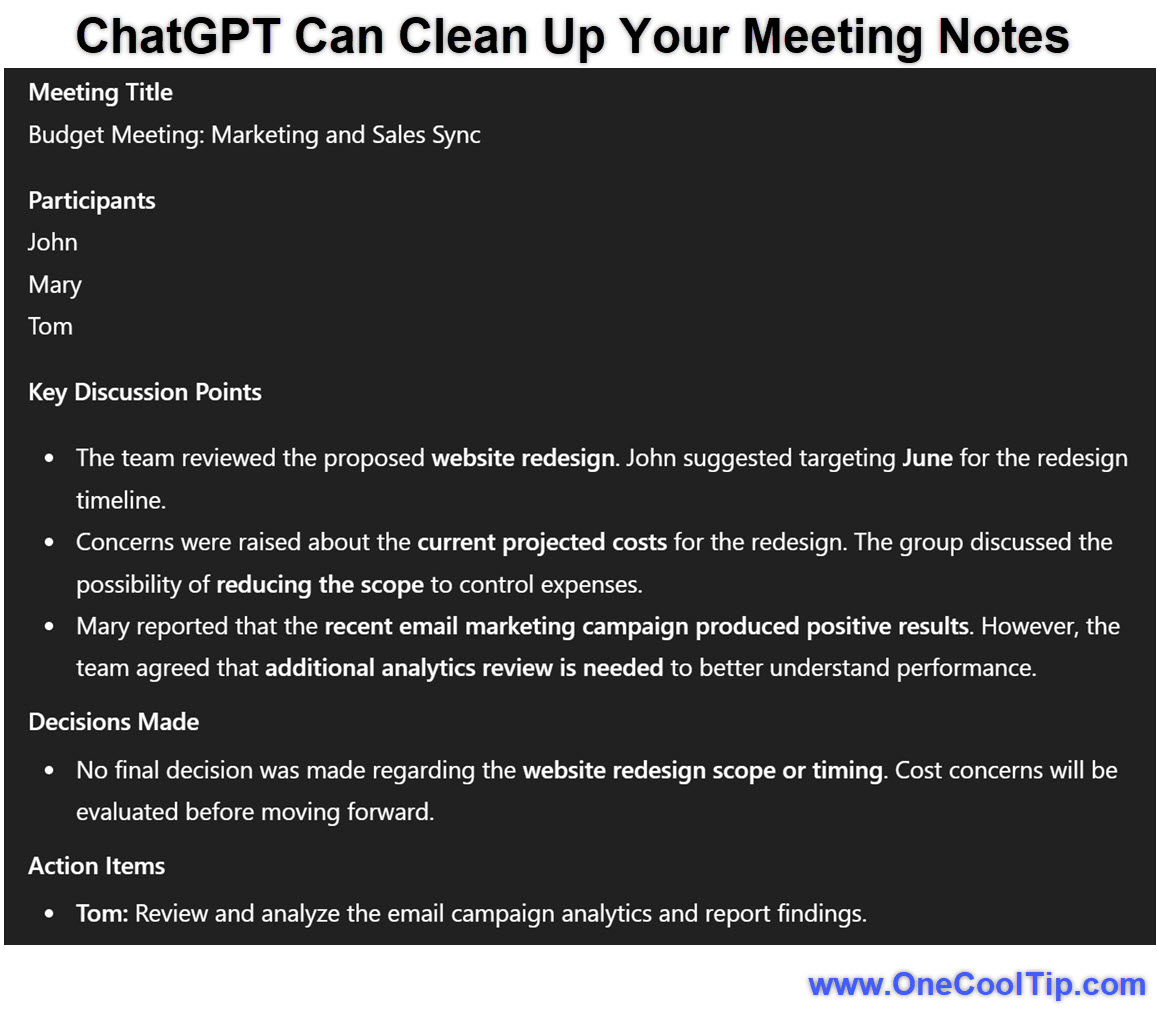
| | fig. 1 - ChatGPT Can Clean Up Your Meeting Notes | |
Example raw notes:
budget meeting
marketing + sales sync
john – website redesign maybe june
costs too high maybe reduce scope
mary said email campaign good results
need analytics follow up
action tom check analytics
trade show chicago deadline unknown
next meeting april 10
Example result:
Meeting Title
Marketing and Sales Budget Meeting
Participants
John, Mary, Tom
Key Discussion Points
Website redesign tentatively planned for June. Team discussed reducing scope due to cost concerns.
Decisions Made
No final decision yet on redesign scope.
Action Items
Tom will review marketing analytics.
Open Questions
What is the deadline for the Chicago trade show booth?
Next Steps
Review analytics and confirm trade show deadlines before the April 10 meeting.
Microsoft Web/Desktop (ChatGPT, Copilot, Gemini): Prompt for AI When Using an Audio File of a Meeting
-
Open your preferred AI tool such as ChatGPT, Microsoft Copilot, or Google Gemini.
- Paste the following prompt into the chat window:
You are an expert meeting assistant.
I will provide an audio recording of a meeting.
Your tasks are:
- Transcribe the audio recording accurately.
- Clean up the transcription by:
- Correcting obvious transcription errors
- Removing filler words such as “um,” “uh,” and repeated phrases
- Merging fragmented thoughts into clear sentences
- Identify speakers if possible. If speakers are unclear, label them as Speaker 1, Speaker 2, etc.
Extract and organize the content into a professional meeting summary using the structure below.
Do not invent information that is not present in the recording.
Structure the final output as:
- Meeting Title
- Participants
- Key Discussion Points
- Decisions Made
- Action Items
- Open Questions
- Next Steps
- Executive Summary
After the summary, include a section titled: Cleaned Transcript
3. Upload the audio file.
4. Press Enter to generate the summary.
5. Review the output and edit any details if needed.
Notes:
1) Always check AI answers!
2) Each AI has limitations on audio file support based upon subscription levels.
3) Follow all laws about recording people.
4) Do not share confidential or personal information with any AI.
iOS
-
Open the ChatGPT app or another AI assistant on your iPhone or iPad.
-
Paste the meeting cleanup prompt.
-
Paste your notes beneath the prompt or attach the audio file.
-
Tap Send.
-
Copy the generated summary into your notes app or email.
Android
-
Open the ChatGPT or Gemini app.
-
Paste the meeting cleanup prompt.
-
Paste your meeting notes or attach the audio file.
-
Tap Send to generate the structured summary.
- Copy or export the result.
Pros and Cons
Pros:
- Time savings: A 30-minute meeting summary can be generated in seconds.
- Clear action items: AI identifies tasks and responsibilities that might be buried in notes.
- Better team communication: Structured summaries make it easier to distribute updates.
Cons:
- Needs human review: AI may occasionally misinterpret ambiguous notes.
- Sensitive meetings require caution: Confidential discussions may require company policy checks before using AI tools.
Feature Access
ChatGPT and similar AI assistants are available via web browsers and mobile apps.
Access levels vary depending on the service plan offered by each provider.
For example, ChatGPT is available in both free and subscription tiers through OpenAI's web and mobile apps.
Feature availability may vary by platform and rollout status.
Score
Criterion | Score (0–10) | Justification
Value | 9
Saves time and reduces manual editing after meetings.
Usability | 9
Requires only a simple prompt and pasted notes.
Wow Factor | 8
The ability to extract tasks and decisions from messy notes feels surprisingly powerful.
Total: 26 /30 | 🌟 Excellent
AI meeting cleanup is a high-value productivity tip that rivals dedicated meeting assistant tools.
Key Takeaways
AI tools can transform messy meeting notes into organized summaries with minimal effort.
A simple prompt allows ChatGPT or similar assistants to extract discussion points, action items, and next steps.
The result is faster documentation and clearer communication for teams.
Cool Tip Snapshot
-
Feature Name: AI Meeting Notes Cleanup.
-
Platform(s): Web, Windows, iOS, Android.
-
Quick Benefit: Turn rough notes into structured meeting summaries instantly.
-
Access Type: Free and subscription tiers depending on service.
Try It Yourself
Copy the meeting cleanup prompt from this article and paste it into ChatGPT with your next set of notes.
READ MORE
Read the Cool Tip on One Cool Tip.com.
| | Help support One Cool Tip. Use this Amazon link when you shop online. | |
🖱️ Logitech MX Master 3S: Use the customizable thumb wheel to switch between your notes and your meeting window instantly. Save 6% Now $84.99 Check it out on Amazon!
⌨️ Logitech MX Keys S: This keyboard features "Smart Illumination" and quiet keys so your typing doesn't drown out the meeting audio. Save 8% Now $119.99 Check it out on Amazon!
🎧 Sony WH-1000XM5: These headphones ensure your own voice is crystal clear if you use dictation for notes. Now $304.95 Check it out on Amazon!
Prices accurate at time of publication
One Cool Tip may earn a commission from qualifying purchases.
| | |
🆒Tell Me More
- ChatGPT can turn recordings into summaries and then into follow-ups, plans, emails, or even code, which makes it more than a basic transcription tool.
- Copilot can reference other Microsoft 365 content if permissions allow.
⏩Quick Tips
-
🧱 Use a template: Ask AI for the same sections every time, such as decisions, action items, and open questions. Consistent structure makes summaries easier to skim and compare later.
-
👥 Name the owners: Tell the AI to capture who owns each task. To do it, add: “List action items with the responsible person if mentioned.”
-
✂️ Trim the fluff: Ask for duplicate removal and concise rewriting. To do it, add: “Remove repeated ideas and rewrite fragments into clear sentences.”
-
📬 Create the follow-up email too: Once the summary is done, ask AI to turn it into a short team email. To do it, paste: “Now rewrite this as a friendly post-meeting email.”
-
📷 Use OCR on paper notes: If your notes are handwritten, scan or photograph them first, then extract the text before summarizing. To do it, use the AI prompt shown earlier.
| | ✅ More Must-Read Tech Tips | | |
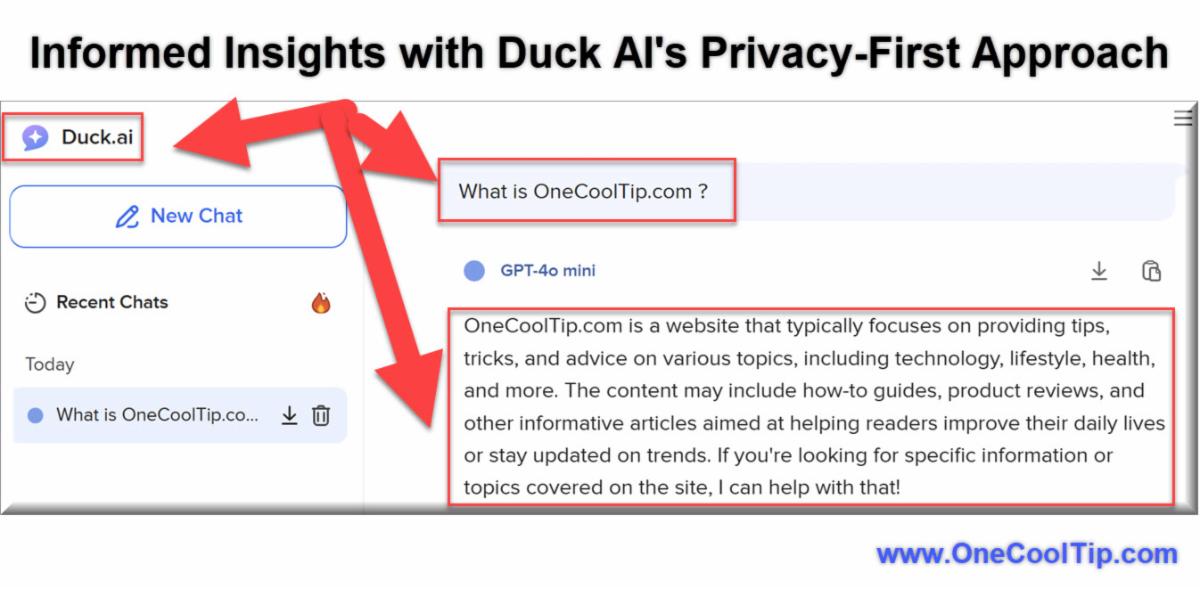
👀 How Do I Use DuckDuckGo AI?
In an age where data privacy is increasingly under threat, DuckDuckGo has emerged as a beacon of hope for users seeking a secure online experience.
DuckDuckGo's AI features are designed to improve the search experience without compromising user privacy.
Here's how to do it.
-
Open your web browser and navigate to Duck AI
-
Type your AI Prompt into the search bar.
-
Review the response.
-
Ask follow-up questions if needed.
By prioritizing user privacy while enhancing functionality, DuckDuckGo sets a new standard in the search engine landscape.
Discover more HERE.
| | |
🤔 Have You Ever Wondered How to Use ChatGPT Projects?
Have you ever wished for a way to keep your ChatGPT conversations organized and easily accessible?
OpenAI's new "Projects" feature in ChatGPT transforms how users interact with the platform.
The feature in ChatGPT offers users a structured way to organize their conversations into dedicated spaces.
Here's how to do it.
-
Log in to your ChatGPT account: chatgpt.com
-
On the left-hand sidebar, you'll notice a new "Projects" tab.
-
Click the "+ New Project" button. You'll be prompted to name your project.
-
Once created, any conversations you start within a project stays within that workspace, keeping them separate from other projects.
-
Toggle between different projects from the sidebar to access specific conversations.
ChatGPT's Projects feature is a game-changer for anyone who values organization and efficiency.
NOW Available to FREE ChatGPT Users!
Find out more HERE.
| | |
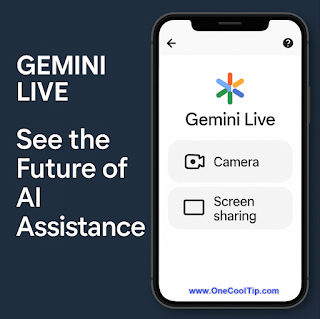
🙋♂️ Here's How to Go Live with Google Gemini.
Imagine pointing your phone at a malfunctioning appliance and receiving immediate, step-by-step repair guidance.
Or sharing your screen during a meeting to get real-time insights from an AI assistant.
Gemini Live is Google's advanced AI assistant, now enhanced with camera and screen-sharing functionalities.
Here's how to do it.
Android:
-
Open the Gemini app (Android).
-
Tap the Live icon in the bottom-right corner.
-
Choose between Camera or Screen Sharing.
-
Grant necessary permissions.
-
Begin your interactive session with Gemini.
-
Ask "What am I seeing?"
iOS:
-
Launch the Gemini app (iOS).
-
Tap the Live icon.
-
Select Camera or Screen Sharing.
-
Confirm permissions when prompted.
-
Start your real-time interaction with Gemini.
-
Ask "What am I seeing?"
Gemini Live's camera and screen-sharing features are available to all users on Android and iOS platforms, including those using the free version of the app.
Gemini Live's new features transform your device into a proactive assistant, capable of understanding and interacting with your environment.
Experience the future of AI assistance today.
Learn more HERE.
| | |
❓Did you share this newsletter with three friends yet?
😎 Cool Facts
-
900 Million: ChatGPT has surpassed 900 million weekly users. OpenAI reported in early 2026 that ChatGPT now has more than 900 million weekly active users worldwide, reflecting the rapid adoption of AI tools for everyday tasks such as writing, planning, and summarizing meetings. Source.
-
2 Minutes: Many employees are interrupted roughly every two minutes during the workday. Microsoft’s Work Trend Index found that the average knowledge worker is interrupted by emails, chats, or meetings about every two minutes, adding up to hundreds of interruptions per day. Source.
-
275: Those interruptions can add up to about 275 notifications per day. Microsoft telemetry shows that knowledge workers may experience around 275 interruptions daily, highlighting why tools that summarize meetings or organize notes are increasingly valuable. Source.
-
78%: AI adoption in organizations continues to grow quickly. The Stanford AI Index reports that 78% of organizations said they were using AI in 2024, a major increase from 55% the year before. Source.
⌨️Today's Cool Shortcuts
-
Windows + H: Opens the Windows Dictation toolbar for hands-free note-taking.
-
Windows: Ctrl + Shift + V: Paste as plain text in many apps. Great for dropping raw notes into AI without weird formatting.
-
Windows: Win + Shift + S: Capture a quick screenshot of whiteboard notes for OCR or archiving.
😜 Tech Joke of the Day 😅
My meeting notes are like my fridge...
Full of leftovers I never touch.
🔎 Do you have a Cool Tip or tech question? Email us at onecooltip.com@gmail.com.
| | |
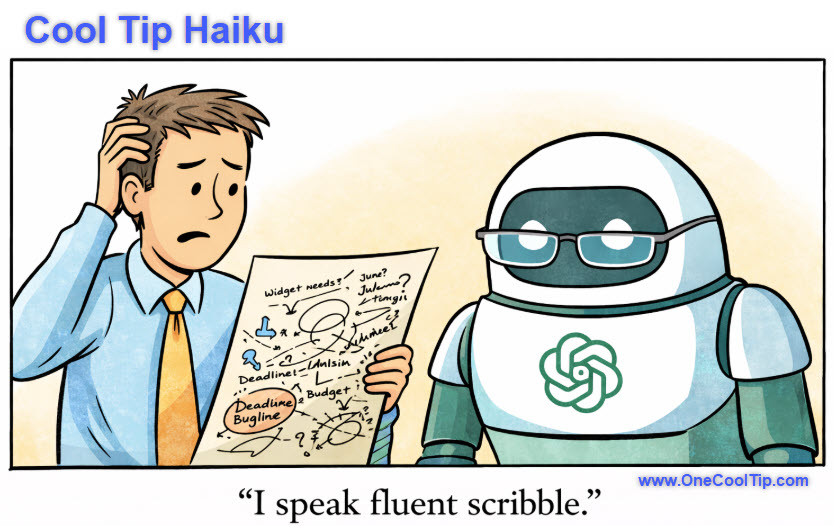
Scattered thoughts take flight,
Code and logic weave the web,
Chaos turns to gold.
| |
| 🤔 How do you usually handle messy meeting notes? | | | | Did You See These Cool Tips This Week? | | | | Master Your Documents with Chrome PDF Annotations | |
Stop searching for third party editors and start marking up your files directly in the browser you already use. Google Chrome now includes robust tools to draw, highlight, and save notes directly onto PDF documents. This update transforms the browser into a powerful productivity workstation for anyone handling digital paperwork.
Read the Newsletter Version.
| | | | Disney+ Just Added Verts: A Faster, Swipeable Way to Find Something Good to Watch | |
Disney+ is testing a more mobile-native way to help you discover movies and shows without endless scrolling. Verts brings a vertical video feed to the Disney+ mobile app, giving you quick clips you can swipe through, save, and launch into full playback.
Read the Newsletter Version.
| |
ICYMI - In Case You Missed It ...
| | | | Turn Excel Chaos Into Clarity With Copilot’s Summarize And Categorize Superpowers | |
Copilot in Excel can scan thousands of rows, surface the story in your data, and organize it into meaningful categories with just a few natural language prompts. If you work in spreadsheets all day, this feature is like having a data analyst sitting in the ribbon.
Read the Newsletter Version.
| | |
How to Quickly Create Different Types of Lines in Microsoft Word
Have you ever wanted to quickly add a line to your document or email, but didn’t want to go through the hassle of finding the right tool or button?
Did you know that you can easily create different types of lines using the autocomplete feature in both Microsoft Word and Outlook?
Watch
| | Finally, someone in the meeting understands my notes… and it’s the AI. | | |
Trivia Answer: C) Optical Character Recognition
OCR is the technology that extracts text from scanned pages, screenshots, photos, and PDFs so that the text becomes searchable or editable.
That matters for meeting notes because OCR can turn a phone photo of handwritten notes or a scanned agenda into text you can paste into ChatGPT.
In practical terms, OCR is the bridge between paper and AI. If your meeting notes begin life on a legal pad or whiteboard, OCR gives you the raw text. Then AI can summarize, organize, and polish it.
----------
Tomorrow's Cool Tip is waiting to amaze you.
Until then, go forth and conquer the tech world with your newfound knowledge!
Be sure to visit www.OneCoolTip.com for Cool Tech Tips for a Cooler Life!
And if you Like One Cool Tip, please support with TipJar!
Enjoy!
Rodger
Chief Cool Tipper
onecooltip.com@gmail.com
| |
| What do you think of today's OneCoolTip newsletter? | | | |
Please Share the One Cool Tip Newsletter!
You asked for it. You got it. There is now a One Cool Tip Newsletter archive. Did you delete a newsletter and want to read it again? Check it out HERE.
Want to help One Cool Tip grow? Please forward this email using the link above. And if you see an OCT social media post, please LIKE, COMMENT and SHARE!
Have you subscribed to the One Cool Tip YouTube channel? Subscribe HERE.
| | Connect with One Cool Tip!! | | |
|
As an Amazon Associate, One Cool Tip may earn a small commission from qualifying purchases.
Our media content is intended solely for informational purposes only. Please do not construe anything here as legal, tax, investment, financial, marital or other advice.
Copyright © 2026 | www.OneCoolTip.com | All Rights Reserved
|
| | | |