One Cool Tip Newsletter

May 21, 2026

Your daily dose of tech-savvy brilliance!

😀Greetings! Happy Thursday, Cool Tipper!


Get ready to streamline your digital life with simple, actionable tips delivered straight to your inbox.


Cool Tip Theme: Low-Quality Photo Previews in Messages


New here? Subscribe to the One Cool Tip Newsletter for daily updates. It's FREE!

3️⃣

If you enjoy the One Cool Tip newsletter, please forward this newsletter to THREE friends or colleagues or share it on social media using the links below.


Leave a $$$ Tip!


Share this One Cool Tip Newsletter!

X Share This Email
LinkedIn Share This Email
Pinterest Share This Email

🚨FTC Begins Enforcement of the TAKE IT DOWN Act🚨


If someone shares an intimate photo or video of you online without your consent, including AI‑generated deepfakes, the TAKE IT DOWN Act gives you new power to have it removed.


Under this law, social media, messaging, and image‑sharing platforms must offer a clear way to request removal and delete the image, and any identical copies, within 48 hours.


The FTC is now enforcing these rules to hold platforms accountable.


If a site fails to act or hides its removal process, report it at TakeItDown.ftc.gov.


You can also contact law enforcement or the FBI at 1‑800‑CALL‑FBI if the image involves a minor or was shared as part of a crime.


Cool Tip:


Bookmark TakeItDown.ftc.gov and share it with friends; quick reporting helps stop harmful content faster.


And in Other News...


  • Google Adds Daily Limits to Gemini AI


Google has introduced usage limits for Gemini AI to keep performance stable across free and paid tiers.


Free users now have a daily cap on prompts and file uploads, while Gemini Advanced subscribers get higher limits and priority access.


If you reach your limit, Gemini will pause responses until the next reset period, typically within 24 hours.


You can check your current usage under Settings › Gemini › Usage Limits in the app or web interface.


Cool Tip:


If you rely on Gemini for work or creative projects, consider upgrading to avoid interruptions and unlock longer sessions.

Cool Deals of the Day

Help support One Cool Tip. Use this Amazon link when you shop online.


Check out these Cool Deals:


🧲 Anker MagGo 10K Slim Power Bank: A MagSafe-style power bank is handy for travel days, events, and photo-heavy outings. Save 20% $63.99 Check it out on Amazon!


🔌 Anker 322 USB-C to USB-C Braided Cable: A good cable keeps newer USB-C iPhones charged while you capture and share photos. $9.99 Check it out on Amazon!


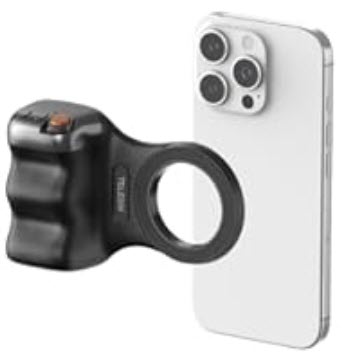
📸 Magnetic Bluetooth Camera Grip: A grip with a shutter button helps creators, travelers, and families take steadier iPhone photos before sharing them. $29.99 Check it out on Amazon!


*Prices accurate when originally published.

One Cool Tip may earn a commission from qualifying purchases.

Fuel Your Adventure

Try Big Mike's Jerky!


bigmikesjerky.com


Now on TikTok!


Today's Cool Tip

Send iPhone Photos Faster with One Hidden Messages Setting


Waiting for iPhone photos to send can be frustrating, especially when you are on cellular data, traveling, or sharing several images at once. A built-in Messages setting called Send Low Quality Photo Previews can help recipients see image previews faster before the full-resolution images arrive.


You snap a great photo, tap Send, and then watch the progress circle crawl across the screen. 


That delay may not matter when you are at home on fast Wi-Fi, but it can be annoying when you are at a ballgame, on vacation, at a conference, or trying to send several pictures to family.


Apple includes a small Messages setting that helps with this problem. 


It does not change how you take photos, and it does not require a third-party app. 


Here’s a Cool Tip: Turn on Low-Quality Photo Previews in Messages.


Feature Explanation


The feature is called Send Low Quality Photo Previews, and it lives inside the Messages settings on iPhone.


When enabled, Messages sends smaller-sized image previews first so recipients can see them right away, before the full-resolution images arrive. 


This can make photo sharing feel faster, especially when network conditions are weak, busy, or inconsistent.


This is useful because modern iPhone photos can be large. 


A single image may be easy enough to send, but a batch of vacation photos, school event pictures, worksite photos, or family snapshots can slow down a conversation. 


A preview-first approach makes Messages feel more responsive.


There is one important catch. 


When Low Data Mode is on, only the preview is sent. 


That means this setting is helpful, but it is not always the right choice when image quality matters.


Carriers may set attachment size limits, and iPhone may compress photo and video attachments when necessary.


What You’ll Gain


  • Send faster: Help recipients see photo previews more quickly in Messages.
  • Reduce waiting: Make photo-heavy conversations feel less stalled.
  • Improve travel sharing: Share images more easily when cellular service is weak or busy.
  • Use data wisely: Pair with Low Data Mode when you want to reduce cellular usage, but remember that only the preview is sent in Low Data Mode.


Step-by-Step Instructions


Here's how to do it.


iPhone:


  1. Open the Settings app on your iPhone.
  2. Tap Apps.
  3. Tap Messages.
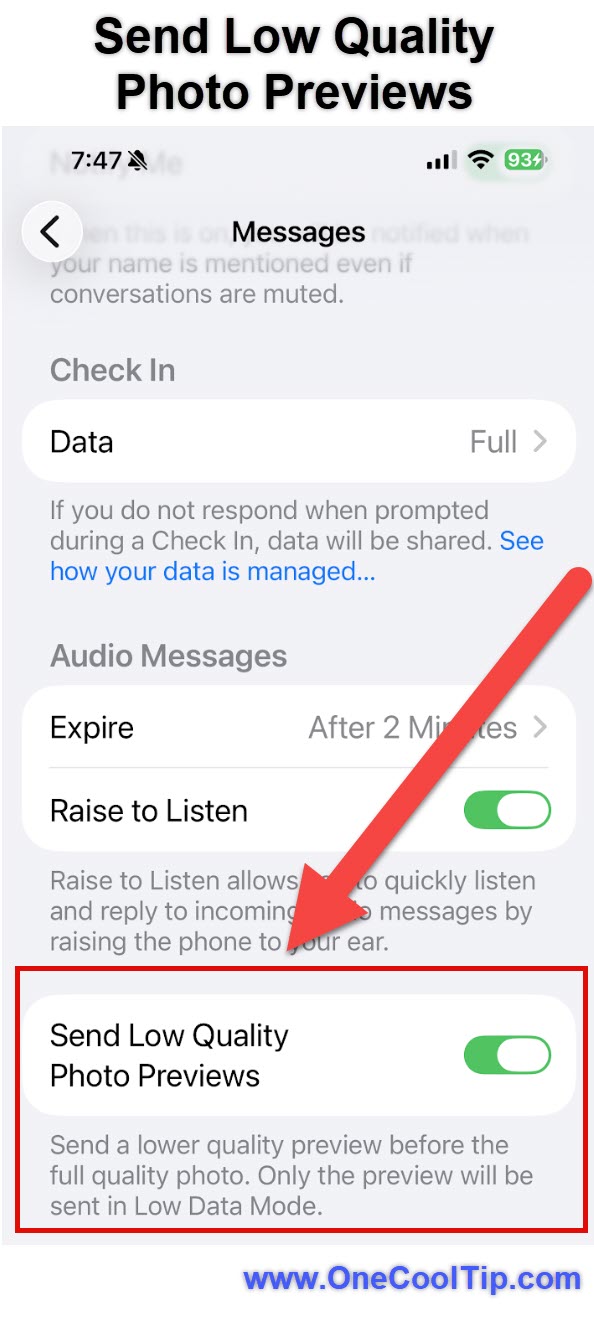
  4. Turn on Send Low Quality Photo Previews.


fig. 1 - Send Low Quality Photo Previews

How to send a photo in Messages:


  1. Open the Messages app.
  2. Open a conversation.
  3. Tap the Add button.
  4. Tap Photos to choose an existing image, or tap Camera to take a new photo.
  5. Tap Done, add a comment if desired, and tap Send.


You can capture photos and videos directly in Messages, add existing photos or videos, edit images, mark them up, and send them from the message bubble.


Pros and Cons


Pros:


  • Faster photo previews: Recipients can see images sooner before full-resolution versions arrive.
  • Helpful on weak networks: Useful when cellular coverage is slow, congested, or inconsistent.
  • Good for group chats: Makes photo-heavy conversations feel more responsive.
  • Easy to enable: The setting is a simple toggle in Messages settings.
  • Useful for travel: Helpful when roaming, using limited data, or sharing photos from busy public places.


Cons:


  • Preview quality is lower: The first image your recipient sees may not show full detail.
  • Low Data Mode changes behavior: when Low Data Mode is on, only the preview is sent.
  • Carrier limits still matter: Carriers may set attachment size limits and iPhone may compress photos and videos when necessary.
  • Not ideal for quality-critical sharing: If image quality is critical, use a dedicated file-sharing method and verify the recipient received the version you intended.


Feature Access


  • Supported devices: Available in Apple Messages on supported iPhone and iPad devices, where the setting appears under Settings > Apps > Messages.
  • Cost: Free.
  • Limits: Carrier attachment limits may still apply, and photos or videos may be compressed when necessary.
  • Important note: If Low Data Mode is on, only the preview is sent, not the full-resolution image.


Score

Criterion | Score (0–10) | Justification
Value | 8
This solves a real everyday annoyance for people who send photos through Messages, especially while traveling or using cellular data.
Usability | 9
The setting is easy to enable once you know where to look. The only real caution is the Low Data Mode limitation.
Wow Factor | 6
It is not flashy, but it is a smart hidden setting that makes Messages feel faster in the right situation.
Total: 23/30 👍 Good
This is a practical iPhone setting worth enabling for faster everyday photo sharing.


Key Takeaways


Send Low Quality Photo Previews helps your iPhone send smaller photo previews first, so recipients can see images faster in Messages. 


It is especially useful on cellular data, during travel, or when sending multiple photos.


Just remember the key limitation: when Low Data Mode is enabled, only the preview is sent.


Cool Tip Snapshot


  • Feature Name: Send Low Quality Photo Previews.
  • Platform(s): iPhone Messages.
  • Quick Benefit: Sends smaller previews so photos appear faster.
  • Best For: Travelers, families, group chats, casual photo sharing.
  • Access Type: Free, built into iPhone Messages.
  • Difficulty: Easy.


Try It Yourself


Open Settings > Apps > Messages and turn on Send Low Quality Photo Previews today. 


Then send a few photos in Messages and see whether your conversations feel faster. 


If this tip helped, share this article with family, friends, and coworkers.


READ MORE


Read the Cool Tip on OneCoolTip.com.

Check out these Cool Tips & Tricks.


  • Find the Toggle: The setting is inside Messages, not Photos. Go to Settings > Apps > Messages and turn on Send Low Quality Photo Previews.


  • Check Low Data: Low Data Mode changes how this works. Go to Settings > Cellular > Cellular Data Options > Data Mode to see if Low Data Mode is enabled.


  • Use Wi-Fi: Large photo batches still send better on Wi-Fi. Connect to Wi-Fi before sending vacation albums or event photos.


  • Send Fewer: Smaller batches are easier to deliver. Send three to five photos at a time instead of twenty.


  • Use Links: For full-quality albums, use a shared link. Upload to iCloud Photos, OneDrive, Google Photos, or another cloud service and share the link.


  • Avoid Blur: The first image may be only a preview. Wait for the full-resolution image if detail matters.


  • Watch Backgrounds: Photos can reveal private details. Review the image before sending and crop out sensitive information.


  • Use Markup: Add arrows or circles before sending. Tap the photo in Messages, choose Markup when available, and save the edited version.


  • Try AirDrop: For nearby Apple users, AirDrop is often better for full-quality transfer. Open the photo, tap Share, then choose AirDrop.


  • Restart Messages: If sending stalls, refresh the app. Close Messages, reopen it, and try sending again on Wi-Fi.

ICYMI - In Case You Missed It ...

Supercharge Your Research: How to Open Links Side-by-Side with Gemini


Stop flipping between tabs and start multitasking like a pro with Chrome’s new split-screen AI research mode. Google Chrome now allows you to open links directly into a side-by-side view while keeping your Gemini AI chat active. This guide shows you how to use this new layout to verify facts and browse sources without ever losing your place in the conversation.


Read the Full Cool Tip.


Read the Newsletter Version.

Looking for your next adventure?


Call Denise at Travel For You.

314.660.3039


Sign Up for the Monthly Newsletter


http://www.travelforyouvacations.com/


https://www.facebook.com/TRAVEL.FOR.U/


See You Tomorrow

Tomorrow's Cool Tip is waiting to amaze you.


Until then, go forth and conquer the tech world with your newfound knowledge!


Be sure to visit www.OneCoolTip.com for Cool Tech Tips for a Cooler Life!


And if you Like One Cool Tip, please support with TipJar!


Enjoy!


Rodger

Chief Cool Tipper

onecooltip.com@gmail.com


What Do You Think?

What do you think of today's OneCoolTip newsletter?
Positive        Neutral        Negative
X Share This Email
LinkedIn Share This Email

Connect with One Cool Tip!!

Facebook  X  Instagram  Web  Pinterest  YouTube  LinkedIn
 

As an Amazon Associate, One Cool Tip may earn a small commission from qualifying purchases.


Our media content is intended solely for informational purposes only. Please do not construe anything here as legal, tax, investment, financial, marital or other advice.


Copyright © 2026 | www.OneCoolTip.com | All Rights Reserved