|
One Cool Tip Newsletter
July 23, 2025
| Your daily dose of tech-savvy brilliance! | |
😀Hello Rodger, Happy Windows Wednesday, Cool Tipper!
Get ready to streamline your digital life with simple, actionable tips delivered straight to your inbox.
Today's Cool Tip Theme: Windows and Apple iCloud
IN THIS ISSUE
- 🚨 Tariff Delay Scam Alert.
- ⚠️ Tech Security Shift.
- 🤖 AI for Kids.
- 💡 AI Productivity.
- 🐾 Fun with AI.
- ☁️ Apple & PC Sync.
- 🔗 iPhone-Windows Integration.
- ⚙️ Windows Start Customization.
- 🔒 PC Security.
New here? Subscribe to the One Cool Tip Newsletter for daily updates. It's FREE!
-
😂 Laugh with Us! Enjoy our Tech Joke of the Day, Haiku and Cool Tip Comics.
-
🌐 Stay Informed! Check out ICYMI, and our One Cool Tip Video.
🔔 Is your email provider (Gmail, Yahoo, Outlook...) not delivering the newsletter?
Check the Junk folder - Move the newsletter to your Inbox. And reply to this email with a “Hey, Rodger” or “I got it.” That tells your mail service you want this newsletter!
Today's Tech Trivia
What year did Apple first release iCloud, marking a big shift in how we store data across devices?
A) 2009
B) 2011
C) 2013
D) 2015
Answer at the end of this newsletter.
| | |
3️⃣
If you enjoy the One Cool Tip newsletter, please forward this newsletter to THREE friends or colleagues or share it on social media using the links below.
Share this One Cool Tip Newsletter!
| | |
🚨Tariff Delay Scam Targets Online Shoppers🚨
The Better Business Bureau is warning consumers about a rising scam where shady sellers claim your online order is stuck in customs due to tariffs. Victims are often asked to pay extra fees to “release” their package, only to discover the product never existed.
🛑 Red flags to watch for:
- Tariff or customs excuses for shipping delays.
- Requests for additional payment after checkout.
- Tracking numbers showing delivery to the wrong location.
- Vague or scripted customer service replies.
💡 Stay safe: Use a credit card for online purchases, research unfamiliar sellers, and report suspicious activity to the BBB Scam Tracker.
And in Other News...
- Microsoft Ends Use of China-Based Engineers for Pentagon Cloud Support
In response to national security concerns, Microsoft has halted its use of China-based engineers for maintaining U.S. Defense Department cloud systems. This decision follows a ProPublica investigation revealing that foreign engineers were indirectly involved in sensitive military infrastructure via a “digital escort” system, raising fears of potential cyber vulnerabilities.
🔐 Why it matters: The move underscores growing scrutiny over supply chain security and foreign access to critical U.S. systems. It’s a reminder for tech professionals to evaluate vendor practices and ensure compliance with cybersecurity standards.
- Elon Musk Unveils Baby Grok, AI for Kids
Elon Musk has announced Baby Grok, a child-friendly version of his Grok AI chatbot, designed for safe and educational interactions on the X platform. Developed by xAI, Baby Grok is a strategic pivot following criticism of Grok’s adult-themed avatars and controversial output. No date on when it will be available.
🧠 Why it matters: Baby Grok aims to provide age-appropriate learning tools, parental controls, and simplified responses tailored for children. It signals a growing trend in kid-focused AI, but also raises questions about transparency, safety, and oversight in emerging edtech platforms.
| | |
Try this AI prompt!
Copy/Paste this AI-powered prompt. Use with your favorite AI assistant: Gemini, Copilot, Grok, DuckAI, Meta and ChatGPT.
- Act as my productivity coach.
- It’s Wednesday, and I want to stay on track.
- Ask me what tasks I still need to complete this week, what’s blocking me, and what I’ve already accomplished.
- Then organize my answers into a short, realistic plan with priorities, quick wins, and tips to finish strong before Friday.
| | |
-
🖼️ Cool ChatGPT AI Prompt of the Day:
Here's a fun and practical use of ChatGPT. Try this!
8-bit Pet
- 📸 First, upload a clear photo of your pet.
- Then use this prompt:
- "Create an image of my pet as a pixel-style video game character. Base it on the uploaded photo. Show my pet in an 8-bit retro game style with a fun outfit that matches their personality (like a wizard cloak, superhero cape, or space suit). Place them in a video game scene—like a forest level, space arena, or neon city. Make it look like a screenshot from an old-school Nintendo game."
| | | |
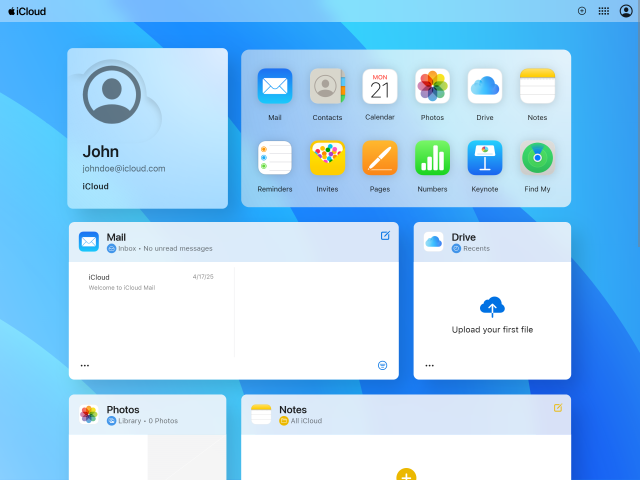
How to Set Up iCloud on Windows
Ever feel like your PC is the odd one out in your Apple ecosystem?
You snap a photo on your iPhone and still have to dig through email or upload it manually to your Windows computer.
Here's a Cool Tip: Connect iCloud to Windows.
With iCloud for Windows, everything, photos, documents, contacts, becomes instantly available in File Explorer. It's like training a cat to fetch: surprising at first, but you won’t know how you lived without it.
What You'll Gain
- Universal photo access: view iPhone pictures on your PC without cables.
- Password autofill: use your iCloud passwords in Chrome or Edge browsers.
- File collaboration: share and organize iCloud Drive files seamlessly.
Step‑by‑Step Instructions
Here's how to do it.
Microsoft Web/Desktop (Windows)
- Download iCloud for Windows from the Microsoft Store.
-
Launch the app once installed.
-
Sign in with your Apple ID. Use the same one used on your iPhone or Mac.
-
Verify your identity if prompted, using a trusted device or phone number.
-
Select the features you want to enable: Photos, Drive, Mail, Contacts, Bookmarks, and Passwords.
- For more control, click the Options button next to each module to adjust settings (e.g., choose your iCloud Photos folder location).
- Click Apply to confirm your selections, choose whether to share analytics, then click Finish Setup.
-
Open File Explorer, and click iCloud Drive or iCloud Photos in the sidebar to start accessing your synced content.
iOS (iPhone/iPad)
- Open Settings > [your name] > iCloud.
- Toggle on modules like Photos, iCloud Drive, Passwords, and Mail.
- Make sure iCloud Photos is fully uploaded for PC sync.
Android
- Unfortunately, there’s no iCloud for Android—but iCloud.com works via any browser. Access files and mail directly online.
Pros and Cons
Pros
- Truly cross‑platform syncing for files, mail, contacts, calendars, photos, and passwords.
- No cables or manual uploads necessary. Many key iCloud items become accessible in File Explorer and Outlook automatically.
- Excellent for business continuity: edit a document on PC after saving it on Mac or iPhone, and get instant sync.
Cons
- Setup quirks: older Windows versions or PCs missing the Media Feature Pack may show install errors.
- Occasional sync glitches, forums report issues like Photos “initializing” indefinitely (workarounds include resetting Windows sockets, changing folder path).
- Password support limited to Chrome/Edge, not Firefox on Windows.
Feature Access
-
General public: anyone with an Apple ID.
-
Windows version requirements: Must be Windows 10 (May 2019 update or later) or Windows 11. Media Feature Pack required if missing.
-
Apple side requirements: iCloud set up already on iPhone, iPad, or Mac. Apple-managed accounts (e.g., those provided by schools or businesses) are not supported.
-
Advanced protections: If you use Advanced Data Protection or security keys, ensure you're on iCloud for Windows 14.1+ or 15+. Bluetooth/Wi‑Fi proximity required.
Score
Criterion Score (0–10) Justification
Value 9
Seamless cross‑platform sync tackles a genuine productivity pain for hybrid Apple/PC users.
Usability 7
Installation is straightforward, though occasional install errors or folder‑permission issues might deter some.
Wow Factor 6
It’s not flashy, but easy access to iCloud assets via familiar Windows interfaces still impresses.
Total: 22/30 👍 Good. Worth adopting for most users.
Key Takeaways
iCloud for Windows integrates key Apple assets, including photos, files, mail, contacts, and passwords, into familiar Windows tools like File Explorer and Outlook.
Setup takes minutes, and it solves the hassle of manually moving data between platforms.
Try It Yourself
Set up iCloud on your PC today and let us know how it changes your workflow.
READ MORE
Read the Full Cool Tip
| | |
Help support One Cool Tip. Use this Amazon link when you shop online.
Look at these Cool Products:
| |
-
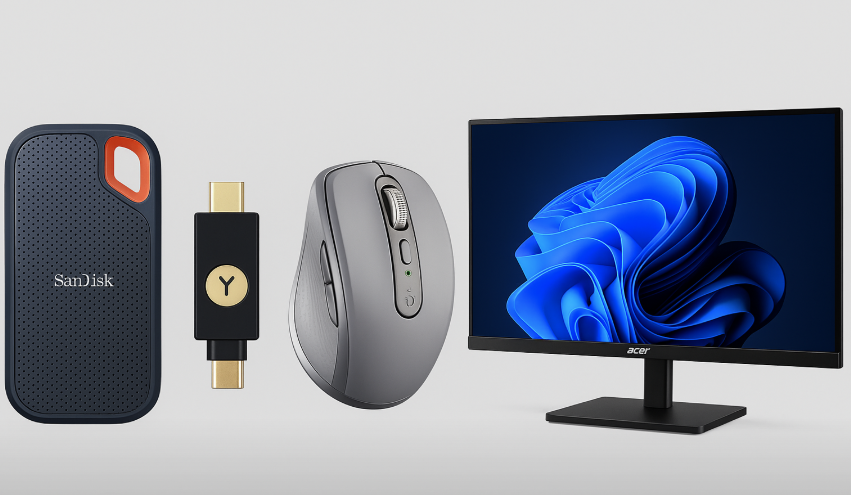
🖱️ Logitech MX Anywhere 3 - Compact, travel-friendly mouse that handles cloud browsing with ease. 👉 Check it out on Amazon!
-
🖥️ Acer 23.8” Full HD Monitor - Great for multitasking between iCloud Drive and local apps. 👉 Check it out on Amazon!
| | |
🆒Tell Me More
- You can sync iCloud Photos, Mail, Contacts, Calendars, Bookmarks, and even iCloud Passwords with a PC.
- iCloud for Windows integrates directly into File Explorer, making Apple’s cloud storage look and feel like part of Windows.
- Apple offers a browser extension to sync iCloud passwords with Chrome and Edge on Windows.
- Folder locations for photos and documents can be customized during setup.
- iCloud Mail integrates with Outlook automatically if selected during installation.
⏩Quick Tips
- 📥 Download from the Microsoft Store: The latest version ensures auto-updates and compatibility. ➜ Search "iCloud" in the Microsoft Store and click install.
- 🖼️ Use iCloud Photos Folder: Access your iPhone photos from File Explorer. ➜ Open File Explorer > Click "iCloud Photos" in the sidebar.
- 🛠️ Customize Sync Options: Don’t need Mail or Bookmarks? Turn them off. ➜ Open iCloud app > Check/uncheck desired services.
- 🗂️ Access iCloud Drive Files: It works like a regular folder on your PC. ➜ After setup, go to File Explorer > iCloud Drive.
| | |
✅ More Must-Read Tech Tips
| | |
Have you ever found yourself juggling multiple devices, wishing for a way to streamline your digital life?
What if you could seamlessly integrate your iPhone or Android phone with your Windows 11 PC?
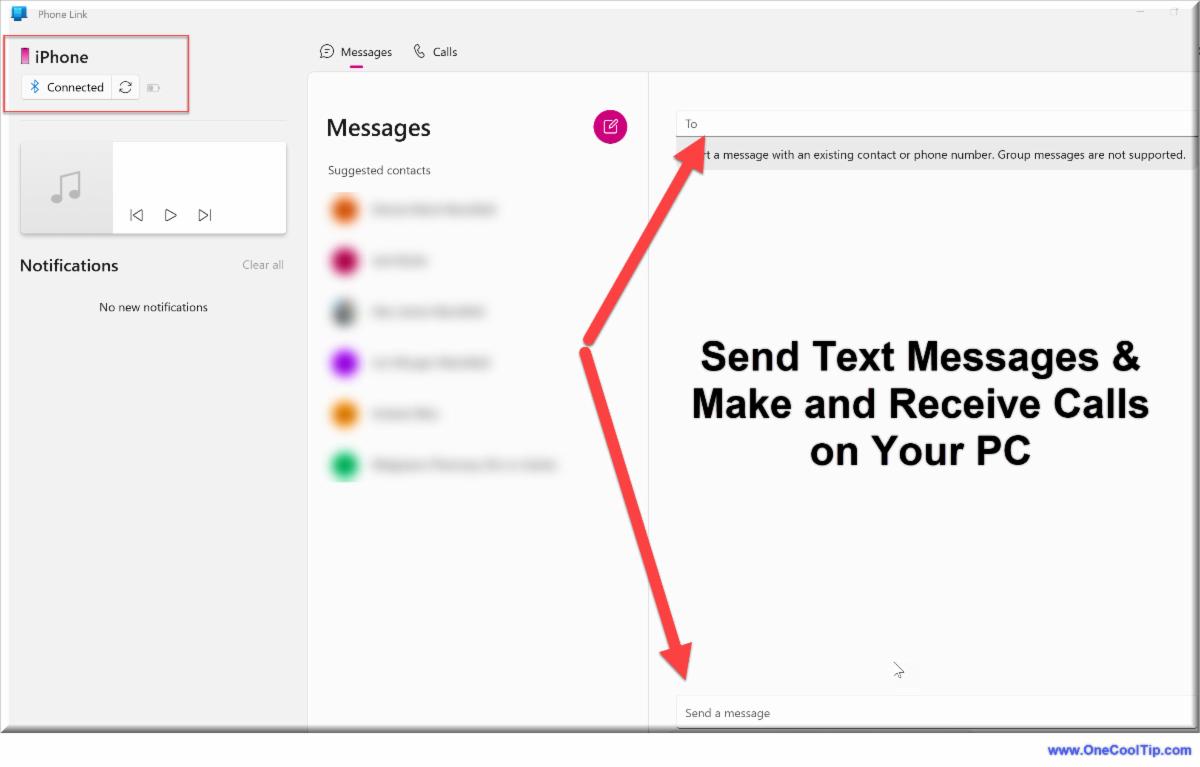
Here's a Cool Tip. Connect your phone to Windows 11 using Phone Link.
Windows Phone Link, previously known as “Your Phone,” is an application that allows you to connect your Android or iPhone to your Windows PC.
With Phone Link, you can enjoy a variety of convenient features, such as:
Syncing your smartphone with your Windows PC: Easily connect and manage your phone’s content from your computer.
-
Making and taking calls: Use your PC to handle phone calls without needing to pick up your phone.
-
Text messaging: Send and receive SMS and MMS messages directly from your PC.
-
Notification management: Check, pin, and dismiss your phone notifications on your computer.
-
Photo access: View and transfer up to the last 2,000 images from your phone’s camera roll to your PC.
The Android feature has been available and has more options.
The iPhone feature was added in 2023 and has less capability.
The Phone Link app comes preinstalled on Windows 11 and can be downloaded from the Microsoft Store for Windows 10.
It’s designed to make the transition between using your smartphone and PC seamless and efficient3.
Whether you’re using an Android or an iPhone, Phone Link provides a unified experience to manage your mobile tasks on a larger screen.
Here's how to do it.
Connect Your iPhone in a Snap:
-
Make sure your iPhone is running iOS 14 or later.
-
Type ‘Phone Link’ in the Start menu and open the app.
-
Select the iPhone option in the Phone Link app. A window with a QR code will appear.
-
Point your iPhone’s camera at the QR code. A notification will pop up; click it to open an App Clip.
-
Tap ‘Allow’ to let the App Clip access your iPhone’s Bluetooth.
-
Follow the prompts to pair your devices. Ensure the six-digit code matches on both your PC and iPhone, then tap ‘Pair’ on both devices.
Connect Your Android Effortlessly:
-
Ensure your Android phone is running Android 7.0 or later.
-
Download the ‘Link to Windows’ app from the Google Play Store if it’s not pre-installed.
-
Search for ‘Phone Link’ on your PC and open the app.
-
Choose the Android option and scan the QR code displayed by the Phone Link app using your Android phone.
-
On your Android phone, customize the notification preferences and ensure settings like ‘Share notifications’ and ‘Sync Contacts’ are turned on.
Connecting your smart phone to Windows using the Phone Link app allows easy access to phone notifications, messages, and calls on your PC.
Bridge the gap between your mobile and desktop worlds, making multitasking a breeze and keeping you connected no matter the platform.
Discover more HERE.
| | |
Windows 11 is Microsoft's latest operating system and it is full of changes - both big and small.
Long time users of Windows won't have a problem adjusting to the new system.
However, there's one small change that is annoying.
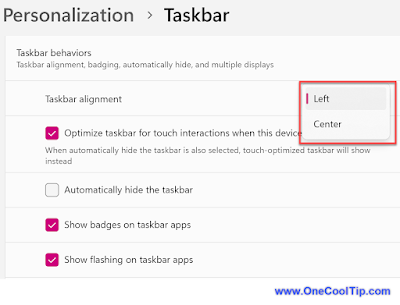
The Start button has moved from the far left of the task bar to the center.
It looks odd and out of place.
Here's how to move it back to the left, just like in the earlier versions.
-
Right-click the taskbar.
-
Open Taskbar Settings.
-
Select the Taskbar behaviors drop-down.
-
change Taskbar alignment to Left.
This will move all your taskbar icons to the left and put the Start button back where it belongs.
Find more HERE.
| | |
Do you lock your PC Screen when you are not at your desk?
Maybe you should.
Your PC probably contains a lot of personal and business information such as financial data, photos, and browsing history.
There are multiple ways to lock your Microsoft Windows screen.
Do you know them all?
Here are four ways to lock your Windows screen:
1. Windows-L
Press and hold the Windows key and the L key on your keyboard.
2. Ctrl-Alt-Del
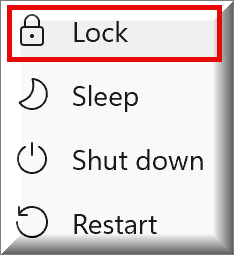
Press Ctrl-Alt-Delete keys. Select Lock.
3. Start button
Select the Start button in the bottom-left corner. Select the power icon and then select Lock.
4. Auto lock via screen saver
You can set your PC to lock automatically when the screen saver starts.
- Go to Control Panel
- Appearance & Personalization
- Change screen saver
-
check the box for On resume, display logon screen.
Be sure to set a time for how long your PC should wait before starting the screen saver.
Learn more HERE.
| | |
❓Did you share this newsletter with three friends yet?
😎 Cool Facts
-
2.35 Billion: 💻 Over 2.35 billion Apple devices are active globally, many syncing with Windows machines.🔗 Source
-
5GB: ☁️ 5 GB of free iCloud storage is included with every Apple ID.🔗 Source
-
70%: 🪟 More than 70% of global desktops still run Windows, making cross-platform sync essential.🔗 Source
-
2011: ☁️iCloud was Launched 14 Years Ago: iCloud first debuted in 2011, replacing MobileMe and significantly expanding Apple's cloud offerings. 🔗 Source
⌨️Today's Cool Keyboard Shortcuts
Cool Keyboard shortcuts:
-
Windows + E: Open File Explorer (to access iCloud Drive)
-
Ctrl + Shift + N: Create new folder in iCloud Drive
-
Alt + Tab: Switch quickly between Outlook, iCloud, and browser
-
Ctrl + P: Print documents directly from iCloud folders
-
Windows + S: Open search to find synced files
😜 Tech Joke of the Day 😅
Why did the iPhone get jealous of the PC?
It caught it syncing with iCloud!
🔎 Do you have a Cool Tip or tech question? Email us at onecooltip.com@gmail.com.
| | |
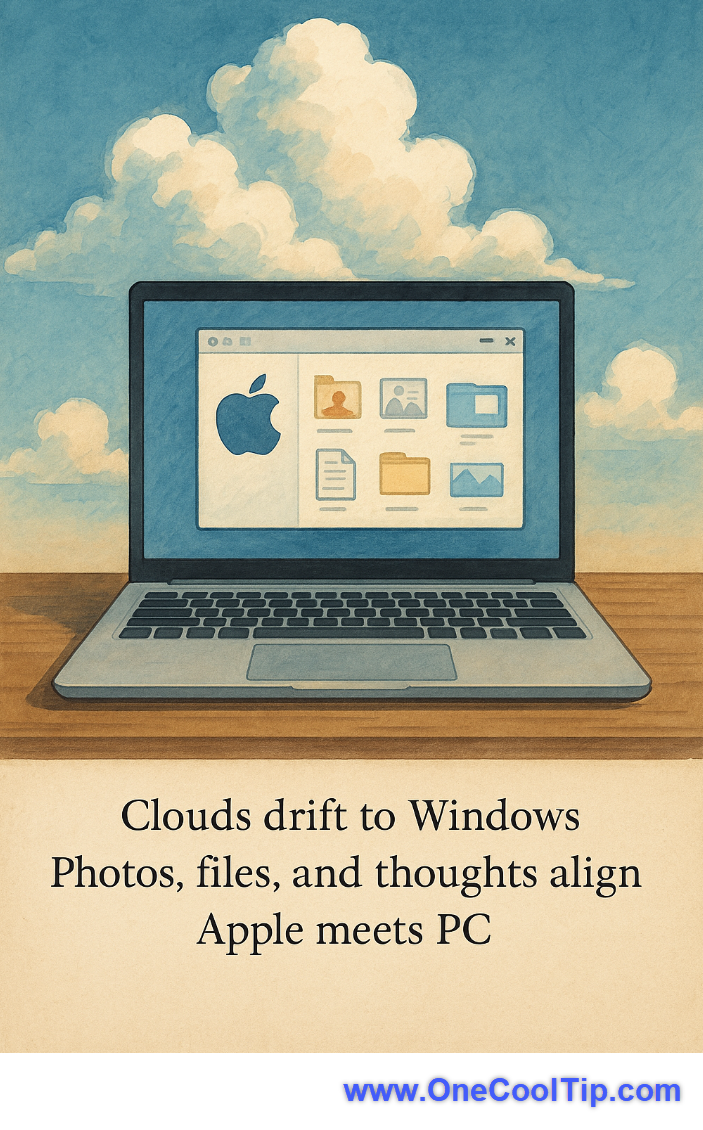
Clouds drift to Windows,
Photos, files, and thoughts align,
Apple meets PC.
| |
| 🤔 What do you use iCloud for the most? | | | |
Did You See These Cool Tips This Week?
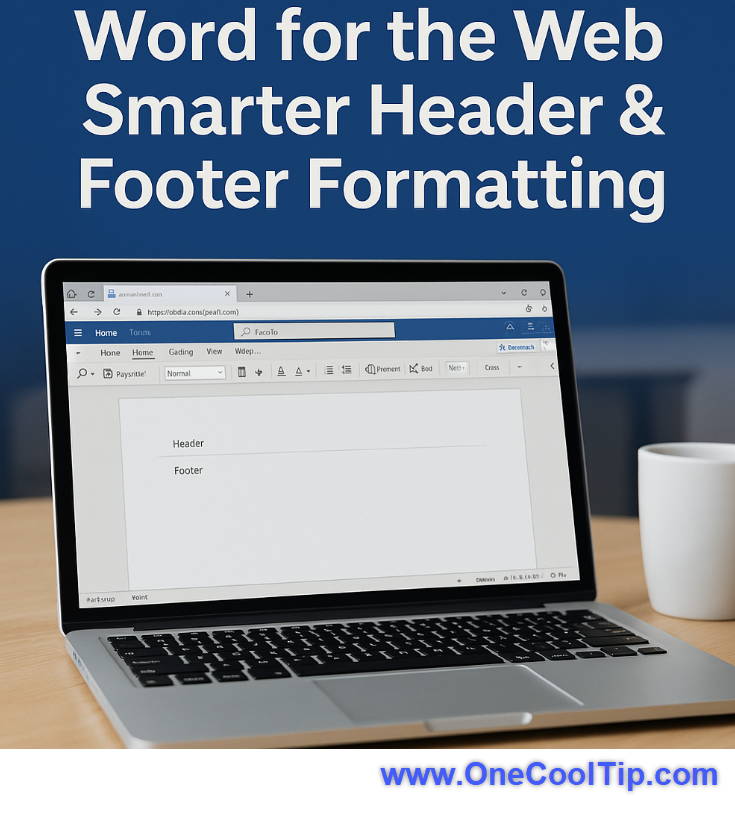
| | | | Google Photos' Ask Photos Gets a Powerful Brain Boost | Tired of endless scrolling to find that one photo? Google Photos' enhanced Ask Photos, powered by Gemini AI, is rolling out to more users, transforming how you interact with your visual memories and making complex searches remarkably simple. | | | | Word for the Web Gets Smarter: New Header & Footer Tools Save Time and Sanity | Word for the web just received a much-needed facelift. The new header and footer experience simplifies formatting, improves collaboration, and brings browser-based editing closer to its desktop counterpart. | |
ICYMI - In Case You Missed It ...
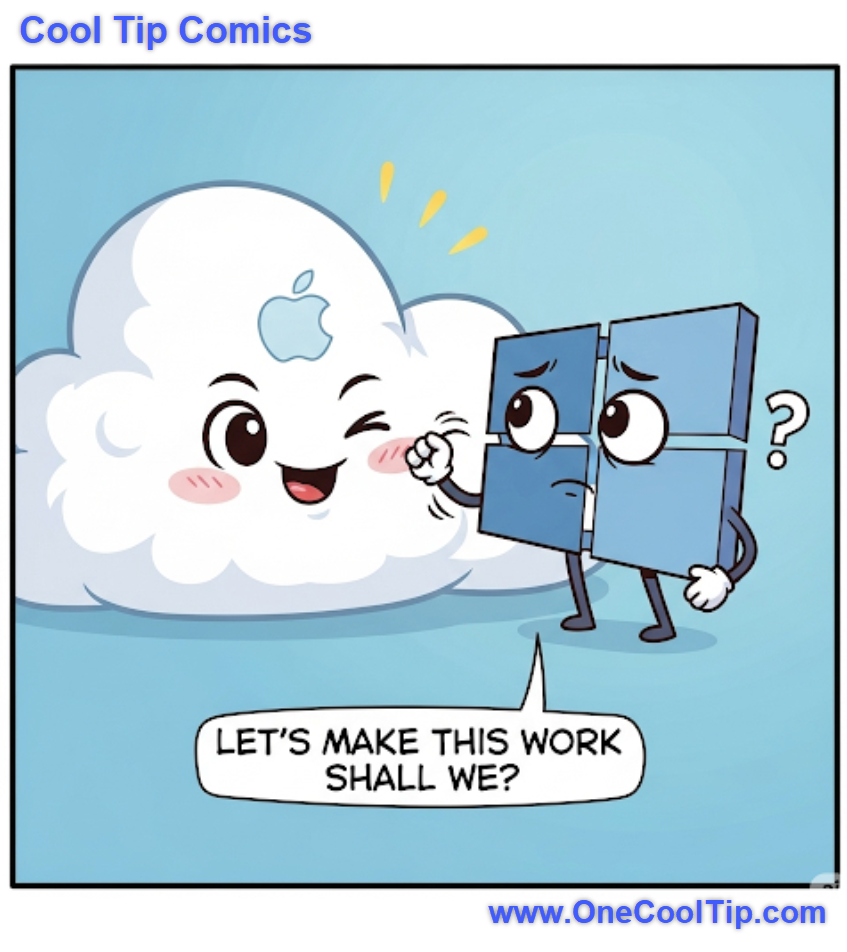
| | | | Search for Templates in Word, Excel & PowerPoint for iOS | Skip the blank page. Microsoft 365 now lets you search templates on iOS, giving your presentations, budgets, and reports a polished head start. | | Cross-platform compatibility has never looked so flirtatious. When Apple winks, even Windows blushes. 😏💼🌥️ | | |
Trivia Answer: B) 2011
Apple launched iCloud at its Worldwide Developers Conference in 2011 to replace the aging MobileMe service.
It was a game-changer, offering 5 GB of free storage and syncing everything from photos to emails.
Apple was finally catching up to the cloud craze Google had sparked.
The service evolved over time, adding features like iCloud Drive, and it’s fascinating to see how it’s shaped our reliance on seamless data access today.
----------
Tomorrow's Cool Tip is waiting to amaze you.
Until then, go forth and conquer the tech world with your newfound knowledge!
Be sure to visit www.OneCoolTip.com for Cool Tech Tips for a Cooler Life!
And if you Like One Cool Tip, please support with TipJar!
Enjoy!
Rodger
Chief Cool Tipper
onecooltip.com@gmail.com
| |
| What do you think of today's OneCoolTip newsletter? | | | |
Please Share the One Cool Tip Newsletter!
You asked for it. You got it. There is now a One Cool Tip Newsletter archive. Did you delete a newsletter and want to read it again? Check it out HERE.
Want to help One Cool Tip grow? Please forward this email using the link above. And if you see an OCT social media post, please LIKE, COMMENT and SHARE!
Have you subscribed to the One Cool Tip YouTube channel? Subscribe HERE.
| | Connect with One Cool Tip!! | | |
|
As an Amazon Associate, One Cool Tip may earn a small commission from qualifying purchases.
Our media content is intended solely for informational purposes only. Please do not construe anything here as legal, tax, investment, financial, marital or other advice.
Copyright © 2025 | www.OneCoolTip.com | All Rights Reserved
|
| | | |