|
Look closely - the colors on your USB ports are more than just aesthetics.
Have a USB device near you? Look closely at the port -- do you see a color? It turns out that it actually means something. There's a standardized color scheme that communicates information about that device's capabilities and data transfer speed.
Current USB speeds range from older 480 Mbps (USB 2.0) to blazing fast 80 Gbps+. Note - BLUE is the sweet spot when buying USB-C Flash Drives and Computer ports.
-
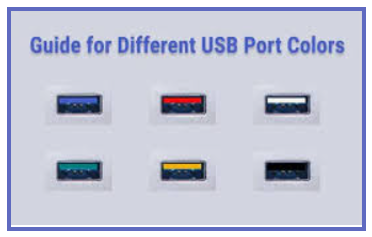
Black: Denoting USB 2.0, this is the second most common you'll see on devices of all types, supporting speeds of up to 480 Mbps.
-
White: These are first-generation devices -- USB 1.x -- with the slowest potential transfer speeds that don't typically exceed 12 Mbps. They're also some of the most common, found on devices that don't require data transfer or high power delivery.
-
Yellow: These ports can support either USB 2.0 or 3.0, and are "always on", meaning they can supply power even when the device they're connected to is off.
-
Orange: Like yellow, but with support for USB 3.0. Always on. You might see these on your pair of headphones.
-
Blue: Supporting USB 3.0 SuperSpeed technology and above, blue ports identify a device capable of fast data transfer: up to 5 Gbps (that's 5,000 Mbps) -- a significant jump from previous generations. Besides laptops, you'll see blue ports on thumb drives and external storage.
-
Teal: Just like blue, but denoted as USB 3.1, supporting faster transfer speeds of up to 10 Gbps.
-
Red: These are the newest and fastest devices available, categorized as USB 3.1 Generation 2 and USB 3.2. They support another significant increase in data transfer speeds -- up to 10-20 Gbps. Red USB ports are also always on.
If your laptop's USB ports don't have a color, it simply means the manufacturer chose not to use a color for design or budget reasons.
A step above standard USB-C are Thunderbolt ports, often marked with the Thunderbolt icon next to the port itself, which support speeds of up to 40 Gbps. These ports support some of the fastest USB transfer speeds available on the market, and you'll see them on high-end laptops.
USB 4 is one of the newest and most powerful technologies available, with select laptops currently supporting this technology. The MacBook Pro M4 is one such example, with speeds up to 120 Gbps. USB 4 and Thunderbolt ports are backward compatible with previous versions (as are most USB ports) , so they have no problem running slower devices when plugged in.
With Thanx to Kyle Kucharski at ZDNET
|