|
One Cool Tip Newsletter
August 6, 2025
| Your daily dose of tech-savvy brilliance! | |
😀Greetings! Happy Windows Wednesday, Cool Tipper!
Get ready to streamline your digital life with simple, actionable tips delivered straight to your inbox.
Today's Cool Tip Theme: Windows 11 Snap Assist
IN THIS ISSUE
- ⚖️ Beware Fake Jury Duty Websites.
- 🤖 Zuckerberg’s Vision: Personal Superintelligence.
- 🖼️ Try These Work AI Prompts.
- 💡 Cool AI Training Prompt.
- 🪟 Windows 11 Snap Assist Gets Smarter.
- ⌨️ Reset a Black Screen Instantly.
- 🗣️ Voice Typing on Windows 11.
- 🔔 Tame Your Notifications.
New here? Subscribe to the One Cool Tip Newsletter for daily updates. It's FREE!
-
😂 Laugh with Us! Enjoy our Tech Joke of the Day, Haiku and Cool Tip Comics.
-
🌐 Stay Informed! Check out ICYMI, and our One Cool Tip Video.
🔔 Is your email provider (Gmail, Yahoo, Outlook...) not delivering the newsletter?
Check the Junk folder - Move the newsletter to your Inbox. And reply to this email with a “Hey, Rodger” or “I got it.” That tells your mail service you want this newsletter!
Today's Tech Trivia
Which Windows version first introduced Snap Assist as a multitasking feature?
A) Windows Vista
B) Windows 7
C) Windows 8
D) Windows 10
Answer at the end of this newsletter.
| | |
3️⃣
If you enjoy the One Cool Tip newsletter, please forward this newsletter to THREE friends or colleagues or share it on social media using the links below.
Share this One Cool Tip Newsletter!
| | |
🚨Watch Out for Fake Jury Duty Websites🚨
The FTC warns of a new twist on jury duty scams: scammers now impersonate law enforcement and direct victims to fake websites that look official. These sites ask for sensitive info like your birthdate and Social Security number, and may demand payment, sometimes up to $10,000, via cryptocurrency or gift cards.
✅ Remember:
- Real police won’t call to threaten arrest over missed jury duty.
- Courts never demand payment through shady websites or untraceable methods.
- If in doubt, hang up and visit your court’s verified website directly.
Report scams at ReportFraud.ftc.gov. Stay sharp and share this alert with others who might be vulnerable.
And in Other News...
- Zuckerberg’s Vision of Personal Superintelligence
Meta CEO Mark Zuckerberg has unveiled a bold future powered by “personal superintelligence”, AI that deeply understands you and helps you achieve your goals, create, connect, and grow.
Key Highlights:
- Smart glasses will become your primary computing device, seeing and hearing what you do to assist in real time.
- Meta’s approach contrasts with centralized AI automation as Zuckerberg envisions AI as a personal empowerment tool, not a replacement for human effort.
- Meta is investing heavily in AI labs and smart wearables to make this vision a reality.
Why It Matters: This shift could redefine how we interact with technology, moving from screens to seamless, wearable intelligence.
Stay curious, and keep an eye on how this could reshape your digital life.
| | |
🚀 Make It a Great Week!
Try this AI prompt!
Copy/Paste this AI-powered prompt. Use with your favorite AI assistant: Gemini, Copilot, Grok, DuckAI, Meta and ChatGPT.
It’s Wednesday, the best day to try some AI prompts:
-
Email Polishing: "Rewrite this email to sound professional yet friendly, and keep it under 100 words."
-
Document Summarizing: "Summarize this 10‑page PDF into 5 key bullet points for an executive briefing."
-
Meeting Preparation: "Create a 5‑question agenda for a 30‑minute team meeting about ."
| | | |
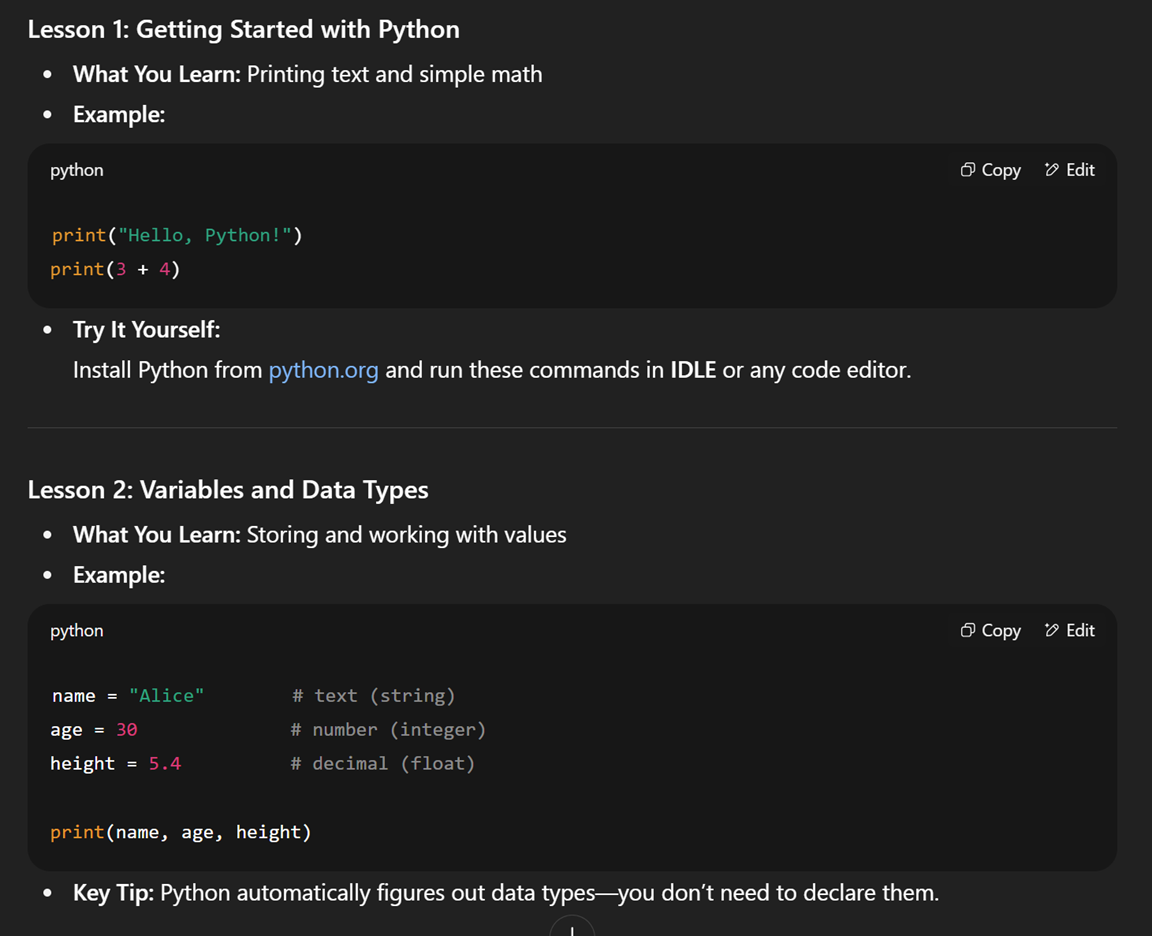
🖼️ Cool ChatGPT AI Prompt of the Day:
AI Training
Teach me the basics of Python programming (or enter other topic) in 5 short lessons.
| | |
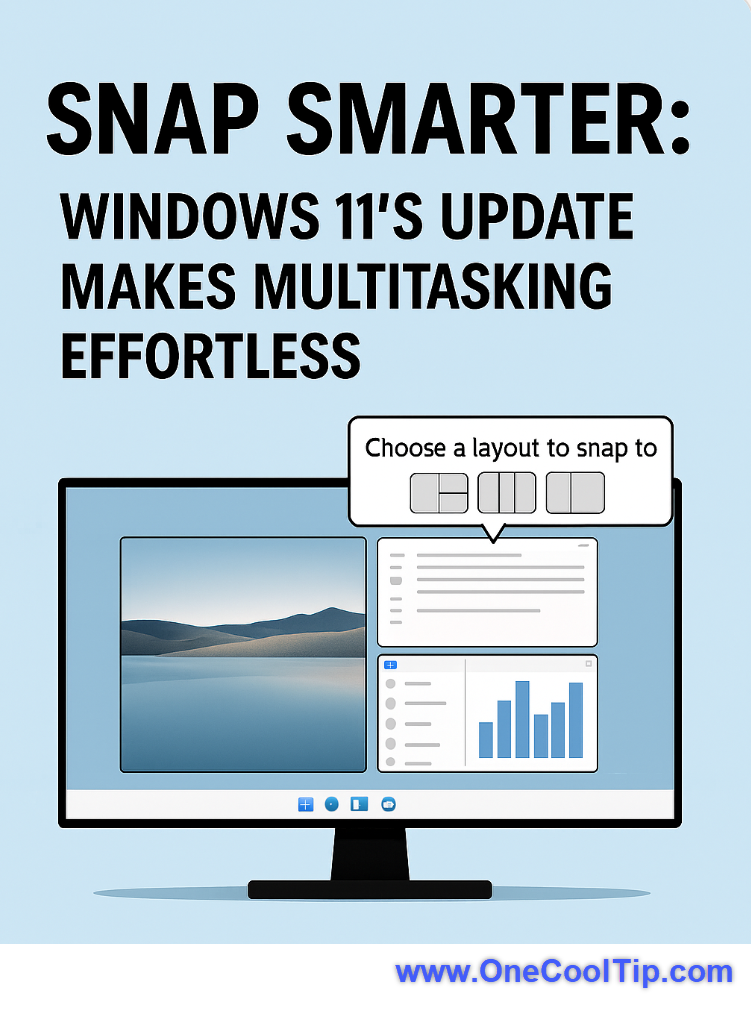
Snap Smarter: Windows 11's Update Makes Multitasking More Effortless
Have you ever dragged a window to the top of your screen and wondered what just happened?
Snap Assist has long been one of Windows 11’s most underrated productivity tools.
Here's a Cool Tip: Try the New and Improved Snap Assist.
In June 2025, Microsoft quietly gave it a thoughtful upgrade that makes snapping windows feel less like a guessing game and more like second nature.
Whether you're juggling spreadsheets, video calls, or browser tabs, the new Snap Assist improvements are designed to help you work faster with fewer clicks and more clarity.
What You'll Gain
- Save time with smarter Snap tips and shortcuts.
- Reduce clutter by organizing windows with precision.
- Boost productivity with intuitive layout suggestions.
What’s New in Snap Assist (June 2025 Update)
The June 2025 update (Build 26100.4762) introduces subtle but impactful changes to Snap Assist:
-
Inline Snap Tips: When you drag a window to the top center or hover over the maximize button, helpful messages now appear. These tips explain what Snap is doing and offer keyboard shortcuts to speed things up.
-
Improved Snap Bar Behavior: The Snap Bar now responds more predictably when dragging windows, reducing accidental triggers and making layout selection smoother.
-
Keyboard Shortcut Guidance: Snap Assist now shows shortcut hints (like Win + Arrow keys) when you initiate a snap, helping users learn without needing a manual.
These updates are part of Microsoft’s broader push to make Windows 11 more intuitive for everyday users, especially those who rely on multitasking.
Step-by-Step Instructions
Here's how to do it.
Microsoft Desktop/Web
- Drag any app window to the top center of your screen.
- Watch for the Snap Bar to appear with layout options.
- Hover over the maximize button for layout suggestions.
- You can also use Win + Z to see layout options with thumbnails.
- Use Win + Arrow Keys to snap windows instantly.
Pros and Cons
Pros:
- Great for multitasking and organizing windows.
- Inline tips reduce confusion for new users.
- Keyboard shortcuts improve speed and efficiency.
Cons:
- Still limited to desktop environments.
- Some users may find the Snap Bar intrusive until they get used to it.
Feature Access
Available to all Windows 11 users running versions 22H2, 23H2, or 24H2 with the June 2025 update installed.
Score
Score Criterion Justification
Value: 9/10
Improves multitasking and reduces friction for everyday users.
Usability:
9/10 Inline tips and shortcut hints make Snap Assist more accessible than ever.
Wow Factor:
7/10 Not flashy, but the subtle improvements genuinely enhance the experience.
Total Score: 25/30 🌟 Excellent. Highly recommended for immediate use.
Key Takeaways
Snap Assist’s June 2025 update makes multitasking smoother and smarter.
With inline tips and better layout control, users can organize their workspace with confidence and speed.
Try It Yourself
Give Snap Assist a spin today.
Drag a window, hover over maximize, and see the new tips in action.
READ MORE
Read the Full Cool Tip.
| | |
Help support One Cool Tip. Use this Amazon link when you shop online.
Look at these Cool Products:
|
-
🖥️ Dell UltraSharp Monitor: Boost your Snap Assist experience with a high-res monitor for better layout control. Check it out on Amazon!
-
⌨️ Logitech MX Keys Keyboard: Use Snap shortcuts with ease. This keyboard offers smooth key travel and customizable shortcuts. Check it out on Amazon!
-
🖱️ Microsoft Surface Mouse: Precision dragging for Snap Assist layouts—ergonomic and responsive. Check it out on Amazon!
| | |
🆒Tell Me More
- The June 2025 update (KB5060842) adds inline Snap tips when dragging windows or hovering over maximize.
- Shortcut hints now appear during snapping, helping users learn commands like Win + Arrow.
- The Snap Bar is more responsive and less prone to accidental triggers.
- Available for Windows 11 versions 22H2, 23H2, and 24H2.
⏩Quick Tips
-
🖱️ Hover for Layouts: Hover over the maximize button to preview Snap layout options.
-
🧲 Drag to Snap: Drag a window to the top center of your screen to activate Snap Assist.
- ⌨️ Use Shortcuts: Press Win + Left/Right Arrow to snap windows instantly.
- 🧠 Watch for Tips: Inline messages now explain what Snap is doing and suggest shortcuts.
-
🧹 Declutter Fast: Snap multiple windows to organize your workspace in seconds.
| | ✅ More Must-Read Tech Tips | |
👀 How Do I Respond When the Screen Goes Black?
Have you ever found yourself in the middle of an important task when your screen suddenly goes black?
What if there was a quick, easy solution right at your fingertips?
The Ctrl + Win + Shift + B shortcut is designed to reset the graphics subsystem on your Windows machine.
This can be particularly useful when you’re experiencing graphical issues or black screen problems.
Here's how to do it.
-
Press the Ctrl, Win, and Shift keys on your keyboard simultaneously, followed by the ‘B’ key.
- Your screen will go black for a split second and you’ll hear a beep, indicating that the graphics subsystem has been reset.
This shortcut provides a quick and easy way to troubleshoot and resolve common graphical issues without needing to restart your computer or delve into complex settings.
Discover more HERE.
| |
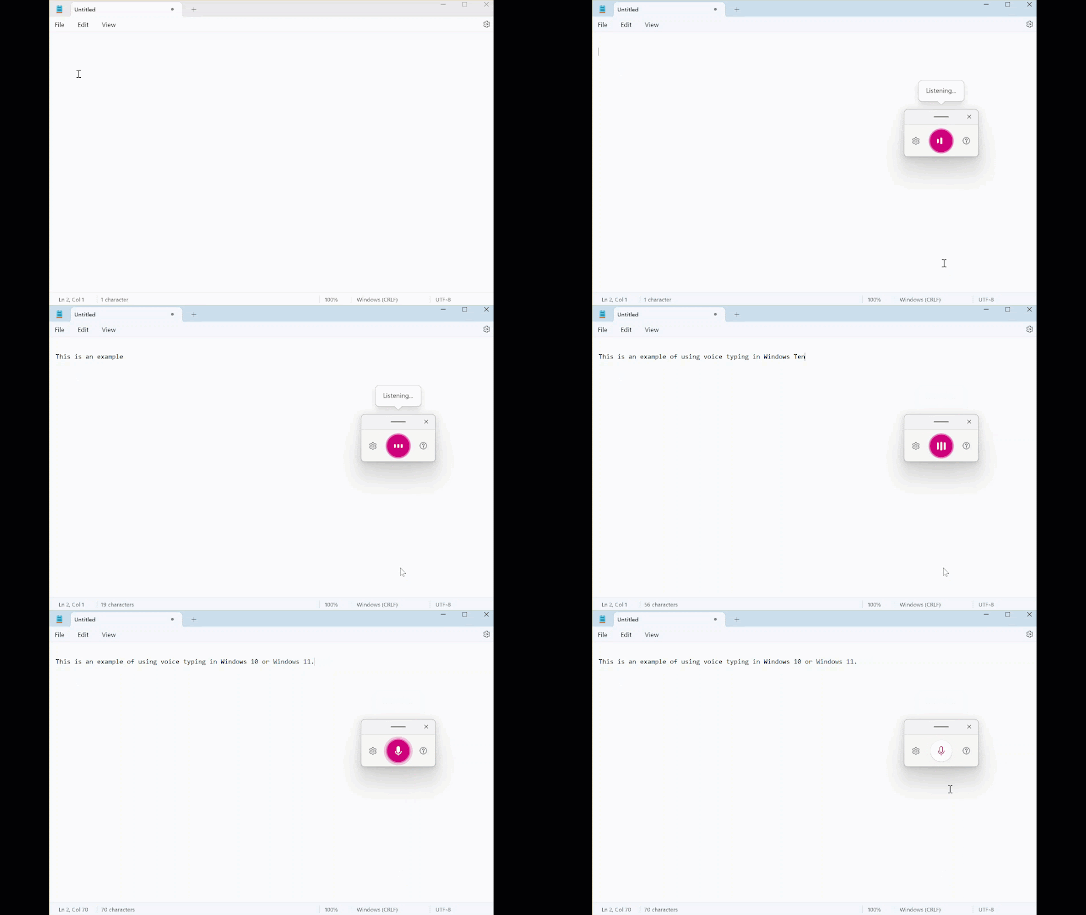
🤔 Have You Ever Wondered How to Voice Type on Windows?
Have you ever thought of dictating your thoughts to your computer and watching words magically appear on the screen?
Whether you’re drafting an email, jotting down notes, or crafting your next novel, Voice Typing on Windows 10 and 11 can make it happen.
Here's how to do it.
-
Connect a microphone to your PC and ensure it’s recognized by Windows.
-
Activate Voice Typing with the shortcut Win + H.
-
Start speaking naturally to dictate text; pause briefly between sentences for best results.
-
Edit on the go with commands like “delete that” or “start a new line.”
-
Review the transcribed text and make any manual adjustments if needed.
Voice Typing in Windows 10 and 11 is a game-changer for anyone looking to streamline their digital tasks.
By embracing this intuitive feature, you’ll unlock a new dimension of convenience and accessibility in your daily computer use.
Find more HERE.
| |
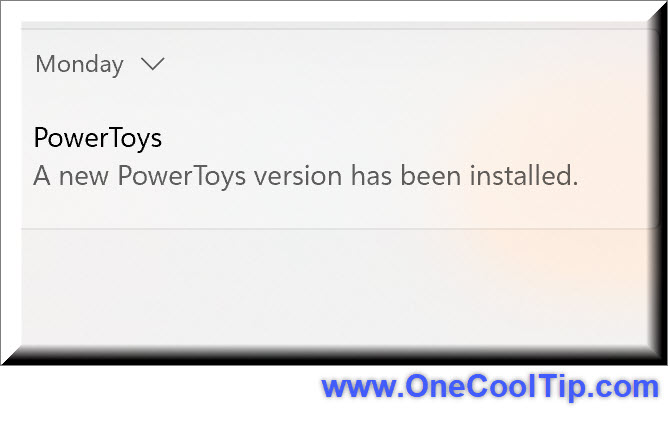
🙋♂️ Here's How to Navigate Windows 11 Notifications!
Have you ever found yourself overwhelmed by a barrage of notifications or missed an important alert?
Windows notifications are alerts that pop up on your screen to inform you about various activities on your computer.
They can come from the operating system itself, like reminders for updates or security alerts, or from apps, such as new email notifications or social media updates.
In Windows 11, these notifications are managed in the Notification Center, which is part of the taskbar.
Here's how to do it.
-
Click on the date and time on the taskbar or press Windows key + N to open the Notification Center.
-
Hover over a notification to reveal the ‘X’ to dismiss it or click to interact.
-
Go to Settings > System > Notifications to adjust which apps can send you notifications and how they appear.
-
Activate Focus Assist under Settings > System > Focus Assist to minimize distractions during work hours or while gaming.
By mastering Windows 11 notifications, you not only declutter your digital space but also ensure that you’re always in the loop with what matters most.
With these tips, you’ll enhance your productivity and maintain control over your tech environment.
Learn more HERE.
| | |
❓Did you share this newsletter with three friends yet?
😎 Cool Facts
-
50%: 🧠 Windows 11 Snap Layouts can improve productivity by up to 50% compared to manual window management. According to Microsoft, Snap Layouts help users stay organized and accelerate workflows significantly. Source.
-
42.7%: 🖥️ Windows 11 adoption reached 42.7% of Windows devices by March 2025, up from 35.8% in late 2024. This surge is attributed to enterprise upgrades and the end of support for Windows 10. Source.
-
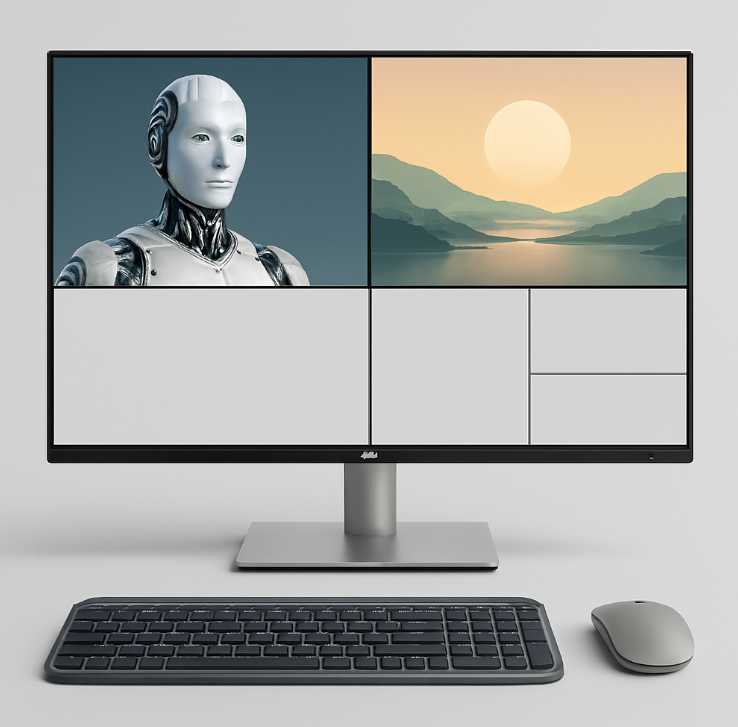
6: 🧭 Windows 11 offers up to 6 Snap Layout configurations depending on screen size and resolution.
⌨️Today's Cool Keyboard Shortcuts
Cool Keyboard shortcuts:
-
🪟 Win + Arrow Keys: Snap windows left/right/up/down (Windows)
-
🪟 Win + Z: Open Snap layout menu (Windows 11)
-
🪟 Win + Tab: Access Task View and virtual desktops (Windows)
-
🪟 Win + Ctrl + D: Create a new virtual desktop (Windows)
😜 Tech Joke of the Day 😅
What’s Snap Assist’s favorite sport?
Window wrestling.
🔎 Do you have a Cool Tip or tech question? Email us at onecooltip.com@gmail.com.
| | |
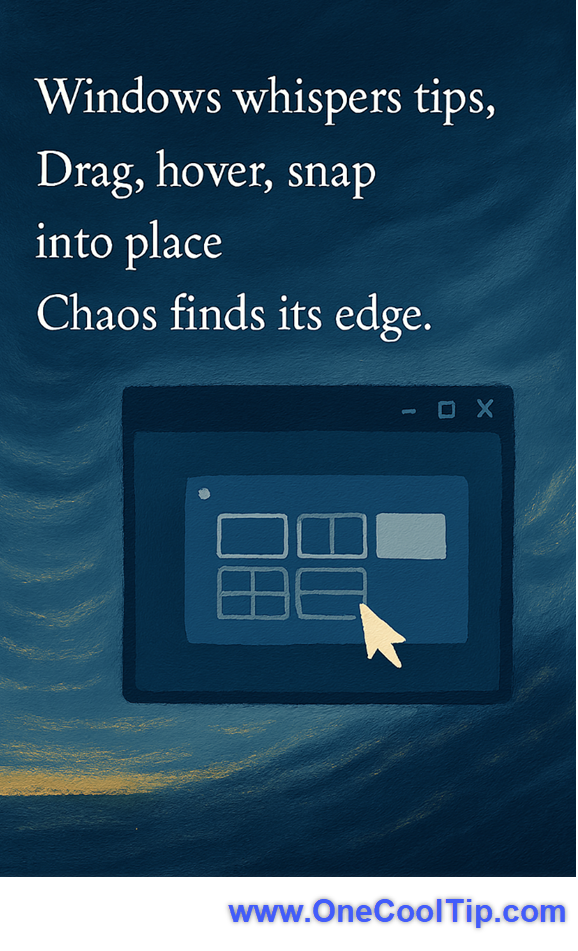
Windows whispers tips,
Drag, hover, snap into place.
Chaos finds its edge.
| |
| 🤔 How do you organize your workspace in Windows 11? | | | |
Did You See These Cool Tips This Week?
| | | | How to Lock Down Your WhatsApp Chats | Discover how WhatsApp’s new Advanced Chat Privacy feature stops chat exports, AI usage and auto‑downloads. | | | | Unlock Excel Compatibility Versions to Safeguard Your Formulas | Set Excel’s compatibility version to choose legacy or modern behavior, thus ensuring workbook formula consistency while tapping into new functions. | |
ICYMI - In Case You Missed It ...
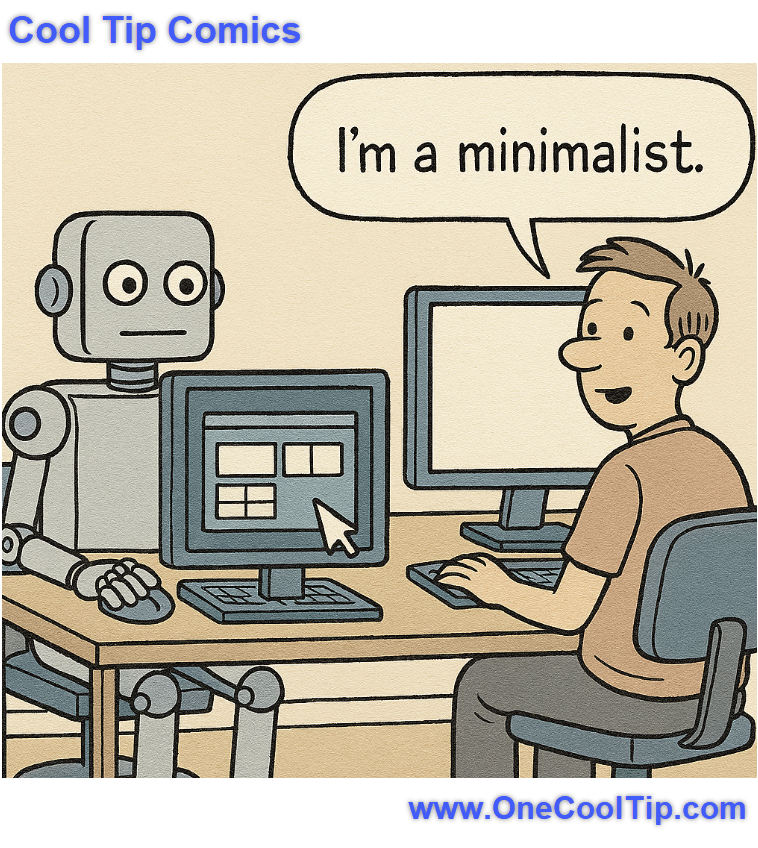
| | | | Find EV Charging Stations Faster with Waze | If you drive an EV, Waze’s built-in EV charging station search feature can save you serious time, stress, and battery anxiety. Learn exactly how to use it, plus why it’s a smart move for every EV owner. | | One optimizes productivity with pixel-perfect layouts… the other achieves inner peace with one colossal rectangle. | | |
Trivia Answer: B) Windows 7
Windows 7Snap Assist debuted in Windows 7 as part of the Aero interface, allowing users to drag windows to screen edges for automatic resizing.
It was a subtle but powerful shift in how users managed multitasking, and it’s evolved dramatically since.
----------
Tomorrow's Cool Tip is waiting to amaze you.
Until then, go forth and conquer the tech world with your newfound knowledge!
Be sure to visit www.OneCoolTip.com for Cool Tech Tips for a Cooler Life!
And if you Like One Cool Tip, please support with TipJar!
Enjoy!
Rodger
Chief Cool Tipper
onecooltip.com@gmail.com
| |
| What do you think of today's OneCoolTip newsletter? | | | |
Please Share the One Cool Tip Newsletter!
You asked for it. You got it. There is now a One Cool Tip Newsletter archive. Did you delete a newsletter and want to read it again? Check it out HERE.
Want to help One Cool Tip grow? Please forward this email using the link above. And if you see an OCT social media post, please LIKE, COMMENT and SHARE!
Have you subscribed to the One Cool Tip YouTube channel? Subscribe HERE.
| | Connect with One Cool Tip!! | | |
|
As an Amazon Associate, One Cool Tip may earn a small commission from qualifying purchases.
Our media content is intended solely for informational purposes only. Please do not construe anything here as legal, tax, investment, financial, marital or other advice.
Copyright © 2025 | www.OneCoolTip.com | All Rights Reserved
|
| | | |